



How to Connect Google Photos to All Cloud Hub
- Last Updated on 08 October 2026
- 4 Min Read
- Posted on July 30, 2026
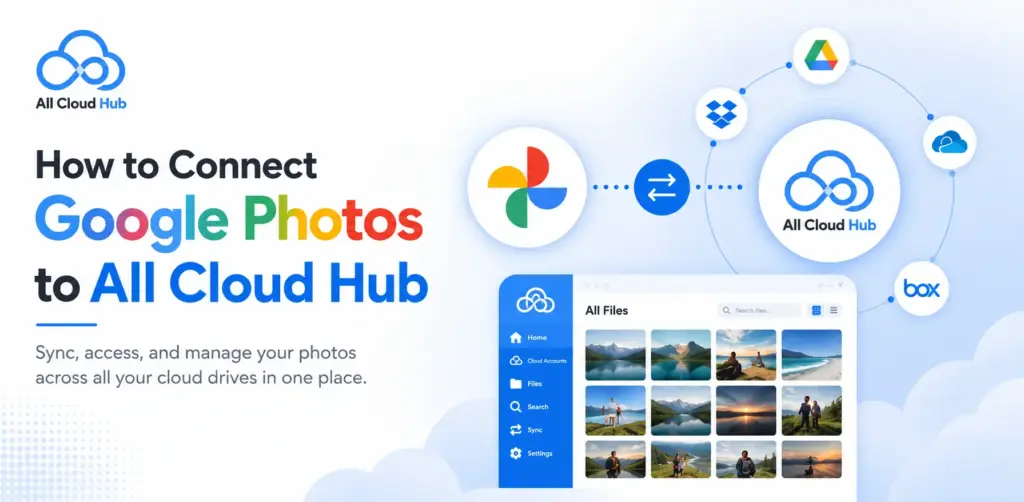
Keeping your photos organised becomes much easier when they’re accessible alongside your other cloud storage accounts. By connecting Google Photos to All Cloud Hub, you can manage your photo library from the same dashboard where you access services like Google Drive, Dropbox, OneDrive, MEGA, and more.
The connection only takes a few moments and uses Google’s secure authorisation process, so your account credentials always remain protected.
Step 1: Open the Connect Account Screen
From the All Cloud Hub dashboard, navigate to the Cloud Accounts section in the left sidebar.
Click Connect Account to open the list of supported cloud storage providers.
This is where you can add new cloud accounts to your All Cloud Hub workspace.
You can also connect new account from your Profile section.
Step 2: Add an Account Alias
Before connecting Google Photos, enter an Account Alias.
An Account Alias is a custom name that helps you distinguish this account within All Cloud Hub. If you connect multiple Google Photos accounts, assigning a meaningful alias makes it easier to identify the correct account later.
For example, you could use aliases such as:
- Personal Photos
- Family Album
- Work Media
- Travel Photos
After entering an alias, select Google Photos as the cloud provider.
Once both fields are completed, the Connect Account button becomes available.
Step 3: Sign In to Your Google Account
Click Connect Account.
You’ll be redirected to Google’s secure sign-in page.
Choose the Google account associated with the Google Photos library you want to connect. If you’re signed in to multiple Google accounts, simply select the appropriate one.
Step 4: Grant Access Permissions
Google will ask you to authorize All Cloud Hub to access your Google Photos account.
Review the requested permissions and click Continue to complete the authorization process.
All Cloud Hub uses Google’s secure OAuth authentication, so your Google account credentials are never stored by All Cloud Hub.
Step 5: Return to FileVerse
After approving the requested permissions, you’ll be redirected back to FileVerse automatically.
Your Google Photos account will immediately appear under the Cloud Accounts section using the Account Alias you created.
You can now begin browsing and managing your Google Photos library from within All Cloud Hub.
What You Can Do Next
Now that your Google Photos account is connected, you can:
- Browse your Google Photos library from FileVerse.
- Search for photos and other files across your connected cloud accounts from a single search bar.
- Transfer photos between Google Photos and other supported cloud storage services.
- Organize your cloud accounts from one unified dashboard.
- Connect additional cloud storage accounts to manage everything in one place.
If the Connection Fails
If the connection isn’t completed successfully, the account won’t be added to All Cloud Hub.
This can happen if:
- You close the browser before completing the authorization process.
- You decline the requested Google permissions.
- Your internet connection is interrupted during setup.
Simply return to the Connect Account screen and repeat the connection process. If the issue persists, verify that you selected the correct Google account and granted all requested permissions.
In Summary
Your Google Photos account is now ready to use with All Cloud Hub. From FileVerse, you can access your photos, manage your media alongside other connected cloud accounts, and make the most of All Cloud Hub’s cloud management features, all from a single, unified workspace.
Related Articles
After connecting Google Photos, you may also find these guides helpful:

