



How to Transfer Files Between Two Dropbox Accounts (Without Downloading)
- Last Updated on 28 July 2026
- 15 Min Read
- Posted on May 26, 2026
Dropbox does not have a built-in “merge accounts” button, but you can move files between two accounts without downloading anything to your device. The shared folder method works well for smaller transfers, while cloud-to-cloud tools like All Cloud Hub handle larger migrations entirely in the background.
Moving files around inside your own Dropbox is easy enough. But when you need to get files from one Dropbox account into a completely separate one, things get a little more complicated than most people expect.
Maybe you are switching from a work account to a personal one. Maybe you graduated and your university account is about to be shut down. Or perhaps you are a freelancer juggling a business and a client account and you want to consolidate everything in one place. Whatever the reason, the question of how to move files between two Dropbox accounts comes up more often than Dropbox’s own help pages would have you believe.
According to Dropbox’s 2025 fiscal report, the platform had over 18 million paying users worldwide, highlighting how common multi-account management and file migration challenges have become for both individuals and businesses.
The good news is that you do not have to download everything, fill up your hard drive, and re-upload it all again. There are a few ways to handle this, and the right one depends on how much data you are dealing with and how much time you want to spend on it. This guide covers all of them, along with the errors most people run into and how to avoid them.
Pick the Right Method for Your Situation
Before jumping into steps, it helps to know which approach actually fits your transfer. Here is a quick way to decide:
| Your Situation | Best Method |
|---|---|
| Under 2GB to move | Shared Folder Method |
| 2GB to 50GB | Link Two Accounts via Desktop App |
| Over 50GB or want hands-off migration | Cloud-to-Cloud Tool (like All Cloud Hub) |
| Just sending a final batch of files, no ongoing access needed | Dropbox Transfer Feature |
Method 1: The Shared Folder Method (Best for Small Transfers)
This is Dropbox’s own recommended workaround for transferring contents of one Dropbox account to another. It is free and requires no third-party tools, but it does have some important limitations you need to know before you start.
How it works:
- Log into Account A (the source account) on dropbox.com
- Create a new shared folder (give it any name you like)
- Invite Account B’s email address to that folder with “Can edit” permissions
- Move the files you want to transfer into that shared folder
- Open Account B in a separate browser window or incognito tab
- Accept the shared folder invitation
- Move the files out of the shared folder into Account B’s main storage
Once you move the files out of the shared folder on Account B’s side, they are removed from Account A. That completes the transfer.
Pro tip: Use two different browsers at the same time (for example, Chrome for Account A and Firefox for Account B) so you are not constantly logging in and out.
Watch Out: The Double Quota Problem
This is the part almost nobody warns you about. When you use the shared folder method, both accounts need enough available storage space to hold the files at the same time.
So if you are trying to move 15GB from a paid account to a free Dropbox account (which only gives you 2GB), the transfer will fail. The second account simply does not have enough room to accept it.
If you are running into this, here is one way around it: move files in smaller batches. Transfer a portion, move it out of the shared folder into Account B’s main storage, then go back and move the next batch. This frees up quota progressively and avoids the “folder too large to add” error.
If you need more room on the receiving account, you can look at ways to get more cloud storage before you begin.
Method 2: Link a Personal and Business Account on the Desktop App
If you have a Dropbox Business or Teams account alongside a personal one, there is a cleaner option built directly into the Dropbox desktop app.
How to set it up:
- Open the Dropbox desktop app
- Click your profile icon (top right corner of the app)
- Go to Preferences, then look for Connected Accounts or Add Account (the exact label may vary depending on your version) [Flag: Verify the exact label in the current version of the Dropbox desktop app, as the UI may have been updated.]
- Log in with your second Dropbox account
- Both accounts will now show up as separate folders on your computer
- You can drag files from one folder to the other
This is a great option for people who are syncing multiple Dropbox accounts on an ongoing basis. It feels like working with two regular folders on your desktop.
One important warning here: If you are moving large folders this way and those files are set to “Online Only” (meaning they are not already downloaded to your device), do not try to drag them directly.
The desktop app will attempt to download every file first, then re-upload them to the second account. On a slow connection or a lower-spec machine, this can freeze your sync queue and cause errors. Make sure files are fully downloaded (shown as a solid checkmark, not a cloud icon) before you move them.
Method 3: Use the Dropbox Transfer Feature (One-Way Handoff)
Dropbox has a built-in feature called Dropbox Transfer that is designed specifically for delivering a batch of files to someone else without giving them ongoing access to your folders.
It works like this: you package your files into a transfer, Dropbox generates a link, and the recipient can download everything from that link. Depending on your plan, you can send up to 100GB (Plus) or 250GB (Business and above) in a single transfer. Free accounts can send up to 2GB.
The recipient does not even need a Dropbox account to receive the files. You can set an expiry date on the link and even add a custom message.
This method is best for a clean, one-time file handoff rather than an ongoing migration. It is particularly useful for freelancers handing off a completed project to a client’s account. The downside is that the recipient gets a download link, not a cloud-to-cloud transfer, so they will need to re-upload the files to their own account if they want them in Dropbox.
Method 4: Use a Cloud-to-Cloud Tool for Larger Migrations
For anyone dealing with large amounts of data (think 50GB or more), or anyone who simply does not want to babysit the process, the most practical answer to how to migrate files between two Dropbox accounts is to use a cloud-to-cloud transfer tool.
These tools connect both Dropbox accounts through secure OAuth authorization and move files directly from one cloud account to the other, without routing anything through your device or using your local internet bandwidth. You can close your laptop and the transfer continues in the background.
This is where a tool like All Cloud Hub makes the process a lot simpler. You connect both Dropbox accounts to the dashboard once, select what you want to move, pick the destination, and that is it. The transfer runs directly between the two cloud accounts without touching your device or using your internet connection.
There is no file storage on their servers, authentication is handled through OAuth 2.0, and the transfers happen cloud-to-cloud. This is especially helpful if you are regularly exchanging files with Dropbox across accounts or managing files across several platforms at once.
Because All Cloud Hub works as a management layer across your connected accounts, it also makes it easier to manage multiple cloud accounts without switching between tabs or apps. If you have ever had Google Drive open in one tab, Dropbox in another, and OneDrive in a third, you know how quickly that gets messy.
For a step-by-step cloud-to-cloud transfer using All Cloud Hub:
- Sign in to All Cloud Hub and connect both Dropbox accounts using your Dropbox credentials (OAuth login, so All Cloud Hub never stores your password)
- Browse to the source account’s files in the dashboard
- Select the files or folders you want to move
- Choose the destination (your second Dropbox account)
- Start the transfer
The transfer runs in the background. You do not need to keep the browser open.
Things That Can Go Wrong (And How to Fix Them)
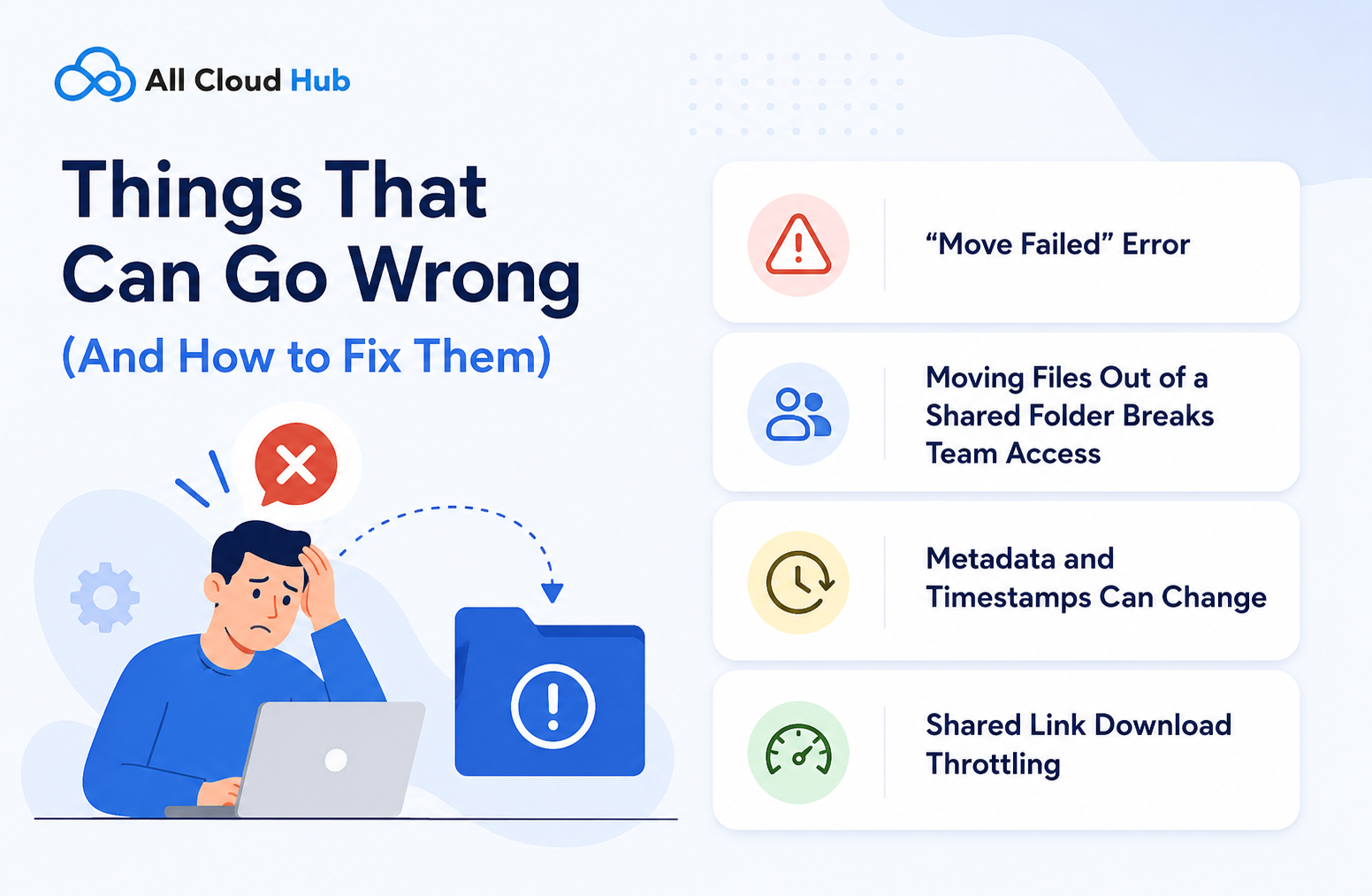
Most guides on how to move files in Dropbox stop at the steps. But anyone who has actually done a large migration knows that errors happen. Here are the most common ones.
1. “Move Failed” Error
This usually means one of three things:
- The destination account does not have enough space
- The file is set to “Online Only” and cannot be moved until it is downloaded
- You are trying to move a file out of a shared folder that you do not own
For the storage issue, move files in smaller batches and check your quota between transfers. You can also look at how to manage cloud storage more effectively to free up space before you start.
For Online Only files, right-click the file in the desktop app and select “Make available offline” before attempting to move it.
2. Moving Files Out of a Shared Folder Breaks Team Access
This is probably the most overlooked risk when people look up how to move files in Dropbox. If a file lives inside a shared folder that your teammates can access, and you move it out into your private storage, they lose access immediately. There is no warning.
Before moving anything out of a shared folder, check who has access to it and communicate with your team first. If the file is something others depend on, consider leaving a copy in the shared folder or creating a new shared location for them.
3. Metadata and Timestamps Can Change
When you drag files into a new shared folder as part of a transfer, the “Date Modified” and sometimes “Date Created” fields can get overwritten. For personal files this is usually fine, but for business files with important version histories, this can cause real problems.
If preserving timestamps matters to you, consider zipping folders before moving them. ZIP archives preserve the original file metadata inside the compressed container.
4. Shared Link Download Throttling
If you’re using Dropbox shared links to move data, be aware that Dropbox enforces daily bandwidth limits on link downloads. Exceeding those limits can temporarily disable the shared link. By connecting both cloud accounts in All Cloud Hub, you can transfer files directly between them without relying on shared links. Transfers are subject to your All Cloud Hub plan’s monthly transfer allowance.
Can You Merge Two Dropbox Accounts?
Straightforward answer: no, not natively. Dropbox does not offer a “Merge Accounts” button for individual users. The methods above are all workarounds.
The one exception is Dropbox Business Teams. If your organization runs two separate Business team accounts, admins can initiate an actual team merge through the admin console. One team becomes the “child” and sends an integration request to the “parent” team, which then absorbs the users, files, and seat licenses. This is a multi-step administrative process and is only available for Business accounts, not individual or Plus plans.
Transfer Dropbox Files the Easier Way
All Cloud Hub lets you move files between Dropbox accounts directly through secure cloud-to-cloud transfers. Perfect for large migrations, ongoing syncs, and managing multiple storage accounts from one dashboard.
Before You Delete Your Old Account
If your goal is to fully migrate files between two Dropbox accounts and then close the old one, do not delete the source account until you have done the following:
- Confirmed all files have successfully arrived in the destination account
- Transferred ownership of any shared folders you created (if you delete the account without doing this, the shared folder and its contents can be deleted for everyone who had access)
- Saved or updated any shared links you sent to clients or collaborators (those links will stop working once the account is closed)
- Disconnected any third-party apps that were authorized through the old account
Transferring folder ownership before deleting Account A is the step most people miss. In Dropbox, you can do this through the sharing settings of a folder by changing the owner to Account B before you close Account A.
What About Syncing Two Dropbox Accounts Ongoing?
If your goal is not a one-time migration but rather keeping two accounts in sync on a regular basis, that is a different situation. The shared folder trick works for an initial transfer, but it is not a reliable sync solution. Tools like All Cloud Hub let you sync Dropbox accounts and even sync across supported cloud platforms, which is useful if you are working across Dropbox, OneDrive, and Google Drive at the same time.
For anyone regularly handling large files across accounts, it is also worth thinking about where you are storing things long-term. If Dropbox’s storage limits are becoming a friction point, there are some solid options covered in this guide to easily store large files in the cloud.
Summary: Which Method Should You Use?
Here is the short version:
- Moving a few files or folders under 2GB: Use the shared folder method directly on dropbox.com
- Moving 2GB to 50GB: Link both accounts in the Dropbox desktop app and drag between folders, but make sure all files are downloaded first
- Sending a final project or batch of files: Use Dropbox Transfer for a clean one-way delivery
- Moving 50GB or more, or wanting a hands-off migration: Use a cloud-to-cloud tool like All Cloud Hub
The most important things to remember when you are figuring out how to move files in Dropbox between accounts: check your storage quota on both sides before you start, handle shared folder ownership carefully, and if you are dealing with a large migration, let a cloud-to-cloud tool like All Cloud Hub do the heavy lifting so your connection and your device stay free.
If you are concerned about the privacy side of all this, it is worth reading about cloud storage privacy and what actually happens to your files when they move between services. And if something went wrong during a previous transfer attempt, this guide on how to recover deleted files from cloud storage may help you track down anything that went missing.
Frequently Asked Questions
Q1. Can I transfer files between two Dropbox accounts without downloading them to my device?
Yes. The shared folder method on dropbox.com moves files between accounts without downloading anything locally. For larger transfers, cloud-to-cloud tools like All Cloud Hub handle the entire migration directly between the two accounts in the background, so your device and internet connection are not involved at all.
Q2. Do both Dropbox accounts need enough storage space for the transfer to work?
Yes, and this is where a lot of transfers fail. When using the shared folder method, both accounts need enough free space to hold the files at the same time. If the receiving account does not have enough room, the transfer will be rejected. Moving files in smaller batches is one way around this. Upgrading storage on the receiving account before you start is another.
Q3. What happens to shared folder access when I move files out during a transfer?
If the files you are moving live inside a shared folder that your teammates can access, moving them out will cut off their access immediately. Dropbox does not send a warning before this happens. Always check who has access to a folder before pulling files out of it, and let your team know in advance.
Q4. Is there a way to transfer files between two Dropbox accounts on an ongoing basis, not just once?
The shared folder workaround is not reliable for ongoing sync. For that, All Cloud Hub is a much better fit. It lets you connect both Dropbox accounts and keep folders in sync continuously from a single dashboard. It also works across other cloud platforms like Google Drive and OneDrive, so if your files are spread across multiple services, everything can be managed from one place.
Q5. How do I move files in Dropbox between accounts without losing file metadata like creation dates?
Dragging files into a new shared folder can sometimes overwrite the original creation date and “Modified By” fields. If preserving that information matters to you, zip the folders before moving them. ZIP archives keep the original metadata intact inside the compressed file. When using All Cloud Hub for cloud-to-cloud transfers, the process is less likely to interfere with file structure since files are not being manually dragged between locations.
Q6. What is the easiest way to transfer files between two Dropbox accounts if I have a lot of data?
For anything over 50GB, the shared folder method and manual desktop dragging both become slow and unreliable. The easiest path is a cloud-to-cloud tool. All Cloud Hub lets you select your source Dropbox account, point it to the destination account, and run the transfer entirely in the background. You do not need to keep your device on, and your local internet bandwidth is not used. It is the most hands-off option available for large migrations.

