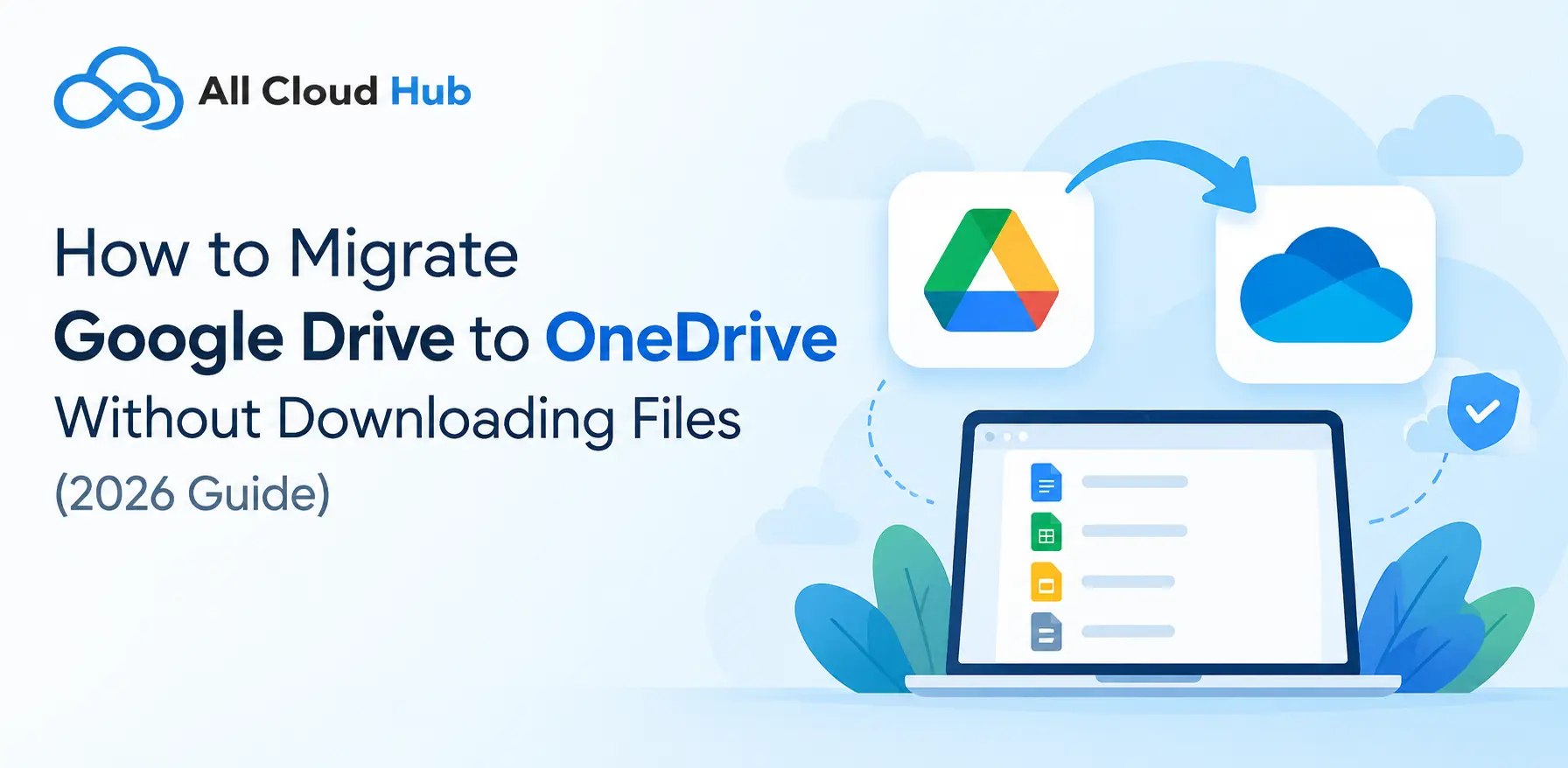
Everything You Need to Know About All Cloud Hub
Discover everything you need to know about All Cloud Hub, from cloud storage management and file transfers to backups, search,…
 Google to OneDrive
Move files from Google Drive to OneDrive
Google to OneDrive
Move files from Google Drive to OneDrive
 Dropbox to pCloud
Transfer files from Dropbox to pCloud
Dropbox to pCloud
Transfer files from Dropbox to pCloud
 Old OneDrive to New OneDrive
Migrate data to a new OneDrive account
Old OneDrive to New OneDrive
Migrate data to a new OneDrive account
 Old Dropbox to New Dropbox
Move files between Dropbox accounts
View All Transfer Guides
Old Dropbox to New Dropbox
Move files between Dropbox accounts
View All Transfer Guides
Connect Google Drive, OneDrive, Dropbox, iCloud, Google Photos and more.
Google to OneDrive
Move files from Google Drive to OneDrive
Dropbox to pCloud
Transfer files from Dropbox to pCloud
Old OneDrive to New OneDrive
Migrate data to a new OneDrive account
Old Dropbox to New Dropbox
Move files between Dropbox accounts
View All Transfer Guides
Connect Google Drive, OneDrive, Dropbox, iCloud, Google Photos and more.










 Free for up to 3 accounts
CASA Tier 2 Assessed
1-Minute Onboarding
Free for up to 3 accounts
CASA Tier 2 Assessed
1-Minute Onboarding
Free for up to 3 accounts
CASA Tier 2 Assessed
1-Minute Onboarding
Free for up to 3 accounts
CASA Tier 2 Assessed
1-Minute Onboarding 
Connect your clouds in 2 minutes.
Find any file across all drives.
Move files between clouds directly.
Backups that run themselves.
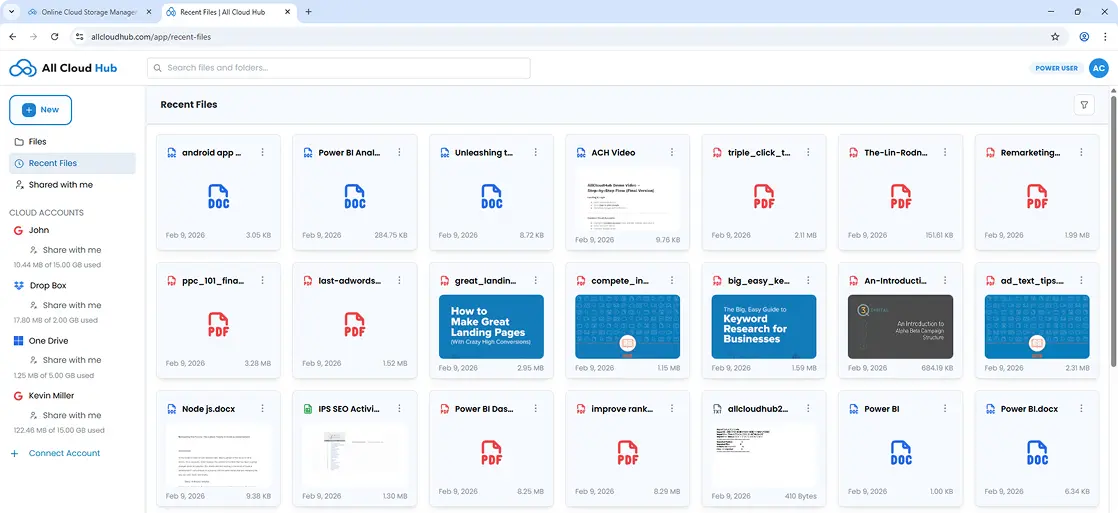
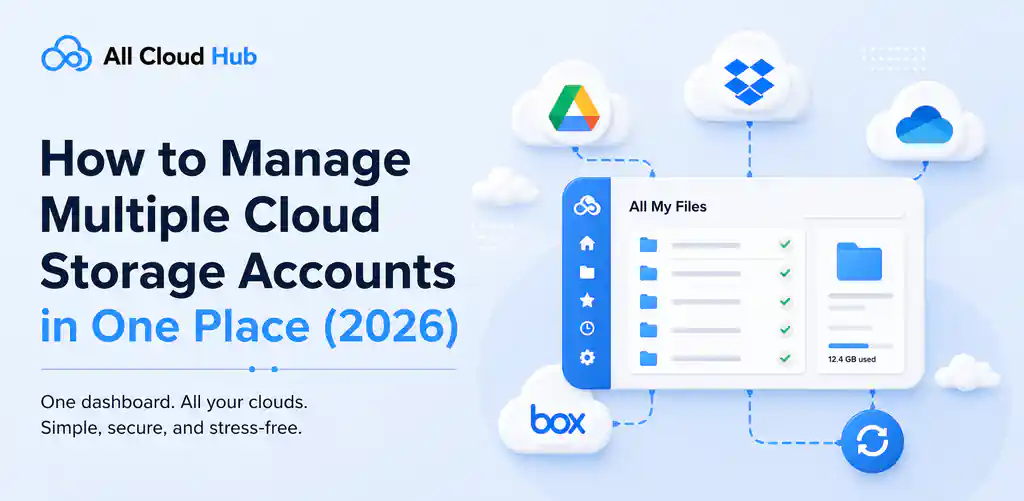
One view across all your drives.
Securely connect Google Drive, Google Photos, Microsoft OneDrive, Dropbox, pCloud, iCloud Photos, MEGA, iCloud Drive, Google Shared Drive, and Backblaze B2 using OAuth. No passwords are stored.
Search all your connected cloud drives at once. Results appear together – no switching, no repeating.
Transfer files cloud to cloud without downloading. Nothing routes through your device. Fast and clean.
Start a backup once and walk away. All Cloud Hub runs it in the background – no check-ins needed.
Group files from different clouds into one folder view. Nothing moves, each drive keeps its own storage.
We have completed CASA verification (Tier 2) for the Google API Services program, assessed by TAC Security as an independent auditor, providing assurance that Google Drive data is handled with strong controls.


Your privacy and security come first, always.
You sign in through your cloud provider directly. We never see or store your password.

We only view file metadata. We never access or store your files; they remain in your cloud accounts.

Changed your mind? Disconnect All Cloud Hub from any account instantly, from your dashboard or your provider’s settings.

Real people solving real cloud storage problems, in their own words.
*Slightly edited for clarity.
OAuth stays stable, nothing gets stored on their servers, files stay in your own accounts. Free plan covered my personal setup fine.


All Cloud Hub brings all your cloud accounts into one clear dashboard. When everything is visible in one place, managing access becomes deliberate instead of reactive.

Fast loading and beautifully designed. Great job!

I connected a couple of my cloud accounts just to test it and ended up keeping it the dashboard is simple and all my files show up in one place I also like that it does not store my files so it feels a bit safer compared to other tools
Found All Cloud Hub a while back. Connects Google Drive, OneDrive, Dropbox and pCloud into one dashboard. Makes it easier to maintain a multi-cloud setup without it becoming a mess.
I found All Cloud Hub a while back and didn’t expect much but it actually made things way easier I had files across Google Drive and Dropbox and was constantly opening tabs to find stuff now I just search once and it shows everything it honestly feels like how this should have worked from the start
A dashboard that lets you search and move files across accounts, saving time and reducing the hassle of switching between drives.
Wonderful idea.
What I like is that it does not try to replace your storage. Everything stays in your own drives, and this just connects them. I moved a bunch of files from one drive to other without downloading anything, which saved me a lot of time.
Neatly done. You guys are gonna take off real soon.
Connects all three into one dashboard so you can move files between clouds without downloading locally. Nothing stored on their servers, uses OAuth.

I have tried more advanced tools before, but they always felt complicated. This is much easier to use. It is not super technical, but for everyday stuff like searching files and moving things between accounts, it works really well.
Honestly one of the most useful cloud management apps I’ve tried. I had files spread across Google Drive, OneDrive, and Dropbox, and it was becoming difficult to keep track of everything. All Cloud Hub brings everything together in one place and makes file transfers incredibly simple. Fast, reliable, and surprisingly easy to use. Definitely worth trying.
As a freelancer, I have been using tge web version for a few months and it is way more easier to manage different files in one place than in different tabs. Now since the app has been launched I am glad that I can manage my files through my phone as well. It is such a stress relief! 😮💨🤏
I had 3 Google Drive accounts, and I never knew which photos were stored in which drive. I connected all my accounts to all cloud hub and now all my photos appear together in FilesVerse in one place. Thank you, all cloud hub Now I can finally see and access all my old photos without switching between different accounts. The experience is simple, smooth, and really helpful.
This is seriously impressive! The app feels polished, stable, and very thoughtfully designed. Managing multiple cloud services from one place saves so much time. I use it daily and the experience has been fantastic. Excited to see future updates!
Excellent app for Cloud file management. Smooth, fast, and very easy to use. Highly recommended!
It has simplified my workflow a lot. The app is responsive, intuitive, and packed with useful features without feeling complicated. Keep up the excellent work, team All Cloud Hub!
Great app for managing multiple cloud accounts in one place. Easy setup, simple interface, and cloud to-clou transfers save a lot of time…
OAuth stays stable, nothing gets stored on their servers, files stay in your own accounts. Free plan covered my personal setup fine.
All Cloud Hub brings all your cloud accounts into one clear dashboard. When everything is visible in one place, managing access becomes deliberate instead of reactive.
Fast loading and beautifully designed. Great job!
I connected a couple of my cloud accounts just to test it and ended up keeping it the dashboard is simple and all my files show up in one place I also like that it does not store my files so it feels a bit safer compared to other tools
Found All Cloud Hub a while back. Connects Google Drive, OneDrive, Dropbox and pCloud into one dashboard. Makes it easier to maintain a multi-cloud setup without it becoming a mess.
I found All Cloud Hub a while back and didn’t expect much but it actually made things way easier I had files across Google Drive and Dropbox and was constantly opening tabs to find stuff now I just search once and it shows everything it honestly feels like how this should have worked from the start
A dashboard that lets you search and move files across accounts, saving time and reducing the hassle of switching between drives.
Wonderful idea.
What I like is that it does not try to replace your storage. Everything stays in your own drives, and this just connects them. I moved a bunch of files from one drive to other without downloading anything, which saved me a lot of time.
Neatly done. You guys are gonna take off real soon.
Connects all three into one dashboard so you can move files between clouds without downloading locally. Nothing stored on their servers, uses OAuth.
I have tried more advanced tools before, but they always felt complicated. This is much easier to use. It is not super technical, but for everyday stuff like searching files and moving things between accounts, it works really well.
Honestly one of the most useful cloud management apps I’ve tried. I had files spread across Google Drive, OneDrive, and Dropbox, and it was becoming difficult to keep track of everything. All Cloud Hub brings everything together in one place and makes file transfers incredibly simple. Fast, reliable, and surprisingly easy to use. Definitely worth trying.
As a freelancer, I have been using tge web version for a few months and it is way more easier to manage different files in one place than in different tabs. Now since the app has been launched I am glad that I can manage my files through my phone as well. It is such a stress relief! 😮💨🤏
I had 3 Google Drive accounts, and I never knew which photos were stored in which drive. I connected all my accounts to all cloud hub and now all my photos appear together in FilesVerse in one place. Thank you, all cloud hub Now I can finally see and access all my old photos without switching between different accounts. The experience is simple, smooth, and really helpful.
This is seriously impressive! The app feels polished, stable, and very thoughtfully designed. Managing multiple cloud services from one place saves so much time. I use it daily and the experience has been fantastic. Excited to see future updates!
Excellent app for Cloud file management. Smooth, fast, and very easy to use. Highly recommended!
It has simplified my workflow a lot. The app is responsive, intuitive, and packed with useful features without feeling complicated. Keep up the excellent work, team All Cloud Hub!
Great app for managing multiple cloud accounts in one place. Easy setup, simple interface, and cloud to-clou transfers save a lot of time…
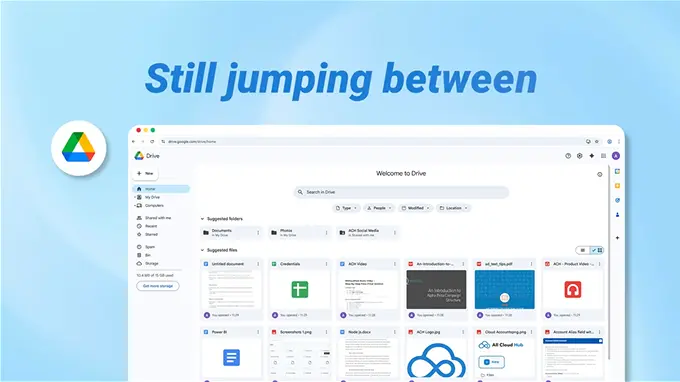
One dashboard beats five open tabs, every time.
Here’s what changes when you stop managing clouds separately.

Practical guides on cloud storage management, file transfers and multi-cloud workflows.
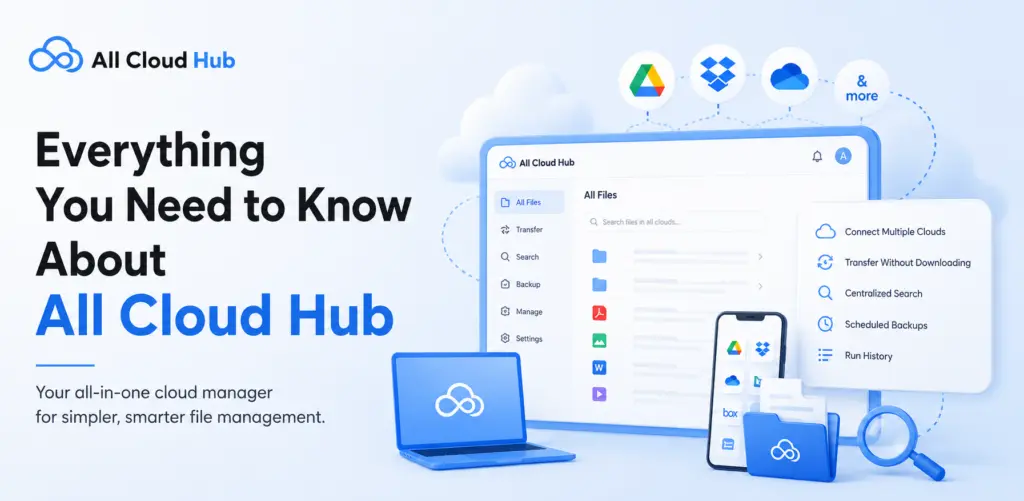
Discover everything you need to know about All Cloud Hub, from cloud storage management and file transfers to backups, search,…
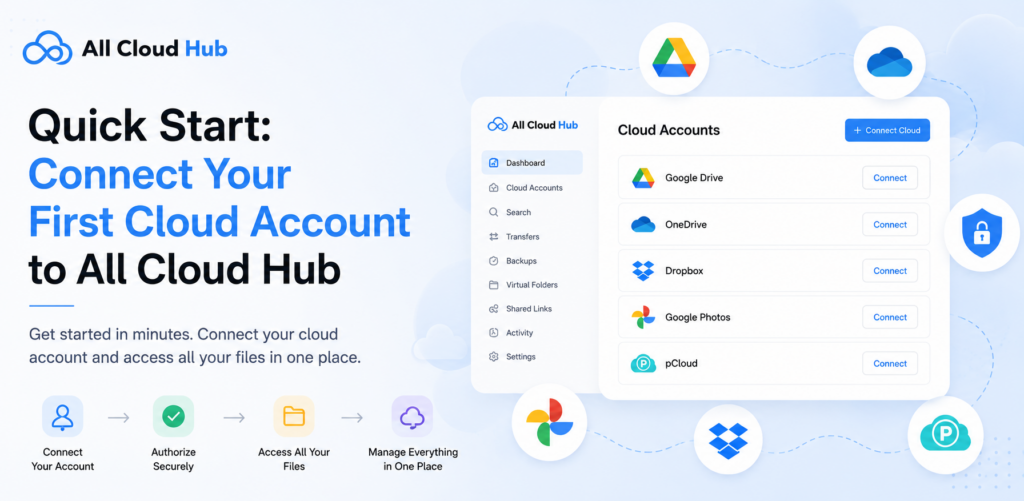
Learn how to create your All Cloud Hub account and connect your first cloud storage service in just a few…
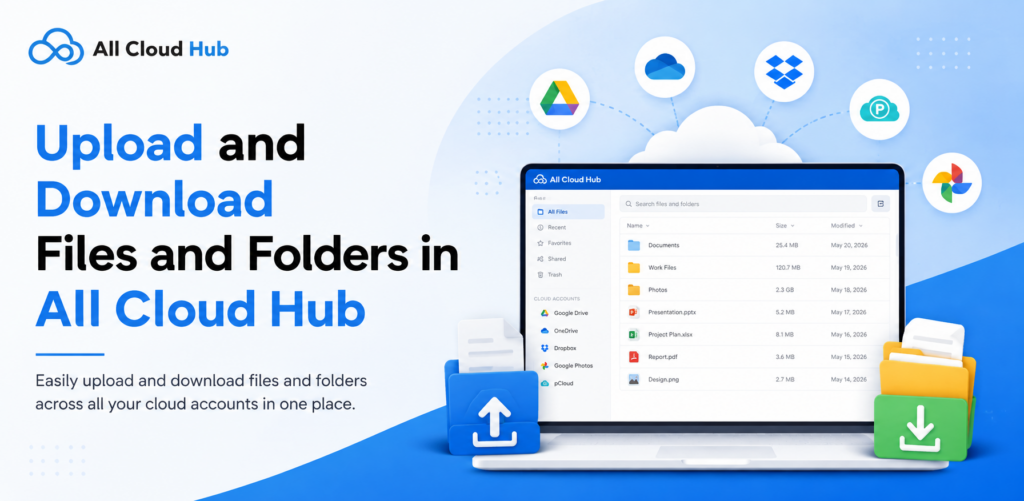
Learn how to upload and download files and folders in All Cloud Hub, plus troubleshoot failed or slow transfers.
Everything you need to know about managing, transferring and securing your files across cloud drives.
No. All Cloud Hub never stores, caches, or copies your files. Transfers happen directly between your connected cloud storage providers, including Google Drive, Google Photos, Microsoft OneDrive, Dropbox, pCloud, iCloud Photos, MEGA, iCloud Drive, Google Shared Drive, and Backblaze B2. Your data always remains within your own cloud accounts.
Yes. All Cloud Hub transfers files directly from one cloud to another without routing them through your device or through All Cloud Hub’s servers. Nothing downloads to your computer. This makes large file migrations fast and efficient even on slower connections.
All Cloud Hub currently supports Google Drive, Google Photos, Microsoft OneDrive, Dropbox, pCloud, iCloud Photos, MEGA, iCloud Drive, Google Shared Drive, and Backblaze B2.
On the Free plan, you can connect up to 3 cloud accounts. The Power User plan lets you connect unlimited cloud accounts.
For supported features and provider-specific capabilities, see our Supported Providers & Compatibility page.
Yes. Free users can transfer up to 5GB per month. Power Users get 100GB per month. If you need to move more, upgrading is straightforward from your dashboard.
All Cloud Hub uses stable OAuth 2.0 connections that don’t drop or require frequent re-authentication. Your files are never stored on All Cloud Hub’s servers. All Cloud Hub also supports 2FA, which MultCloud does not.
Very secure. All Cloud Hub uses OAuth 2.0 authentication – your passwords are never stored or exposed. All Cloud Hub has also completed CASA Tier 2 verification for the Google API Services program, assessed by TAC Security as an independent auditor.
Yes. On the Power User plan, All Cloud Hub keeps supported folders synchronized using the change detection method provided by each cloud service. Google Drive, Microsoft OneDrive, and Dropbox use official webhooks to detect changes with minimal delay, while pCloud uses periodic API polling to detect changes and keep folders synchronized. Free plan users can run manual syncs.
Yes. You can set up a backup from one cloud drive to another. Once started, it runs in the background. You don’t need to stay online or keep the tab open for the transfer to complete.
A Virtual Folder is a grouped view of files from different cloud drives, shown together in one place without moving the files themselves. Each cloud account keeps its own storage. Virtual Folders let you organise files by project or client across multiple drives without changing where anything is stored.
Not yet. All Cloud Hub is currently designed for individual use. Team collaboration features are on the roadmap and will be announced when ready.
Yes. You can change your plan at any time directly from your account dashboard — no complicated cancellation process.