



Upload and Download Files and Folders in All Cloud Hub
- Last Updated on 18 August 2026
- 7 Min Read
- Posted on August 18, 2026
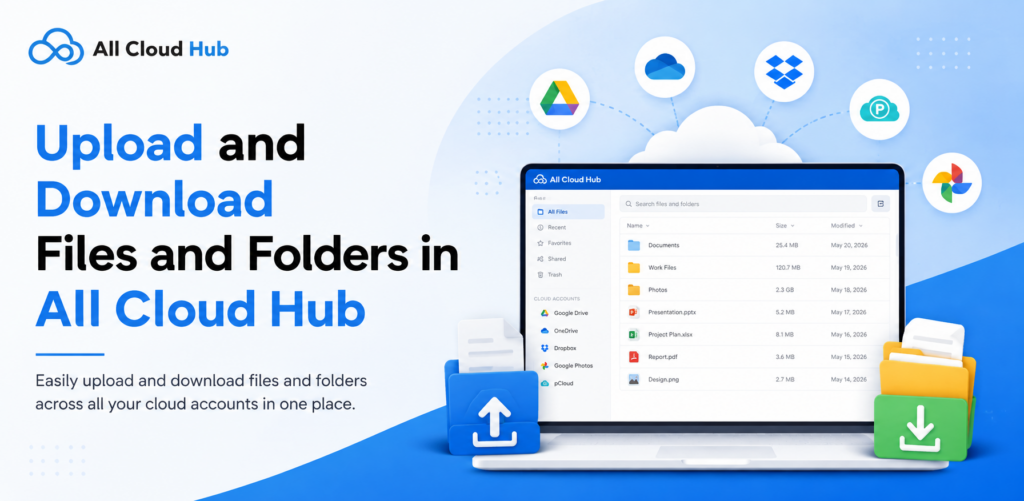
All Cloud Hub lets you manage files across your connected cloud storage accounts from one place. In addition to transferring files between cloud accounts, you can upload files and folders from your device to a connected cloud account and download files and folders from your cloud storage to your device.
This guide explains how to upload and download files and folders, along with the steps to follow if an upload or download fails.
Upload Files to All Cloud Hub
You can upload files from your device to the cloud account and folder you are currently working in.
Upload a File
To upload a file:
- Open All Cloud Hub and select the cloud account where you want to upload the file.
- Open the destination folder.
- Select Add New button from the dashboard.
- Select Upload files.
- Choose the file or files you want to upload from your device.
- Allow the upload to complete.
You can then open the destination folder and check that the uploaded files are available.
You can also drag files from your computer and drop them into All Cloud Hub to start an upload. This can be useful when you already have the files open in File Explorer or another file manager and want to add them to your cloud storage without going through the file picker.
What Happens When You Drag and Drop a Folder?
If you drag and drop a folder, All Cloud Hub uploads the files inside the folder individually rather than creating the folder itself in the destination.
For example, if you drag a folder named Project Files containing 10 files, All Cloud Hub uploads those 10 files to the current destination.
This is useful when you want to quickly add the contents of a folder to an existing location. However, if you want to keep those files inside a separate folder with the same name, create the destination folder first and then upload the files into it.
Note – You can create a folder in the connected drive and then add the files in that folder. Also you can upload a .zip file of the folder.
Download Files from All Cloud Hub
You can download files from your connected cloud accounts to your device.
To download a file:
- Open the cloud account containing the file.
- Navigate to the file you want to download.
- Select the file and use the available Download option.
- Wait for the download to finish.
- Check your device’s download location for the file.
For larger files, the download may take longer depending on your internet connection and the file size.
Download Folders
When you need several files from the same location, you can download a folder where folder downloads are available in the current All Cloud Hub interface.
Select the folder and choose the available Download option. The time required will depend on the number and size of the files included.
If you only need a few files, downloading those files individually may be more convenient.
What to Do If an Upload Fails
If an upload appears as Transfer Failed in Notifications, there are a few things you can check before trying again.
1. Check Your Upload Status
You don’t have to keep checking the destination folder to see whether an upload has finished.
All Cloud Hub shows the status of file operations in the Notifications section.
Select the bell icon in the top-right corner to view your notifications. Completed operations appear as Transfer Completed, while unsuccessful operations are shown as Transfer Failed.
This gives you a quick way to check whether your upload or download finished successfully.
2. Check Your Internet Connection
A stable internet connection is important for uploading files, particularly when you are uploading larger files or several files at once.
Check your connection and try the upload again.
3. Check Available Storage
Make sure the destination cloud account has enough available storage for the files you are trying to upload.
If the account is close to its storage limit, free up some space before retrying.
4. Check the Files You Are Uploading
If one particular file keeps failing, try uploading another file.
If the second file uploads successfully, the issue may be specific to the original file rather than the upload process as a whole.
5. Check the Destination
Make sure you are uploading to the intended cloud account and folder.
If you are uploading files by drag and drop, check the destination carefully before starting the operation.
6. Try the Upload Again
After checking the above, retry the upload.
If the same file continues to fail while other files upload normally, note the file name and any error information shown by All Cloud Hub. This information can be useful if you need further assistance.
What to Do If a Download Fails
If a download appears as Transfer Failed, work through these checks before trying again.
1. Check Your Internet Connection
A slow or interrupted connection can affect a download, especially for larger files.
Make sure your connection is stable and retry the download.
2. Check Your Device Storage
Make sure your device has enough free storage for the file or files you are downloading.
This is particularly important when downloading large files or multiple files at once.
3. Try Another File
Download a different file from the same cloud account.
If the other file downloads successfully, the issue may be limited to the original file.
4. Check the Cloud Account
Make sure the cloud account containing the file is still connected and accessible in All Cloud Hub.
If the account requires attention, resolve the account issue and then try the download again.
5. Retry the Download
If the download is still marked as failed after these checks, try downloading the file again.
If the same file repeatedly fails, keep the transfer details and any error message available when contacting support.
What If the Upload or Download Is Taking Too Long?
Not every slow transfer has failed.
Large files, multiple files, and folders containing many files can take longer to process. Your internet connection can also affect how quickly the operation finishes.
Before cancelling or starting the operation again:
- Check the Notifications section.
- See whether the operation is still in progress or has been marked as completed or failed.
- Give larger operations some additional time to finish.
- If the operation is marked as Transfer Failed, check the troubleshooting steps above and retry it.
Checking the notification status first can help you avoid starting the same operation multiple times.
When to Contact Support
If an upload or download continues to fail after checking your connection, storage, cloud account and the file itself, contact All Cloud Hub support for assistance.
When reporting the issue, include useful details such as:
- The cloud account involved
- Whether you were uploading or downloading
- The file or folder involved
- The approximate size of the file or folder
- Whether other files work normally
- The status shown in Notifications
- Any error message displayed by All Cloud Hub
These details can help identify whether the problem is related to the file, cloud account or transfer itself.
Keep Your Files Moving
Uploading and downloading files through All Cloud Hub gives you another way to manage your cloud storage without switching between different cloud platforms.
When an operation doesn’t complete as expected, checking your connection, available storage, connected account and the specific file or folder can help identify the problem quickly. If the issue continues after these checks, the information you collect about the failed operation can help support diagnose it more efficiently.
Also Refer –

