



View Recent Files and Files Shared with You
- Last Updated on 04 August 2026
- 4 Min Read
- Posted on August 5, 2026

Finding the right file shouldn’t mean searching through multiple folders or switching between different cloud storage accounts. All Cloud Hub makes it easier by bringing two commonly used file views together: Recent Files and Shared with Me.
Whether you’re returning to a document you edited earlier or looking for files that colleagues have shared with you, these dedicated views help you access important content faster from a single dashboard.
This guide explains how both sections work and how you can use the available viewing and sorting options to find files more efficiently.
View Your Recent Files
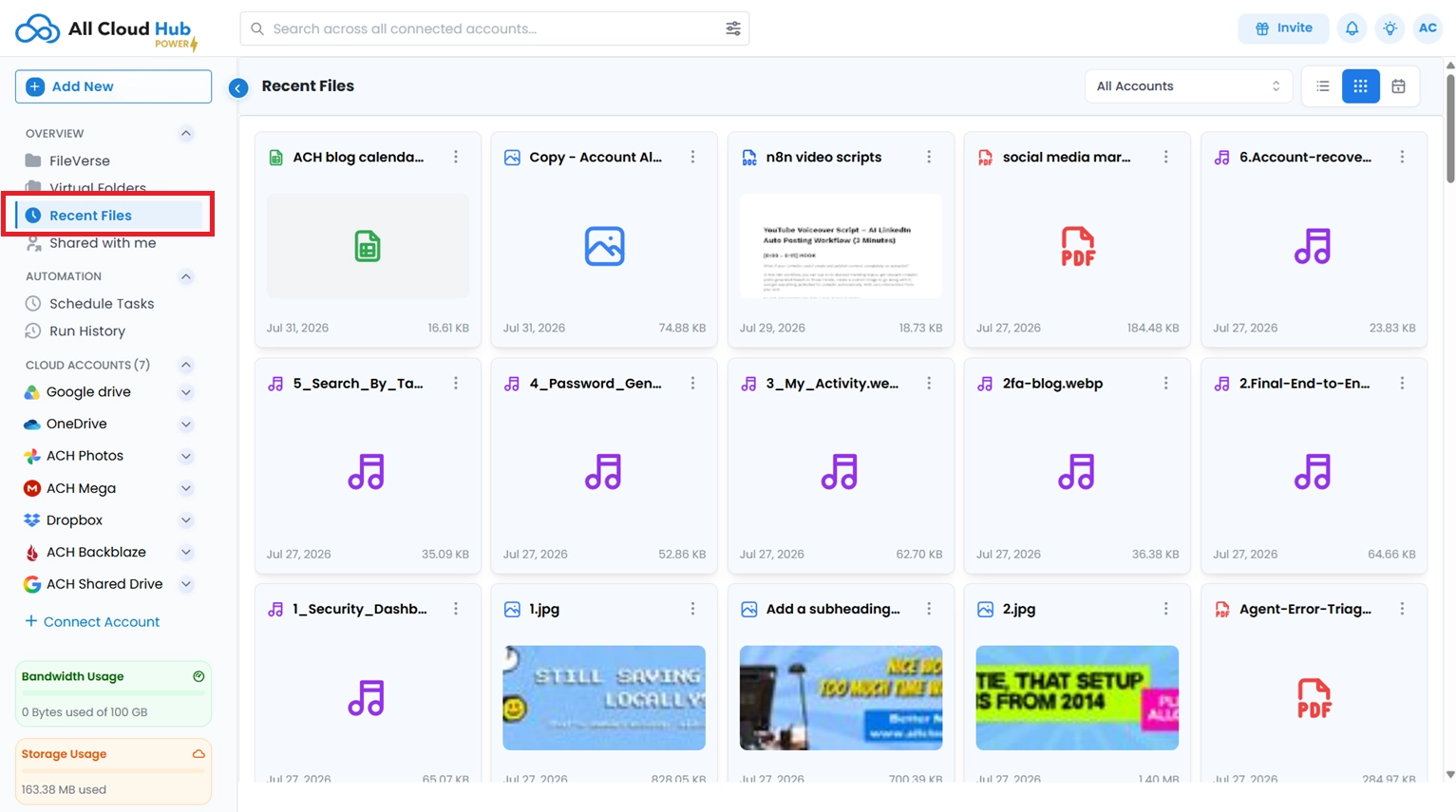
The Recent Files section is designed to help you quickly pick up where you left off by displaying files you’ve interacted with recently.
Instead of manually browsing through folders, you can revisit your most recently used files directly from this view.
Your Recent Files list includes files that you have:
- Opened
- Previewed
- Uploaded
As you continue working across your connected cloud storage accounts, this list updates automatically, making it easier to return to files you have recently accessed.
Narrow Your Recent Activity
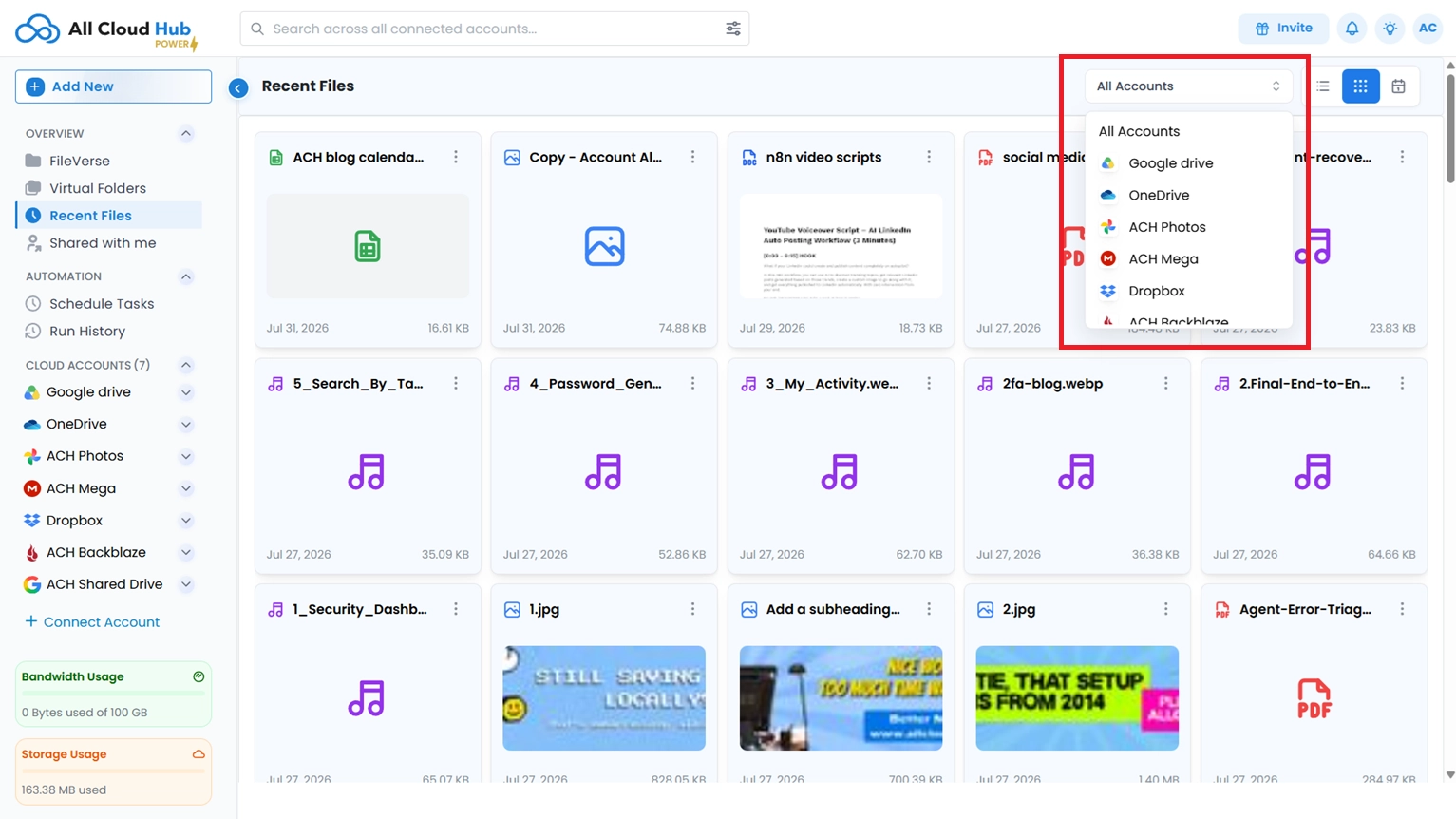
As your list of recently accessed files grows, finding a specific file becomes even easier with the Account Filter.
Use the filter to switch between:
- All Accounts to view recent files from every connected cloud storage account.
- A Specific Account to display only the files recently accessed within that cloud account.
This allows you to quickly narrow your view and continue working without unnecessary browsing.
View Files Shared with You
The Shared with Me section brings together files and folders that other people have shared with you across your connected cloud storage accounts.
Rather than checking each cloud storage service separately, All Cloud Hub displays your shared content in one convenient location, helping you stay organised and access shared files more quickly.
Filter Shared Files
If you have multiple cloud storage accounts connected, you can narrow down the displayed files using the Account Filter.
Choose to:
- View shared files from all connected accounts.
- Display files shared through a specific cloud storage account.
This makes it easier to focus on the files you need without browsing through unrelated content.
Sort Shared Files
To help you locate files more efficiently, the Shared with Me section includes several sorting options.
You can sort files by:
- Name (A to Z)
- Name (Z to A)
- Date Modified (Newest)
- Date Modified (Oldest)
- Created Date (Newest)
- Created Date (Oldest)
- Size (Largest)
- Size (Smallest)
- File Type (A to Z)
These sorting options allow you to organise shared content based on how you prefer to browse your files.
Choose Your Preferred View
Different tasks call for different ways of viewing files. The Shared with Me section allows you to switch between multiple layouts depending on your preference.
Grid View
Grid View displays files using thumbnail previews, making it ideal when working with images, presentations, PDFs, and other visual content.
List View
List View presents files in a detailed table, showing additional information such as:
- Connected cloud account
- File owner
- Last modified date
- File size
This layout is useful when you need more information before opening a file.
Timeline View
Timeline View organises shared files chronologically based on their activity, making it easier to browse files according to when they were modified or shared.
This view is particularly helpful when you’re looking for recently updated content.
Conclusion
The Recent Files and Shared with Me sections are designed to simplify the way you access files across your connected cloud storage accounts. Whether you’re revisiting a document you’ve recently worked on or opening content shared by others, these dedicated views help you find what you need without unnecessary navigation. Combined with filtering, sorting, and multiple viewing layouts, All Cloud Hub provides a more organised and efficient way to manage your everyday cloud files.
Want to know more about All Cloud Hub’s dashboard, refer to our detailed walkthrough.

