



Navigating the All Cloud Hub Dashboard
- Last Updated on 07 August 2026
- 10 Min Read
- Posted on January 2, 2026
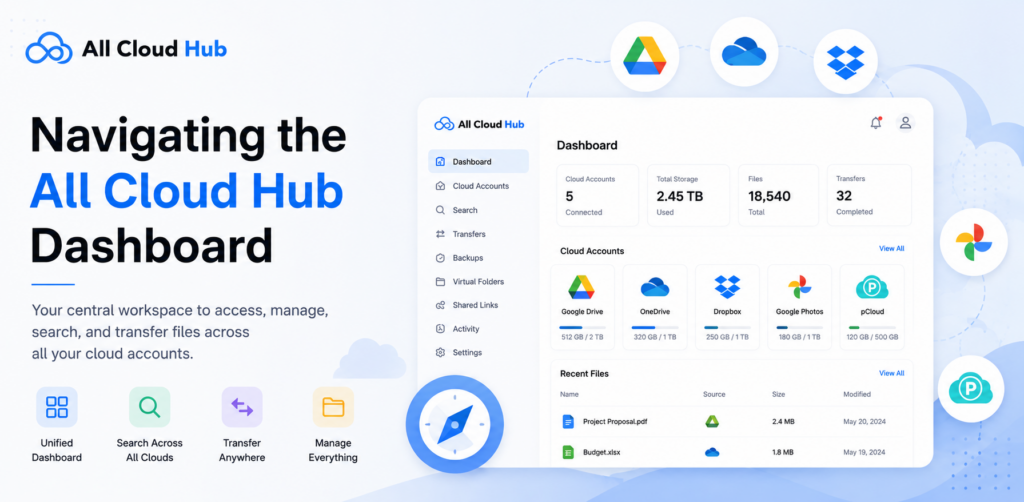
The FileVerse dashboard is your central workspace in All Cloud Hub. Once you have connected your cloud accounts, you can access, search, organize, and manage files from all your connected cloud storage services in one place without switching between multiple apps or browser tabs.
This guide explains each section of the FileVerse dashboard so you can quickly find the tools you need.
Understanding the FileVerse Dashboard
The FileVerse dashboard is divided into several sections:
- Left navigation panel
- Top toolbar
- FileVerse workspace
- Storage and bandwidth usage
Each section is designed to help you manage your cloud files more efficiently.
Left Navigation Panel
The left sidebar gives you quick access to the main areas of All Cloud Hub.
1. Add New Button
Use the Add New button to quickly add content to your connected cloud storage account. Click it to choose one of the available options:
- Create folder – Create a new folder to organize your files and folders.
- Upload files – Upload documents, images, videos, and other files from your device to the selected cloud storage account.
Note: Any folders or files you create or upload are added to the currently selected cloud storage account and folder location.
2. FileVerse
FileVerse is your primary workspace where all your connected cloud storage accounts come together in a single interface.
From here, you can:
- Browse files and folders
- Open and preview supported files
- Upload new files
- Organize your cloud data
- See details of each file
- Search across connected cloud accounts
3. Virtual Folders
Virtual Folders let you organize files from different cloud storage accounts into one convenient location without moving or copying the original files.
From here, you can:
- Create new Virtual Folders
- Access existing Virtual Folders
- Organize files from multiple cloud accounts in one place
Note: Creating a Virtual Folder does not change where your files are stored. Your files remain in their original cloud accounts.
4. Recent Files
The Recent Files section helps you quickly return to files you’ve recently worked with.
Here you’ll find files that you have:
- Opened
- Previewed
- Uploaded
This makes it easy to continue working without searching for the same files again.
Automation
The Automation section contains tools that help automate and monitor file operations.
1. Scheduled Tasks
Use Scheduled Tasks to automate file operations between your connected cloud accounts.
You can schedule operations such as:
- Copy files
- Move files
- Delete files
Choose when the task should run with flexible scheduling options including one-time, daily, weekly, or monthly schedules.
For complete instructions, see Schedule Automatic File Transfers.
2. Run History
Run History lets you track every file operation performed in All Cloud Hub.
You can view:
- Completed tasks
- Running tasks
- Failed tasks
- Scheduled operations
This helps you monitor automated and manual file transfers from one place.
For more information, see View Transfer Run History.
Cloud Accounts
The Cloud Accounts section displays all the cloud storage accounts you’ve connected to All Cloud Hub.
Here you can:
- View your connected cloud accounts
- Quickly access files from a specific cloud account
- Connect additional cloud storage accounts using the Connect Account button
The number shown beside Cloud Accounts indicates how many cloud accounts are currently connected.
Note – You can also disconnect your cloud account by selecting the cloud drive name.
Storage and Bandwidth Usage
At the bottom of the sidebar, you’ll find two usage indicators.
Bandwidth Usage
Shows how much monthly transfer bandwidth you’ve used and how much remains available.
Storage Usage
Displays the amount of storage currently being used within your All Cloud Hub account.
These indicators help you keep track of your available resources while managing your files.
Top Toolbar
The top toolbar provides quick access to several useful features.
1. Search
The search bar lets you search for files across your connected cloud storage accounts from one place.
By default, the search is performed across all connected cloud accounts, allowing you to find files without remembering where they are stored.
You can also narrow your search by:
- Selecting a specific connected cloud account
- File type
- Date modified
- Tags assigned to files
This makes it easier to locate exactly what you’re looking for, even if you manage files across multiple cloud services.
2. Sort Files
You can organize your files using various sorting options.
Available sort options include:
- Name (A to Z)
- Name (Z to A)
- Date Modified (Newest)
- Date Modified (Oldest)
- Created Date (Newest)
- Created Date (Oldest)
- Size (Largest)
- Size (Smallest)
- File Type (A to Z)
Sorting helps you quickly locate files based on the information that’s most important to you.
3. Sync
The Sync button refreshes your FileVerse and updates it with the latest changes from your connected cloud accounts.
Use Sync whenever you’ve made changes directly in one of your cloud storage services and want those updates to appear in All Cloud Hub.
4. Change Layout
You can choose how your files are displayed in FileVerse.
Available layouts include:
- Grid View for a visual file browsing experience
- List View for a more detailed file list
Switch between layouts at any time based on your preference.
Invite Friends
Use the Invite button to refer All Cloud Hub to your friends and colleagues.
When someone joins through your referral, you can track your invitations and eligible rewards from your account.
Feedback & Suggestions
The light bulb icon opens the Feedback & Suggestions section.
If you have ideas for improving All Cloud Hub or want to share feedback about your experience, you can submit your suggestions here. Your feedback helps us continue improving the platform.
Profile Menu
Select your profile icon to access your account options.
From the profile menu, you can:
- View your profile information, including subscription, monthly insight reports, and connected accounts
- Replay the All Cloud Hub product tour
- Visit our Help Center articles to use All Cloud Hub smoothly
- View your invitation status and referral rewards
- Send additional invitations to your friends
Here is a detailed walkthrough of what you will find under your profile settings.
[A] Profile
1. Update Profile Avatar
Here you can update your profile picture, by clicking on the Change Avatar to upload a new profile image.
Supported file formats include:
- JPG
- JFIF
- PNG
- WEBP
The maximum supported file size is 5 MB.
2. First Name
Update the first name associated with your All Cloud Hub account.
3. Last Name
Update the last name associated with your account.
4. Email Address
Your registered email address is displayed here. This email is linked to your All Cloud Hub account and is used for account-related communication.
Note: The email address cannot be edited from the Profile page.
5. Save Changes
After making any updates to your profile information, click Save Changes to apply your changes.
6. Delete Account
The Delete Account option permanently removes your All Cloud Hub account.
Before deleting your account, ensure you no longer need access to your connected cloud services, billing history, or account settings, as this action cannot be undone.
[B] Settings
1. Subscription
The Subscription section displays the current status of your All Cloud Hub plan.
For example, an Active status indicates that your subscription is currently valid and your premium features remain available.
2. Billing
The Billing section helps you manage your subscription payments and invoices.
Select Billing History to view:
- Previous invoices
- Payment history
- Downloadable receipts
This section provides a record of your subscription payments for future reference.
3. Cancel Subscription
If you no longer wish to continue your subscription, select Cancel Subscription.
Your subscription will be managed according to your current billing period and subscription terms.
[C] Smart File Distribution
Smart File Distribution automatically selects the most suitable connected cloud account when uploading files or folders.
Instead of manually choosing where to upload a file, All Cloud Hub checks the available storage across your supported cloud accounts and stores the file in the cloud service with enough available space.
For example, if Google Drive and OneDrive don’t have enough free storage for a 10 GB large file, but Dropbox does, All Cloud Hub automatically uploads the file to Dropbox.
This helps prevent failed uploads caused by insufficient storage while making better use of your available cloud space.
Smart File Distribution Options
You can choose how Smart File Distribution behaves during uploads.
- Ask Every Time
When enabled, All Cloud Hub asks whether you want to use Smart File Distribution whenever you upload files or folders.
This gives you full control over where each upload is stored.
- Smart File Distribution
When enabled, Smart File Distribution automatically selects the connected cloud account with sufficient available storage whenever needed.
Note – Smart File Distribution is available for Power Users.
[D] Newsletter
The Newsletter setting allows you to subscribe to product updates from All Cloud Hub.
When enabled, you’ll receive emails about:
- New features
- Product improvements
- Helpful tips
- Announcements
You can unsubscribe at any time.
[E] Monthly Insights Report
The Monthly Insights Report provides a monthly summary of your connected cloud storage.
The report may include information such as:
- Storage growth
- Where your files are stored
- Changes since the previous report
- Recommended actions to help manage your storage more effectively
(i) Enable Monthly Reports
Turn on Email me a monthly report to receive the report automatically by email.
(ii) Delivery Date
Choose when you would like to receive your monthly report.
Available options include:
- Account creation day – Receive the report on the same day of each month that you created your All Cloud Hub account.
- 1st of every month – Receive the report on the first day of each month.
- 15th of every month – Receive the report on the fifteenth day of each month.
The page also displays the next scheduled delivery date, so you know when your next report will arrive.
[F] Connected Accounts
The Connected Accounts section displays every cloud storage service currently connected to your All Cloud Hub account.
Each connected account card shows:
- Cloud storage provider
- Account name
- Connected email address
- Connection date
This makes it easy to review all your connected cloud services from one place.
(i) Connect Account
Select Connect Account to add another supported cloud storage service to All Cloud Hub.
Once connected, the new account becomes available for file management, transfers, search, sync, and other supported features.
(ii) Edit Connected Account
Click the Edit icon on a connected account to update its display name or account details, where applicable.
(iii) Remove Connected Account
Click the Delete icon to disconnect a cloud account from All Cloud Hub.
Disconnecting an account removes its connection from All Cloud Hub but does not delete any files stored in the original cloud storage service.
FileVerse Workspace
The main area of the dashboard displays your folders and files from your connected cloud accounts.
From here, you can:
- Browse folders
- Open files
- See file details
- Preview supported files
- Add tags to the files
- Move files to Virtual Folder
- Download the file
- Navigate through your cloud storage
- Manage files from multiple connected cloud accounts in one unified workspace
This workspace is designed to provide a familiar file management experience while bringing all your connected cloud storage services together in one place.
You’re Ready to Explore FileVerse
Now that you’re familiar with the FileVerse dashboard, you can confidently navigate your connected cloud accounts, search for files, organize your workspace, and access All Cloud Hub’s automation features from one place. This article has also covered the terminology you will come across while using All Cloud Hub.
If you’re looking for more detailed information, explore these helpful guides:
- Connect Your First Cloud Account – Follow the steps to connect your first cloud storage account.
- What Is All Cloud Hub and How Does It Work? – Learn how All Cloud Hub works and explore its core features.
- Everything You Need to Know About All Cloud Hub – Get a complete overview of the platform, supported cloud providers, features, and more.

