



Searching Files Across All Connected Drives
- Last Updated on 31 July 2026
- 3 Min Read
- Posted on February 2, 2026
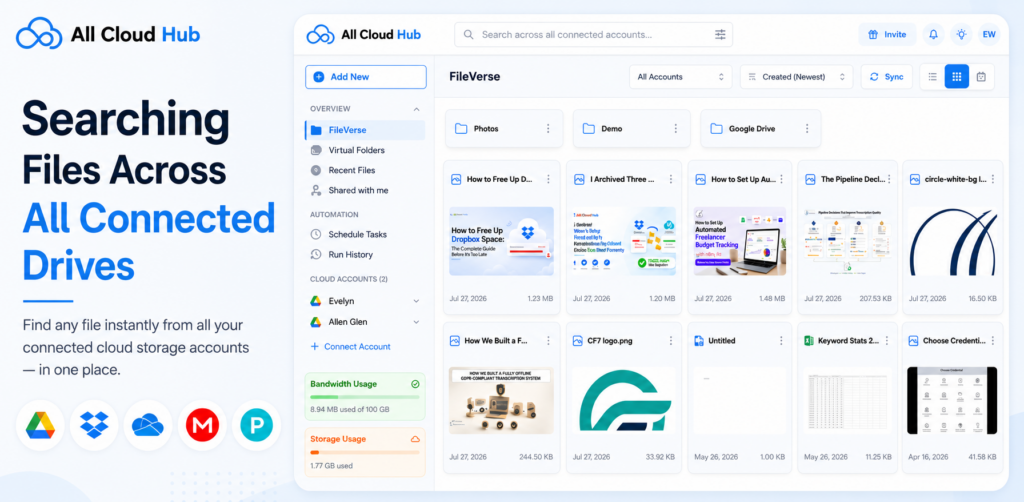
If you use multiple cloud storage accounts, remembering where every file is stored can quickly become difficult. Instead of opening each cloud service individually and repeating the same search, All Cloud Hub lets you search across your connected cloud accounts from a single place.
From FileVerse, you can search files stored across all your connected cloud storage accounts and refine the results using filters such as cloud account, file type, modified date, and tags. You can also sort your results and switch between different viewing layouts to find files more efficiently.
Search Files Across Connected Cloud Accounts
The search bar is located at the top of the FileVerse dashboard.
By default, All Cloud Hub searches across all connected cloud accounts, allowing you to find files without remembering which cloud storage service they are stored in.
To search for a file
- Open FileVerse.
- Click the search bar at the top of the page.
- Enter the name or keyword related to the file you’re looking for.
- Press Enter.
The search results are displayed from your connected cloud accounts in a single view.
Refine Your Search Results
If you want to narrow your search, All Cloud Hub provides multiple filtering options to help you locate files faster.
You can filter search results by:
1. Connected Cloud Account
By default, searches include every connected cloud account.
If you only want to search within a specific account, select that connected cloud account from the Account filter.
This helps when you already know which cloud service contains your files.
2. File Type
You can limit your search results to a specific type of file.
Available file types include:
- Folders
- Documents
- Sheets
- Presentations
- Photos
- PDFs
- Videos
- Archives
- Audios
Filtering by file type helps reduce unrelated search results and makes locating specific content much faster.
3. Date Modified
You can also search based on when a file was last modified.
Available options include:
- Today
- Last 7 Days
- Last 30 Days
- This Year
- Last Year
- Custom Date Range
This is useful when you’re looking for recently updated files or files modified during a specific period.
Sort Search Results
Once your search results are displayed, you can organize them using different sorting options.
Available sorting options include:
- Name (A to Z)
- Name (Z to A)
- Date Modified (Newest)
- Date Modified (Oldest)
- Created Date (Newest)
- Created Date (Oldest)
- Size (Largest)
- Size (Smallest)
- File Type (A to Z)
Sorting helps you arrange files based on the information that’s most relevant to your workflow.
Change the File Layout
You can also change how search results are displayed.
Available layouts include:
1. Grid View
Displays files in a visual card-based layout, making it easier to browse folders, images, and other files.
2. List View
Displays files in a detailed list, allowing you to scan file information more efficiently.
Switch between layouts at any time based on how you prefer to work.
In Summary
With All Cloud Hub’s unified search, you can quickly locate files across all your connected cloud storage accounts without switching between multiple platforms. Use filters, sorting options, and flexible viewing layouts to narrow down results and find exactly what you need, whether you’re managing personal documents or large collections of files across different cloud services.
You can also refer:

