



What Is All Cloud Hub and How Does It Work?
- Last Updated on 24 July 2026
- 6 Min Read
- Posted on July 24, 2026
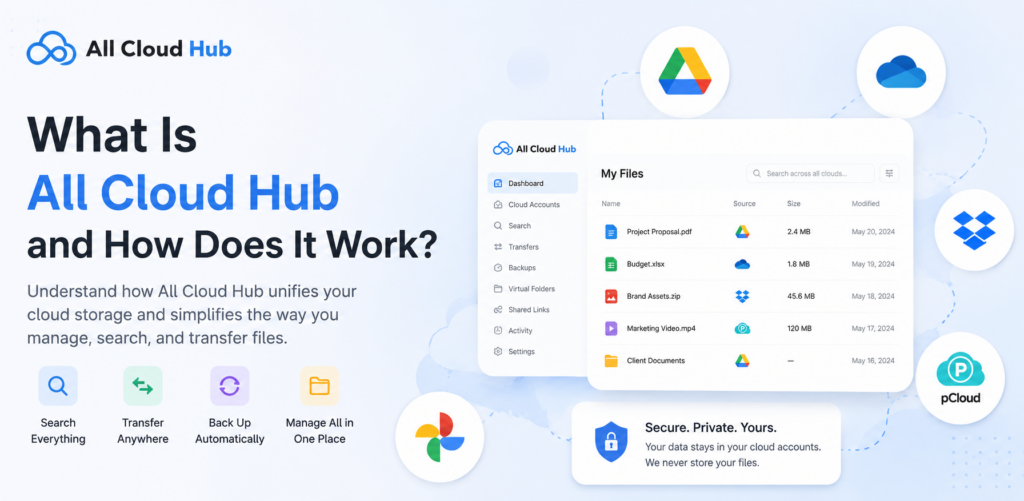
All Cloud Hub is a cloud storage management platform that lets you access, organize, and manage multiple cloud storage accounts from a single place. Instead of signing in to each cloud storage provider separately, you can connect your supported cloud accounts to All Cloud Hub and work with your files through one unified interface.
Whether you use cloud storage for personal documents, business files, client projects, or team collaboration, All Cloud Hub helps simplify day-to-day file management by bringing your connected cloud accounts together while keeping your files in their original locations.
After connecting your cloud accounts, you can browse your files, organize connected drives using Virtual Folders, assign tags for easier searching, schedule automated file operations, monitor transfer activity, download files when needed, and manage files without constantly switching between multiple cloud storage services.
Supported Cloud Storage Services
All Cloud Hub supports multiple leading cloud storage providers, allowing you to manage them together from one dashboard.
Currently supported services include:
- Google Drive
- Google Photos
- Google Shared Drive
- iCloud Drive
- iCloud Photos
- OneDrive
- Dropbox
- pCloud
- MEGA
- Backblaze B2
How Does All Cloud Hub Work?
All Cloud Hub works by securely connecting to your supported cloud storage accounts after you authorize access.
Once connected, your cloud accounts become available inside a single workspace where you can browse and manage them together. Your files continue to remain in their original cloud storage accounts, while All Cloud Hub provides one place to interact with them.
Whenever you perform an action, such as downloading a file, deleting a document, or running a scheduled task, All Cloud Hub communicates with the connected cloud provider to complete that action on your behalf.
Since All Cloud Hub works directly with your connected cloud accounts, any changes you make are reflected in the original cloud storage service as well.
Access and Manage Your Files
Once your cloud accounts are connected, you can browse the files stored in each account without switching between different cloud storage platforms.
All Cloud Hub allows you to work with your files using a familiar interface, making it easier to locate documents, images, videos, and folders stored across multiple cloud accounts.
Rather than opening several browser tabs or applications, you can manage everything from one place.
For instructions on connecting your first cloud account, see Quick Start: Connect Your First Cloud Account.
Organize Files with Virtual Folders
Managing many connected cloud accounts can become difficult as your workspace grows. Virtual Folders help you organize files from your connected drives into meaningful groups that match the way you work.
Unlike traditional folders, Virtual Folders do not physically exist inside your cloud storage accounts, and so the original files and folders remain untouched. They are logical groups that allow you to organize connected drives without moving, copying, or duplicating any files. This makes it easier to manage large numbers of connected drives while keeping your workspace organized.
For example, you might create Virtual Folders for:
- Work Files
- Personal Files
- Finance
- Wedding Photoshoot
- Client Raw Photos
- Client Updated Photos
Organize Files with Tags
Folders are useful for organizing files, but sometimes a file belongs to more than one category. Tags provide another way to organize your files without changing where they are stored.
You can assign custom tags to files based on projects, departments, clients, document types, or any other category that fits your workflow.
After assigning tags, you can search using those tags to quickly locate relevant files without manually browsing through folders.
Tags make it easier to organize files that may relate to multiple projects or teams.
Schedule Automated File Operations
Many file management tasks need to be repeated regularly. Instead of performing these tasks manually every time, All Cloud Hub allows you to automate them using scheduled tasks.
Scheduled tasks can be configured to perform the following operations:
- Copy files
- Move files
- Delete files
You can schedule these operations to run:
- Once
- Daily
- Weekly
- Monthly
Automation helps ensure recurring file management tasks happen according to your chosen schedule.
Note: Copy operations are available as part of scheduled automations.
For detailed instructions, see Schedule Automatic File Transfers.
Monitor Scheduled Tasks with Run History
Every scheduled task generates activity that can be reviewed through Run History.
Run History allows you to monitor the status of your scheduled operations by showing whether a task is:
- Running
- Completed successfully
- Failed
- Partially failed
- Waiting to run
It also provides information about when each task was executed, making it easier to verify scheduled operations and review previous activity whenever needed.
For more information, see View Transfer Run History.
Download Files
You can download files directly from your connected cloud accounts whenever you need a local copy on your device.
Downloading a file through All Cloud Hub does not modify or remove the original file stored in your cloud account. It simply creates a copy on your local device, allowing you to access the file offline or share it outside your cloud storage environment.
Delete Files
All Cloud Hub allows you to delete files directly from your connected cloud accounts without opening the original cloud storage service.
Because All Cloud Hub works directly with your connected cloud accounts, deleting a file through All Cloud Hub also deletes that file from the original cloud storage account.
Before deleting a file, make sure you no longer need it or that it has been backed up elsewhere if required.
Secure File Transfer With All Cloud Hub
Security is an important part of how All Cloud Hub works.
When you connect a cloud storage account, you sign in directly with your cloud provider using its official OAuth 2.0 authentication process. Your cloud account password is never shared with or stored by All Cloud Hub.
All Cloud Hub has also completed CASA Verification (Tier 2) for the Google API Services program. The assessment was conducted independently by TAC Security, providing assurance that Google Drive data is handled using strong security controls.
All Cloud Hub gives you secure access to your connected cloud accounts while your files remain in their original storage locations.
If you ever decide to disconnect a cloud account, you can revoke All Cloud Hub’s access at any time either from your All Cloud Hub account or from your cloud provider’s account settings.
Use All Cloud Hub Across Devices
All Cloud Hub is available as both the web and the mobile app.
You can sign in using the same All Cloud Hub account on both platforms, allowing your connected cloud accounts to stay synchronized across devices. This makes it easy to continue managing your cloud storage whether you’re working from your computer or using your mobile device.

