



Best Koofr Alternative for Managing Multiple Cloud Accounts in One Place
- Last Updated on 22 July 2026
- 13 Min Read
- Posted on July 21, 2026
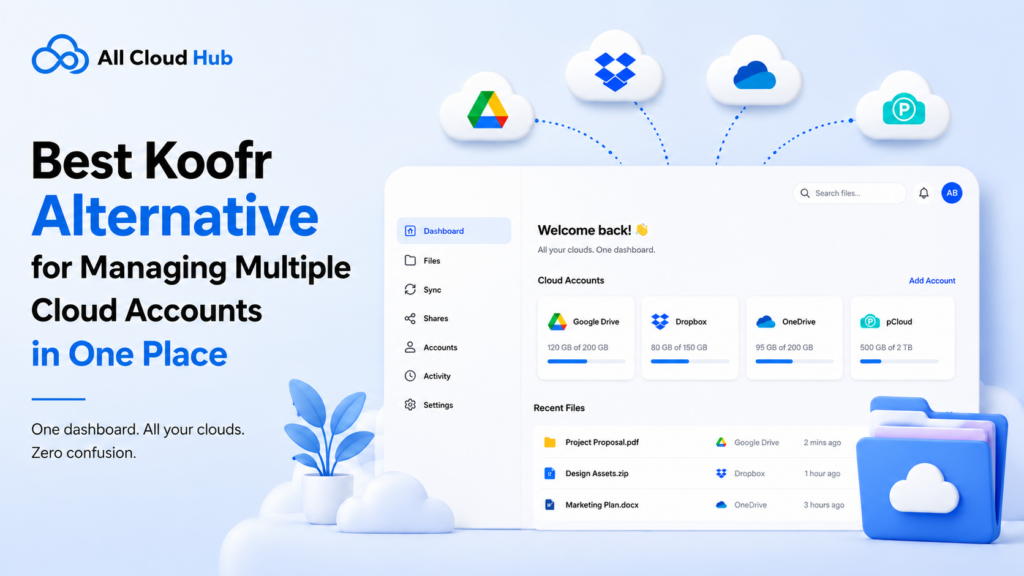
Koofr is a privacy-focused cloud storage provider that lets you connect a handful of outside accounts, including Google Drive, Dropbox, and OneDrive, into a single view.
For someone who mainly needs personal storage with occasional access to another account, that setup works fine. But if you’re looking into a Koofr alternative because you manage several cloud accounts as part of your daily work, the real issue usually isn’t storage space. It’s the time lost switching tabs, searching each drive on its own, and moving files by hand between providers. This kind of multi cloud storage juggling is exactly what pushes people to look past Koofr toward something built around workflow instead of storage.
All Cloud Hub takes that approach as a dedicated multi-cloud manager, connecting multiple drives – Google Drive, iCloud Drive, Dropbox, OneDrive, pCloud, Google Photos, iCloud Photos and MEGA – into one dashboard so you can search everything at once, move files directly between clouds, group project files with Virtual Folders, and set up automatic backups, all while your files stay inside their original accounts.
What Koofr Does Well
Koofr is a Slovenia-based cloud storage provider built around privacy and GDPR compliance, which matters to anyone based in the EU or simply cautious about where their data lives. The free plan includes 10GB of storage, and the interface stays simple enough that most people find their way around it without a tutorial.
Koofr cloud storage also connects to your existing Google Drive, Dropbox, and OneDrive accounts, so you can browse and search across them from one screen instead of opening each provider on its own. For sensitive files, Koofr Vault adds optional end-to-end encryption on top of the standard storage.
These features suit someone who wants personal cloud storage with the occasional connection to another account. While these features make Koofr a capable cloud storage provider, managing several cloud accounts every day introduces a different set of challenges.
Where Koofr Falls Short for Managing Multiple Cloud Accounts
Once you connect more than two or three cloud accounts, Koofr’s limitations start to show. It supports Google Drive, Dropbox, and OneDrive, but there’s no way to connect iCloud, pCloud, MEGA, Google Photos, or iCloud Photos. For someone who splits work and personal files across five or six services, that gap means falling back to separate apps and browser tabs for anything outside Koofr’s supported list.
Consider a freelance photographer who keeps raw footage in pCloud, client deliverables in Dropbox, and project stills in Google Photos. Koofr can bring the Dropbox account into its dashboard, but the pCloud archive and the photo library stay completely outside it. The professional still has to open pCloud directly to find raw files, then log into Google Photos separately to pull stills for a project. And as soon as the user realizes that the platform does not support all the cloud services they use, they start looking for Koofr alternative.
You might like to read a similar case study
My Google Drive Filled Up With RAW Files Three Days Before a Wedding Shoot
Even for the accounts Koofr does support, the connection doesn’t remove the need to think about each one separately.
Let’s take another example, a marketing agency managing five client Dropbox folders through Koofr still has to know which folder belongs to which client before searching, and moving a file from Dropbox to OneDrive usually means downloading it locally and re-uploading it, since Koofr’s connections are built around browsing and light organization rather than direct cloud-to-cloud transfers.
This becomes more noticeable as the number of connected accounts grows. Two accounts feel manageable inside almost any interface. Five accounts, spread across document storage and photo libraries, start requiring their own system to track down files, and that system usually lives in someone’s memory rather than in the tool itself.
A consultant managing accounts for three different clients, each tied to its own cloud provider, ends up spending part of every day relocating and reorganizing files instead of doing billable work.
None of this makes Koofr a poor product. It does what it’s built to do, giving users a private, simple place to store files with light connections to a few major providers. The gap shows up specifically for people managing multiple cloud accounts as a daily routine rather than an occasional convenience.
The Real Problem: Managing Files Across Multiple Cloud Accounts
Most people searching for a Koofr alternative aren’t actually trying to replace their cloud storage. They’re trying to solve a workflow problem, where files end up scattered depending on which client, project, or personal habit put them there in the first place.
Take a freelance graphic designer who keeps personal work in iCloud, client assets in Dropbox, agency projects in OneDrive, and inspiration boards in Google Photos. On a typical day, they open four browser tabs, search each cloud separately for the same reference file, and occasionally forget which account holds the version they need. When a client asks for a folder to be shared, the designer often downloads it from one cloud just to upload it to another, turning a task that should take seconds into one that takes minutes.
A consultant runs into a similar pattern with a different mix of services. Personal archives sit in pCloud, active client projects live in Google Drive, shared documents move through OneDrive, and project photos back up to iCloud Photos. Instead of focusing on client work, part of each morning goes toward remembering where a specific file was saved. Searching becomes repetitive because every cloud requires its own separate search. Transfers happen manually, file by file. Organization stays inconsistent because no single system ties the accounts together.
Both scenarios point to the same underlying issue. The problem isn’t a shortage of storage space. It’s the overhead of switching between multiple cloud dashboards, searching every cloud on its own, re-uploading files just to move them between providers, and trying to keep project files organized when they’re spread across services that don’t talk to each other. That overhead builds with every account added. Someone managing two clouds rarely notices this friction, but someone managing five or six often starts looking for a cloud storage manager that can pull everything into one place instead of juggling accounts by hand.
All Cloud Hub: A Koofr Alternative Built for Multi-Cloud Management
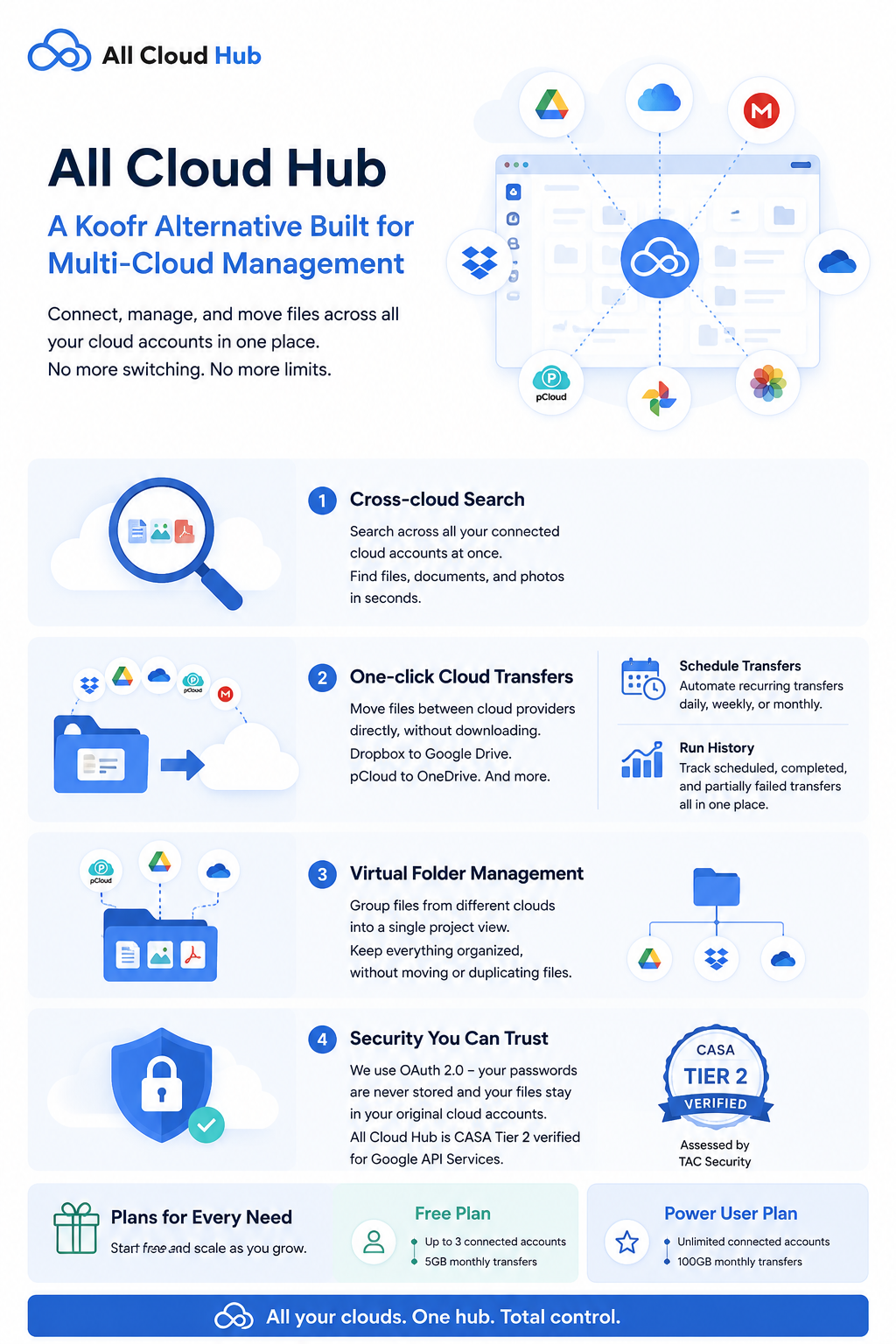
All Cloud Hub approaches this differently. Rather than offering another place to store files, it works as a multi-cloud manager that connects the accounts you already use, including Google Drive, iCloud, MEGA, Dropbox, OneDrive, pCloud, Google Photos, and iCloud Photos, into one dashboard. How All Cloud Hub works covers the full setup, but the short version is that you connect each account once through OAuth2 and manage all of them from the same screen, without repeatedly switching accounts to find what you need.
Cross-cloud search
Once your accounts are connected, cross-cloud search lets you search across every one of them at the same time. Instead of remembering which drive holds a document or checking each service by hand, you type a file name once and see results from every connected account, documents and photo libraries included.
One-click cloud transfers
Moving files between providers no longer means downloading them to your device first. With direct cloud-to-cloud transfers, a file in Dropbox can move straight to Google Drive without ever touching your computer. For the video editor mentioned earlier, that means sending a folder of client deliverables from pCloud to OneDrive in a few clicks, instead of downloading gigabytes of footage locally just to upload it again somewhere else.
You can also schedule file transfers to automate the task of copying or moving a file between your connected cloud storage. Instead of manually transferring files every day, week, or month, you can create a schedule once and All Cloud Hub will run the transfer automatically in the background at the specified time, making it ideal for recurring backups, photo archiving, or keeping files organized across multiple cloud services. Along with this, you can also see the run history, in which you can see how many transfers are scheduled for future, how many are successfully completed and how many of them partially failed.
Virtual Folder management
Virtual Folders group files from different connected cloud accounts into a single project view, without physically moving or duplicating anything. A consultant working across pCloud, Google Drive, and OneDrive for one client can pull the relevant files from each account into a single Virtual Folder, while the originals stay exactly where they were.
Security
All Cloud Hub connects accounts using OAuth 2.0, so passwords are never stored and files remain inside their original cloud accounts rather than being copied elsewhere. The platform has completed CASA Tier 2 verification for the Google API Services program, assessed by TAC Security as an independent auditor.
The Free plan covers up to three connected accounts with 5GB of monthly transfers, enough to test the workflow. The Power User plan removes the account limit and raises monthly transfers to 100GB, built for people actively managing multiple cloud accounts on a regular basis.
Koofr vs All Cloud Hub: Side-by-Side Comparison
The table below focuses on clear comparison between Koofr and All Cloud Hub features when it comes to managing multiple cloud accounts at once.
| Category | Koofr | All Cloud Hub |
|---|---|---|
| Core purpose | Cloud storage provider with cloud account connections | Multi-cloud manager for existing cloud accounts |
| Connected services | Google Drive, Dropbox, OneDrive | Google Drive, iCloud, MEGA, Dropbox, OneDrive, pCloud, Google Photos, iCloud Photos |
| Cross-cloud search | Search across connected supported cloud accounts from one interface | Universal search across all connected cloud accounts from one dashboard |
| Cloud-to-cloud transfers | Basic cloud connections | Direct transfers without downloading locally |
| Background backups | Backup to Koofr storage | Automated background backups across connected accounts |
| Virtual folders | Labels help categorize files and folders using color-coded tags | Virtual Folders group files from multiple connected cloud accounts into one project view without moving or duplicating them |
| Setup | Connect supported cloud accounts individually | Connect each cloud account individually through OAuth 2.0 into one unified dashboard |
| Own cloud storage | Yes | No (uses existing cloud storage) |
| Authentication | OAuth connections | OAuth 2.0 with no password storage |
| Security | GDPR hosting, optional Vault encryption | CASA Tier 2 verified, OAuth 2.0, files remain in original accounts |
| Best suited for | Personal cloud storage with occasional cloud connections | Users managing multiple cloud accounts daily |
Choose Koofr If…
- You mainly use Koofr as your primary cloud storage.
- You only connect a small number of supported cloud accounts.
- Your workflow doesn’t require managing several cloud services from one centralized dashboard everyday.
- You don’t need advanced multi-cloud workflows such as unified search, Virtual Folders, or background backups.
Choose All Cloud Hub If…
- You regularly manage files across multiple cloud providers.
- You work with Google Drive, Dropbox, OneDrive, pCloud, Google Photos, or iCloud Photos.
- You want one dashboard instead of multiple browser tabs.
- You frequently transfer files between cloud providers.
- You need one search across every connected account.
- You want automated background transfer runs and backups.
- You want to organize projects using Virtual Folders without moving files.
- You want files to remain inside your existing cloud accounts while managing everything from one place.
All Cloud Hub takes a unique approach as a multi-cloud manager, focused on search, transfers, organization, and file backups across accounts you already have rather than adding another place to store files. The right tool depends on how many cloud accounts you’re actually managing day to day.
Final Thoughts
Koofr does a good job at what it sets out to do. It’s a private, GDPR-focused cloud storage provider with a clean interface and a handful of useful connections. If your cloud footprint is small, that’s often enough.
The moment you’re managing multiple cloud accounts as part of your daily routine, though, the calculation changes. Searching each drive separately, moving files by hand, and keeping track of where everything lives starts costing real time, and that time adds up across a work week. This is where most Koofr alternative searches actually lead: not to another storage provider, but to a dedicated multi-cloud manager like All Cloud Hub that’s built around exactly that workflow.
All Cloud Hub connects Google Drive, Dropbox, OneDrive, iCloud, MEGA, pCloud, Google Photos, and iCloud Photos into one dashboard, so you can search, transfer, back up, and organize everything without leaving your existing accounts behind. If that sounds closer to how you actually work, it’s worth trying alongside whatever you’re using Koofr for now.
Frequently Asked Questions
- Is Koofr good for managing multiple cloud storage accounts?
Koofr lets you connect Google Drive, Dropbox, and OneDrive accounts, which makes it useful for basic cross-cloud access and search. Its main focus stays on cloud storage rather than managing multiple cloud ecosystems, though. If your daily workflow includes several cloud accounts, including services like pCloud, Google Photos, or iCloud Photos, a dedicated multi-cloud manager such as All Cloud Hub gives you a more centralized way to search, organize, transfer, and back up files.
2. What is a multi-cloud manager?
A multi-cloud manager connects multiple existing cloud storage accounts into one dashboard. Instead of replacing your cloud storage, it helps you search, browse, organize, transfer, and back up files across services like Google Drive, Dropbox, iCloud Drive, MEGA, OneDrive, pCloud, Google Photos, and iCloud Photos, all without switching between separate accounts.
3. Can I transfer files between cloud services without downloading them?
Yes. A multi-cloud manager like All Cloud Hub supports direct cloud-to-cloud transfers, so files move between connected providers without downloading to your computer first. That saves time, cuts down on bandwidth usage, and simplifies larger file migrations.
4. Does All Cloud Hub store my files?
No. All Cloud Hub does not provide cloud storage and doesn’t keep copies of your files. It connects your existing cloud accounts through OAuth 2.0, so you can search, organize, transfer, and back up files from one dashboard while everything stays inside your original cloud storage accounts.
5. Is it safe to connect multiple cloud accounts?
All Cloud Hub uses OAuth 2.0 authentication, so you sign in directly through your cloud provider and your passwords are never stored. Your files remain inside your original cloud accounts, and All Cloud Hub has completed CASA Tier 2 verification for the Google API Services program, assessed by TAC Security as an independent auditor.
6. Which cloud services does All Cloud Hub support?
All Cloud Hub currently supports Google Drive, iCloud Drive, Dropbox, OneDrive, pCloud, MEGA, Google Photos, and iCloud Photos. You can connect these into a single dashboard for searching, transferring, organizing, and backing up files.
7. What’s the difference between cloud storage and a multi-cloud manager?
A cloud storage provider gives you storage space for your files. A multi-cloud manager doesn’t provide storage. It connects the cloud accounts you already use, so you can manage them together through one interface while your files continue to live in their original storage providers.

