



How to Connect MEGA to All Cloud Hub
- Last Updated on 29 July 2026
- 5 Min Read
- Posted on July 27, 2026
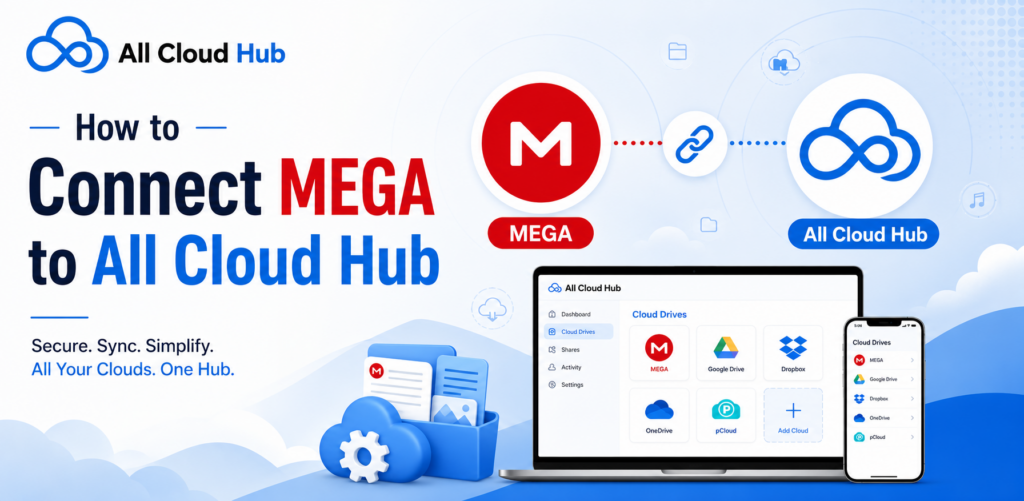
If MEGA is part of your everyday workflow, connecting it to All Cloud Hub gives you a more convenient way to access and manage your files. Instead of treating MEGA as a separate destination, you can bring it into the same workspace as your other connected cloud storage accounts.
The connection takes just a few minutes, and once completed, you will be able to manage your MEGA storage alongside your other cloud services without changing where your files are stored.
Before You Begin
Before connecting your MEGA account, make sure that:
- You have an active MEGA account.
- You’re signed in to your All Cloud Hub account.
- You have an available cloud connection based on your current subscription plan.
Note: Free users can connect up to three cloud storage accounts, while Power User subscribers can connect unlimited cloud accounts.
Connect Your MEGA Account
Step 1: Open the Cloud Accounts Page
Sign in to your All Cloud Hub account and navigate to the Cloud Accounts section from the left-hand navigation menu.
Click Connect Account to open the list of supported cloud storage providers.
Step 2: Enter an Account Alias
Before connecting your MEGA account, you’ll be asked to provide an Account Alias.
An Account Alias is a custom name that helps you easily identify your connected cloud account within All Cloud Hub. This is especially useful if you manage multiple MEGA accounts or use different cloud providers for work and personal storage.
Some examples include:
- Personal MEGA
- Office Files
- Client Documents
- Backup Archive
After entering your preferred alias, select MEGA from the list of cloud providers and click Connect Account.
Tip: Choosing descriptive aliases makes it easier to recognize the correct cloud account while transferring files, searching for documents, or managing scheduled tasks.
Step 3: Sign In to Your MEGA Account
You’ll now be redirected to the official MEGA sign-in page.
Enter the credentials for the MEGA account you want to connect. If you’re already signed in, you may be taken directly to the authorization screen.
Your login credentials are handled securely by MEGA during authentication. All Cloud Hub never stores or has access to your account password.
Step 4: Authorize All Cloud Hub
MEGA will now ask you to grant the necessary permissions for All Cloud Hub to access your account.
Review the requested permissions and click Allow to complete the connection.
Once the authorization is successful, you’ll automatically be redirected back to your All Cloud Hub dashboard.
Verify Your Connection
After returning to All Cloud Hub, open the Cloud Accounts page.
Your newly connected MEGA account should now appear in the list along with:
- Your chosen account alias
- The MEGA provider icon
- An active connection status
If you can see these details, your account has been connected successfully and is ready to use.
Access Your MEGA Files
Once your account is connected, navigate to the Files section in All Cloud Hub.
Your MEGA storage will appear alongside your other connected cloud accounts, allowing you to browse folders and manage your files from a single interface. There’s no need to switch between different cloud platforms, making it easier to keep your cloud storage organized and accessible.
Whether you’re working with project files, personal documents, or archived data, your MEGA account is now available whenever you need it.
Get More from Your Connected MEGA Account
Connecting your MEGA account opens the door to a more efficient way of managing your cloud storage. With All Cloud Hub, you can perform everyday file management tasks without constantly moving between different cloud platforms.
- Search Across Connected Cloud Accounts
- Transfer Files Between Cloud Providers
- Add Files to Virtual Folder for Better File Organization
- Automate Repetitive Tasks
- Track Your File Operations
Your Files Stay Safe
Connecting your MEGA account does not move or duplicate your files.
Your data always remains stored in your MEGA account, while All Cloud Hub securely communicates with MEGA using its official authorization process whenever you perform an action.
Because your password is never shared with or stored by All Cloud Hub, you can confidently manage your cloud storage while maintaining account security.
You can disconnect your MEGA account at any time without affecting the files stored in your cloud storage.
Troubleshooting Connection Issues
If you’re unable to connect your MEGA account, try the following:
- Verify you’re signing in with the correct MEGA account.
- Complete the authorization process before closing the browser window.
- Refresh the page and try connecting again if the process is interrupted.
- Remove any incomplete connection before reconnecting.
If the problem persists, contact the All Cloud Hub support team for further assistance.
Conclusion
Connecting your MEGA account to All Cloud Hub makes it easier to manage your cloud storage without changing where your files are stored. Once connected, your MEGA storage becomes part of a unified workspace where you can browse files, search across connected accounts, transfer data between cloud providers, organize your content, and automate routine file management tasks.

