



What Is a Virtual Folder and How to Use It to Organize Your Files
- Last Updated on 28 July 2026
- 6 Min Read
- Posted on July 28, 2026
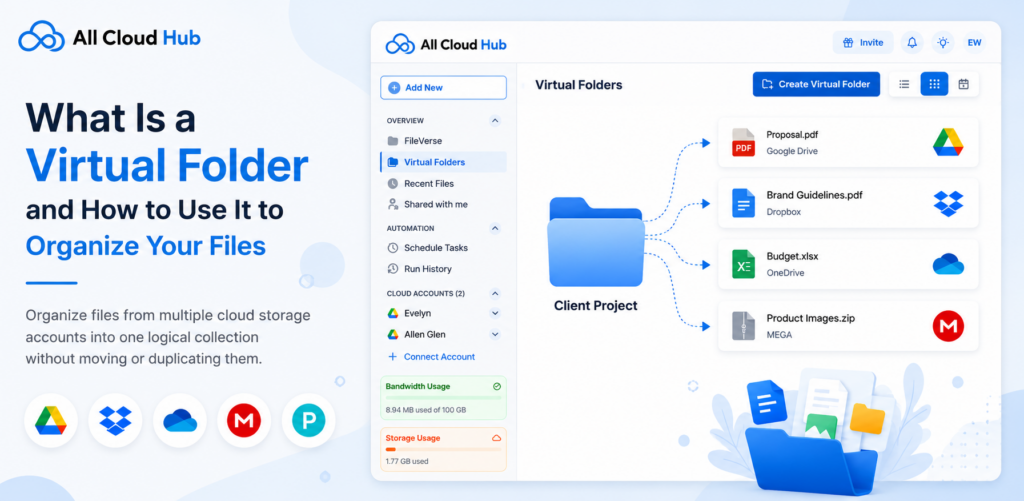
If you store files across multiple cloud storage accounts, finding related files can become difficult over time. A project might include documents in Google Drive, images in Dropbox, spreadsheets in OneDrive, and backups in another cloud account.
Virtual Folders help you organize these files into one logical collection without changing where they’re actually stored.
This article explains what Virtual Folders are, how they work, and how you can use them to organize files across your connected cloud accounts.
What Is a Virtual Folder?
A Virtual Folder is a folder created within All Cloud Hub that lets you organize files from multiple connected cloud storage accounts into a single place.
Unlike a regular folder, a Virtual Folder doesn’t physically exist in Google Drive, OneDrive, Dropbox, or any other connected cloud storage service. It simply provides an organized view of the files you choose to add.
The original files remain in their existing cloud accounts and folders.
Creating a Virtual Folder does not:
- Move files
- Copy files
- Duplicate files
- Change the original folder structure
- Use additional cloud storage space
A Virtual Folder only changes how you organize and access your files within All Cloud Hub.
How Virtual Folders Work
When you create a Virtual Folder, you can add files from any of your connected cloud storage accounts.
For example, imagine you’re working on a client project. Your files are stored in different locations:
- Proposal.pdf in Google Drive
- Brand Guidelines.pdf in Dropbox
- Budget.xlsx in OneDrive
- Product Images.zip in MEGA
Instead of opening each cloud account separately, you can add these files to a Virtual Folder called Client Project.
The Virtual Folder displays all of these files together, while each file continues to remain in its original cloud storage location.
Can the Same File Be Added to Multiple Virtual Folders?
Yes. The same file can be added to multiple Virtual Folders at the same time.
For example, a presentation file could appear in:
- Marketing
- Client ABC
- Monthly Review
This allows you to organize files in different ways without creating duplicate copies.
Why Use Virtual Folders?
Virtual Folders make it easier to organize related files, regardless of where they’re stored.
Here are some common ways to use them.
1. Organize Files by Project
Project files are often spread across multiple cloud storage accounts.
You can create a Virtual Folder for each project and collect all related files into one place, making them easier to access whenever you need them.
Examples include:
- Website Redesign
- Product Launch
- Office Relocation
2. Group Files by Client
If you work with multiple clients, each client’s files may be stored in different cloud accounts.
A Virtual Folder allows you to keep all related files together without moving them from their original locations.
Examples include:
- Client Alpha
- Client Beta
- ABC Construction
3. Separate Work and Personal Files
If you’ve connected both personal and business cloud accounts, Virtual Folders help keep your files organized.
Examples include:
- Work Documents
- Personal Files
- Family Photos
4. Organize Files by Department
Businesses can create Virtual Folders for different teams.
Examples include:
- Human Resources
- Finance
- Marketing
- Engineering
Each folder can include files from multiple connected cloud accounts.
5. Create Temporary Collections
Sometimes you only need a group of files for a short period.
For example, while preparing:
- A presentation
- A client meeting
- A training session
- An audit
Once you’re finished, you can remove the Virtual Folder without affecting the original files.
6. Keep Frequently Used Files Together
Instead of searching multiple cloud accounts every day, you can create Virtual Folders for files you access regularly.
Examples include:
- Daily Reports
- Templates
- Contracts
- Brand Assets
7. Organize Files by Region or Office
If your organization works across multiple locations, you can group files based on region.
Examples include:
- India
- Europe
- North America
This makes it easier to locate files related to a specific office or team.
8. Group Files for Audits or Compliance
When preparing for reviews or audits, you can temporarily organise relevant files into a dedicated Virtual Folder.
Examples include:
- Financial Audit 2026
- Compliance Documents
- Tax Records
This keeps important files together without changing their original locations.
Benefits of Virtual Folders
Virtual Folders help you:
- Organize files from multiple cloud storage accounts in one place.
- Find related files more quickly.
- Reduce the need to browse multiple cloud accounts.
- Organize files by project, client, department, or purpose.
- Keep your original folder structure unchanged.
- Add the same file to multiple Virtual Folders.
- Manage files without creating duplicate copies.
How to Create a Virtual Folder
Step 1 – Open FileVerse.
Step 2 – Select Virtual Folder. Choose the “Create Virtual Folder” button
Step 3 – Enter a name for your Virtual Folder. Choose a name that clearly describes the files you plan to organize.
Step 4 – Browse your connected cloud accounts and select the files you want to add.
You can add files from one or multiple cloud storage services.
Step 5 – Save your Virtual Folder.
The selected files will now appear together inside the Virtual Folder while remaining in their original cloud storage locations.
Managing Virtual Folders
You can update a Virtual Folder whenever your organization needs change.
You can:
- Add more files.
- Remove files from a Virtual Folder.
- Rename a Virtual Folder.
- Delete a Virtual Folder when it is no longer needed.
Note – Removing a file from a Virtual Folder only removes it from that Virtual Folder. The original file remains in its cloud storage account.
Similarly, deleting a Virtual Folder removes only the Virtual Folder itself. None of the original files are deleted or modified.
Best Practices
To keep your Virtual Folders organized:
- Use clear and descriptive names.
- Organize files by project, client, department, or purpose.
- Create separate Virtual Folders for active and completed work.
- Remove Virtual Folders that are no longer needed.
- Add frequently used files to dedicated Virtual Folders for quicker access.
Ending Note
Virtual Folders help you organise related files from multiple connected cloud storage accounts into one logical collection. They make it easier to find and manage files while keeping the original files and folder structure unchanged. You can update or reorganise your Virtual Folders at any time without affecting the files stored in your cloud accounts.
If you have questions about managing your connected cloud accounts or organising your files, the following guides provide additional information:

