



How to Recover Accidentally Deleted Files from Cloud: Everything About Cloud Storage Recovery
- Last Updated on 24 July 2026
- 18 Min Read
- Posted on May 16, 2026
You delete a file from Google Drive or Dropbox, and the moment you realize it was the wrong one, panic sets in. You head straight to the trash folder, hoping it is still there. Sometimes it is. Often, it is not.
This situation is more common than most people expect. According to an IDG Research survey, 25% of organizations experienced SaaS data loss due to accidental deletion, showing that even cloud-based platforms are still vulnerable to human error.
What makes this worse is that most people assume cloud storage works like a safety net. The file is “in the cloud,” so surely it can be brought back. The reality of cloud storage recovery is far more complicated, and understanding why is the first step toward protecting your files properly.
This guide covers everything: why deleted cloud files are genuinely hard to recover, what your options are right now if you have just deleted something, how each major platform handles deletions, and what you can do going forward to make sure you are never in this situation again.
Cloud Storage vs Cloud Backup: The Difference Nobody Tells You About
Before anything else, this distinction needs to be clear, because it is the root cause of most recovery failures.
When you upload a file to Google Drive, Dropbox, or OneDrive, you are using cloud storage. The platform holds the current version of your file so you can access it from anywhere. That is its core function. Cloud storage is designed to hold live data, not to preserve historical versions or copies of deleted files. It only holds what exists right now.
Cloud backup is an entirely different service. It creates separate, independent copies of your data on a scheduled basis and stores them outside your primary storage environment. These copies are what allow you to go back in time and restore something that no longer exists in your active storage.
Huawei Cloud’s CBR (Cloud Backup and Recovery) is a clear example of this. CBR explicitly stores versioned copies of your data in a separate service with its own lifecycle and retention policies. Most cloud storage solutions do not do this by default. The result is that when you delete a file from a typical cloud drive, you have often deleted the only existing copy.
This is why the question of cloud storage data access matters so much. Having access to your files is not the same as having protection over them. One is about convenience; the other is about resilience.
What Actually Happens When You Delete a Cloud File
Understanding the mechanics helps explain why recovery is so difficult.
Step 1: The File Moves to Trash
On most platforms, deleting a file does not immediately remove it. It moves to a temporary holding area: the trash in Google Drive, the recycle bin in OneDrive, and the deleted files section in Dropbox. This is your first and easiest recovery window.
Step 2: The Retention Clock Starts
Each platform enforces a retention window. Once the file enters trash, a countdown begins. The standard windows across major platforms are roughly as follows:
- Google Drive: Up to 30 days in Trash before permanent removal
- iCloud: Up to 30 days in the Recently Deleted folder
- OneDrive: Around 30 days on standard accounts, up to 93 days on Microsoft 365 business plans
- Dropbox: 30 days on free accounts, up to 180 days on paid plans, and up to 365 days on select higher-tier plans
Once that window closes, the file is gone from the provider’s active system. Once the retention period expires or the trash is manually emptied, there is typically no path back through the provider’s standard tools.
Step 3: The File Is Purged Permanently
After the retention window ends, cloud providers permanently delete the file to reclaim storage space. This is not a recoverable state through any normal means. Even provider support teams typically cannot restore a file once it has been fully purged.
Step 4: Sync Propagates the Deletion Everywhere
If you use a sync client on your computer, the deletion does not stay isolated to one device. Cloud sync systems are designed to mirror changes across all connected devices and folders almost immediately. This means the file disappears from your laptop, your phone, and any shared folders at roughly the same time, often before you have even realized the mistake.
Why Cloud Storage Recovery Is Harder Than It Looks
There are several specific reasons why recovering deleted files from cloud storage is more complicated than a simple undo action.
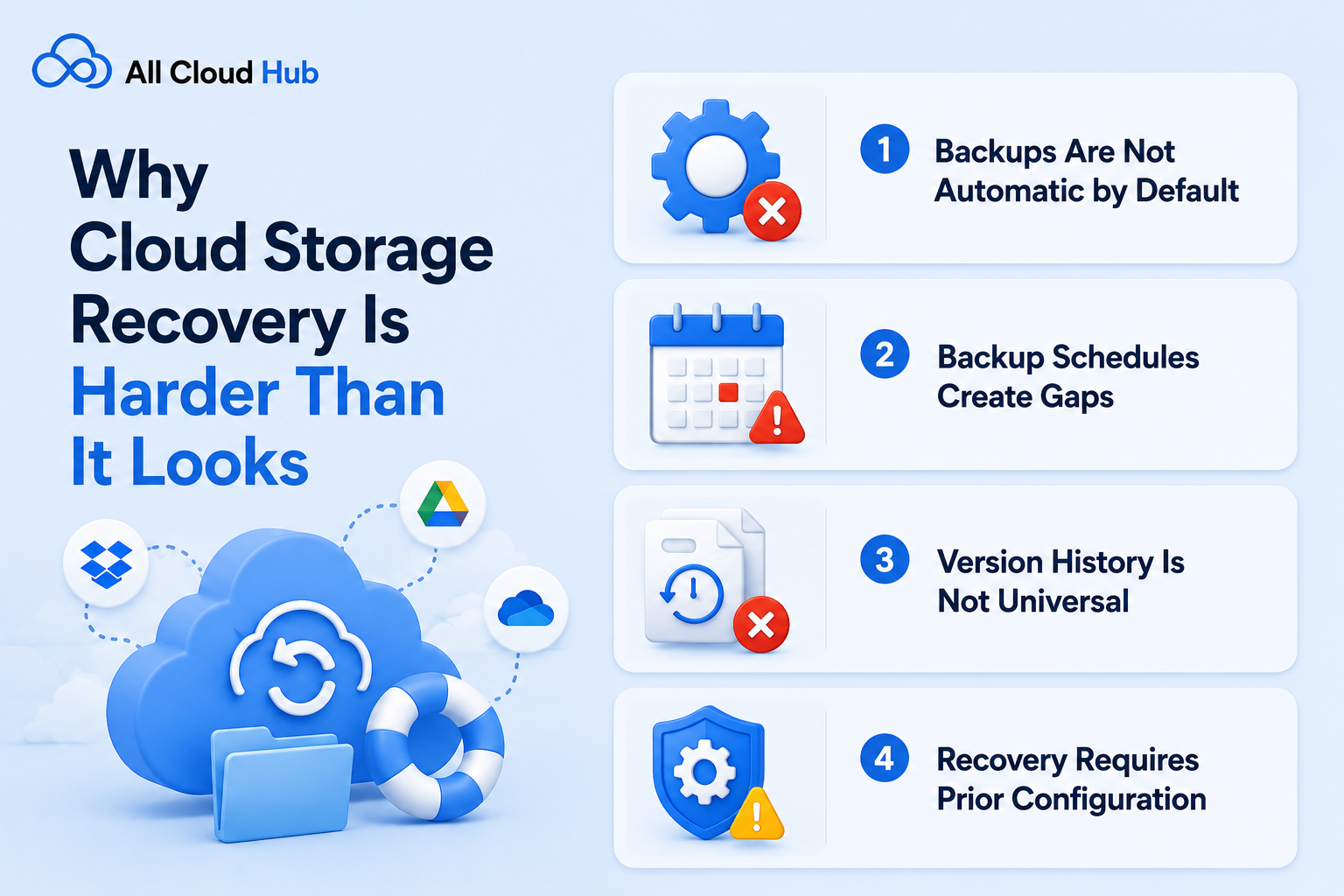
1. Backups Are Not Automatic by Default
Most users never configure a dedicated backup layer for their cloud storage. They assume the cloud itself is the backup. As Rackspace makes clear, this assumption is the single biggest reason why accidental deletions become permanent. Unless you have set up a separate backup policy with scheduled snapshots and defined retention windows, there is nothing for the system to restore from.
Huawei’s CBR documentation reinforces this: data protection policies must be configured before a loss event occurs. If you delete a file today and you have no backup policy in place, there is no historic copy for the system to draw from, even if the file existed just moments ago.
2. Backup Schedules Create Gaps
Even when backups are enabled, they run on schedules, not in real time. Daily backups, weekly snapshots, or any interval-based system creates gaps. If a file is deleted in the window between two scheduled backup runs, that deletion may never be captured in any snapshot at all. The file existed, it was deleted, and the next backup simply never saw it.
3. Version History Is Not Universal
Some cloud platforms offer file versioning, which keeps previous versions of a document so you can roll back changes. This can help in certain cases. But version history is not the same as a full backup, and it does not automatically prevent permanent deletion. If you delete a file outright rather than overwriting it, version history often does not apply. Version history saves you only if it was active before the deletion and if the file was modified rather than entirely removed.
4. Recovery Requires Prior Configuration
This point cannot be overstated. Cloud backup systems require advance setup. The configuration, retention windows, and scheduling all need to be in place before anything goes wrong. Recovery is never retroactive. A cloud system cannot go back in time and create a backup copy that was never made.
Third-Party Recovery Tools Cannot Reach Cloud Servers
Traditional file recovery software like Recuva or Disk Drill works by scanning local storage media for traces of deleted files. These tools cannot access cloud provider servers. Once a file is deleted from the cloud environment, local recovery utilities are useless unless a locally cached version of the file happens to still exist on your device. Once data is deleted from a cloud provider’s servers, the only path back is through the provider’s own retention tools or a pre-existing backup.
Shared Folder Deletions Affect Everyone
If you delete a file inside a shared folder, that deletion propagates to every collaborator who has access. There is no isolated undo. The file disappears for the entire team simultaneously, often before anyone else has a chance to notice. This compresses the recovery window even further, since by the time a collaborator realizes something is missing, the clock has been ticking for hours or days.
How to Recover Deleted Files: Platform-by-Platform Guide
If you have recently deleted a file and are reading this right now, here is what you should do on each major platform.
1. Google Drive
- Go to drive.google.com
- Click Trash in the left sidebar
- Find the file, right-click it, and select Restore
Google Drive keeps deleted files in Trash for up to 30 days. After that, the file is permanently removed. If you are the owner and the file has been permanently deleted, Google Support may occasionally assist within a very short window after permanent deletion, but this is not guaranteed.
2. Microsoft OneDrive
- Go to onedrive.live.com or the OneDrive website
- Click Recycle Bin in the left panel
- Select the file and click Restore
Standard personal accounts retain deleted files for approximately 30 days. Microsoft 365 business accounts can retain files in the Recycle Bin for up to 93 days. Once that window closes, the file cannot be restored through OneDrive’s interface.
For Microsoft Office files specifically, you may also be able to recover unsaved or recently changed versions by opening the application, going to File > Info > Manage Document, and looking for Recover Unsaved Documents. This applies only to files that were being actively edited before deletion and is not a substitute for a backup.
3. Dropbox
- Log in to dropbox.com
- Click Deleted files in the left panel
- Select the file and click Restore
Dropbox retains deleted files for 30 days on free plans and up to 180 days on paid plans. Higher-tier business plans may extend this further. Dropbox also offers a Rewind feature on certain plans that can undo large-scale changes, but this operates within a defined time window and is not a true backup system. Once the recovery window expires, even Dropbox support cannot restore the file.
4. pCloud
- Log in to your account at pcloud.com.
- Click the Trash icon in the left-hand sidebar menu.
- Locate the file or folder you wish to recover, select it, and click the Restore button. The file will be moved back to its original location.
Retention Windows & Limits pCloud stores deleted files temporarily based on your account type:
- Free Accounts: 15 days.
- Paid/Lifetime Accounts: 30 days.
Extended File History (EFH) If you require a longer recovery window, pCloud offers a paid Extended File History add-on. This extends the retention for both the Trash folder and File Revisions to 365 days.
Note: EFH is not retroactive; it only begins tracking and saving your file history from the moment you purchase and activate it.
Pro Tip: Using pCloud Rewind If you accidentally deleted a large number of files or a complex folder structure, use the Rewind feature. This allows you to “travel back in time” to a specific date and hour to see your account exactly as it was, making it easier to perform a bulk restoration.
5. iCloud Drive
- Visit icloud.com/iclouddrive
- Look for the Recently Deleted folder
- Select your file and click Recover
For other iCloud apps, you can visit icloud.com/recovery and use Data Recovery to restore deleted content from specific apps. iCloud keeps recently deleted files for up to 30 days.
When Files Are Already Permanently Deleted
If the trash has been emptied or the retention window has closed, your options become very limited. But there are still a few things worth checking before accepting the loss.
1. Check Your Local Device for a Cached Copy
If you use a desktop sync client for Google Drive, Dropbox, or OneDrive, there is a chance a locally cached version of the file still exists on your computer, even after the cloud copy was deleted. Check your local sync folder immediately. If sync has already propagated the deletion, the local copy will be gone too, but it is worth verifying before taking further steps.
2. Look in Your Local Recycle Bin or Trash
If you deleted the file from a synced folder on your computer, the deletion may have first passed through your operating system’s Recycle Bin (Windows) or Trash (Mac) before syncing to the cloud. Open your local bin and see if the file is still there.
On Windows, you can also try File History if it was enabled. Go to Settings > Update and Security > Backup > More options > Restore files from a current backup.
On Mac, Time Machine can restore previous versions of files if the backup drive was connected and the feature was active.
3. Contact Provider Support
For critical files, it is worth reaching out to your cloud provider’s support team. There is no guarantee, and the chances drop significantly once a file has been permanently purged, but in some cases, providers may be able to assist if the deletion was very recent.
4. Use a Third-Party Backup Service
If you had a third-party backup service running in the background before the deletion occurred, that service may have a copy. This is the scenario where something like a dedicated cloud backup solution proves its value. Services that run automated backups with versioning can often restore files that cloud storage itself cannot.
The Real Problem: Most People Are Managing Multiple Clouds Without a Safety Net
Here is a pattern that comes up constantly among freelancers, remote teams, and small businesses. They use Google Drive for personal work, OneDrive through their company, Dropbox for client files, and maybe pCloud for long-term storage. Each of these platforms has its own deletion policies, its own trash retention window, and its own backup settings, or lack thereof.
Managing files across four different dashboards means the likelihood of missing a backup configuration or misunderstanding a platform’s retention policy goes up significantly. And when something is accidentally deleted, the first challenge is even figuring out which platform had the file in the first place.
This is part of why having a centralized way to manage multiple cloud accounts makes a real difference. All Cloud Hub is a multi-cloud management platform that lets you connect Google Drive, Dropbox, OneDrive, Google Photos, pCloud, and others into a single dashboard.
Instead of switching between tabs and apps, you can search across all your connected drives at once, transfer files directly between services, and run background backups without downloading files locally. When you can see all your cloud environments together, you are far less likely to lose track of where something lives or miss a setting that protects your data.
Being able to organize files without losing them across multiple services is not just about tidiness. It directly reduces the risk of accidental deletion and the confusion that follows it.
How to Prevent Accidental Deletion and Protect Your Files Going Forward
Recovery after the fact is always harder than protection set up in advance. Here are the practical steps that actually make a difference.
1. Enable Version History on Every Platform You Use
Most major cloud platforms offer some form of version history, but it is not always turned on by default. Check the settings for each service you use and make sure versioning is active. This gives you the ability to roll back to a previous state of a file, which is particularly useful if a file was overwritten or corrupted rather than deleted outright.
2. Set Up a Dedicated Backup Layer
As discussed above, cloud storage is not cloud backup. Using the cloud to store files online does not mean those files are backed up. Set up a separate backup service that runs on a defined schedule, keeps versioned copies, and stores those copies independently from your primary cloud drive. Know your retention window for each service you rely on.
For businesses and professionals managing larger volumes of data, exploring business backup services adds a structured layer of protection beyond what personal cloud accounts provide by default.
3. Understand the Difference Between Backup and File Sharing
Many users choose cloud platforms primarily for file sharing and collaboration without considering whether those platforms also meet their backup needs. These are two different use cases with different requirements. Understanding backup versus file sharing as separate functions helps you choose the right tools for each job rather than assuming one service covers both.
4. Do Not Rely on a Single Cloud Provider
Keeping all your files in one service is a single point of failure. If that provider has an outage or a policy change, or if you accidentally delete something and miss the retention window, you have no fallback. Distributing files across services and maintaining redundant backups is a stronger approach.
The comparison between cloud backup and local storage is also worth thinking through. Local backups on an external drive can serve as an additional safety net that operates entirely independently of your cloud provider’s retention policies.
5. Know Your Recovery Window Before You Need It
Every platform you use has a specific retention policy. Know what it is. Know how long deleted files stay in the trash, whether that window differs between your plan and a paid upgrade, and what the process is for restoring a file. Discovering this information after a deletion has already happened is too late.
6. Use a Secure, Well-Reviewed Cloud Platform
Not all cloud services handle data with the same level of care. Using a secure cloud storage provider that is transparent about its retention policies, versioning capabilities, and data handling practices gives you a stronger foundation to work from. Platforms that prioritize data protection at the infrastructure level are far better suited for files you cannot afford to lose.
7. Configure Backup Policies with Sensible Retention Windows
If you are using a dedicated cloud backup service, configure it thoughtfully. Set backup frequency based on how often your files change. Define retention windows that give you enough time to notice a deletion before the backup copy expires. And periodically test your restore process to confirm it works before you ever need it in a real emergency.
A Note on What Cloud Storage Was Actually Designed to Do
It helps to think about cloud storage the way it was intended. Platforms like Google Drive and Dropbox were built to give you access to your files from anywhere and to make sharing and collaboration easier. They were not originally designed to serve as comprehensive backup systems. The fact that they include trash folders and limited version history is a convenience feature, not a substitute for a real data protection strategy.
Cloud storage alone should not be your primary backup safety net. The two functions serve different purposes, and relying on one to do the job of both is a common mistake with real consequences.
The good news is that understanding this distinction gives you the information you need to close the gap. Choosing the right cloud storage for backup purposes, setting up dedicated backup policies, and using tools that give you visibility across all your cloud environments puts you in a much stronger position than most users.
Final Thoughts
Cloud storage recovery is genuinely hard, and it is hard by design. The platforms you use every day were built for access and collaboration, not for comprehensive data preservation.
Recovery windows are short. Backup configurations require proactive setup. Deletions sync across devices before you can react. And once a file is gone past the retention window, the options disappear with it.
The answer is not to stop using cloud storage. It is to use it with a clear understanding of what it does and does not protect and to layer in proper backup systems alongside it. That means knowing your platform’s retention policies, enabling versioning where available, maintaining independent backup copies, and, if you are managing files across multiple cloud services, using a tool that gives you unified visibility across all of them.
The difference between losing a file permanently and recovering it in five minutes often comes down entirely to decisions made before the deletion happened.
Frequently Asked Questions
1. How long do cloud providers keep deleted files?
It depends on the platform and your plan. Google Drive and iCloud typically keep files in trash for 30 days. OneDrive keeps them for approximately 30 days on personal accounts and up to 93 days on Microsoft 365 business accounts. Dropbox retains deleted files for 30 days on free plans and up to 180 days on paid plans. Once these windows close, the files are permanently removed.
2. Can I recover a file after permanently deleting it from the cloud?
In most cases, no. Once a file is permanently deleted and the provider has purged it from their servers, there is no standard recovery path. Your only options are a pre-existing backup, a locally cached copy on your device, or, in very rare cases, assistance from provider support immediately after permanent deletion.
3. Does enabling version history protect against accidental deletion?
Partially. Version history helps if a file was modified or overwritten, allowing you to roll back to an earlier version. However, if the file was fully deleted rather than just changed, version history may not help. You still need to act before the trash retention window expires.
4. Is cloud storage the same as cloud backup?
No. Cloud storage holds the current version of your files for access and sharing. Cloud backup creates separate, scheduled copies stored independently from your active data. Most cloud storage platforms do not include comprehensive backup by default.
5. What should I do immediately after accidentally deleting a cloud file?
Go directly to the trash or deleted files section of the platform where the file was stored. Do this as quickly as possible. If the file is still there, restore it immediately. If it has already been permanently deleted, check your local device for a cached copy, look in your operating system’s Recycle Bin or Trash, and contact provider support if the file is critical.