



How to Connect OneDrive to All Cloud Hub
- Last Updated on 17 August 2026
- 4 Min Read
- Posted on January 2, 2026
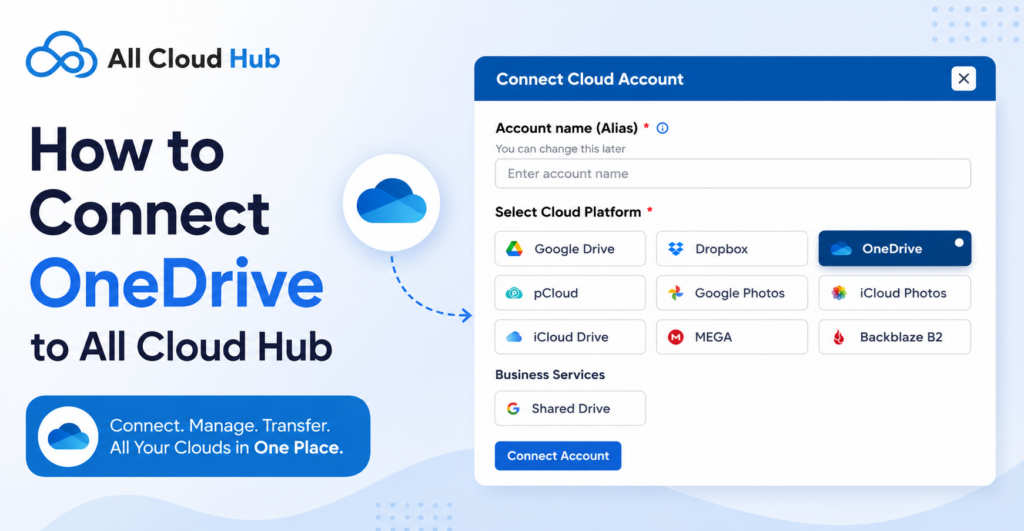
Connecting your OneDrive account to All Cloud Hub lets you manage your OneDrive files alongside your other connected cloud storage accounts from a single FileVerse dashboard.
This guide explains how to securely connect your OneDrive account and verify that the connection has been completed successfully.
Before You Begin
Before connecting your OneDrive account, make sure that:
- You have a Microsoft account with access to OneDrive.
- You’re signed in to your All Cloud Hub account.
- You have an available cloud account slot based on your current plan.
Note: If you’ve reached the maximum number of cloud accounts allowed by your plan, you’ll need to disconnect an existing account or upgrade your plan before connecting another one.
Step 1: Open the Cloud Account Connector
From the FileVerse dashboard, locate the Cloud Accounts section.
Click Connect Account to open the list of supported cloud storage providers.
You can also connect a new account from your profile section.
Step 2: Add an Account Alias
Before authorizing your OneDrive account, enter an Account Alias.
An Account Alias is a custom name used only within All Cloud Hub to help you identify your connected cloud accounts.
This is particularly useful if you plan to connect multiple OneDrive accounts, such as:
- Personal OneDrive
- Work OneDrive
- Client OneDrive
After entering an alias, select OneDrive from the available cloud providers.
Then click Connect Account.
Tip: Use a meaningful alias that makes it easy to recognise the account when managing multiple connected cloud storage services.
Step 3: Sign In to Microsoft
You’ll be redirected to Microsoft’s secure sign-in page.
Enter your Microsoft account credentials if you’re not already signed in. If you’re signed in to multiple Microsoft accounts, choose the OneDrive account you want to connect.
Microsoft manages the entire authentication process before returning you to All Cloud Hub.
Note: Your Microsoft account password is never entered into or stored by All Cloud Hub. Authentication is handled securely by Microsoft.
Step 4: Review and Accept Permissions
Microsoft will ask you to approve the permissions required for All Cloud Hub to access your OneDrive account.
Review the requested permissions, then select Accept to continue.
These permissions allow All Cloud Hub to display and manage your OneDrive files whenever you perform actions within the application.
Important: Connecting your OneDrive account does not transfer your files to All Cloud Hub. Your files remain stored in your OneDrive account at all times.
Step 5: Return to FileVerse
After you’ve approved the permissions, you’ll automatically return to FileVerse.
Your OneDrive account will now appear under Cloud Accounts.
The initial loading process may take a few moments, especially if your OneDrive contains a large number of files and folders.
Confirm Your OneDrive Connection
You can verify that your account has been connected successfully by checking that:
- Your OneDrive account is listed under Cloud Accounts.
- Your folders and files are visible in FileVerse.
- You can browse your OneDrive content without any errors.
If your files don’t appear immediately, allow the initial loading process to complete, then click the Sync button to refresh FileVerse.
If You Can’t Connect Your OneDrive Account
If the connection isn’t completed successfully, check the following:
- Make sure you’re signing in with the correct Microsoft account.
- Confirm that you selected Accept when Microsoft requested permissions.
- Check that your internet connection remained stable throughout the connection process.
- Close the connection window and repeat the steps if necessary.
Things to Know
- Connecting OneDrive gives All Cloud Hub permission to access your files only after you approve Microsoft’s authorization request.
- Your files continue to remain in your OneDrive account.
- You can connect more than one OneDrive account by repeating the connection process and assigning a different Account Alias to each account.
- If you’ve recently made changes directly in OneDrive, click Sync in FileVerse to display the latest updates.
You’re All Set
Your OneDrive account is now connected to All Cloud Hub.
You can access your OneDrive files from FileVerse together with your other connected cloud storage accounts, making it easier to manage everything from one place without switching between multiple cloud storage applications.
Also learn:

