



How to Connect pCloud to All Cloud Hub
- Last Updated on 29 July 2026
- 3 Min Read
- Posted on July 29, 2026
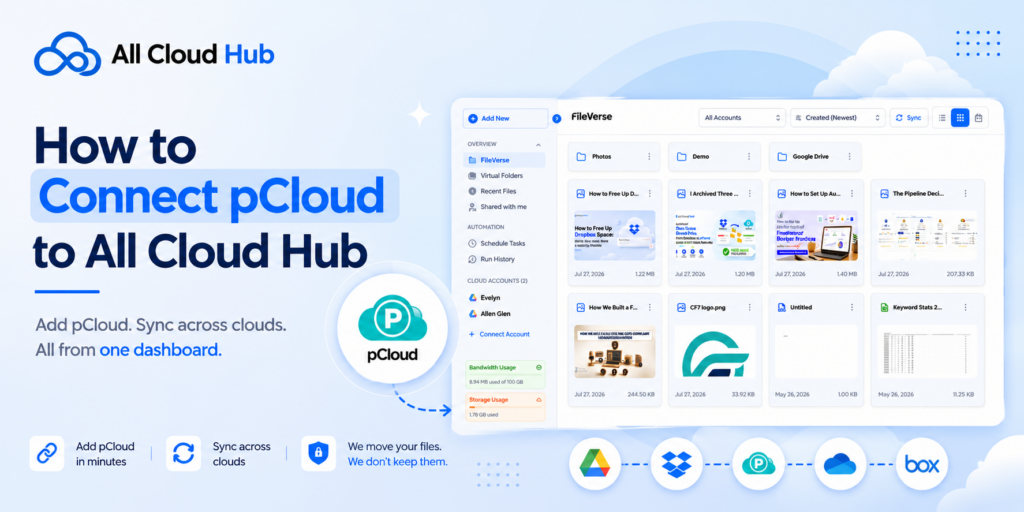
pCloud is a secure cloud storage platform trusted by individuals and businesses for storing documents, media, backups, and everyday files. By connecting your pCloud account to All Cloud Hub, you can manage it alongside your other cloud storage services from a single dashboard, eliminating the need to switch between multiple applications or browser tabs.
Once connected, your files remain securely stored in pCloud while All Cloud Hub provides a centralized workspace for browsing, searching, organizing, transferring, and managing your cloud data.
Step 1: Navigate to Cloud Accounts
After signing in to All Cloud Hub, open the Cloud Accounts section from the left-hand navigation menu.
Click Connect Account to view the list of supported cloud storage providers.
Step 2: Add an Alias for Your pCloud Account
Before authorizing your account, All Cloud Hub asks you to assign an Account Alias.
An alias is simply a custom name that helps you identify this cloud account inside your dashboard, especially if you connect multiple accounts from the same provider.
Some examples include:
- Personal pCloud
- Team Storage
- Design Assets
- Client Documents
After entering the alias, select pCloud as your cloud provider and click Connect Account.
Tip: Use descriptive aliases so you can quickly recognize the correct account while searching files, scheduling transfers, or managing multiple cloud connections.
Step 3: Sign In to Your pCloud Account
You’ll now be redirected to the official pCloud sign-in page.
Enter your pCloud account credentials and complete the login process.
If you’re already signed in, pCloud may skip the login screen and move directly to the authorisation step.
All authentication takes place through pCloud’s secure OAuth process. Your password is never stored or accessed by All Cloud Hub.
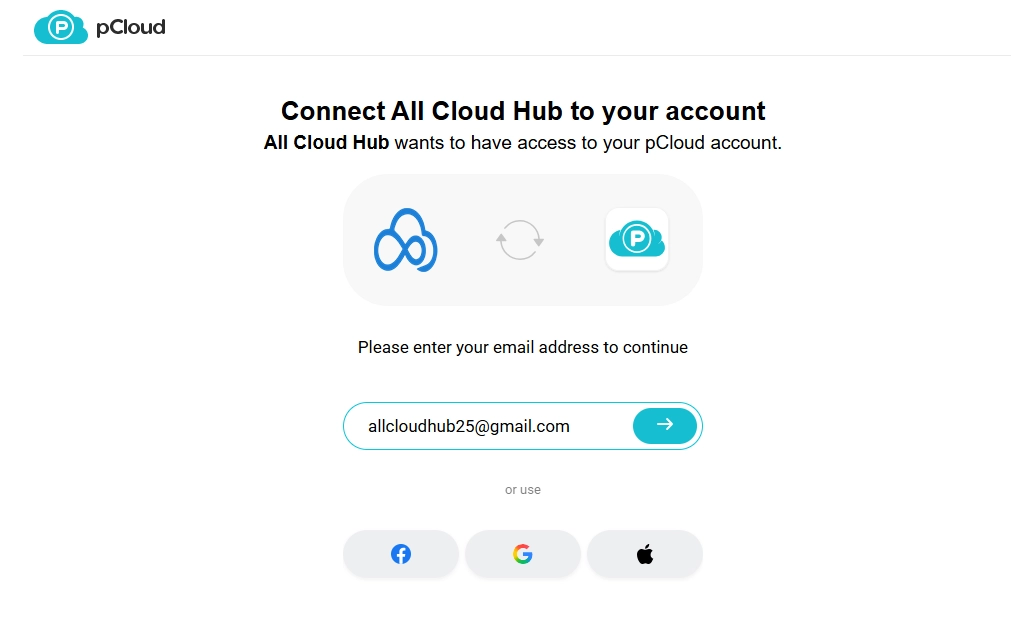
Step 4: Grant Access to All Cloud Hub
pCloud will display a permission screen requesting access for All Cloud Hub.
Review the requested permissions and select Allow to complete the connection.
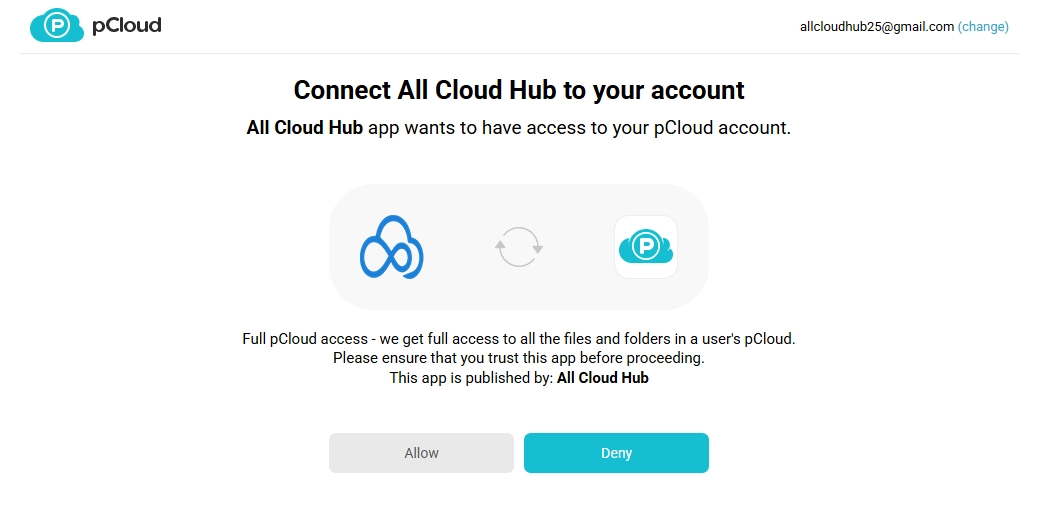
These permissions enable All Cloud Hub to securely perform actions such as:
- Browsing your files and folders
- Searching your stored content
- Copying, moving, renaming, and deleting files
- Transferring files between connected cloud accounts
- Running scheduled file operations
Your data always remains stored within your pCloud account. All Cloud Hub only accesses your files when you perform actions from your dashboard.
Step 5: Start Using Your Connected pCloud Account
Once authorization is complete, you’ll automatically return to All Cloud Hub.
Your newly connected pCloud account will now appear under Cloud Accounts with the alias you selected earlier.
From there, you can immediately browse your folders and begin managing your files alongside your other connected cloud storage services.
Things that can be done after connecting your cloud account:
- Searching Files in Across All Cloud Accounts
- How to Transfer Files Between Cloud Storage
- Schedule Automatic File Transfers
Closing Note
Whether you use pCloud for personal storage, creative projects, or business files, connecting it to All Cloud Hub makes everyday file management much easier. Instead of juggling multiple cloud platforms, you can access your connected accounts from a single dashboard, quickly find files, move data between cloud services, and keep everything organized with powerful management tools designed for a seamless multi-cloud experience.
Also Learn:
How to Connect Google Drive to All Cloud Hub

