



How to Connect iCloud Drive to All Cloud Hub
- Last Updated on 31 July 2026
- 3 Min Read
- Posted on July 31, 2026
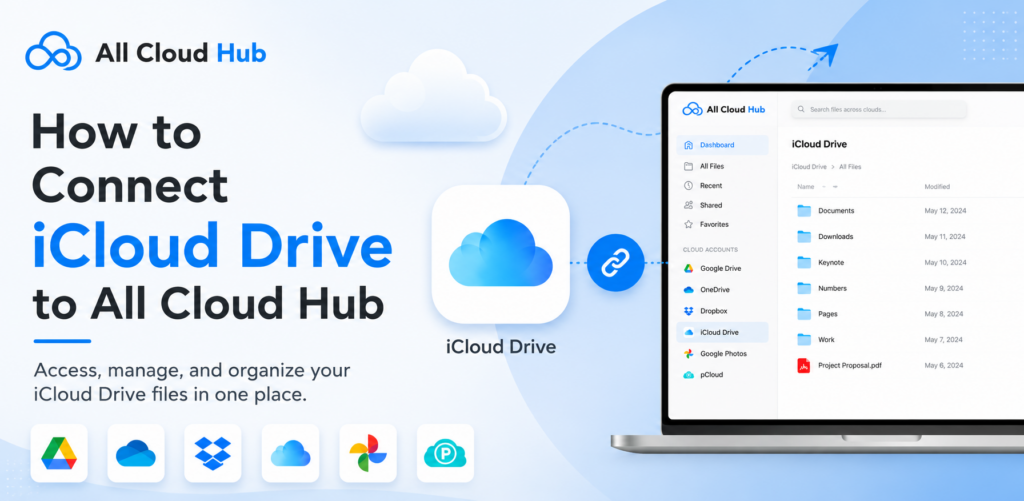
Managing your iCloud Drive files alongside your other cloud storage accounts is simple with All Cloud Hub. Once connected, you can access and manage your iCloud Drive from the same dashboard without switching between multiple cloud storage platforms.
This guide walks you through the complete process of connecting your iCloud Drive account to All Cloud Hub.
Before You Begin
Before connecting your iCloud Drive account, make sure you have the following:
- An active Apple ID with iCloud Drive enabled.
- An iPhone or iPad signed in with the same Apple ID.
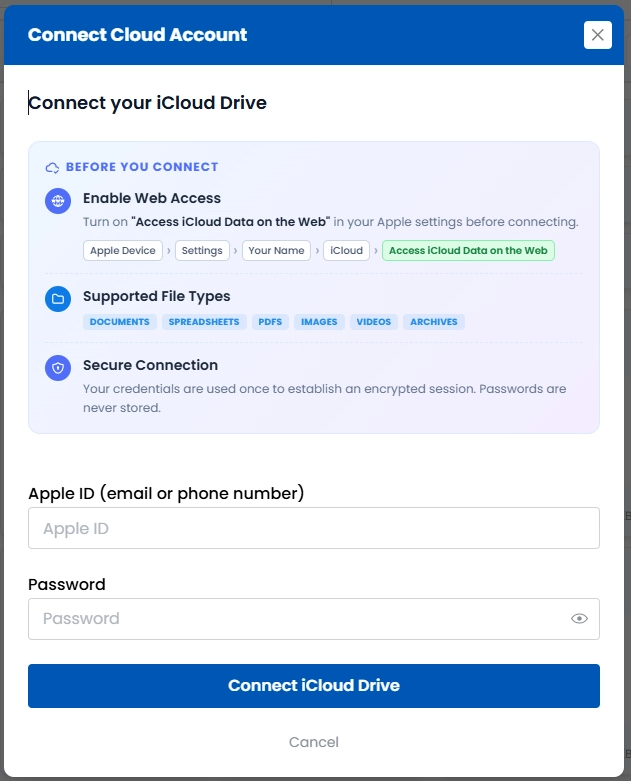
- Access iCloud Data on the Web enabled in your Apple Account settings.
To enable web access on your Apple device:
Settings → Your Name → iCloud → Access iCloud Data on the Web
This setting allows All Cloud Hub to securely establish a connection with your iCloud Drive account.
Note: All Cloud Hub uses an encrypted connection to authenticate your account. Your Apple ID password is used only during the sign-in process and is never stored.
Steps to Connect iCloud Drive to All Cloud Hub
Step 1: Sign In to Your All Cloud Hub Account
Log in to your All Cloud Hub account and open the dashboard.
Step 2: Open the Connect Account Window
From the left sidebar, navigate to the Cloud Accounts section and click + Connect Account.
The Connect Cloud Account window will appear, displaying all supported cloud storage providers.
Step 3: Choose iCloud Drive
Select iCloud Drive from the list of available cloud storage services.
Step 4: Enter Your Apple ID Credentials
Type the email address or phone number associated with your Apple ID.
Next, enter your Apple ID password and click Connect iCloud Drive to continue.
Step 5: Verify Your Identity
Apple will send a one-time verification code to your trusted Apple device.
Enter the verification code in the authentication window to complete the sign-in process.
If prompted, approve the sign-in request from your trusted device.
Step 6: Complete the Connection
After successful verification, All Cloud Hub will securely connect to your iCloud Drive account.
Your iCloud Drive will now appear under the Cloud Accounts section in the left navigation panel, allowing you to browse and manage your files alongside your other connected cloud storage accounts.
What You Can Do After Connecting
Once your iCloud Drive account is connected, you can:
- Browse your iCloud Drive files from the All Cloud Hub dashboard.
- Search for files across all connected cloud storage accounts.
- Organize and manage files without switching between multiple cloud platforms.
- Schedule automated cloud-to-cloud file transfers using All Cloud Hub’s automation features.
Conclusion
Connecting iCloud Drive to All Cloud Hub takes only a few minutes and gives you centralized access to your cloud storage from a single dashboard. After completing the secure Apple verification process, you can manage, search, transfer, and organize your iCloud Drive files alongside all your other connected cloud accounts without constantly switching between different platforms.

