



Quick Start: Connect Your First Cloud Account to All Cloud Hub
- Last Updated on 14 October 2026
- 6 Min Read
- Posted on August 25, 2026
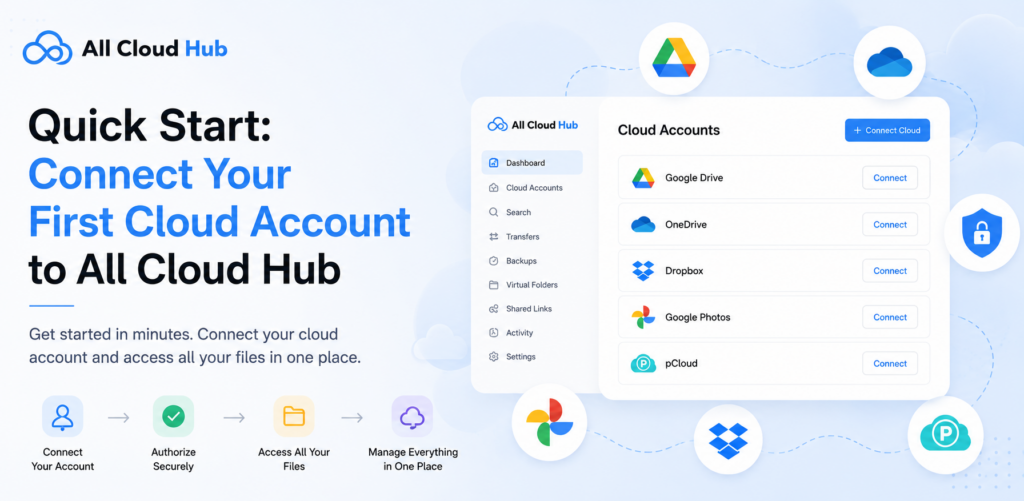
Before you can start managing your cloud storage in All Cloud Hub, you’ll first need to create an account and connect your cloud storage services.
All Cloud Hub supports signing in with your Google account, email address, or Apple account (available on iOS devices). Once you’re signed in, you can connect your preferred cloud storage account and begin managing your files from a single place.
This guide walks you through the process of creating your All Cloud Hub account and connecting your first cloud storage account.
Step 1: Visit All Cloud Hub
Open your preferred web browser and go to: https://allcloudhub.com
Click Sign In in the top-right corner of the page.
Step 2: Choose How You Want to Sign In
All Cloud Hub offers multiple sign-in options depending on the device you’re using.
- Continue with Google – Sign in using your Google account.
- Continue with Email – Create an account or sign in using your email address.
- Continue with Apple (iOS Only) – If you’re using an iPhone or iPad, you’ll also see the option to continue with your Apple account.
Choose the option that best suits you and continue with the sign-in process.
Step 3: Complete the Sign-In Process
The steps you’ll follow depend on the sign-in method you selected.
A] If you choose Continue with Google
- Click Continue with Google.
- Select the Google account you want to use.
- Review the requested permissions.
- Click Continue to complete the sign-in process.
During this process, Google may ask whether you want to allow All Cloud Hub to access your Google Drive.
- If you want Google Drive to be connected immediately, select Continue.
- If you prefer to connect Google Drive later or want to connect a different cloud storage service first, select Cancel. Your All Cloud Hub account will still be created, and you’ll be signed in successfully.
B] If you choose Continue with Apple
The process is similar to signing in with Google.
- Select Continue with Apple.
- Choose your Apple account.
- Review the requested permissions.
- Complete the sign-in process.
C] If you choose Continue with Email
Follow the on-screen instructions to create your account or sign in using your registered email address.
Once the process is complete, you’ll be taken to your All Cloud Hub workspace.
Step 4: Open the Connect Account Menu
After signing in, locate the left navigation panel.
Click Connect Account to start adding your first cloud storage account.
Step 5: Select Your Cloud Storage Provider
Choose the cloud storage service you want to connect.
All Cloud Hub currently supports:
- Google Drive
- Google Photos
- Google Shared Drive
- OneDrive
- Dropbox
- pCloud
- iCloud Drive
- iCloud Photos
- MEGA
- Backblaze B2
After selecting your preferred service, enter a name for the connection.
The connection name helps you identify the account inside All Cloud Hub, especially if you plan to connect multiple accounts from the same cloud storage provider.
For example, you could name your connections:
- Personal Google Drive
- Work OneDrive
- Marketing Dropbox
- Client Backup
Choose a name that makes it easy to recognize the account later.
Step 6: Authorize Your Cloud Account
After selecting your cloud storage provider, you’ll be redirected to the provider’s secure sign-in page.
Sign in using your cloud storage account if required and review the permissions requested by All Cloud Hub.
Select Allow to authorize the connection.
All Cloud Hub uses the official authorization process provided by each supported cloud storage service. Your password is never shared with or stored by All Cloud Hub.
Step 7: Start Managing Your Files
Once authorization is complete, your cloud account will appear in All Cloud Hub.
You can now browse your files, organize connected drives, download files, assign tags, create scheduled tasks, and access other available features from your All Cloud Hub workspace.
Congratulations! You’ve successfully connected your first cloud storage account.
Things to Consider
- I cancelled the permission request during sign-in. Can I still use All Cloud Hub?
Yes. If you cancelled the permission request while signing in with Google or Apple, your All Cloud Hub account is still created successfully. You can connect any supported cloud storage account later by selecting Connect Account from the left navigation panel.
- Can I connect multiple accounts from the same provider?
Yes. For example, you can connect both your personal and work Google Drive accounts. Giving each connection a unique name makes them easier to identify.
- Why do I need to allow access?
Authorization allows All Cloud Hub to access your cloud storage account so you can browse, organize, and manage your files from one place. You can revoke this access at any time from your cloud provider’s account settings.
Fix Cloud Account Connection Problems
If a connected cloud account is not working as expected, you may not need to remove and add the account again. All Cloud Hub provides a Re-authenticate option directly from the dashboard.
To re-authenticate your cloud account:
- Open the Dashboard in All Cloud Hub.
- Find the cloud drive you are having trouble with.
- Select Re-authenticate under the respective cloud drive name.
- Follow the authorization steps provided by your cloud provider.
- Once authorization is complete, return to the All Cloud Hub dashboard and check the account status again.
Re-authentication can help restore the connection when your cloud provider requires you to authorize the account again or when the existing authorization is no longer valid.
If you are still unable to connect after re-authenticating, check the error message displayed by All Cloud Hub for more information about the issue.
You are Ready to Get Started
You’ve successfully connected your first cloud account to All Cloud Hub. The same process can be used to connect additional cloud accounts, whether they’re from the same provider or different supported services. Whether you’re connecting personal accounts, work drives, or shared storage, every new connection becomes part of the same unified workspace, helping you manage all your cloud storage from one place.
Also Read –
- Understanding Cloud Permissions and OAuth
- How to Add and Manage Multiple Cloud Accounts in All Cloud Hub
- How All Cloud Hub Keeps Your Data Secure
- How to Transfer Files Between Cloud Storage and What Happens During a Transfer
- Searching Files Across All Connected Drives
- System Requirements and Supported Cloud Services

