



System Requirements and Supported Cloud Services
- Last Updated on 17 August 2026
- 4 Min Read
- Posted on January 2, 2026
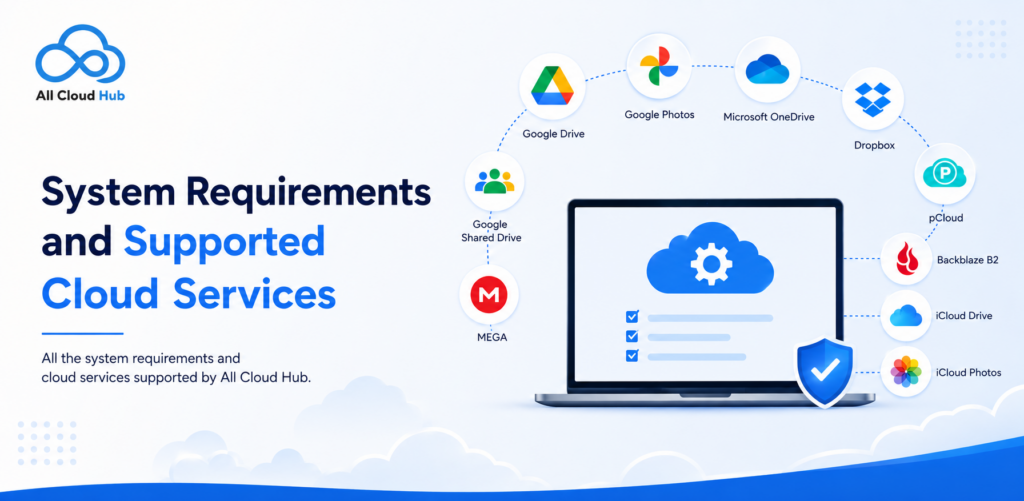
All Cloud Hub works with multiple leading cloud storage providers, allowing you to manage files across different services from a single dashboard. Instead of switching between multiple cloud apps or browser tabs, you can browse, search, transfer, sync, and automate file management in one place.
This guide explains:
- System requirements for using All Cloud Hub
- Supported cloud storage providers
- Feature availability for each provider
- Platform compatibility
System Requirements
Before connecting your cloud accounts, make sure your device meets the following requirements.
Web App
You can access All Cloud Hub from any modern web browser, including:
- Google Chrome
- Microsoft Edge
- Mozilla Firefox
- Safari
A stable internet connection is recommended for the best experience.
Android
- Android device with the latest available version of the All Cloud Hub app
- Active internet connection
iPhone and iPad
- iPhone or iPad running a supported version of iOS
- Latest version of the All Cloud Hub app
- Active internet connection
Your files always remain inside your cloud storage provider. All Cloud Hub connects securely using OAuth authentication and does not store your cloud passwords.
Supported Cloud Storage Providers
Currently, All Cloud Hub supports the following cloud services:
- Google Drive
- Google Photos
- Microsoft OneDrive
- Dropbox
- pCloud
- MEGA
- Google Shared Drive
- Backblaze B2
- iCloud Drive
- iCloud Photos
Additional providers may be introduced in future updates.
Provider Feature Compatibility
The following table shows which features are currently available for each supported cloud provider.
| Cloud Provider | Web | Android | iOS | Browse Files | Search | Copy | Move | Sync | Scheduled Jobs |
|---|---|---|---|---|---|---|---|---|---|
| Google Drive | ✅ | ✅ | ✅ | ✅ | ✅ | ✅ | ✅ | ✅ | ✅ |
| Google Photos | ✅ | ✅ | ✅ | ✅ | ✅ | ✅ | ❌ | ✅ | ✅ |
| Microsoft OneDrive | ✅ | ✅ | ✅ | ✅ | ✅ | ✅ | ✅ | ✅ | ✅ |
| Dropbox | ✅ | ✅ | ✅ | ✅ | ✅ | ✅ | ✅ | ✅ | ✅ |
| pCloud | ✅ | ✅ | ✅ | ✅ | ✅ | ✅ | ✅ | ✅ | ✅ |
| MEGA | ✅ | ✅ | ✅ | ✅ | ✅ | ✅ | ✅ | ✅ | ✅ |
| Google Shared Drive | ✅ | ✅ | ✅ | ✅ | ✅ | ✅ | ✅ | ✅ | ✅ |
| Backblaze B2 | ✅ | ✅ | ✅ | ✅ | ✅ | ✅ | ✅ | ✅ | ✅ |
| iCloud Drive | ✅ | ❌ | ✅ | ✅ | ✅ | ✅ | ✅ | ✅ | ✅ |
| iCloud Photos | ✅ | ❌ | ✅ | ✅ | ✅ | ✅ | ✅ | ✅ | ✅ |
Understanding Provider Limitations
Most supported cloud services include the complete set of file management features available in All Cloud Hub. However, a few providers have platform or API limitations.
1. Google Photos
Google Photos supports copying files, but moving files is currently unavailable. This limitation is due to how Google Photos manages media rather than a restriction within All Cloud Hub.
2. iCloud Drive
iCloud Drive can be connected and managed through the web application and iOS app.
Android currently does not support iCloud Drive because Apple does not provide the required authentication and integration capabilities for Android devices.
3. iCloud Photos
Like iCloud Drive, iCloud Photos is available on the web application and iOS, but is not currently supported on Android due to Apple’s platform restrictions.
What Each Feature Means
If you’re new to All Cloud Hub, here’s what each feature in the compatibility table represents.
| Feature | Description |
|---|---|
| Browse | View folders and files inside connected cloud accounts. |
| Search | Search across connected cloud storage accounts from one place. |
| Copy | Copy files between folders or supported cloud providers. |
| Move | Move files without downloading them to your device. |
| Sync | Keep folders synchronized across supported cloud accounts. |
| Scheduled Jobs | Automate recurring copy, move, delete, or sync operations on a schedule. |
Summary Note
All Cloud Hub is designed to make managing multiple cloud storage accounts simpler, regardless of which providers you use. While most supported services offer the full range of features, some capabilities may vary because of platform-specific or provider-imposed limitations. The compatibility matrix above can help you quickly see which features are available for each cloud service before you connect your accounts.
If you’re just getting started, continue with our guides on connecting your first cloud account, transferring files between cloud services, and scheduling automated tasks to get the most out of All Cloud Hub.
Related Guides
You may also find these guides helpful:

