



Google Photos and iCloud Storage Both Full? Here’s How to Stop Paying for Two Separate Plans
- Last Updated on 20 July 2026
- 19 Min Read
- Posted on July 15, 2026
A Google Photos storage full notification and an iCloud storage full alert landing in the same week usually trace back to the same root cause. Most people who see both warnings at once are storing versions of the same photo library twice, once in each account, without ever deciding that should happen.
Before upgrading either plan, it helps to clean up the backed-up duplicates, screenshots, and long videos sitting in each service, then look at both accounts side by side to see how much of what’s “full” is actually overlap. A tool like All Cloud Hub can show your Google and Apple accounts in one dashboard, which makes that kind of overlap easy to spot instead of guessing at it.
Photographers and anyone shooting on more than one device tend to hit this problem faster and harder, and for them, organizing what’s already stored across both accounts matters more than deleting anything.
Why Google Photos and iCloud Are Both Full at the Same Time
Google Photos storage full notifications and iCloud storage full alerts tend to show up around the same time for a specific reason. Google gives every account 15GB of free space split across Gmail, Google Drive, and Google Photos, which is why a google drive storage full warning often shows up right alongside a full Google Photos library instead of as a separate issue.
Apple gives every Apple ID 5GB of free space split across iCloud Photos, device backups, iCloud Drive, and Mail. Neither company treats photo storage as its own separate bucket, so a phone full of photos eats into the same space your email and documents are using.
This becomes a bigger problem the moment a household mixes devices. Someone switches from an iPhone to a Samsung, or a couple shares photos between an iPhone and an Android phone, and suddenly the same wedding album, the same kids’ school photos, or the same vacation shots are sitting in both Google Photos and iCloud. Nobody sat down and decided to pay for double storage. It happened one device switch and one “just in case” backup at a time.
This isn’t really a “too many photos” problem. It’s a duplication problem. The photos aren’t excessive. They’re just stored twice, in two places that can’t see each other.
Photographers and anyone shooting regularly on more than one device run into this even faster, since a single afternoon of shooting can generate more originals than a casual user creates in a month. That version of the problem gets its own section further down, because the fix looks a little different when you can’t just delete your way out of it.
How Much Duplicate Storage Is Actually Costing You
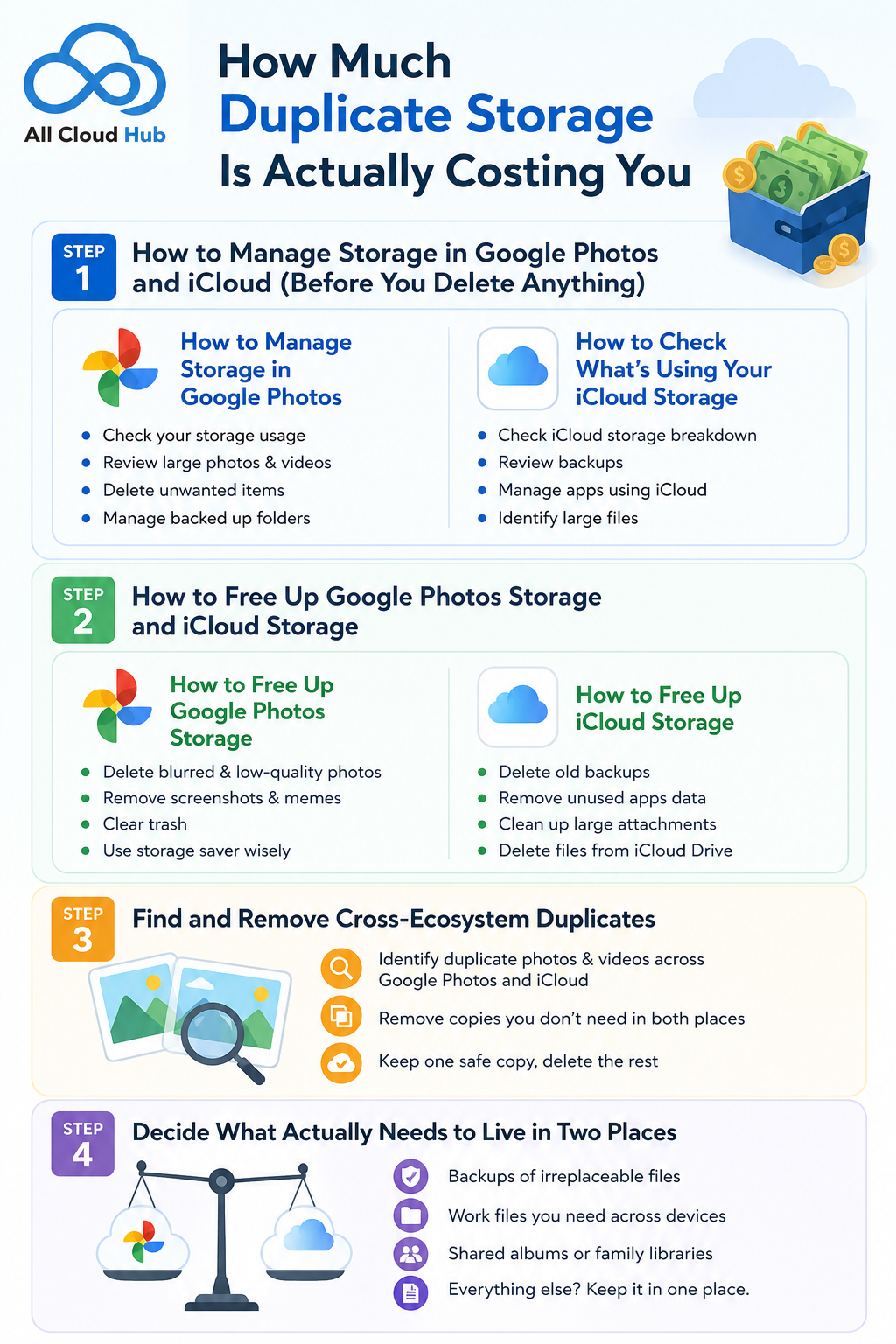
Before you assume upgrading is the fix, it’s worth seeing what’s actually driving that Google Photos storage full notification, since duplicate backups usually cost more than they save.
| Provider | Plan | Storage | Price |
|---|---|---|---|
| iCloud+ | Entry | 50GB | $0.99/month |
| iCloud+ | Standard | 200GB | $2.99/month |
| iCloud+ | Plus | 2TB | $9.99/month |
| iCloud+ | Pro | 6TB | $29.99/month |
| iCloud+ | Max | 12TB | $59.99/month |
| Google One / AI Pro | Entry | 100GB | ~$2/month |
| Google One / AI Pro | Mid-tier | 200GB–400GB | ~$5–8/month |
| Google One / AI Pro | Top individual tier | 2TB | ~$10/month |
Here’s what that looks like in practice. Someone switches from an iPhone to a Pixel, forgets to turn off iCloud backup on the old phone, and keeps using Google Photos on the new one. Six months later, the same 40GB photo library is sitting in both accounts. That household isn’t paying for 40GB of storage. It’s paying for 80GB of storage to hold one 40GB library, split across two separate monthly charges.
Step 1: How to Manage Storage in Google Photos and iCloud (Before You Delete Anything)
Before deleting a single file, it helps to actually see what’s filling each account. Both Google and Apple offer their own breakdown tools, and running through both first means you’re cutting the right things instead of guessing.
How to Manage Storage in Google Photos
Google Photos has a built-in storage breakdown most people never open. Inside the app, tapping your profile photo and then “Manage storage” brings up a category view showing exactly what’s using space: photos and videos, other Google Drive files, and email attachments, all pulling from the same 15GB pool or your paid Google One allotment.
Before deleting anything, spend two minutes noting your top two or three categories. For most people, it’s large videos, screenshots, and duplicate copies of the same photo saved from a messaging app. Knowing which category is the real problem changes what you do next.
How to Check What’s Using Your iCloud Storage
On an iPhone or iPad, go to Settings, tap your name, then iCloud, then Manage Account Storage. This shows a similar breakdown of what’s using your iCloud storage: Photos, device backups, Messages attachments, Mail, and any apps storing data in iCloud Drive.
Old device backups are the most common surprise here. If you’ve switched phones once or twice and never deleted backups for phones you no longer own, those backups often take up more space than your actual photo library. Note them before moving to the next step.
Step 2: How to Free Up Google Photos Storage and iCloud Storage
Once you know what’s using the space, the fixes for each ecosystem are fairly mechanical. Here’s what actually moves the needle in each one.
How to Free Up Google Photos Storage
The quickest win inside Google Photos is converting your library to Storage Saver quality, which compresses existing photos and videos to a slightly reduced resolution that still looks fine on most screens. This is done from the same Manage Storage screen, under “Recover storage.”
After that, work through the categories you noted earlier. Long videos, especially anything over a minute at full resolution, tend to use far more space than photos. If you regularly work with large video files, it’s worth knowing how to store large files online outside your phone’s default backup, so they’re not silently filling two separate storage plans at once. Screenshots pile up quietly too, since most people never go back and delete them.
The step people skip is emptying trash. Google Photos holds deleted items for 60 days before removing them permanently, which means deleting a photo doesn’t actually free up space until you empty the trash folder separately. Skipping this step is the most common reason someone deletes “enough” photos and still sees no change in their available storage.
How to Free Up iCloud Storage
On iCloud, old device backups are usually the biggest opportunity. Under Manage Account Storage, tap Backups and look for any device you no longer use. Deleting a backup for a phone you traded in two years ago is one of the fastest ways to free up meaningful space without touching a single photo.
Recently Deleted works the same way Google Photos’ trash does. Photos sit there for 30 days before they’re actually gone, and until that window closes, they still count against your storage. If you’re not sure whether something is safe to remove for good, it helps to know how to recover accidentally deleted files first, since once that 30-day window closes, the option disappears.
Messages attachments and Mail are the two categories people forget. Years of photos and videos sent through iMessage, plus large email attachments sitting in your Mail app, can quietly account for several gigabytes. Both show up as their own categories in the storage breakdown, and both are safe to clear once you’ve confirmed you don’t need the originals elsewhere.
Step 3: Find and Remove Cross-Ecosystem Duplicates
Switching phones and never turning off the old backup is the single biggest cause of cross-ecosystem duplication. Someone moves from an iPhone to a Galaxy, keeps their iCloud backup running out of habit, and now every new photo backs up to both Google Photos and iCloud without any extra effort on their part. It isn’t really a mistake. It’s just a setting nobody remembered to turn off.
Mixed households cause the same thing a different way. A partner on an iPhone shares an album with a partner on Android, and both people end up storing a full copy through their own backup. Add in the habit of manually re-uploading an album “just to be safe” after switching apps or phones, and duplication builds up from three directions at once.
Neither Google nor Apple can see what the other is storing. Google Photos has no way to check your iCloud library, and iCloud has no way to check your Google Photos library. That’s the actual reason this kind of duplication goes unnoticed for so long, since neither company knows about the copy sitting in the other account.
This is where a unified view helps. All Cloud Hub’s search across clouds feature lets you search across every connected drive at once, so you can look for a specific album, date range, or file name and see matches in both your Google and Apple accounts from a single dashboard.
Finding the overlap is the first job. What you do with it, keep both copies or consolidate, is a separate decision covered next.
Step 4: Decide What Actually Needs to Live in Two Places
Once you can see what’s duplicated, the next decision is what’s actually worth keeping in two places on purpose. A simple way to sort this: photos you’d be devastated to lose, like your kids growing up, a wedding, or family photos from someone who’s passed away, are worth the deliberate redundancy of living in two clouds. Everyday content like screenshots, receipts, memes, and routine work files doesn’t need that kind of backup. One copy, stored somewhere reliable, is enough.
This is also where a Virtual Folder becomes useful, and it’s worth being precise about what this feature is and isn’t.
A Virtual Folder in All Cloud Hub doesn’t move, copy, or duplicate a single file. It’s a saved, always-current view that pulls matching photos and videos from any of your connected accounts, Google Photos, iCloud, or others, into one collated folder you can browse like it’s a single collection.
The files themselves stay exactly where they already are. Nothing gets relocated, nothing gets copied a third time, and it doesn’t add a single megabyte of storage use anywhere.
The practical difference from search across clouds matters here. Search across clouds is for finding things, spotting overlap and duplicates you didn’t know existed. A virtual folder is for organizing things you’ve already decided should stay exactly where they are, just viewed together.
One finds problems. The other organizes what’s already fine, and it’s the piece that lets you consciously choose what gets backed up twice instead of it happening by accident.
| Feature | What it’s for | Do files move or duplicate? |
|---|---|---|
| Search Across Clouds | Finding matching or overlapping files across connected accounts | No, it’s a search, not a copy |
| Virtual Folder | Organizing files from multiple accounts into one browsable view | No, files stay exactly where they are |
The Photographer’s Version of This Problem (And How Virtual Folders Solve It)
Photographers and serious hobbyists hit this exact problem faster than anyone else, for a simple reason. They generate more originals per month than a casual user does in a year. A phone backs up automatically to whichever ecosystem it belongs to, and a dedicated camera gets imported separately, often through an SD card or desktop app, frequently landing in Google Photos or a local folder that later syncs somewhere else. A single wedding or event shoot can scatter across two ecosystems before the photographer has even opened an editing app.
Deleting isn’t really an option here the way it might be for someone with a decade of vacation screenshots. Client work, portfolio material, and one-time shoots are the kind of files you keep, not the kind you clean out. That’s exactly why organization matters more than cleanup for this group. The fix isn’t deleting more. It’s seeing everything from one job in one place.
Here’s what that looks like in practice. A wedding photographer shoots on an iPhone that auto-backs up to iCloud, and also shoots on a mirrorless camera that gets imported into Google Photos from a desktop later that night. Instead of hunting through two separate libraries every time a client asks for something, a single Virtual Folder named for that job, something like “Smith Wedding,” pulls every photo and video from that shoot across both accounts into one browsable collection. Nothing moves. Nothing gets duplicated. The RAW files and originals stay exactly where they were uploaded, in Google Photos and in iCloud, and the Virtual Folder is just a lens sitting on top of both.
One honest note here. A professional shooting genuinely large volumes every month, weddings every weekend, or regular commercial video work, may still need to upgrade one or both native storage plans regardless of how well organized things are. Organization solves the mess. It doesn’t create storage that isn’t there.
Take a look at one of our similar case studies
My Google Drive Filled Up With RAW Files Three Days Before a Wedding Shoot
When You Actually Do Need More Storage (And When You Don’t)
Not everyone reading this should cancel a plan or avoid upgrading. Some signals point toward genuinely needing more storage.
Signs you genuinely need more storage:
- You’re a professional photographer or videographer with large RAW libraries
- You’re a family of four or five sharing one plan across everyone’s photos
- You’re using the storage for real business files, not just personal backups
In those cases, paying for more space is usually the right answer, sometimes even the cheaper one.
Signs organization will fix it instead:
- Your storage-full warning is mostly duplicate backups
- Old device backups you forgot to delete
- A few thousand unreviewed screenshots
Organizing what you already have is usually cheaper and faster than upgrading either plan. The goal isn’t eliminating all paid storage, plenty of people should keep paying for one plan and use it fully and intentionally.
If you’ve decided upgrading is genuinely the right call, the harder question becomes how much. It’s worth taking the time to choose right cloud storage capacity rather than guessing at a tier and ending up back here in eight months with the same notification.
A smaller group decides the cleanest fix is consolidating onto one ecosystem entirely instead of maintaining two paid plans indefinitely. If that’s the direction you’re leaning, it’s worth reading up on how to migrate from Google before committing to anything, since a full migration works differently than simply organizing across two accounts that both stay active.
The goal, either way, is cutting waste, not avoiding all paid storage. If you use what you pay for, keep paying for it. If a meaningful chunk of what’s “full” is stuff you didn’t mean to store twice, that’s the part worth fixing first.
How to Keep Both Accounts Without Paying for Overlap Going Forward
Cleaning up once fixes today’s notification. It doesn’t stop the same overlap from building back up in six months, which is why the long-term fix is a system rather than a one-time purge.
Start by connecting both accounts in one place. Setting up account connection in All Cloud Hub takes under two minutes and doesn’t require a credit card, linking your Google Drive and Photos alongside your iCloud photos so you’re looking at one dashboard instead of switching between two apps and two logins.
Turning on automatic background backups matters more than it sounds like it should. Most duplication starts with the habit of manually re-uploading a file “to be safe” after switching phones or apps. Automatic backups remove the reason for that habit, since you’re not manually managing where a copy lives out of worry about losing it.
One-click transfers handle the files that genuinely need to move rather than stay copied in two places. Instead of downloading a file from Google Photos and re-uploading it to iCloud, or the reverse, moving it directly from one account to the other means it lives in exactly one place, not two.
Setting up a Virtual Folder for an active project, trip, or shoot as part of this initial setup, rather than after the next storage warning, means organization starts on day one instead of becoming another cleanup task later.
None of this changes who owns your files or where they’re actually stored. All Cloud Hub connects to your accounts through OAuth 2.0, the same standard used by most major cloud services, without storing your Google or Apple password. All Cloud Hub holds CASA Tier 2 security certification, and your files stay in your own Google and Apple accounts the entire time. All Cloud Hub isn’t a third storage silo. It’s a management layer sitting on top of storage you already pay for.
A Simple Monthly Habit to Clean Up Google Photos and iCloud Storage
A five-minute monthly check keeps this from becoming a recurring problem. Once a month:
- Glance at both storage dashboards, or the single unified view if you’ve connected both accounts
- Empty Recently Deleted on iCloud and trash on Google Photos — neither actually frees space until you do
- Skim the past month’s screenshots and videos for anything obviously disposable
- Check any active Virtual Folders to see if a finished project or trip is ready to be archived or renamed
This is genuinely easier with one unified view than with two separate apps, mostly because “checking storage” stops feeling like two chores and becomes one five-minute routine. That’s really the whole shift this article is describing. From reacting to a Google Photos storage full warning every few months, to a small habit that keeps both accounts from filling up with the same files twice.
Frequently Asked Questions
- Can I use Google Photos and iCloud at the same time without paying for both?
Yes. You can keep both accounts active without paying for redundant storage with All Cloud Hub. Most people paying for both are storing the same photos twice, often after switching phones without turning off the old backup. Connecting both accounts in one dashboard makes it possible to see what’s duplicated, decide what actually needs to live in two plans, and stop the accidental overlap that inflates both bills.
2. Why is my iCloud storage full even after deleting photos?
Deleted photos move to iCloud’s Recently Deleted album for 30 days and still count against your storage until you empty it. The same applies to old device backups and Mail trash. Deleting isn’t the same as permanently removing. Check Recently Deleted, old backups for devices you no longer use, and Mail trash. Emptying all three is usually what actually frees the space.
3. Does deleting a photo from Google Photos also delete it from iCloud?
No. Google Photos and iCloud are separate storage systems with no native connection, so deleting a photo in one has no effect on the other. This is exactly why duplicate photos build up unnoticed across both accounts. Neither service can see what the other is storing, which is why viewing both accounts in one dashboard is one of the only ways to actually catch this kind of overlap.
4. How do I stop Google Photos and iCloud from backing up the same photos twice?
This usually happens after switching phones and leaving the old device’s backup running, or when photos are shared between an iPhone and an Android device in the same household. Turn off backup on whichever device is no longer your primary phone. Searching across both accounts before it piles up again helps you catch files that already exist in both places.
5. What’s the fastest way to free up both Google Photos and iCloud storage?
If a Google Photos storage full alert and an iCloud storage full alert hit in the same week, start with each service’s native cleanup tools. That means Google’s Manage Storage for large videos, screenshots, and Storage Saver conversion, and iCloud’s Manage Account Storage for old backups and Recently Deleted. After that, check for cross-account duplicates, since native tools in each ecosystem can’t see what’s stored in the other one.
6. What is a Virtual Folder in All Cloud Hub?
A Virtual Folder is a saved, organized view that pulls matching photos and videos from your connected Google Photos and iCloud accounts into one place, without moving, copying, or duplicating the original files. Everything stays exactly where it’s already stored. The Virtual Folder just gives you one browsable collection on top, useful for grouping everything from a specific trip, project, or shoot that’s currently scattered across both accounts.
7. How can photographers manage photos across Google Photos and iCloud without storing everything twice?
Photographers who shoot on both a phone and a separate camera often end up with the same shoot split across Google Photos and iCloud without meaning to. Deleting originals is rarely an option for client or portfolio work. A Virtual Folder can collate every photo and video from a given shoot across both accounts into one organized view, with nothing moved or duplicated and no added storage cost.
If Dropbox or OneDrive are also part of your setup, the same All Cloud Hub connection works there too — see connect Dropbox to Google Drive and sync OneDrive and Dropbox.

