


How to Connect Dropbox and Google Drive Together (Sync & Transfer Guide)
- Last Updated on 28 July 2026
- 17 Min Read
- Posted on June 4, 2026
Google Drive and Dropbox work well on their own, but using both at the same time creates friction. Files end up split across two platforms, sharing becomes inconsistent, and keeping everything updated manually takes more effort than it should. This guide explains how to transfer from Google Drive to Dropbox, how to sync Dropbox and Google Drive for ongoing access, and what to check before you start so nothing gets lost, converted, or skipped along the way.
You save a project in Google Drive. Your client sends deliverables through Dropbox. A teammate uses whichever one opened first on their laptop three years ago and has stuck with it since. Now everything is scattered, version control is a mess, and the idea of manually moving files between two platforms sounds exhausting.
The frustrating part is that connecting Google Drive and Dropbox should not be this complicated. Both platforms are mainstream. Google Drive reportedly crossed 2 billion active users globally, while Dropbox continues serving more than 700 million registered users worldwide, making them two of the most widely used cloud storage platforms today. Yet teams still struggle with file syncing, migration, and collaboration between the two ecosystems.
That disconnect becomes even more noticeable as modern teams rely on multiple cloud platforms at the same time. Industry reports suggest that more than half of cloud storage users now use three or more services simultaneously, often combining Google Drive, Dropbox, and another provider in the same workflow.
This guide covers all of it, starting with what to check before you move a single file, then walking through each transfer and sync method in plain language, and finishing with the specific problems that tend to catch people off guard.
What You Need to Know Before You Move Anything
Rushing into a transfer from Google Drive to Dropbox without checking a few things first is where most people run into trouble. Three issues come up repeatedly, and none of them are obvious until something has already gone wrong.
1. Your Google Drive Shortcuts Will Break
Google Drive lets you create shortcuts to files and folders instead of duplicating them. These shortcuts look like regular files when you browse your Drive, but they are not. When you run a transfer from Google Drive to Dropbox, these shortcuts turn into broken .url files that lead nowhere.
Before starting any transfer, go through your Drive folders and check for shortcuts. Right-click any shortcut and choose “Make a copy” if you need the actual file to survive the move.
2. Google Docs, Sheets, and Slides Will Change Format
Native Google Workspace files do not exist as standard file types. A Google Doc is not a .docx file. A Google Sheet is not an .xlsx file. They live inside Google’s system and only behave like regular files when you export them.
When a transfer from Google Drive to Dropbox pulls these files through, they get automatically converted into Microsoft Office equivalents. If your team uses live Google Docs for collaboration, those shared links will stop working after the conversion. Plan for this before you start.
3. Files in “Shared with Me” Are Not Part of Your Drive
Anything in the “Shared with me” section of Google Drive is stored in someone else’s storage, not yours. Most transfer tools, including Dropbox’s own import feature, skip these files entirely.
If you need shared files to come along for the transfer, open Google Drive, find the file in “Shared with me,” right-click it, and select “Add shortcut to Drive” or “Make a copy.” Do this before running your transfer so nothing gets left behind.
Choose the Right Approach for Your Situation
Before diving into the steps, use this table to find the method that matches your situation.
| Your Goal | Best Method |
|---|---|
| Move a small batch of files (under 20GB) | Dropbox Web Import |
| Transfer a full Google Drive archive (over 50GB) | Google Takeout Direct Delivery |
| Keep both clouds in continuous sync | Third-party cloud sync tool |
| Automate file movement based on triggers | Zapier or similar automation tool |
| Work on Google Docs from inside Dropbox | Native Dropbox Google Workspace App |
| Handle a large-scale or enterprise migration | Dedicated cloud migration platform |
The Four Ways to Transfer from Google Drive to Dropbox
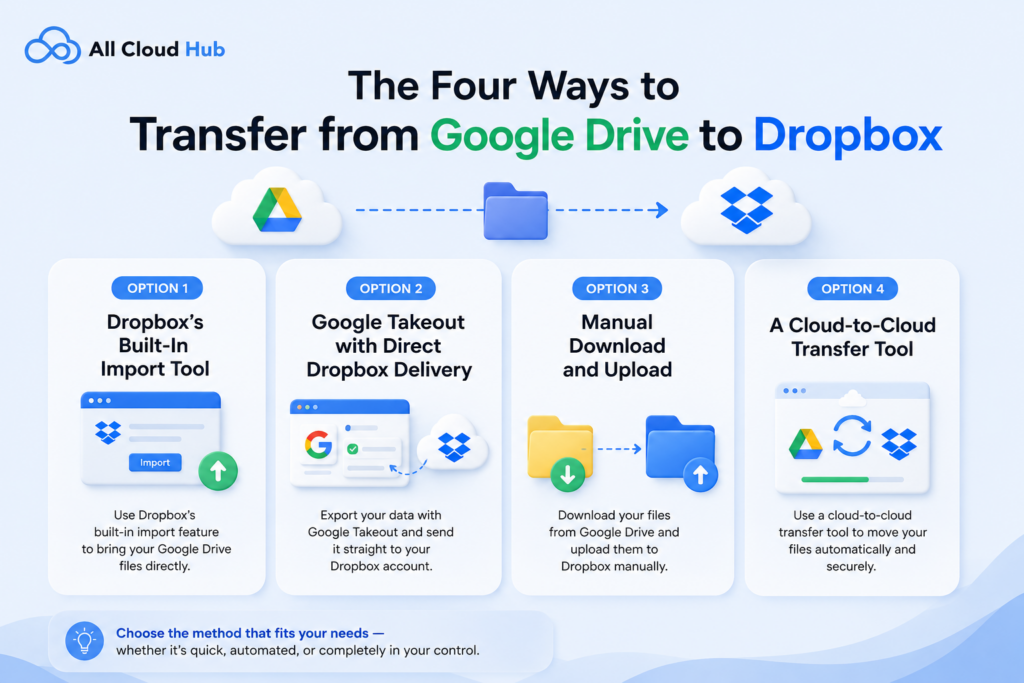
There is no single method that works best for every situation. The right choice depends on how much data you are moving, whether you need a one-time transfer or an ongoing sync, and how much manual work you are willing to do.
Option 1: Dropbox’s Built-In Import Tool
This is the most straightforward way to run a transfer from Google Drive to Dropbox for personal accounts. No extra software is needed.
- Log into your Dropbox account at dropbox.com.
- Click the Upload button in the left sidebar and look for the “Import from Google Drive” option.
- A Google authorization prompt will appear.
- Once you approve it, you can browse your Google Drive and select the files you want to bring over.
A couple of things to keep in mind here. You cannot select entire folders directly. You have to go into each folder and select the files inside it. If you want Dropbox to rebuild your original folder layout automatically, check the “Keep folder structure” box before confirming the import. This saves you from reorganizing everything manually after the transfer.
If you want the source files removed from Google Drive after the transfer is done, check the “Delete files from source” option. Only do this once you have confirmed the transfer completed successfully.
Note: Web uploads to Dropbox have a file size limit of 50GB per file. If you regularly need to store large files that exceed this, the built-in import tool will not be enough on its own.
Option 2: Google Takeout with Direct Dropbox Delivery
When the volume of data is large or you want to export everything from Google Drive at once, Google Takeout is a better fit. It packages your Drive data into downloadable archives and includes a built-in option to send the export directly to your Dropbox account.
- Go to takeout.google.com and sign in.
- Click “Deselect all” to clear the default selections, then scroll down and check only “Drive.”
- Choose your preferred archive format (ZIP works for most people) and set your maximum archive size.
- Under the delivery method, select “Add to Dropbox” and authorize Google to connect to your Dropbox account.
Once you confirm, Google starts preparing your export. Depending on how much data you have, this can take anywhere from a few minutes to a couple of days. When it is ready, the archive lands directly in a Takeout folder inside your Dropbox.
Note: Takeout packages your files into ZIP archives. Extracting large archives can shuffle the folder structure if you are not careful. Extract one archive at a time and check the folder layout before moving on.
Option 3: Manual Download and Upload
This method is slower but gives you the most control over what moves and what stays. It works best when you only need to move a specific set of files and want to review everything before it lands in Dropbox.
Open Google Drive and select the files or folders you want to move. Right-click and choose Download. Google packages everything into a ZIP file. Extract the ZIP on your computer, then upload the extracted files to Dropbox either through the web interface or the Dropbox desktop app.
For files larger than 50GB, use the Dropbox desktop app rather than the browser. The desktop app does not have the same upload size restriction as the web version.
This method uses your internet bandwidth twice, once to pull from Google Drive and once to push to Dropbox. For large volumes of data, that adds up quickly. If you are moving hundreds of gigabytes, one of the cloud-to-cloud methods below will save you a significant amount of time.
Option 4: A Cloud-to-Cloud Transfer Tool
When neither manual methods nor Dropbox’s built-in import can handle the scale or complexity of what you need to move, a dedicated cloud transfer tool fills the gap. These tools connect directly to both platforms through secure authorization and handle the transfer entirely in the cloud, without touching your local machine.
Tools like All Cloud Hub are built for exactly this kind of task. You connect your Google Drive and Dropbox accounts, select the source and destination folders, and let the platform handle the rest. Since everything runs server-to-server, your computer does not need to stay on, and your internet bandwidth is not consumed during the process.
This approach becomes especially valuable when you are working with large data sets, need to share large files across platforms without downloading them, or are managing transfers across multiple Google Drive accounts at the same time. Having a single dashboard that handles all of it is far more manageable than running separate manual transfers for each account.
Switching between Google Drive and Dropbox manually wastes time and can lead to missed files, broken folder structures, and sync errors. All Cloud Hub lets you transfer and sync files directly between your connected cloud accounts from your phone—no PC or manual downloads required.
Your files are stuck between two clouds. There has to be a better way.
How to Sync Dropbox and Google Drive on an Ongoing Basis
A one-time transfer solves the immediate problem, but it does not help if files continue to be added or updated on both platforms. For that, you need a sync setup that runs continuously or on a schedule.
Understanding One-Way vs. Two-Way Sync
Before setting up any sync between Google Drive and Dropbox, decide which direction you want files to flow.
A one-way sync copies changes from Google Drive to Dropbox but does not push anything back in the other direction. This is the safer starting point because it protects your Google Drive data from being accidentally affected by what happens in Dropbox.
A two-way sync mirrors changes on both platforms in real time. Any file added, edited, or deleted on one side is reflected on the other. This sounds convenient, but it introduces a specific risk.
If someone using the Dropbox desktop app deletes a locally synced folder to free up space on their computer, the sync engine treats that as an intentional deletion and removes the matching folder from Google Drive. This can result in data loss that is not immediately obvious. If you use two-way sync, make sure everyone on your team understands how local Dropbox deletions affect the connected cloud.
Setting Up Sync Through a Cloud Tool
Cloud-to-cloud sync tools handle this more reliably than manual methods. The general process involves connecting both accounts through OAuth authorization, mapping your source folders to destination folders, selecting one-way or two-way behavior, and activating the sync.
If you already manage sync Dropbox tasks alongside other platforms like OneDrive, a tool that handles multiple cloud services from one place keeps things significantly simpler.
How to Cross-Sync Google Drive with Dropbox Without Breaking Files
When you cross-sync Google Drive with Dropbox continuously, a few specific behaviors can corrupt or lose data if they are not addressed from the start.
Keep Active Google Workspace Files Out of the Sync Path
This is the most consistent problem when people cross-sync Google Drive with Dropbox. Any Google Docs, Sheets, or Slides that pass through the sync layer get converted into Microsoft Office formats automatically. If your team then edits those converted files in Dropbox and tries to bring changes back into Google Drive, you end up with two separate file versions that have no connection to each other.
The practical fix is to exclude active Google Workspace files from the sync entirely. Use the native Dropbox Google Workspace integration to open and edit those files from within Dropbox without physically moving them. The files stay in Google Drive, a shortcut placeholder appears in Dropbox, and no conversion happens.
Add Shared Files to Your Drive Before the Sync Starts
Files in Google Drive’s “Shared with me” section are excluded from sync mappings by default, for the same reason they are skipped during one-time transfers. Before activating any sync task, go to your Drive and add the shared files you need using “Make a copy” or “Add shortcut to Drive.”
Prevent the Two-Way Deletion Loop
When two-way sync is active and someone clears a local Dropbox folder on their desktop to free up hard drive space, the sync engine reads that deletion as intentional and removes the matching folder from Google Drive. It happens silently and the files are gone. In some cases, you may still be able to recover deleted files through your cloud storage recovery history, but prevention is always the safer approach.
The safest way to prevent this is to start with one-way sync. Set the direction so that changes flow from Google Drive into Dropbox, but not the other way around. This protects your source data from being affected by what happens locally on someone’s machine.
Troubleshooting Common Transfer and Sync Problems
Problem 1: Files from “Shared with Me” Did Not Transfer
Fix: These files are not stored in your own Drive storage. Add them to My Drive using “Make a copy” or “Add shortcut to Drive,” then re-run your transfer.
Problem 2: Google Docs Turned Into .docx Files
Fix: This is expected behavior for any method that moves files outside of Google’s ecosystem. To preserve them as Google Docs, keep them in Google Drive and access them through the native Dropbox Google Workspace integration.
Problem 3: The Transfer Stopped Midway or Failed on Large Files
Fix: Web-based Dropbox uploads cap at 50GB per file. Use the Dropbox desktop app to upload larger files, or use a cloud-to-cloud tool that handles large file transfers natively. If you regularly need to share large files between cloud platforms, a dedicated tool is more reliable than browser-based uploads.
Problem 4: Folder Structure Disappeared After the Transfer
Fix: When using Dropbox’s native import feature, check the “Keep folder structure” box before confirming the import. For Google Takeout exports, extract the ZIP files carefully and check the folder hierarchy before uploading to Dropbox.
Problem 5: Automation Workflow Is Failing on Large Files
Fix: Standard automation platforms like Zapier cap file sizes at 100MB to 500MB on entry-level plans. For larger files, switch to a dedicated cloud migration tool or a script-based solution like rclone, which does not impose these payload limits.
Problem 6: The .gdoc Shortcut in My Dropbox Folder Does Not Open
Fix: These shortcut files require an active internet connection and a browser to open. They are not actual files stored in Dropbox. If you need offline access to the content, export the Google Doc as a .docx or .pdf file and store that version in Dropbox instead.
How to Keep Both Platforms Organized After the Transfer
Moving your files is only half the task. Once the transfer from Google Drive to Dropbox is complete, keeping both platforms organized will prevent the same problem from building up again.
A few habits that help:
- Decide which platform serves as your primary storage for active work and which one serves as a backup or archive. For personal use, understanding the right tool for your situation is worth spending time on. This guide on cloud storage for personal use covers the key differences between backup and file sharing setups.
- Set naming conventions for folders so the same structure exists in both places if you are actively using both.
- If you kept Google Drive as your primary workspace, take time to organize huge files properly before running any future sync tasks. A clean source structure leads to a clean destination.
- Review your “Shared with Me” files periodically and move anything important into your own storage so it is included in future transfers or sync operations.
Putting It All Together
Getting Google Drive and Dropbox to work together is genuinely manageable once you know which method fits your situation and what to prepare for before you start.
Small batches of files can move through Dropbox’s built-in import in a few minutes. Larger migrations or full account exports are better handled through Google Takeout or a dedicated cloud tool. Keeping both platforms in sync long-term requires choosing the right sync direction and making sure your active Google Workspace files are handled separately.
The three things that cause the most trouble, which are Drive shortcuts turning into broken files, Google Docs getting converted automatically, and shared files disappearing silently, are all preventable with a quick review before the transfer starts. Handle those and the rest of the process is straightforward.
Frequently Asked Questions
- Can I transfer from Google Drive to Dropbox without downloading files to my computer?
Downloading files to your computer just to re-upload them somewhere else is a slow process, especially if you are dealing with a large amount of data. Tools like All Cloud Hub handle the transfer directly between Google Drive and Dropbox through a cloud-to-cloud connection, so your computer and your internet bandwidth stay completely out of it. You connect both accounts, set the source and destination, and the transfer runs on its own.
2. Does All Cloud Hub work on mobile, or do I need a computer to use it?
All Cloud Hub is available on the Google Play Store, so you can manage transfers and sync tasks directly from your Android device without needing a laptop or desktop at all. This is useful when you need to move files between Google Drive and Dropbox on the go, without waiting until you are back at your desk. You connect your accounts through the app, set up the transfer, and let it run in the background.
3. What happens to my Google Docs and Sheets when I transfer from Google Drive to Dropbox?
Google Docs, Sheets, and Slides are native Google formats that do not exist as standard files outside of Google’s ecosystem. When you run a transfer from Google Drive to Dropbox through most methods, including Dropbox’s own import tool and Google Takeout, these files get automatically converted into Microsoft Office formats like .docx and .xlsx. If your team relies on live Google Workspace collaboration links, those links will stop working after the conversion. The safest way to handle this is to keep your active Google Workspace files in Google Drive and access them through the Dropbox Google Workspace integration, which creates a shortcut inside Dropbox without physically moving or converting the files.
4. Will my “Shared with Me” files be included when I transfer from Google Drive to Dropbox?
Files that others have shared with you appear in your Google Drive, but they are stored in someone else’s storage space, not yours. Because of this, most transfer methods skip them entirely without showing any warning or error. Before running any transfer from Google Drive to Dropbox, go to the “Shared with me” section in your Drive, right-click the files you need, and choose either “Make a copy” or “Add shortcut to Drive.” This moves them into your own storage so they are picked up properly during the transfer.
5. Can All Cloud Hub keep Google Drive and Dropbox in sync automatically, or is it only for one-time transfers?
All Cloud Hub supports both one-time transfers and ongoing sync between Google Drive and Dropbox. If you only need to move files once, you can set up a transfer job and let it complete. If you need both platforms to stay updated on a continuous basis, you can configure a sync task that runs automatically without you having to trigger it manually each time. This makes it a practical option whether you are doing a single migration or trying to keep two cloud accounts connected long-term.