



Why Cloud File Transfers Fail (And How to Reduce the Risk)
- Last Updated on 27 July 2026
- 16 Min Read
- Posted on June 8, 2026
Cloud file transfers fail more often than most people expect, and the reasons are rarely obvious from the error message, if one appears at all. This article breaks down the most common causes behind a cloud transfer failure, explains why cloud-to-cloud moves carry risks that other transfer types don’t, and walks through practical steps to verify a transfer actually finished and reduce the chance of it breaking in the first place. If you’ve ever stared at a stalled progress bar or found fewer files at the destination than you sent, this is where to start.
Cloud storage has quietly become the backbone of how most teams and individuals move, share, and back up their files. Sending a folder from Google Drive to a colleague’s Dropbox, migrating project archives to OneDrive before a subscription ends, or syncing assets between two platforms before a client handoff, these are routine tasks now. They’re also tasks that fail with surprising regularity.
The frustrating part isn’t just that transfers fail. It’s that they often fail without telling you why. A progress bar stalls. A transfer “completes” but only half the files are at the destination. A sync that worked yesterday throws an error today with no obvious explanation.
Cloud migration issues don’t discriminate by technical skill, either. A solopreneur managing a Google Drive library and a developer running a scheduled sync can both hit the same wall. Understanding why transfers break down at a level that actually helps you fix them is the starting point for getting them to work consistently.
What Actually Happens When a Cloud File Transfer Fails
Before diagnosing specific failure causes, it helps to understand what a transfer is actually doing under the surface. When you move a file from one cloud platform to another, the process involves more steps than it appears.
At a high level, every transfer goes through four stages: authentication (verifying that both the source and destination accounts are accessible), connection (establishing a channel through which the data can flow), data routing (the actual movement of file data), and confirmation (the destination platform acknowledging receipt of a complete, uncorrupted file). A cloud transfer failure can happen at any of these stages, and the stage where it breaks determines what kind of failure you’re dealing with.
Some failures are visible: an error message appears, the transfer stops, and you know something went wrong. These are, counterintuitively, the easier ones to handle. More troublesome are silent failures, where a transfer appears to complete but doesn’t. No error is thrown. The progress bar finishes. Yet the destination folder is missing files, or the file sizes don’t match what was sent.
The distinction between a temporary failure and a permanent one also matters here. A temporary failure like a brief network dropout, a momentary API hiccup can often be resolved by simply retrying the transfer. A permanent failure, like a file that exceeds the destination platform’s size limit, will fail on every retry until you address the underlying problem. Knowing which type you’re dealing with saves a lot of wasted time.
The Five Most Common Causes of Cloud Transfer Failure
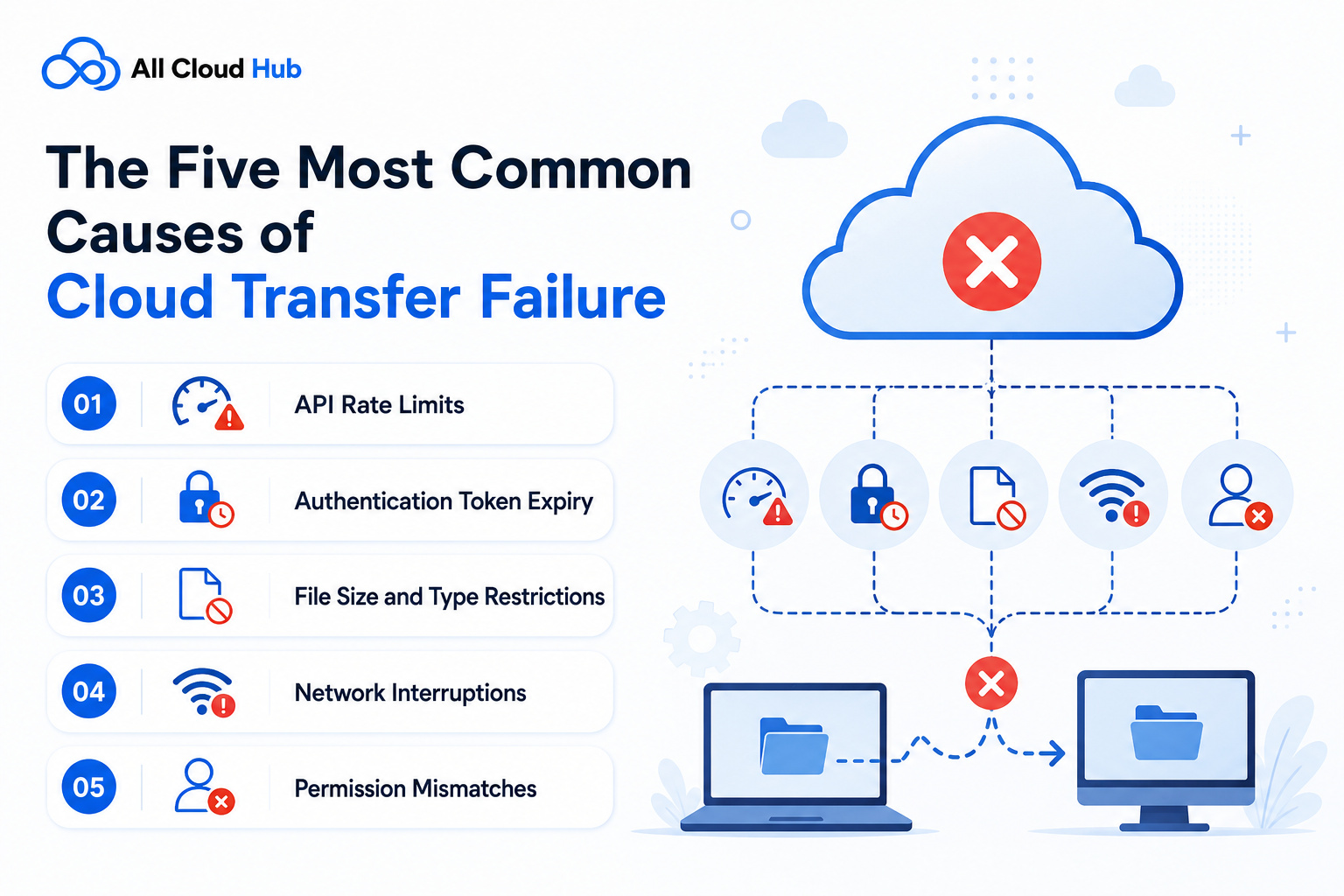
1. API Rate Limits
Every major cloud storage platform like Google Drive, Dropbox, OneDrive, pCloud, imposes limits on how many requests can be made to its servers within a given time window. Think of it like a toll booth that only allows ten cars through per minute, regardless of how many are queued.
When a bulk transfer sends hundreds of requests in quick succession, the provider’s API can throttle or block further requests entirely.
This is one of the more common cloud upload failure reasons, and it’s one that no transfer tool can fully override. The limits are set by the provider. What good tooling can do is manage the rate of requests intelligently, spread transfers over time, and queue retries automatically once the limit resets.
2. Authentication Token Expiry
When you connect a cloud account to a transfer service, access is granted via an authentication token and a temporary credential that expires after a set window. For short transfers, this isn’t a problem. For large transfers that run for hours, or overnight, the token can expire before the transfer finishes.
When this happens, the transfer doesn’t gracefully pause and prompt you to re-authenticate. It typically stops, often without a clear explanation, leaving you with a partial transfer and no indication of where it broke. Re-authenticating the account and retrying is the fix, but identifying token expiry as the cause isn’t always obvious.
3. File Size and Type Restrictions
Destination platforms impose maximum file size limits, and they vary significantly between services. A file that moves freely within Google Drive may exceed the upload limit for a different platform it’s being transferred to.
When a batch transfer includes files that exceed the destination’s limit, the result is often a silent partial failure.
The oversized files are skipped, the rest complete, and no clear error flags what happened.
If you regularly need to store large files online, it’s worth checking your destination platform’s current file size limits before initiating any large transfer. What’s allowed changes periodically, and assuming limits are uniform across platforms is a reliable way to create unexpected failures.
4. Network Interruptions
Unstable connections remain one of the most straightforward cloud transfer failure causes, and one of the most overlooked. A VPN dropout mid-transfer, ISP throttling during peak hours, or simply moving between Wi-Fi networks can break the connection before a transfer confirms completion.
Large files are more vulnerable than small ones, not because the data is harder to move but because the transfer takes longer. A longer transfer window means more exposure to any instability in the connection. Files that are, say, a few gigabytes can take long enough to send that a brief network hiccup becomes a problem even on a generally reliable connection.
5. Permission Mismatches
Files that are shared with restrictions on the source platform don’t automatically lose those restrictions during a transfer. A file set to “view only” or shared through a restricted link on Google Drive may be read-accessible to the account initiating the transfer, but not in a way that allows it to be fully moved or copied to a destination account.
Permission mismatches are a consistent cause of cloud sync errors and partial migrations. They’re also preventable: checking source file permissions before initiating a transfer, particularly for shared drives or files owned by other accounts, catches this problem before it creates gaps in the destination.
Why Cloud-to-Cloud Transfers Have Unique Failure Risks
Most articles about cloud migration challenges focus on on-premises-to-cloud migrations, as in moving data from physical servers or local infrastructure to a cloud environment. That’s a legitimate topic, but it’s a different problem than what most individuals and small teams face.
Cloud-to-cloud transfers, moving files from Google Drive to Dropbox or from OneDrive to pCloud for example, carry their own set of risks that rarely get explained clearly. The most significant is that both platforms impose API constraints simultaneously. You’re not navigating one provider’s rate limits; you’re navigating two, at the same time, with a third-party service routing data between them.
That routing introduces additional failure points. In a typical cloud-to-cloud transfer, files travel from the source platform to the transfer service, and then from the transfer service to the destination. Any failure along either leg of that route like an API limit hit on the source side, an auth error on the destination side, a session timeout at the routing layer, can break the transfer without a clean error message.
Browser-based manual transfers, the familiar download-then-re-upload workflow, add further risk. The file spends time on your local machine between the two cloud platforms, introducing the possibility of corruption during the local storage step.
Browser memory limits can interrupt large downloads mid-file. Session timeouts can close the upload before it completes. For anything beyond a handful of small files, manual transfers are genuinely more failure-prone than API-based transfer tools.
This is also where managing multiple cloud storage accounts from a single interface becomes relevant rather than just convenient. Fewer independent API sessions means fewer independent points where an AUTH token can expire or a rate limit can be hit.
How to Tell If a Transfer Has Actually Completed Successfully
The absence of an error message is not confirmation that a transfer succeeded. This is worth stating plainly, because many cloud sync errors and partial transfers are only discovered days later when someone notices a file is missing or a folder looks different than expected.
A completed transfer should be verifiable. The most reliable method is comparing file counts: the number of files in the destination folder should match the number in the source. Checking file sizes also helps catch incomplete transfers. For example, a 2.4GB file might appear in the destination folder but arrive as only 1.1GB. The file exists, but the transfer still failed.
For larger transfers, checking the provider’s activity log is worth the time. Most cloud platforms maintain a history of recent uploads and file additions, which can surface files that were expected but never arrived. Preview failures are also a signal, if files can be seen in a folder but fail to open or preview, the transfer may have completed the metadata without delivering the full file.
The honest limitation here is that visual spot-checking becomes impractical at scale. If you’re moving thousands of files, manual verification isn’t realistic. This is where tooling that logs transfer completions and flags mismatches provides a meaningful advantage over purely manual workflows.
What to Do When a Transfer Is Already Failing
If a transfer is actively failing or has failed, the approach depends on diagnosing what type of failure you’re dealing with before doing anything else. Working through these steps in order prevents the common mistake of retrying a permanent failure repeatedly without addressing the underlying cause.
- Check the provider’s status page first.
Both the source and destination platforms may be experiencing an outage or degraded performance. A provider-side issue is outside your control, and retrying a transfer during an active outage accomplishes nothing. Google Workspace Status, Dropbox Status, and Microsoft 365 Service Health all publish real-time updates.
- Verify source file permissions.
Confirm that the account initiating the transfer has full read access to the source files, particularly if any files are owned by another account or shared with access restrictions.
- Check file sizes against destination limits.
Identify any files in the transfer batch that may exceed the destination platform’s current maximum. Remove or handle those files separately before retrying. If you’re moving large media files or archives and wondering about the best approach, there are practical guides on how to share large files via cloud storage that cover platform-specific constraints worth knowing.
- Re-authenticate your accounts.
Log out of the connected accounts and back in before retrying. This refreshes any expired auth tokens and eliminates token expiry as a contributing factor.
- Reduce batch size.
If a large transfer is hitting rate limits, break it into smaller batches and transfer them sequentially rather than simultaneously. Running concurrent transfers from the same account accelerates rate limit collisions significantly.
- Enable retry logic.
If you’re using a transfer tool, confirm that automatic retry is enabled. Tools with built-in retry logic can recover from transient failures like a brief network dropout, a momentary API hiccup without requiring manual intervention. The difference between three automatic retries and zero can be the difference between a completed transfer and a failed one.
- Switch your network connection.
Move from Wi-Fi to a wired connection if possible, and disable any VPN running during the transfer. Both reduce the likelihood of a connection drop at a critical point.
If none of these steps resolve the issue, the failure may be originating with the cloud provider itself, a rate limit reset window, a platform-side bug, or an undisclosed service degradation. The only reliable action at that point is to wait and retry.
How to Reduce the Risk Before Transfers Start
Reactive troubleshooting matters, but most cloud migration challenges are cheaper to prevent than to untangle after the fact. A short pre-transfer routine catches the majority of common failure causes before they have a chance to manifest.
- Run a small test batch first.
Before initiating a large transfer, move a sample of ten to twenty files from different folders and file types. If permission issues or file size violations are going to cause problems, a small test exposes them with minimal damage.
- Verify storage availability at the destination.
A transfer into a full or near-full destination account will fail partway through, and the failure may not be obvious until you check available space. If you are using Google Drive, check destination capacity before you start the transfer process to avoid running in to the “Google Drive storage full” error.
- Schedule large transfers during off-peak hours.
API rate limits are more likely to be a problem during high-traffic periods. Running a large transfer overnight or during periods of lower activity reduces the likelihood of hitting rate limit thresholds.
- Keep transfers to one active session per account.
Triggering concurrent transfers from the same cloud account multiplies API request volume and accelerates rate limit collisions. Queue transfers sequentially.
- Organize the source before transferring.
Moving files out of a cluttered or inconsistently structured folder is easier before the transfer than after. If you’re managing a large Drive library and want fewer complications at the point of transfer, the practical steps for organizing large folder structures are worth reviewing before you start.
- Use tools with built-in retry and validation.
The most consequential infrastructure decision for regular cloud transfers is choosing a tool that handles retries automatically, validates completion, and maintains a clear log of what succeeded and what didn’t.
Modern Cloud Management Platforms and the Transfer Failure Surface
A meaningful portion of recurring transfer failures come not from any single transfer being mishandled, but from the overall complexity of managing multiple platforms through separate browser sessions, separate authentication states, and separate sets of API credentials.
Each independent session is a point where an AUTH token can expire, a rate limit can be hit, or a connection can be dropped. When you’re managing Google Drive, OneDrive, and Dropbox separately, you’re managing three independent failure surfaces simultaneously.
This is where multi-cloud management tools make a practical difference. All Cloud Hub, for example, consolidates access to multiple cloud storage accounts like Dropbox to Google Drive, OneDrive to pCloud, and other supported cloud combinations into a single interface, reducing the number of independent API sessions that need to be active for a given transfer. The All Cloud Hub app also makes that access available from any device, which matters when a transfer needs monitoring or intervention from somewhere other than a desktop.
The honest point about any multi-cloud tool, including All Cloud Hub, is that it reduces the failure surface rather than eliminating it. A provider-side outage or an API limit imposed by Google or Dropbox remains outside any tool’s control. What changes is how much of the failure risk sits on the side that can be managed: session handling, retry logic, AUTH token refresh, and transfer visibility.
FAQ
1. Why does my cloud file transfer keep failing?
Cloud file transfers most commonly fail because of API rate limits imposed by the provider, authentication tokens that expire during long transfers, file size restrictions at the destination platform, or network interruptions that break the connection mid-transfer. To diagnose the cause, check the provider’s status page first, then verify file permissions, re-authenticate your account, and retry with a smaller batch. If failures persist, the issue may be a provider-side rate limit that resets within 24 hours.
2. What causes cloud upload failures?
Cloud upload failures are caused by one of five factors: the provider’s API rate limit has been reached; the file exceeds the destination platform’s maximum file size; the source account does not have the required read permissions; the authentication session has expired mid-upload; or the network connection was interrupted before the upload could confirm completion. Identifying which factor applies requires checking your provider’s error logs or the status page of the platform you are uploading to.
3. Why do cloud migrations fail?
Cloud migrations fail most often because of inadequate pre-migration planning, specifically, failing to verify compatibility between the source and destination platforms before beginning the transfer. At the file-transfer level, the most common failure causes are permission mismatches, file size limit violations at the destination, and API rate limits triggered by large-volume transfers.
4. How do I resume a failed cloud transfer?
To resume a failed cloud transfer, re-authenticate your account with the destination platform to refresh the session token. Then verify that the source files still have the required permissions. If you are using a manual transfer method, identify which files completed successfully and exclude them from the retry batch. If you are using a transfer tool, check whether it supports resumable transfers, tools with built-in retry logic can continue from the last confirmed checkpoint rather than restarting the entire operation from scratch.
5. What causes data loss during cloud migration?
Data loss during cloud migration most often occurs from silent partial failures — where a transfer begins, completes partially, and terminates without returning an error to the user. This can happen when an API rate limit is hit mid-transfer, causing remaining files to be skipped rather than queued. It can also result from file corruption during a manual download-then-re-upload workflow, or from a network interruption that closes the connection before the destination platform confirms receipt of all files. Comparing file counts and spot-checking file sizes at the destination is the most reliable way to detect silent data loss.
6. How do you fix cloud migration problems?
Fixing cloud migration problems depends on the type of failure. For permission errors, verify source account sharing settings and re-authenticate destination credentials. For file size failures, identify oversized files before the transfer and handle them separately. For API rate limit failures, reduce batch size, schedule transfers during off-peak hours, and wait for the provider’s rate limit window to reset. For network-related failures, switch to a wired connection, disable VPN, and enable automatic retry logic in your transfer tool.