



Understanding File Ownership and Source Cloud Drive in All Cloud Hub
- Last Updated on 11 August 2026
- 7 Min Read
- Posted on August 11, 2026
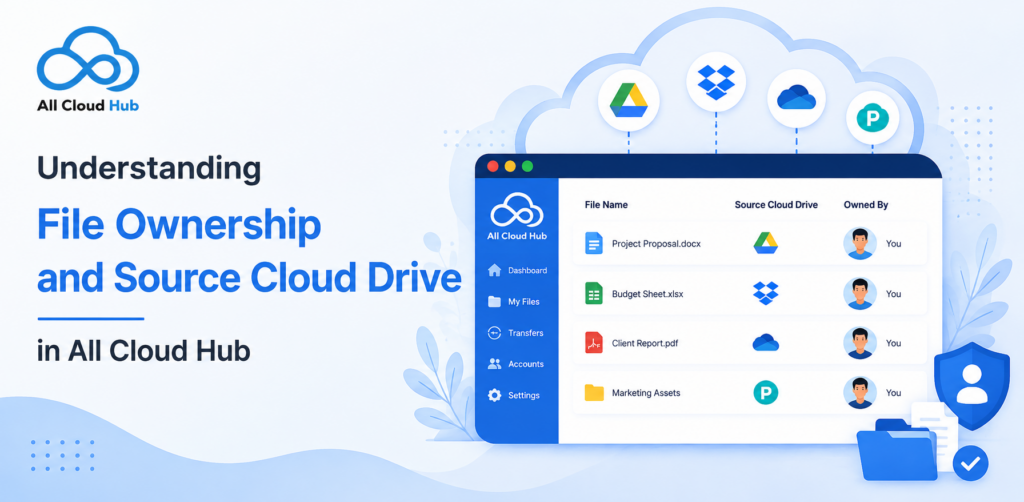
When you connect multiple cloud storage accounts to All Cloud Hub, you’ll often see terms like Source Cloud, Destination Cloud, and File Owner while copying, moving, syncing, or scheduling tasks.
These terms are important because although All Cloud Hub lets you manage files from one dashboard, your files always remain in their original cloud storage accounts.
This guide explains what file ownership means, what a source cloud drive is, and how different file operations affect your files.
What Is File Ownership?
Every file stored in a cloud storage service belongs to a particular cloud account.
That account is considered the file’s owner and is responsible for storing the file, managing permissions, and applying any provider-specific rules.
For example:
- A document uploaded to Google Drive belongs to that Google Drive account.
- A photo stored in Dropbox belongs to that Dropbox account.
- A folder saved in OneDrive remains part of that OneDrive account.
Connecting these accounts to All Cloud Hub does not transfer ownership of your files.
Instead, All Cloud Hub simply provides a unified workspace where you can access and manage files across all your connected cloud accounts.
What Is the Source Cloud Drive?
The Source Cloud Drive is simply the cloud account where a file currently exists.
Whenever you perform an action such as:
- Copy
- Move
- Schedule a task
the source cloud is where the file is being taken from.
For example:
| File Location | Source Cloud |
|---|---|
| Google Drive | Google Drive |
| Dropbox | Dropbox |
| OneDrive | OneDrive |
| MEGA | MEGA |
Think of it as the starting point of any file operation.
What Is the Destination Cloud Drive?
The Destination Cloud Drive is where the file will be copied or moved.
For example:
| Source | Destination |
|---|---|
| Google Drive | Dropbox |
| OneDrive | Google Drive |
| Backblaze B2 | pCloud |
| Dropbox | MEGA |
When you select a destination in All Cloud Hub, the platform transfers the file between your connected cloud storage accounts while keeping each provider responsible for storing its own copy.
What Happens When You Copy Files?
Copying creates another copy of the selected file in the destination cloud while leaving the original untouched.
Example:
“`
Google Drive
Project.pdf
│
│ Move
▼
Dropbox
Project.pdf
“`
After the operation:
- The original file remains in Google Drive.
- A new copy appears in Dropbox.
- Both files are managed independently.
This is useful when you want the same file available across multiple cloud storage services.
Supported providers: Copy is available for all currently supported cloud providers, including Google Drive, Google Photos, Microsoft OneDrive, Dropbox, pCloud, MEGA, Google Shared Drive, Backblaze B2, iCloud Drive, and iCloud Photos.
What Happens When You Move Files?
Moving transfers a file from one cloud account to another.
Once the operation finishes successfully:
- the file is created in the destination cloud, and
- the original file is removed from the source cloud.
Example:
Google Drive
Project.pdf
│
│ Move
▼
Dropbox
Project.pdf
After completion:
- Google Drive no longer contains the file.
- Dropbox becomes the only location where the file exists.
Move is useful when you’re reorganizing storage or migrating data between cloud providers.
Note: Google Photos currently supports copying items, but moving is not available because of provider limitations.
How File Sharing and Access Work
Owning a file and sharing a file are two different things.
The owner is the cloud account where the file is stored, while sharing determines who can view, edit, or comment on that file.
All Cloud Hub displays and manages files from your connected cloud storage accounts, but the sharing permissions for those files continue to be managed by the respective cloud provider.
For example:
- A file shared from Google Drive follows Google Drive’s sharing settings.
- A OneDrive document keeps its existing Microsoft sharing permissions.
- A Dropbox file remains governed by Dropbox’s access controls.
This means that sharing permissions always stay with the cloud service where the file is stored.
What Happens to Sharing Permissions When You Copy or Move Files?
Sharing permissions do not always transfer with a file.
When you copy a file
A copied file becomes a new file in the destination cloud account.
Because it is a new file, it does not automatically inherit the sharing settings from the original file. If you want to share the copied file with other people, you’ll need to configure its sharing permissions in the destination cloud provider.
When you move a file
Moving a file transfers it to another cloud account.
Since the file is now stored in a different cloud service or account, its previous sharing settings generally do not carry over. Any required access permissions should be configured after the move.
The exact behaviour may vary depending on the cloud provider, but moving or copying files between different cloud services should be treated as creating a new file in the destination.
Managing Access to Shared Files
If a file has already been shared with you, your ability to view, edit, download, or manage that file depends on the permissions granted by the owner.
For example, you may have:
- View-only access
- Comment access
- Edit access
- Full ownership
All Cloud Hub respects the permissions provided by each connected cloud storage service. If you don’t have permission to modify or transfer a file, the operation may not be available or could fail.
Note – The feature of managing access and sharing files is supported for Google Drive and Google Shared Drive.
Scheduled Tasks Use the Same Source and Destination
When creating a scheduled task, you’ll choose:
- Source cloud account
- Source folder
- Destination cloud account
- Destination folder
- Operation type
Depending on the provider, you can schedule operations such as:
- Copy
- Move
- Delete
The scheduled task follows the same file ownership rules as if you performed the operation manually.
For example:
- A scheduled copy keeps the original file in the source cloud and creates a new copy in the destination.
- A scheduled move removes the file from the source after it has been transferred successfully.
Know more about Scheduling Automatic Transfer Tasks with All Cloud Hub
Things to Remember
- Your files always remain inside their respective cloud storage providers.
- Connecting a cloud account does not transfer ownership of existing files.
- The source cloud is where a file currently exists.
- The destination cloud is where a copied or moved file will be placed.
- Copy keeps the original file intact.
- Move removes the original after a successful transfer.
- Sync keeps folders aligned while each provider continues storing its own copy.
- Scheduled tasks follow the same behavior as manual operations.
- File ownership and file sharing are different concepts.
- Sharing permissions are managed by the cloud provider where the file is stored and may need to be reconfigured after copying or moving files between cloud services.
Conclusion
Understanding file ownership makes it easier to manage your cloud storage with confidence. Whether you’re copying files between providers, moving data during a migration, syncing folders, or creating scheduled tasks, the concepts of source cloud and destination cloud remain the same.
All Cloud Hub acts as a unified management platform, giving you one place to work across multiple cloud storage services while your files continue to live in their original cloud accounts.

