



How to Add and Manage Multiple Cloud Accounts in All Cloud Hub
- Last Updated on 04 August 2026
- 4 Min Read
- Posted on August 2, 2026
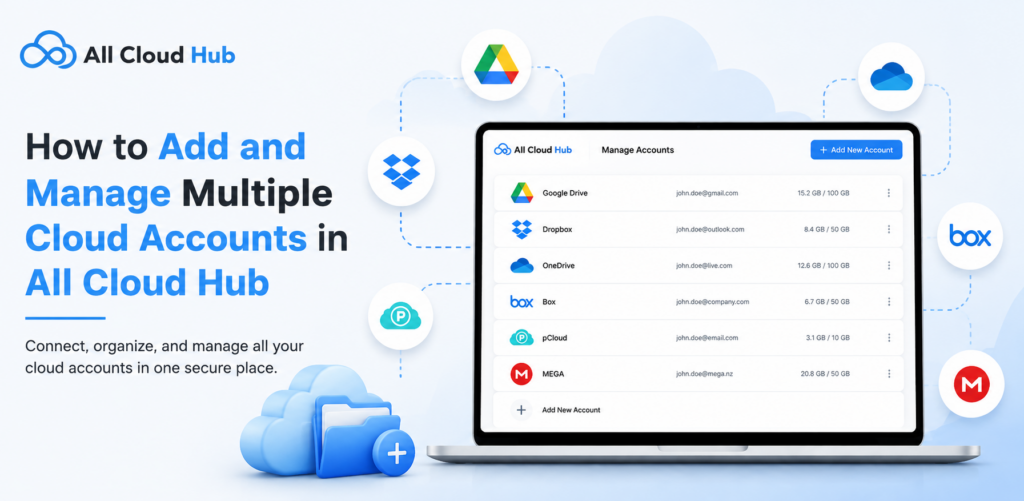
Managing files across several cloud storage services can quickly become overwhelming. Switching between different apps, remembering where files are stored, and keeping everything organized takes time.
All Cloud Hub brings your cloud storage accounts together in a single workspace, making it easy to access, organize, search, and transfer files without constantly moving between multiple platforms.
This guide explains how to add multiple cloud accounts and manage them efficiently from one dashboard.
Before You Begin
Before connecting multiple cloud storage services, make sure you have an active All Cloud Hub account and can sign in successfully.
If you’re setting up your first cloud storage service, refer to Connect Your First Cloud Account before continuing.
Add a New Cloud Account
Adding another cloud account only takes a few moments.
- Sign in to your All Cloud Hub account.
- From the FileVerse dashboard, locate the Cloud Accounts section.
- Click Add Cloud Account.
- Enter an Account Alias to help identify the account.
- Select the cloud storage provider you want to connect.
- Sign in to your cloud storage account.
- Review the requested permissions and authorize All Cloud Hub.
- Once authorization is complete, the account will appear in your Cloud Accounts list.
Please note – You can connect up to 3 cloud accounts in Free plan. To connect more accounts, upgrade to Power User plan.
Why Use an Account Alias?
If you connect multiple accounts from the same cloud provider, an account alias helps you distinguish them inside All Cloud Hub.
For example:
- Personal Google Drive
- Work Google Drive
- Marketing Dropbox
- Client OneDrive
- Backup MEGA
Using descriptive aliases makes it much easier to locate the correct account while browsing files, searching, or creating transfer tasks.
View and Access Connected Accounts
Every connected cloud account appears in the Cloud Accounts section of FileVerse.
Simply select an account to browse its folders and files. You can switch between cloud providers instantly without signing in and out of different services.
Since All Cloud Hub displays all your connected storage accounts in one workspace, managing files becomes much faster than opening each cloud provider separately.
Search Files Across Multiple Clouds
When files are spread across several cloud storage services, finding a specific document can take time.
Instead of checking every connected account individually, use the global search feature to search across your connected cloud accounts from a single location.
This makes locating files significantly faster, regardless of where they’re stored.
Organize Files More Efficiently
Managing multiple cloud accounts becomes easier when your files are well organized.
You can create Virtual Folders to group related files from different cloud storage accounts into a single view without moving or duplicating the original files.
To learn more, see Organize Files with Virtual Folder.
Move Files Between Cloud Accounts
As your storage needs change, you may need to move or copy files between different cloud services.
With All Cloud Hub, you can transfer files directly between supported cloud accounts without downloading them to your computer first.
If you regularly move files between cloud providers, you can also automate the process by creating scheduled transfer tasks.
For step-by-step instructions, see Schedule Automatic Transfers.
Monitor Your Transfer Tasks
After creating manual or scheduled transfers, you can review their progress at any time.
The Run History page displays the status of every completed, running, and failed transfer, making it easy to verify whether your files were transferred successfully.
For more information, see Track the Run History.
Tips for Managing Multiple Cloud Accounts
Following a few best practices can help keep your cloud storage organized as the number of connected accounts grows.
- Assign a unique and descriptive alias to every connected account.
- Use separate accounts for personal, work, and client files whenever possible.
- Organize related content using Virtual Folders for quicker access.
- Schedule recurring transfers instead of performing repetitive manual tasks.
- Review run history periodically to confirm that automated transfers complete successfully.
Conclusion
All Cloud Hub makes it simple to manage multiple cloud storage accounts from one centralized workspace. Whether you’re working with personal storage, business accounts, or client cloud services, you can browse files, search across providers, organize content, and automate file transfers without switching between different cloud platforms.
As you connect additional cloud accounts, using descriptive aliases, Virtual Folders, and scheduled transfers will help keep your storage organized and your workflow more efficient.

