



I Archived Three Years of Brand Kits From Dropbox to pCloud and Got 18GB Back Instantly
- Last Updated on 27 July 2026
- 15 Min Read
- Posted on June 26, 2026
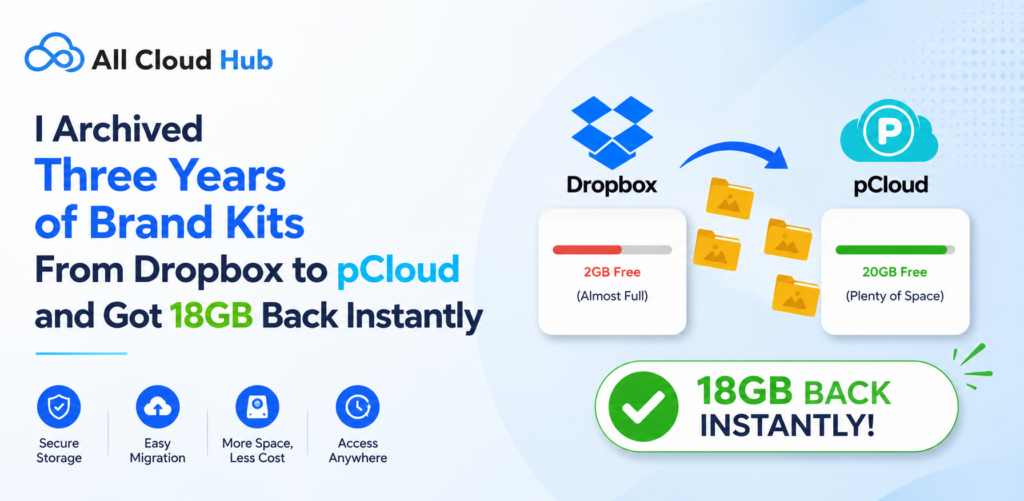
My Dropbox was nearly full due to three years of old brand kits. I reclaimed 18GB instantly by moving them to pCloud as an archive tier. However, using pCloud’s native backup tool won’t work because it only copies files without deleting the originals. To actually free up space, you must use a cloud-to-cloud transfer tool to move the folders and then permanently empty the Dropbox Trash. This two-step process allows you to archive inactive files and reclaim your storage quota without downloading a single file to your device or risking any permanent data loss.
My Dropbox had been creeping toward its storage limit for months. Every time I tried to save a new file, that little red warning badge appeared. I knew the problem was not my current work. It was everything else sitting underneath it, three years of completed brand kits, finalized logo exports, style guide PDFs, and font packages for clients I had wrapped up long ago.
I did not want to delete any of it. Client files are reference material. You never know when someone comes back and asks for the original source files from a project you finished two years ago.
What I needed was to move the old stuff somewhere else and get my Dropbox quota back. That is how I landed on the idea of using pCloud as a dedicated archive tier. Moving everything from Dropbox to pCloud turned out to be straightforward once I figured out which method actually works. I got 18GB back without touching my active folders and without downloading a single file to my laptop.
Here is exactly what I did.
Why Archiving to pCloud Works and What “Backup” Gets Wrong
Before you do anything, you need to understand one thing clearly: there is a difference between backing up to pCloud and actually moving files from Dropbox to pCloud.
pCloud has a built-in Backups feature. You can find it under the Third-party section in your pCloud account. It connects to Dropbox and copies your files into a dedicated Backups folder inside pCloud. A lot of people use this feature and then wonder why their Dropbox storage has not budged. The answer is simple: pCloud’s native backup copies your files, it does not remove them from Dropbox. Your originals stay exactly where they are. Your Dropbox quota does not change by a single byte.
That is not a flaw in pCloud’s design. The backup feature is genuinely useful if you want a redundant copy of your Dropbox for peace of mind. But it is completely the wrong tool if your goal is to reclaim Dropbox storage.
To actually free up space, you need to do two things: transfer the files to pCloud, then delete them from Dropbox. Both steps are required. Skipping the delete step is the single most common reason people go through this whole process and see no change in their available storage.
There is also a detail about Dropbox Trash that most people miss. When you delete files from Dropbox, they go to Trash first, and they still count against your quota while they sit there. You have to go to the Deleted Files tab in Dropbox’s web interface and permanently delete everything. Only after that does your quota actually update.
Why pCloud Is the Right Archive Tier for Old Creative Files
I considered a few options before choosing pCloud. The main reason it made sense for this use case is the lifetime plan. Instead of paying a recurring monthly or annual fee, you make a single payment and the storage is yours indefinitely. For cold storage you plan to hold onto for years, that model makes a lot more financial sense than an ongoing subscription. The upfront cost is higher than one month of Dropbox, but over a three to five year window, it works out significantly cheaper.
If you want to store large files online without hitting format or size restrictions, pCloud handles that well. My brand kit folders contained large layered PSD files, packaged Illustrator files, full font families, and high-resolution exports. Nothing was rejected or flagged. The pCloud storage accepted all of it without any issues.
pCloud also gives you a choice of data residency, either US or EU servers. For anyone working with client brand assets that fall under data privacy agreements, that option matters. Confirm which plans include this choice before you commit.
For agencies storing sensitive client materials, pCloud Crypto provides optional client-side encryption. Files are encrypted on your device before they are uploaded, meaning pCloud’s own servers cannot access the contents. Worth noting: Crypto disables in-browser file preview, so if you need to open archived files directly in the browser without downloading, Crypto may not suit your archive workflow.
pCloud does not sync archived files to your local disk by default. Files live in pCloud’s virtual drive. That means you are not just freeing up Dropbox quota, you are also keeping your hard drive clear of files you rarely need to open.
What to Archive vs. What to Keep in Dropbox
Before you touch anything, spend fifteen minutes doing a simple folder audit. Moving the wrong files creates problems. Moving the right files creates space.
In Dropbox’s web interface, go to your account settings and look at your storage usage. You can see which folders are consuming the most space. In my case, it was immediately obvious: a folder called “Client Brand Assets” was sitting at just over 18GB. Inside it were subfolders organized by client name, each containing the complete deliverables from finished projects like final logo files, approved style guides, packaged fonts, and export sets in various formats.
None of those clients were active. I had not opened most of those folders in over a year. That is the definition of archive-worthy.
Good candidates for archiving to pCloud include completed brand kits, finalized exports, style guides for clients whose projects are closed, reference libraries you built years ago, and old project deliverables you need to retain but do not actively open.
What should stay in Dropbox: any active project folder, any shared folder that collaborators are currently accessing, and anything you need to open or update within the next few months. Dropbox is still the right tool for live work and real-time collaboration. The goal here is to clear out the weight of finished work, not to dismantle your working setup.
Once you have identified your archive candidates and noted their total size, you are ready to start the transfer.
How to Transfer Dropbox Folders to pCloud Without Downloading to Your Device
This is the part most guides get wrong. They describe the idea of moving files from Dropbox to pCloud without downloading, but they do not explain exactly how the process works. Here is the full sequence.
Step 1: Connect both accounts in All Cloud Hub
Go to All Cloud Hub and connect your Dropbox account and your pCloud account. Both connections use OAuth 2.0, which means you authorize access through each service’s own login, which means, you are not handing over your passwords to anyone.
Once both accounts are connected, you can see your Dropbox folders and your pCloud folders from the same dashboard. No files have moved yet. Nothing has been downloaded.
This is also useful if you manage files across other services. If you need to connect Dropbox to Google Drive or handle a situation where you need to transfer files between Dropbox accounts, the same dashboard handles it.
Step 2: Select the archive folders in Dropbox
Browse your Dropbox folder structure inside All Cloud Hub. Find the folders you identified in your audit. Select them. You are not selecting your entire Dropbox, just the specific archive candidates. This is a selective transfer, not a full migration. Only the folders you choose will move.
Step 3: Choose pCloud as the destination and run the transfer
Select your pCloud account as the destination. If you do not already have an archive folder set up in pCloud, create one now. Something like “Archived Client Work” or “Brand Kit Archive” works fine. Initiate the transfer.
This is where the no-download part actually happens. All Cloud Hub moves the files directly from Dropbox to pCloud. Nothing routes through your device. Your laptop does not need to stay open. Your internet connection speed does not bottleneck the transfer the way it would if you were downloading and re-uploading manually. The files travel cloud-to-cloud.
For anyone dealing with particularly large file sets, this approach is also how you can store large files online without the frustration of multi-hour upload sessions from your local machine.
Step 4: Verify the transfer in pCloud before deleting anything from Dropbox
This step is not optional. Open pCloud and go to your archive folder. Confirm the transferred folders are present. Open a few files from different subfolders and make sure they are intact and accessible. Check that the folder structure matches what you saw in Dropbox.
Do not proceed to deletion until you are satisfied the transfer completed successfully. Deleting from Dropbox before verifying in pCloud is the one action that can cause permanent file loss.
One additional check: if any of the folders you transferred were shared Dropbox folders that you own, check whether any collaborators still had access to them. Deleting a shared folder you own removes it for all members, not just yourself.
Skip the manual download and upload process. Connect Dropbox and pCloud, transfer your archive folders securely, and recover storage in just a few clicks.
Move Your Dropbox Files to pCloud the Easy Way
How to Delete the Archived Folders From Dropbox and Reclaim Your Storage Quota
The transfer is done. Your files are in pCloud. Now you need to complete the second half of the workflow, because this is the part that actually gets your storage back.
- Go to your Dropbox web interface.
- Navigate to the folders you just transferred.
- Select them and delete them.
- In the web UI, right-click and choose Delete, or select and use the toolbar option.
The folders disappear from your main file view.
But here is what most people do not realize: those files have moved to Dropbox Trash. They are gone from your working folders but they are still consuming quota. Your storage reading has not changed yet.
To fix that, go to the Deleted Files tab in Dropbox web. You will see everything you just deleted. Select all of the recently deleted items and permanently delete them. Dropbox will ask you to confirm. Confirm.
After permanent deletion, your Dropbox quota counter will update. This does not always happen instantly. It can take anywhere from a few minutes to a couple of hours for the number to fully reflect. Give it time before assuming something went wrong.
To confirm the result, go to your Dropbox account settings and look at the storage usage display. Compare it to the number you noted before you started. In my case, the reading dropped by 18GB once the Trash was cleared.
If any of the deleted folders were previously shared with collaborators, those team members will lose access when you delete them from Dropbox. This is worth communicating before you delete, not after. It is not a reason to keep the files in Dropbox, but it is a courtesy step worth doing.
If you ever need to recover accidentally deleted files from cloud storage, it is worth knowing the recovery options for each platform before you permanently empty any trash. Once Dropbox Trash is permanently cleared, those files are gone from Dropbox. Your pCloud archive is now the only copy.
What to Do With the Storage You Got Back
After following all four steps, my Dropbox went from being critically full to sitting at a comfortable usage level. The 18GB I reclaimed was enough to work actively for another year or two without touching a storage upgrade.
With the recovered space, you have a few options. You can use it for new active project work. If you were already paying for a higher Dropbox plan just to accommodate the old files, you may now be able to downgrade to a smaller plan and reduce your monthly cost. Or you can simply hold onto the headroom and stop worrying about the quota warning for a while.
The one ongoing challenge with this setup is that your files are now split across two clouds. Dropbox holds your active work. pCloud holds your archive. If you also use Google Drive or OneDrive for other projects, you end up logging in and out of multiple services to find what you need. That gets disorganized quickly. If you want to sync OneDrive and Dropbox or bridge multiple supported cloud accounts in one place, All Cloud Hub’s unified dashboard handles that without requiring you to maintain separate browser sessions.
The same dashboard you used to run the Dropbox to pCloud transfer can be used for future archive runs. When next year’s completed project folders start accumulating, you do not need to go through a manual download-and-upload process. You connect both accounts, select the new archive candidates, and run the transfer the same way.
All Cloud Hub is a unified cloud manager, not an automated archiving system. It will not scan your Dropbox and flag archive candidates on a schedule. You still need to decide which folders to move and when. But once you have done it once, the workflow takes very little time to repeat.
Conclusion
Dropbox is a great working drive. It is not a great long-term storage solution for files you finished two years ago and might need once every eighteen months. That is not what it was built for, and the monthly quota limits reflect that.
pCloud fills that gap well. The lifetime plan pricing, the absence of file size restrictions, and the virtual drive model that keeps archived files off your local disk all make it a practical choice for cold storage. It is not a replacement for Dropbox. It is a different layer in your storage setup, one that handles the files Dropbox should not have to keep carrying.
The workflow itself is not complicated once you understand the backup-versus-move distinction. Transfer the folders cloud-to-cloud, verify everything arrived in pCloud, delete from Dropbox, empty the Trash, and confirm the quota updated. Five actions. One outcome.
If you manage files across multiple cloud services and want to handle future archive runs, cross-cloud transfers, or general file management without switching between browser tabs and separate logins, tools like All Cloud Hub keep all of that in one place. You can also use the same dashboard if you ever need to connect Dropbox to Google Drive or move files between other cloud accounts using the same no-download approach.
The 18GB I recovered has stayed recovered. The archived brand kits are accessible in pCloud whenever a former client resurfaces. And my Dropbox finally has room to do what it is actually supposed to do.
Frequently Asked Questions
- Can I transfer files from Dropbox to pCloud without downloading?
Yes. Using a cloud-to-cloud transfer tool like All Cloud Hub, files move directly between Dropbox and pCloud without routing through your device. You connect both accounts via OAuth 2.0, select the folders to transfer, choose pCloud as the destination, and initiate the transfer. Nothing is downloaded to your local storage at any point. This is the most efficient approach for large archives because your device speed and storage capacity have no impact on the transfer.
2. Does pCloud have a Dropbox import feature?
Yes. pCloud includes a native Backups feature accessible via the Third-party section in your pCloud account. It imports Dropbox content into a pCloud Backups folder. However, this feature copies files from Dropbox without deleting the originals. If you want to reclaim Dropbox storage, the native Backups feature will not help you. You need to use a cloud-to-cloud transfer tool and then manually delete the source files from Dropbox after confirming the transfer completed successfully.
3. How do I transfer all my files from Dropbox to another cloud?
Connect both accounts in a cloud-to-cloud transfer tool. Select your entire Dropbox folder as the source, choose your destination cloud (pCloud, Google Drive, OneDrive, or another supported service), and run the transfer. Files move cloud-to-cloud without downloading. For a full account migration rather than a selective archive, confirm all files arrived intact in the destination before permanently deleting them from Dropbox.
4. How do I move files out of Dropbox without downloading?
Use a cloud-to-cloud transfer tool that connects to both Dropbox and your destination cloud via OAuth. All Cloud Hub supports this workflow for Dropbox, pCloud, Google Drive, OneDrive, and Google Photos. Once both accounts are connected, select the folders to move, choose the destination, and run the transfer. No files pass through your local device. After confirming the transfer, delete the source files from Dropbox and empty Dropbox Trash to reclaim your storage quota.
5. How much free storage does pCloud give you?
pCloud provides free storage on signup, with paid plans extending capacity up to 10TB. Plans are available via monthly, annual, or one-time lifetime payment options. The lifetime plan is a one-time purchase with no recurring fees, which makes it well-suited for archiving files you want to hold indefinitely without ongoing subscription costs. Verify current free storage amounts and lifetime plan pricing directly on pCloud’s website before committing.

