



My Google Drive Filled Up With RAW Files Three Days Before a Wedding Shoot
- Last Updated on 20 July 2026
- 15 Min Read
- Posted on June 24, 2026
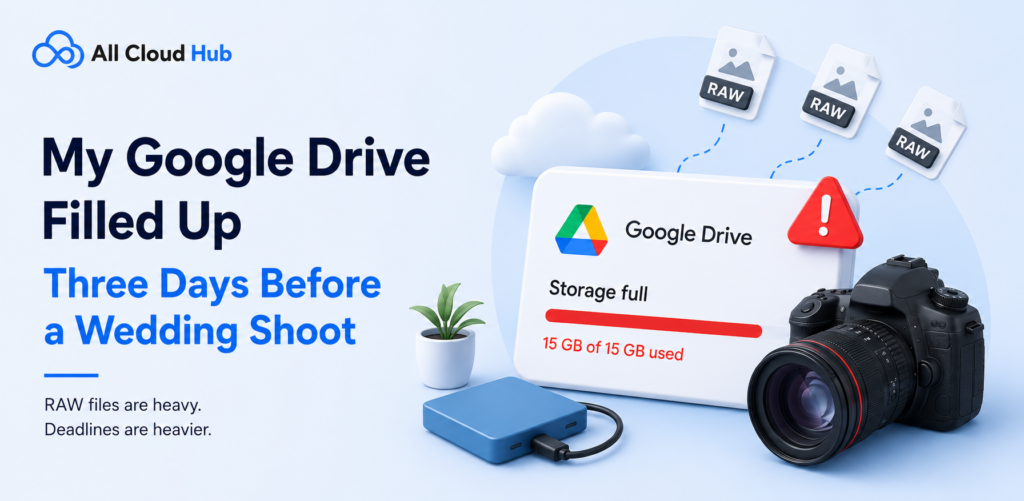
Three days before a wedding shoot, the last thing any photographer expects is a storage warning. Yet that is exactly when cloud storage limits tend to become a problem. RAW files accumulate quietly across projects until a single upload fails at the worst possible moment. What looks like a storage issue is often a workflow issue, exposing the risk of relying on one cloud account, one backup location, or one storage plan for business-critical files. The cost is not just extra storage fees. It can mean missed deadlines, delayed client deliveries, and unnecessary stress when every hour matters.
It was a Tuesday evening. I had just finished uploading the RAW files from a weekend engagement session and was about to close my laptop when Google Drive threw a red bar across my storage indicator. Not orange. Red. The kind of red that means you are not uploading anything else tonight, or possibly ever again on this account.
The wedding was in three days.
I had a fully booked Saturday shoot, an irreplaceable event with no reshoot option if anything went wrong, and zero cloud backup headroom to protect it. My stomach dropped in a way that is hard to describe to anyone who has not shot a paid wedding. There is no calling the couple and asking for a do-over because your file management fell apart. The moment is gone. The files are the only record that it happened.
To be honest about what went wrong here: this was not a flaw in Google Drive. Drive is a solid general-purpose cloud sync tool. It just was never built to serve as a primary RAW archive for a working photographer. I had been using it that way for two and a half years without ever thinking seriously about what would happen when it filled up. That Tuesday night, I found out.
Why 15 GB Disappears So Fast When You Shoot RAW
Most photographers in this situation say the same thing: “I didn’t think I had that many files.” The math explains why that intuition fails.
RAW files are large by nature. A typical Canon CR2 or Nikon NEF file from a mid-range DSLR runs between 20 and 30 MB per shot. Files from modern full-frame mirrorless bodies, like the Sony A7R series or Nikon Z7, can run 40 to 80 MB each, depending on compression settings. A wedding shoot where you fire 400 frames in a day at 30 MB average generates roughly 12 GB in a single session. At 50 MB average, that same 400-shot session produces 20 GB and blows past the entire free tier before you finish the upload.
The free tier is also smaller in practice than it appears on paper. Google’s 15 GB is shared across Drive, Gmail, and Google Photos. Every email attachment you have ever received, every phone photo that backed up since June 2021 (when Google ended the unlimited original-quality storage exemption for Photos), and every previous RAW shoot already in Drive are all eating into that same pool. A photographer who has been using Drive since 2020 may have 4 or 5 GB of usable space remaining before they even plug in their memory card from the last job.
The June 2021 policy change catches a lot of photographers off guard. Before that date, Google Photos offered unlimited storage for “high quality” compressed images. After it, all new uploads count against the 15 GB quota. If your phone automatically backs up to Google Photos and you have never turned that off, it has been quietly consuming your storage in the background for years.
What Not to Do When Your Drive Is Full
The instinct in a moment like this is to delete something. That is the wrong move, and it is worth being direct about why.
Google Drive is a sync system, not a backup system. That distinction matters enormously in a moment of panic. When you delete a file from Drive, that deletion syncs across every device connected to your account. If you shot a session three months ago, uploaded it to Drive, and it synced to your laptop, deleting it from Drive deletes it from your laptop too. You do not still have a copy on your device just because you synced it there. You have a mirror, and mirrors reflect destruction as faithfully as they reflect creation.
This is the same principle that makes sync-based storage vulnerable to ransomware. If malicious software encrypts your local files, that encryption propagates to your synced cloud copies within minutes. The same logic applies to accidental deletions made in a hurry before a shoot.
Drive does have a 30-day trash recovery window. Files you delete are not immediately and permanently gone; they sit in the Trash folder and can be recovered within that period. However, files in Trash still count against your storage quota until the trash is emptied. So moving files to Trash does not free up space until you empty it, at which point the deletion becomes permanent. That recovery window is not the same as a true backup.
The correct mental frame for solving a full Drive is not “what can I remove” but “what can I move.” Moving completed project archives to a different cloud preserves everything while freeing the space you need. Removing them destroys the only cloud copy of files that may exist on no other storage medium.
If you want to reclaim genuine space without touching any RAW files, look at Gmail attachments, duplicate exported JPEGs, old phone backups in Google Photos, and any Drive files that are not photography work. Those are reasonable targets for cleanup. Your RAW archives are not.
The Fix That Actually Worked
Here is what I did, and why it solved the problem without deleting a single RAW file.
Most photographers who use Google Drive as their primary cloud also have dormant accounts on other services they signed up for and forgot. Dropbox gives 2 GB on the free tier. OneDrive gives 5 GB. pCloud gives 10 GB on its free plan. None of those numbers sound exciting on their own, but in combination they add up to usable overflow capacity that is already sitting idle in accounts you own.
The obstacle to using those accounts as overflow is not the space itself. It is the transfer. Moving 12 GB of RAW files from Google Drive to Dropbox by downloading to your laptop first and then reuploading doubles the time and requires local disk space you may not have. On a slow connection, that is a multi-hour process the night before you need your storage freed up.
All Cloud Hub makes it possible to transfer files directly between cloud accounts without routing anything through your device. You connect Google Drive and a second cloud account, select the folder of completed project archives you want to move, and initiate the transfer cloud to cloud. Nothing downloads to your laptop. Your internet connection handles the movement between servers rather than being used twice for the same data.
The key decision about what to move is important. I transferred completed, delivered project archives: shoots where the client had already received their gallery and the work was done. Those folders were safe to relocate because I no longer needed them in Drive for active editing. The current projects and anything still in progress stayed in Drive exactly where they were.
After the transfer, Drive had enough free space to upload the full wedding shoot. The archived RAW files were safe in a second cloud. Nothing was deleted. The whole process took less time than the download-and-reupload approach would have taken just to move the first folder.
One requirement to be clear about, All Cloud Hub manages existing cloud storage. It does not create new capacity. If you only have a Google account and no other cloud storage at all, the first step is signing up for a second service. A Dropbox free account takes a few minutes to create. pCloud’s free tier is 10 GB and requires no payment method to sign up. That step comes before anything else.
Knowing how to store large files online across multiple cloud services is genuinely useful here, because the multi-cloud approach works precisely because you are distributing volume rather than relying on one account to hold everything.
Where RAW Files Should Actually Live
The Tuesday night crisis clarified something I should have thought through earlier in my career. The problem was not Google Drive specifically. The problem was using one cloud for everything across every stage of a file’s life.
A more sustainable architecture separates files by lifecycle stage rather than dumping every shoot into the same folder forever.
Active projects are shoots currently being edited or delivered. These belong in Google Drive or on your local drive with Drive sync turned on. Fast access matters here, and Drive’s desktop integration with Lightroom through the file system makes it practical for day-to-day work.
Completed archives are delivered shoots where the client has their gallery and your editing work is finished. These do not need to live in your active working environment. They need to be preserved safely somewhere with enough storage to hold them long-term.
Dropbox, pCloud, or OneDrive serve this role adequately, especially if you are using the free tiers strategically. A multi-cloud management tool makes the move from active to archive straightforward without manual account switching. Understanding how to access and share large files via cloud storage also becomes relevant when clients or second shooters need access to specific folders across different services.
Truly irreplaceable masters deserve a dedicated backup layer that is separate from all sync-based storage. Finding the best cloud storage for backup ****purposes means distinguishing between sync tools and true preservation tools.
Adobe Creative Cloud at $19.99 per month for 1 TB with Lightroom included is another legitimate option for photographers already paying for the editing software. The storage integrates directly with the application, which removes friction from the archival step. Neither Backblaze nor Adobe is being pushed here as the only answer. They are both genuinely good fits for photographers with serious archival needs, and a photographer who wants to move to either should feel comfortable doing so.
The multi-cloud free-tier approach described above works best for photographers in the earlier stages of their career who want to maximize existing resources before committing to additional monthly fees. As your archive grows and your client volume increases, the math shifts.
Ten weddings a year produces somewhere between 60 and 150 GB of RAW files depending on your shooting style and camera body. Free tiers stop being adequate at that scale regardless of how cleverly you distribute across accounts.
All Cloud Hub sits in the middle of this architecture as the management layer, handling transfers between active and archive tiers without requiring you to log in to multiple services separately and manually move folders. Evaluating the best cloud backup solutions for your specific workflow often comes down to how much friction the transfer step creates, and removing that friction is where a multi-cloud management tool earns its place.
One Last Thing Before Your Next Shoot
The red bar on my Google Drive that Tuesday night was genuinely useful, even though it felt like a disaster at the time. It forced me to think through something I had been ignoring for two and a half years: where my files actually live, what would happen if something went wrong, and whether my casual approach to cloud storage was appropriate for paid client work.
The answer was clearly no.
What changed after that night was not just the architecture. It was the habit. Moving completed archives off active storage became a regular step in my post-shoot workflow rather than something I thought about only when a warning appeared. That shift happened because the transfer process stopped being painful. When moving files between clouds requires logging into two separate services, downloading a folder, waiting, and reuploading, it is easy to postpone indefinitely. When it takes a few taps, it actually gets done.
That is where the All Cloud Hub mobile app changes the practical reality for photographers who manage their work on the go. You do not need to be at your desk to move a completed project archive off your active Drive and into long-term storage. Between sessions at a venue, waiting for the reception to start, or sitting in the car after a long shoot day, you can connect your cloud accounts, select the folders you want to transfer, and let the app handle the rest without routing anything through your phone’s local storage.
For photographers who shoot RAW at any serious volume, the gap between having a good storage plan and actually maintaining it consistently comes down to friction. The best cloud storage for photographers is not just the one with the most gigabytes or the lowest monthly fee. It is the one that fits into how you actually work, including the moments when you are away from your laptop and acting on the instinct to get your files somewhere safe before the next job begins.
Your next wedding shoot does not have to start with a red bar. Setting up the workflow now, while nothing is urgent, takes far less time than solving a storage crisis three days before someone’s most important day.
RAW files, client galleries, backups, and project archives add up quickly. All Cloud Hub lets you connect and manage multiple cloud storage services in one place, making it easier to find space, move files, and stay organized as your library grows.
Your Photos Need More Than One Cloud Account
Frequently Asked Questions
- What is the best cloud storage for photographers who shoot RAW?
For active editing, Google Drive works well as a working folder. It supports all major RAW formats including CR2, NEF, and ARW, and integrates with Lightroom through desktop sync. Photographers managing multiple cloud accounts can handle transfers between them from a single dashboard using All Cloud Hub, which moves files directly between clouds without downloading anything to the local device.
2.Is Google Drive reliable for storing RAW photo files?
Google Drive stores RAW files without any format-related issues. CR2, NEF, ARW, and other major formats upload and sync like any other file type. The limitation is practical rather than technical. Drive’s 15 GB free tier is shared across Drive, Gmail, and Google Photos, and a single 300-file wedding shoot can consume 9 to 15 GB in one session. Photographers who want to avoid additional fees can offload completed archives to a second cloud account using All Cloud Hub as a cost-free alternative.
3. How do professional photographers typically back up their work?
Most working photographers use a layered approach. Active files live on a local drive with cloud sync enabled through Drive or Dropbox. Completed project archives move to a dedicated cloud storage service with higher capacity, such as pCloud. Critical masters get a second independent copy, either on a separate local drive kept offsite or through a purpose-built backup service like Backblaze that versions files and does not propagate deletions. All Cloud Hub helps manage the transfer between active and archive tiers without downloading files, which makes the multi-cloud layer practical for solo photographers working without IT support.
4. Can Google Drive actually store RAW image files?
Yes, without any issues. Google Drive supports all major RAW formats and treats them like any other file type during upload and sync. The platform does not natively preview RAW files at full quality (it displays a low-resolution JPEG proxy instead), and editing requires downloading to local software like Lightroom or Capture One. The practical constraints are storage volume and the shared 15 GB quota rather than anything format-specific.
5. Should I use Google Drive or Backblaze for my photo archive?
They serve genuinely different functions and are not direct substitutes for each other. Google Drive is cloud sync storage. It keeps your files accessible across devices and makes collaboration easy, but it propagates all changes including deletions. Backblaze is cloud backup. It preserves file versions, does not sync deletions, and is designed for disaster recovery rather than everyday file access. Photographers who want one tool for everything should prioritize Backblaze for archival safety. Photographers already using Drive for active work can add Backblaze for backup and use All Cloud Hub to manage transfers between accounts from a single interface.
6. Where should photographers store RAW files long-term?
A practical three-tier approach works well at most career stages. Current project RAW files stay in Google Drive or on a local drive with Drive sync during active editing. Delivered project archives transfer to a second cloud with more available storage, such as pCloud’s 10 GB free plan, Dropbox, or OneDrive, or a paid service like Backblaze for unlimited capacity. Original camera card copies stay intact locally until the cloud upload is confirmed complete. All Cloud Hub handles direct transfers between the active and archive cloud tiers, making it possible to maintain this structure without logging into multiple services manually every time a project closes.

