



My Dropbox Showed Full Even After I Deleted Three Old Project Folders
- Last Updated on 20 July 2026
- 17 Min Read
- Posted on June 23, 2026
If you deleted files but your Dropbox is still full, the problem is how Dropbox calculates your storage quota. Deleting files from your main folder does not free up space. Instead, it moves those files to a hidden Trash folder where they continue taking up your quota for a full thirty days. To actually reclaim your storage, you must go to the Deleted Files tab on the Dropbox website and permanently delete them. Hidden device backups, shared folders owned by other people, and slow system syncing can also keep your account full after a mass deletion.
I deleted three old client project folders. We’re talking several gigabytes of files like design assets, exports, raw video clips. I watched them disappear from my Dropbox. Then I checked my storage bar.
Still full.
If you’re in the same spot right now, we want to save you the next hour of frustration.
Cloud storage limits usually follow a simple logic. You put a file in, and your available space drops. You take a file out, and your space returns. Dropbox complicates this basic transaction.
When you encounter a Dropbox full after deleting files, the natural reaction is to think the desktop app is frozen. But in reality it is not. Dropbox’s quota rules work differently from what most people expect, and the interface does almost nothing to explain this.
You might even try deleting more files in a panic. Deleting files and freeing storage are two separate actions in Dropbox. You have to complete both.
To actually drop your usage numbers, you have to dig into hidden account settings. Here is exactly where your missing storage is hiding and how to clear it out.
Deleting Files in Dropbox Is Not the Same as Freeing Storage
This is the part Dropbox does not make obvious.
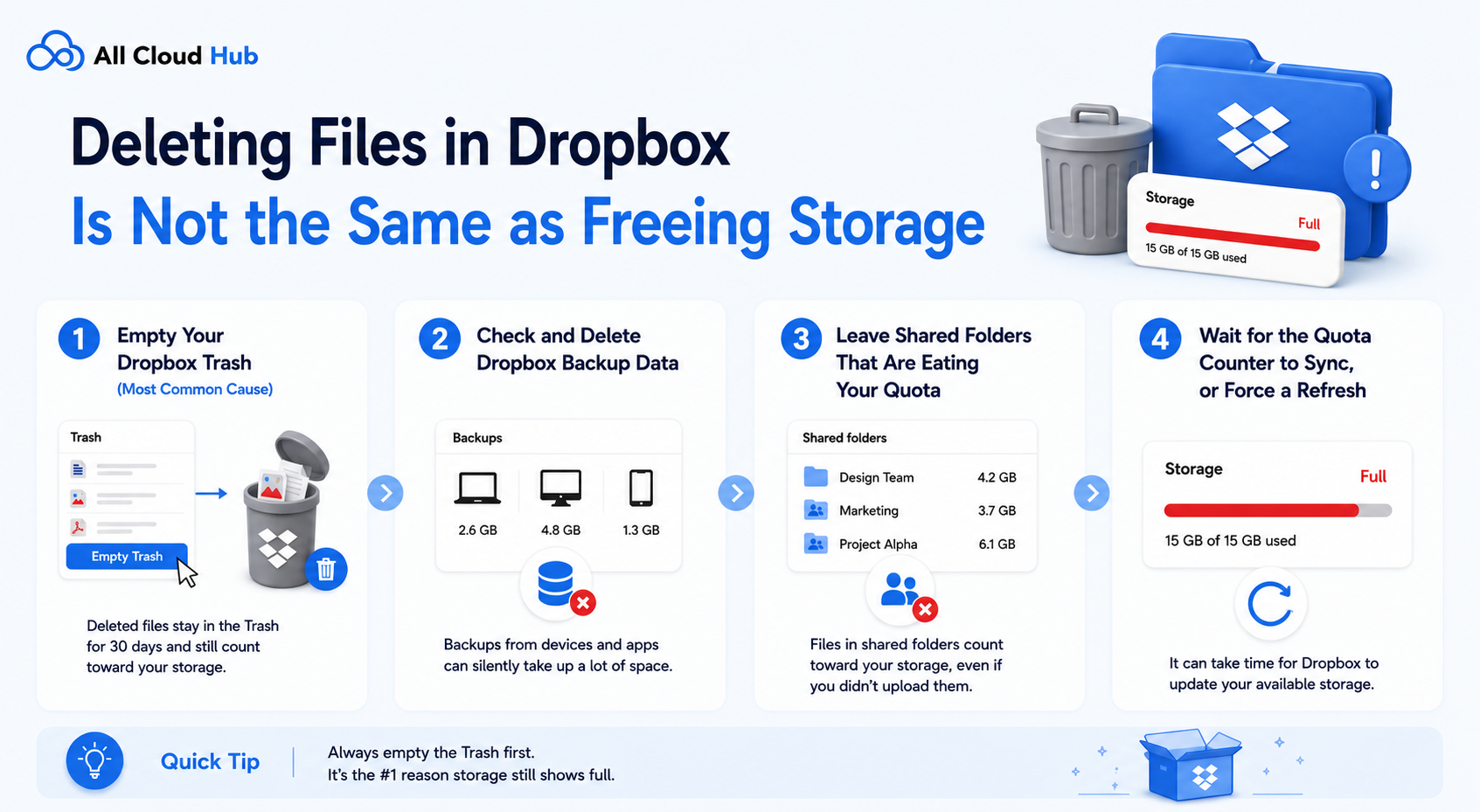
When you delete a file or folder in Dropbox, it does not disappear. It moves to a Trash area called “Deleted files.” The file is gone from your main view, but it still occupies your storage quota. Dropbox holds it there for up to 30 days so you can recover it if needed. Until you permanently delete it from Trash, it counts against your limit just like any active file.
That is cause number one, and it catches most people. But there are three others.
Dropbox Backup is a separate feature that stores snapshots of folders on your physical computer. This data lives in a different section of your account and is completely unrelated to the files you sync through your Dropbox folder. Deleting synced project files does not touch Backup data at all.
Every shared folder you belong to also counts against your personal quota. Not just folders you created. Every folder you were added to as a member. Even if someone else owns it and manages it, the full size of that folder counts against your storage limit.
Finally, the storage counter itself has a delay. After you delete something, Dropbox’s usage display can take anywhere from a few minutes to a couple of hours to update. So the number you see right after deleting may not reflect your actual current usage.
None of this is a glitch. These are deliberate design decisions. But they are genuinely non-obvious, and a user who deletes files and sees no change has not made a mistake.
Step 1: Empty Your Dropbox Trash (Most Common Cause)
This is where most cases of Dropbox full after deleting files actually begin.
Every time you delete something in Dropbox, it goes straight to the Deleted files tab. The file leaves your main folder view but it does not leave your account. Dropbox keeps it available for recovery, and while it sits there, it continues consuming your quota exactly as if you had never deleted it.
To fix this, go to dropbox and sign in. In the left panel, look for the “Deleted files” tab. This is where all your recently deleted files are stored. Select everything you want to permanently remove, then choose the option to permanently delete.
Once you permanently delete files from Trash, they are gone and that storage is freed. This is the action that actually moves the quota needle. Regular deletion from your main file view does not do this on its own.
One important note: permanently deleted files cannot be recovered. The 30-day recovery window closes the moment you empty Trash. If you have any doubt about whether you need a file, take a moment before confirming the permanent deletion. If you realize too late that you needed something back, there are ways to approach recover accidentally deleted files depending on your plan and timing.
After emptying Trash, check your storage bar again. If it has moved, Trash was your issue. If the number barely changed or stayed the same, move to step two.
Step 2: Check and Delete Dropbox Backup Data
This is the cause that almost nobody talks about, and it is responsible for a lot of confusion around Dropbox backup eating storage.
Dropbox has a feature called Dropbox Backup. It lets you back up folders directly from your computer, such as your Desktop, Documents, and Downloads folders. This is separate from the files you manually put in your Dropbox folder. The data is stored independently in your account, and it does not appear in your regular file browser when you open Dropbox.
This matters because when you delete files from your Dropbox folder, you are not touching your Backup data at all. The Backup snapshots stay intact. If you backed up a computer that had several gigabytes of files, that data is still sitting in your account even after you cleared your synced folders.
To check this, go to dropbox.com and click your profile icon in the top right corner. Navigate to Settings, then look for the Backup section. Here you will see which devices have Backup enabled and how much storage each one is consuming. If you see a connected device using a significant amount of space, you can remove the Backup from that device to reclaim the storage.
Many users do not remember enabling Backup at all. It was often prompted during the initial Dropbox setup and can be turned on without much thought in the moment. Worth checking even if you are confident you never set it up deliberately.
If you are dealing with large files spread across multiple accounts or services, it also helps to plan where things live before uploading. Thinking through how to store large files online across different platforms can prevent this kind of accumulation from happening again.
Step 3: Leave Shared Folders That Are Eating Your Quota
This one surprises people the most. The rule is straightforward but widely misunderstood: every shared folder you are a member of counts against your personal storage quota. Not the folder owner’s quota. Yours.
It does not matter whether you created the folder or were simply added by someone else. It does not matter whether you actively use it. As long as you are a member, the full size of that folder is counted against your personal limit. This is why Dropbox out of space shared folder complaints show up so frequently in forums, and why the problem is so hard to diagnose without knowing this rule exists.
To identify which shared folders are consuming the most storage, sign in on the Dropbox website and go to your account plan page. Look for the storage usage breakdown. This should give you a sense of where your quota is going across different categories.
If a shared folder is taking up space you need back, you can leave it. Right-click the folder or find it in the Sharing section of your account, and choose the option to leave the folder. Leaving does not delete the folder for other members. They keep full access. You simply stop being counted as a member, and that storage is removed from your personal quota.
There is also an alternative that many people overlook. If the folder owner sends you a shared link instead of adding you as a folder member, you can view and download the files without the folder appearing in your Dropbox account at all. A shared link consumes zero quota.
Here is the practical difference between the two:
| Shared Folder Membership | Shared Link | |
|---|---|---|
| Counts against your quota | Yes | No |
| Can view files | Yes | Yes |
| Can edit files | Yes (with edit access) | No (view/download only) |
| Requires Dropbox account | Yes | No |
| Stays in sync automatically | Yes | No, must re-download for updates |
The trade-off with shared links is real. They are read-only and do not update automatically. If you are actively collaborating and need to edit files, shared folder membership is necessary and the storage impact applies. But if you only need to reference files occasionally, a shared link is a practical way to maintain access without spending any of your personal quota.
Note that this rule is different on Dropbox Business team accounts. Team accounts pool storage collectively, so individual members do not each bear the cost of shared folders. If you are on a personal or individual paid plan, the per-member quota rule applies to you.
Step 4: Wait for the Quota Counter to Sync, or Force a Refresh
If you have worked through the first three steps and your storage number still looks wrong, the issue may simply be a delay in Dropbox’s quota display.
After any deletion, Dropbox’s storage counter does not update instantly. It can take anywhere from a few minutes to a couple of hours to reflect the change. This is a known behavior, not a malfunction. The practical signal to watch for: if you deleted a large folder of several gigabytes and the counter moved by zero, sync delay alone is unlikely to be the cause. A multi-gigabyte deletion will typically show at least some movement within a reasonable time. If the counter moved but not by as much as expected, sync delay may account for the gap.
To force a refresh, sign out of Dropbox on the web and sign back in. This often triggers the display to pull the most current data. On the desktop app, you can right-click the Dropbox icon in your system tray and look for the option to pause and resume syncing, which can prompt the app to recalculate your usage.
If Dropbox storage not updating after delete has been the issue for more than a few hours, it is worth running through steps one through three again to confirm nothing was missed.
What Is Actually Counted in Your Dropbox Storage Quota
Before you go, it helps to have the full picture in one place, because Dropbox’s quota rules cover more than just the files you can see.
What counts against your quota:
- Files you own in your synced Dropbox folder
- Everything currently sitting in your Deleted files (Trash) tab
- Dropbox Backup data from any connected devices
- Shared folders you are a member of, including folders you did not create
- Files submitted to you through Dropbox file requests
What does not count:
- Files someone shared with you via a link only (no folder membership)
- Files in shared folders after you leave those folders
- Files that belong to other users’ accounts
The most counter-intuitive rule is worth repeating clearly. Deleting a file from your main Dropbox folder moves it to Trash and does not free your quota. Permanently deleting files from the Trash tab does free your quota. Those are two different actions, and only the second one actually changes your storage usage.
When Fixing Individual Causes Is Not Enough: Managing Storage Across Multiple Clouds
Dropbox’s quota rules are not bugs. They are intentional design decisions built around a model where storage is tied to account membership and data retention. For a free account with 2 GB or an entry-level paid plan, those design decisions create real constraints that are not always visible until something breaks.
For users who work across multiple cloud services, the problem compounds. Tracking what lives where, which accounts are filling up, and how to move files when one service runs out becomes a recurring manual task.
All Cloud Hub is built for that specific situation. It connects Dropbox alongside Google Drive, OneDrive, pCloud, and Google Photos in a single dashboard. From there, you can see storage usage across all connected accounts, move files between clouds without downloading them to your device first, and run background transfers while you work on other things. If you want to connect Dropbox to Google Drive or need to transfer files between Dropbox accounts without manually downloading anything, All Cloud Hub handles both directly.
All Cloud Hub connects via OAuth 2.0, so your passwords are never stored. Your files stay in your own accounts throughout. The platform has also completed CASA Tier 2 verification for the Google API Services program.
To be straightforward about what it does and does not do: All Cloud Hub does not change Dropbox’s quota rules. It does not fix the Trash behavior or the shared folder counting. It is a management layer for users who are juggling multiple cloud services and want to reduce the overhead of tracking storage across all of them.
If you only use Dropbox and nothing else, it will not add value for you. But if you are already working across two or three different cloud platforms, the ability to sync OneDrive and Dropbox or move large batches of files between services without downloading anything saves a significant amount of time.
Tackle Your Dropbox Storage
Deleting files and freeing storage are two different actions in Dropbox. That single fact explains almost every case of Dropbox full after deleting files that people run into, and it is something the interface does very little to communicate upfront.
If you worked through the four steps in this post, you have now checked every place Dropbox quietly holds onto storage: your Trash, your Backup data, your shared folder memberships, and your quota counter’s sync status. One of those was almost certainly the cause. For most people it is the Trash. For others it is a shared folder they forgot they were still a member of, or a Backup that has been running unnoticed since initial setup.
The fix itself is not complicated once you know where to look. The frustrating part was never the solution. It was not knowing which of these four things to check first, or that they existed at all.
Going forward, the habit worth building is simple. When you delete something large in Dropbox, follow it immediately with a visit to your Deleted files tab and permanently remove it from there too. That two-step process is what actually moves your storage number. Everything else in this post is what to check when that number still does not move.
If you are managing files across Dropbox and other cloud services and find yourself running into quota issues repeatedly across multiple platforms, it may be worth centralizing how you handle storage. Tools like All Cloud Hub let you see and move files across connected cloud accounts from one place, so you spend less time logging into individual platforms just to figure out where your storage went.
Frequently Asked Questions
- Why is my Dropbox still full after I deleted everything?
Deleting files in Dropbox moves them to the Deleted files tab rather than removing them permanently. Files in Trash continue counting against your storage quota until you empty it. Additionally, Dropbox Backup data stores device files separately from your synced folder and is not cleared when you delete files from your main Dropbox. Check both the Deleted files tab and the Backup section in your account settings to identify which one is consuming your remaining quota.
2. Can I move files out of Dropbox to another cloud service to free up space?
Yes, and it is more straightforward than most people expect. If your Dropbox is consistently running low, moving older or archived files to another cloud service is a practical way to reduce the load on your Dropbox quota without permanently deleting anything. All Cloud Hub lets you transfer files directly between cloud accounts without downloading them to your device first. You connect both accounts, select what you want to move, and the transfer runs in the background. It works across Dropbox, Google Drive, OneDrive, and several other services, so you are not locked into any single platform’s storage limits.
3. Do Dropbox shared folders count against my storage?
Yes. Every shared folder you are a member of counts against your personal Dropbox storage quota, including folders you did not create and do not own. This applies to all individual Dropbox accounts. The exception is Dropbox Business team accounts, where team storage is managed collectively. If shared folders are filling your quota, you can leave any folder you no longer need, or ask the folder owner to send you a shared link instead, which consumes none of your personal storage.
4. What is the easiest way to back up my Dropbox files to another cloud service so I am not dependent on a single account?
The simplest approach is to use a cloud transfer tool that handles the copy without requiring you to download and re-upload everything manually. All Cloud Hub supports direct cloud-to-cloud transfers, so you can copy files from your Dropbox account to Google Drive, OneDrive, or another connected service and run it as a background task. This is useful both as a backup strategy and as a way to redistribute files across accounts when one is getting full. If you want to keep both locations in sync going forward rather than doing a one-time copy, All Cloud Hub also supports scheduled transfers between connected accounts.
5. Can I access a Dropbox shared folder without it counting toward my storage?
Yes, but only if the folder owner sends you a shared link rather than adding you as a folder member. Shared links let you view and download files without the folder appearing in your Dropbox account, so it uses none of your personal quota. The trade-off is that shared links are read-only and do not sync automatically. You need to revisit the link to see updated content. If you need to actively edit files and collaborate in real time, shared folder membership is required, and the storage impact applies.
6. How do I check what is using my Dropbox storage?
Sign in to Dropbox on the web, click your profile icon in the top right corner, and go to Settings, then Plan. This shows your total quota and current usage. For a more detailed breakdown, look for the storage usage detail view on that same page. Also check the Deleted files tab for anything sitting in Trash, and review the Backup section in your account settings to see if device backup data is consuming storage separately from your synced files.
7. Why is my Dropbox storage full when I have nothing in it?
Several storage consumers can fill a Dropbox account even when the main file view appears empty. These include files in the Trash tab that have not been permanently deleted, Dropbox Backup data from a connected device that is stored separately from your synced files, shared folders you are a member of that belong to other users, and files collected through Dropbox file requests. Checking each of these areas in your account settings will identify the cause even when your visible file list looks completely empty.