



My Google Drive Hit 15GB Mid-Project and I Almost Missed a Client Deadline
- Last Updated on 20 July 2026
- 14 Min Read
- Posted on June 12, 2026
Here is a scenario that plays out more often than most freelancers want to admit. You are three days from a client deadline. The project folder is organized, the files are named correctly, everything is moving. Then you try to upload a revised document and nothing happens.
You check the shared folder link you sent the client and it is still working, but you cannot push any updates to it. You try again. Still nothing. Then you notice the small storage indicator at the bottom of the Drive sidebar. It is red.
My Google Drive storage is full. Not almost full. Completely full.
What makes this worse is that hitting the limit does not just freeze Drive. It freezes your entire Google account.
You cannot upload files, you cannot save new documents, and you cannot send Gmail attachments.
If your client tries to leave a comment on a shared file and something prompts a file update on their end, that can fail too. Your existing files are still there and readable, but you lose every write, upload, and send function until you get back under the limit.
For a solo consultant or freelancer running client work through Drive, that is a hard stop at the worst possible time.
This is not a catastrophe for everyone. If you are using Drive lightly, hitting 15GB means you cannot add anything new, but your current files stay safe and accessible. The urgency scales with how active your Drive is at that moment.
That said, if it happened to you mid-project, you are not here to read about the philosophy of cloud storage. You need it fixed.
The Fastest Fixes: What to Do Right Now if You Have 20 Minutes
Before you start deleting anything, go to drive.google.com/drive/quota. This page shows you exactly how your 15GB is distributed across Drive, Gmail, and Google Photos. That matters because the fix depends on where the weight is sitting. Deleting Drive files when Gmail attachments are the real culprit wastes time and removes files you might actually need.
Once you know where the storage is going, the single fastest fix is almost always the one people miss, emptying all three trash bins.
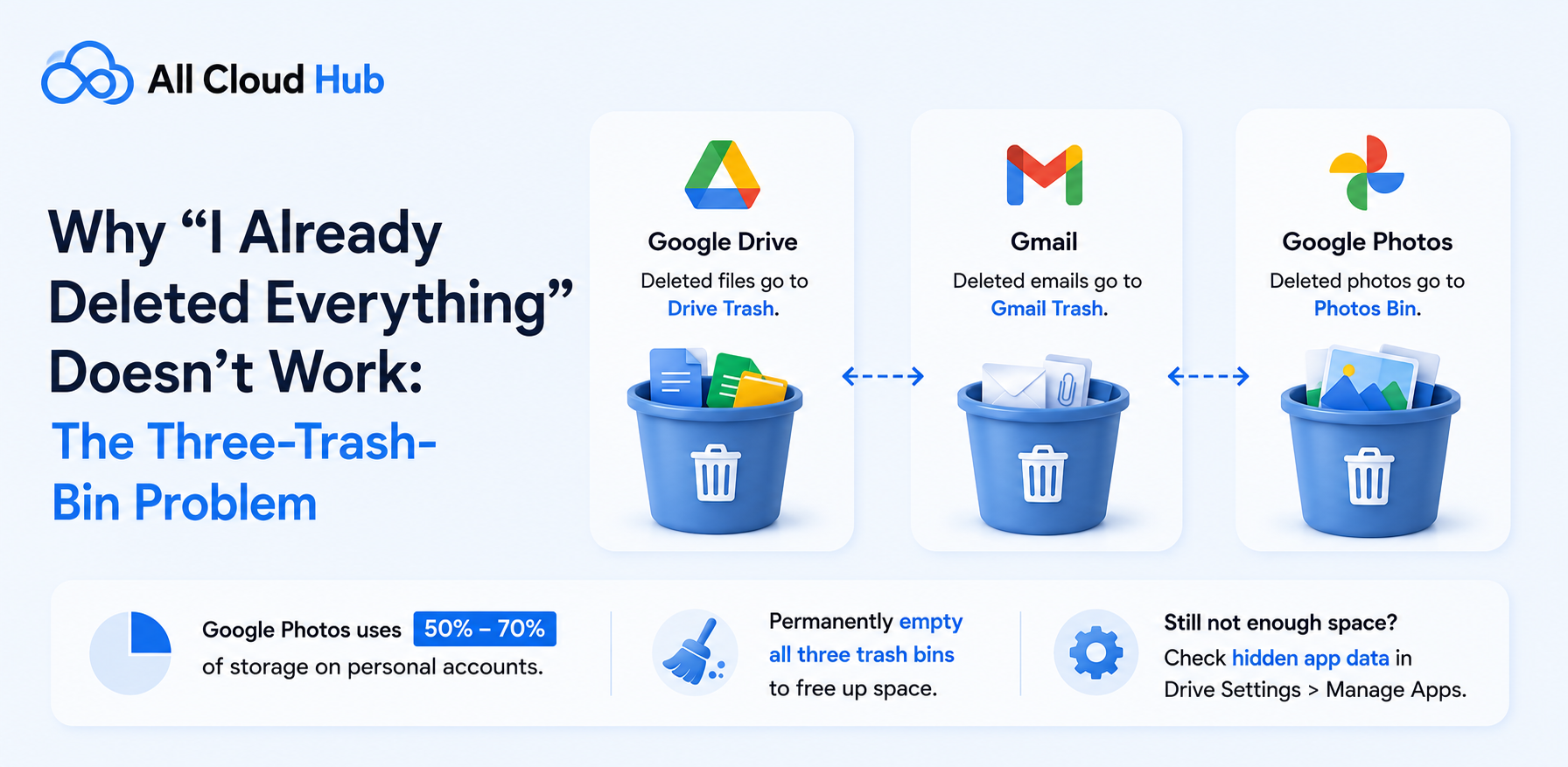
Drive, Gmail, and Google Photos each maintain a completely separate trash folder. Deleting a file from Drive does not touch Gmail’s trash. Clearing Gmail’s deleted messages does not affect Google Photos.
If you have ever deleted files across any of these services and then wondered why your quota barely moved, this is why. Files in any trash bin still count against your limit until you permanently empty each one individually.
How to empty Drive trash:
- Go to Google Drive
- Right-click Trash in the left sidebar
- Select Empty Trash.
How to empty Gmail trash:
- Go to Bin in the left panel
- Click on the Empty Bin now
How to empty Google Photos bin:
- Open the Bin from the left menu
- Delete everything there permanently
After clearing all three, be aware that the storage meter can take up to 24 hours to reflect the change. If it still reads full an hour later, that is normal.
Part of what makes storage creep up without warning is that most Drive accounts were never set up with any real structure to begin with. If you have never thought about how to organize Google Drive deliberately, that is worth addressing once the immediate crisis is resolved.
For now though, sort your Drive by file size. Open Drive, switch to list view, and sort by storage used. Large video files, high-resolution exports, and archived project folders often account for the majority of usage, and two or three files can represent several gigabytes on their own. This gives you a clear picture of what is actually occupying space before you start making permanent decisions.
These steps will free up space. But they will not stop this from happening again unless the underlying habits change, and they probably will not cover every situation where you need to free up space without permanently deleting anything.
Thinking through how much cloud storage capacity you actually need across your accounts is a useful starting point for setting this up in a way that holds. And if cost is the constraint, there are more free cloud storage options available across platforms than most people realize before they start paying for upgrades.
Why “I Already Deleted Everything” Doesn’t Work: The Three-Trash-Bin Problem
If you cleaned up your Drive, saw files disappear, and then checked your quota only to find it barely moved, you ran into the most common source of frustration with the 15GB limit.
The three-trash-bin structure is the root cause almost every time. Drive, Gmail, and Google Photos each run their own separate trash system. Storage experts report that Google Photos is often responsible for 50% to 70% of total storage consumption on personal accounts, making it one of the biggest reasons users unexpectedly hit their limits.
When you delete a file from Drive, it moves to Drive’s trash. When you delete a Gmail message with a large attachment, it goes to Gmail’s trash. When you remove a photo from Google Photos, it goes to the Photos bin.
None of these are connected. Clearing one has no effect on the others, and every file sitting in any of those bins keeps counting against your quota as if it were still an active file.
Permanently emptying all three is the step most guides mention only in passing, but it is often the fix that recovers the most space, especially for users who have been casually deleting files for months without ever clearing the trash.
If emptying the trash does not recover enough space, the next place to look is hidden app data. This is storage that connected third-party apps, including WhatsApp backups and other tools, store inside your Google Drive without appearing in your regular file view. It is invisible in the main Drive interface but counts against your quota just like any other file. To find it, open Drive Settings, click Manage Apps, and look for any listed apps that show storage used. From there you can delete their hidden data individually.
Getting on top of both of these before moving to deletion is worth the extra few minutes. You may recover more space than you expected, and you avoid permanently removing files that you might actually want later.
How to Free Up Space Without Deleting Anything: Moving Files Instead of Losing Them
Deletion is the obvious move when Google Drive storage is full, but it is also a permanent one. For freelancers and consultants who archive client deliverables, keep raw project files, or hold onto work that might be reused or referenced later, permanently removing files to make room feels like paying a tax on your own work.
There is another path, which most of them miss, moving large or infrequently accessed files from Google Drive to another cloud service you already have. If you have a OneDrive account through a Microsoft 365 subscription, a Dropbox account from a previous setup, or a pCloud account you signed up for and rarely use, that free space is already yours.
If you are not sure which secondary cloud makes the most sense for archiving versus active file sharing, the differences between cloud storage for backup versus file sharing matter more than most people realize when deciding where to offload files from Drive. Moving completed project files, archived deliverables, or large media folders there frees up Drive space without deleting anything permanently.
The manual way to do this is to download the files to your device and then re-upload them to the destination service. That works fine for a few files on a fast connection. It becomes a problem when you are moving several gigabytes across a slow home connection with a deadline approaching, because the files have to pass through your device twice and the process ties up your machine for the duration.
All Cloud Hub handles this differently. You connect both your Google Drive and your destination cloud account (OneDrive, Dropbox, pCloud, and others are supported) through the All Cloud Hub interface, and then transfer files directly between clouds without downloading anything to your device first. The transfer happens in the background, which means you can keep working while it runs.
To be clear about what this requires is that you need a second cloud account with available storage. All Cloud Hub moves files between clouds you already have; it does not create new storage. If Google Drive is your only cloud account, this approach is not available to you without creating a second account elsewhere or signing up for a new service. The setup does not require a credit card to get started, but it does require that second destination to exist.
Why This Keeps Happening: The Structural Problem Behind the 15GB Ceiling
The 15GB limit is not new, and Google’s decision to share it across Drive, Gmail, and Photos was not designed to be punitive. When it was introduced, 15GB was genuinely generous for most personal and light professional use. The problem is that professional use grew and so do the files.
However, when Google Photos ended unlimited free photo backups in 2021, many users started using their storage space much faster. Someone using around 10GB in 2020 could easily reach 14GB by 2022, even without changing how they used the service.
This is a common problem for freelancers and solo professionals. Google Drive fills up, so they delete old files to free up space. A few months later, it fills up again, and the process repeats. Every cleanup carries the risk of removing something important by mistake.
The real issue is that a single 15GB storage limit was never meant to handle active work files, years of email attachments, and photo backups all at once.
A better approach is to use different cloud services for different purposes. Keep active files in Google Drive for collaboration. Store completed projects in Dropbox or pCloud. Save large photos and videos in OneDrive if you already have a Microsoft subscription. This spreads your files across multiple storage pools, reducing the chance of running out of space when you need it most.
Managing multiple cloud accounts can sound complicated, but it does not have to be. All Cloud Hub lets you connect different cloud storage services and manage them from one dashboard. You can see how your storage is being used across accounts and decide where to keep different types of files without constantly switching between platforms.
The Real Fix Is Having a Plan Before It Happens Again
A full Drive mid-project is stressful the first time. The second time it happens, it is just embarrassing, because by then you knew it was coming and did not set anything up to prevent it.
The trash bins, the hidden app data, the file size audit, these are all legitimate fixes for the immediate problem. But none of them change the underlying situation, which is that a single 15GB quota is doing too much work for a professional workflow and has no overflow valve when it hits the ceiling.
That is the gap the All Cloud Hub mobile app fills. Not by creating storage from nothing, but by making the storage you already have across multiple platforms actually usable from one place. Instead of logging into four different apps to figure out where space is available and then manually shuffling files between them, you connect your clouds once and handle everything from a single interface on your phone. When Drive starts running low, moving a batch of completed project archives to Dropbox or pCloud takes a few taps rather than a download session that ties up your device for an hour.
For freelancers and solo consultants who run their work from their phones as much as from a desktop, that kind of mobile-first control over your file infrastructure is not a convenience. It is the difference between catching a storage problem before it becomes a deadline problem and finding out about it at the worst possible moment.
If you already have accounts on more than one cloud platform, the free storage you are sitting on across those services is more useful than you might think. All Cloud Hub is how you actually use it.
Stop Running Out of Cloud Storage
Connect all your cloud accounts in one place, monitor available space, and move files between services before storage limits disrupt your work.
Frequently Asked Questions
- Why is my Google Drive full when I have storage?
Your Google account’s 15GB is shared across three services: Google Drive, Gmail, and Google Photos. Gmail attachments, phone photo backups, and files sitting in all three trash bins all count against the same pool. If Drive itself looks fairly light but your quota shows as full, open drive.google.com/drive/quota to see how that storage is actually distributed before you start removing anything from Drive specifically.
2. Does emptying trash free up Google Drive space?
Yes, but only if you empty all three trash bins separately. Drive, Gmail, and Google Photos each maintain their own trash folder, and files in any of them count against your quota until permanently deleted. Clearing only the Drive trash will not recover space held by deleted Gmail messages or Google Photos. After emptying all three, allow up to 24 hours for the storage meter to reflect the change.
3. How do I free up storage on Google Drive without deleting anything?
Move files to a second cloud service instead of deleting them. If you have an OneDrive, Dropbox, or pCloud account, you can transfer large or archived files from Google Drive directly to those services using All Cloud Hub without downloading anything to your device first. Nothing is permanently deleted. You do need a second cloud account with available storage for this to work.
4. What happens when you exceed Google Drive storage?
When your Google account hits its storage limit, three things stop at the same time: you cannot upload or create new files in Google Drive, you cannot send or receive Gmail attachments, and Google Photos stops backing up new photos. Your existing files remain accessible and you can still view, download, and share them, but you lose all write and upload capability until your storage drops below the limit.
5. Why is my Google Drive storage still full after deleting files?
Two things cause this most often. First, deleted files sit in each service’s separate trash bin and continue counting against your quota until you permanently empty each bin. Drive, Gmail, and Google Photos all have their own. Second, hidden app data from connected third-party apps stores invisible files inside your Drive that do not appear in the main file view. Go to Drive Settings, then Manage Apps, to find and remove that data.
6. Is 15GB of Google Drive storage enough?
For light personal use, yes. For anyone running active client projects through Drive, receiving regular emails with attachments, and backing up phone photos since June 2021, 15GB fills faster than most people expect, often within one to two years of consistent use. Rather than upgrading immediately, many professionals extend their usable free storage by distributing file types across multiple cloud accounts. Managing that across platforms from a single interface is what a tool like All Cloud Hub is built for.

