
Why Keeping All Your Files in One Cloud Is Riskier Than You Think
- Last Updated on 24 July 2026
- 16 Min Read
- Posted on June 9, 2026
This article is about a risk that most people overlook because it has nothing to do with hacking. If you store all your files in a single cloud service like Google Drive, Dropbox, OneDrive, you have one point of failure. One outage, one account issue, one ransomware event syncing through your folders, and you lose access to everything at once. The practical fix is straightforward, and this post walks through both the risk and the steps to reduce it without rebuilding your entire workflow.
Cloud storage became the default somewhere around the time USB drives stopped feeling reliable. Today, most freelancers, small teams, and creative professionals run their entire working lives through a single cloud platform. Files go in, sync happens, work gets done. It is easy, it works well, and the major providers have earned that trust through years of uptime and solid product development.
But convenience has a side effect. When one service handles everything, that service also becomes your only copy of everything. And the quiet assumption underneath most people’s workflows — that syncing to the cloud is the same as backing it up, is one worth examining more carefully.
The cloud storage risks that tend to catch people off guard are not the dramatic ones. They are not usually about hackers stealing files. They are about losing access when you can least afford it, and not having a second option when things go sideways.
The Assumption That’s Putting Your Files at Risk
Here is how most people think about their cloud setup: files are on their laptop, they sync to Google Drive or Dropbox, and that means they are safe. The logic feels sound. The files exist in two places.
The problem is that sync is not the same thing as backup, and the distinction matters a lot.
When you sync files, the cloud mirrors your current state in real time. That sounds great until you realize what it means in practice: if you delete a file on your laptop, the deletion propagates to the cloud copy too. If you accidentally overwrite a document, the overwritten version replaces the original everywhere. If ransomware encrypts your local files, the encrypted versions start syncing before you have a chance to stop it. In all three cases, the cloud is reflecting the problem, not protecting you from it.
A real backup is a separate copy that exists independently of your current device activity. It captures a point-in-time snapshot that cannot be altered or deleted by whatever is happening on your laptop right now.
To be fair, Google Drive, Dropbox, and OneDrive all offer some version history and file recovery features. You can recover deleted files within a window, typically 30 to 180 days depending on your plan, and roll back to earlier versions of documents. These features have real value, and if you have never used them, it is worth exploring what your current plan includes.
But version history has limits. The recovery window is finite. Files deleted outside that window are gone. And version history does not protect you from an account suspension, a provider outage, or a pricing change that forces you off the platform. For those scenarios, the only protection is having your files somewhere else entirely.
Four Ways a Single Cloud Can Fail You (That Have Nothing to Do With Hacking)
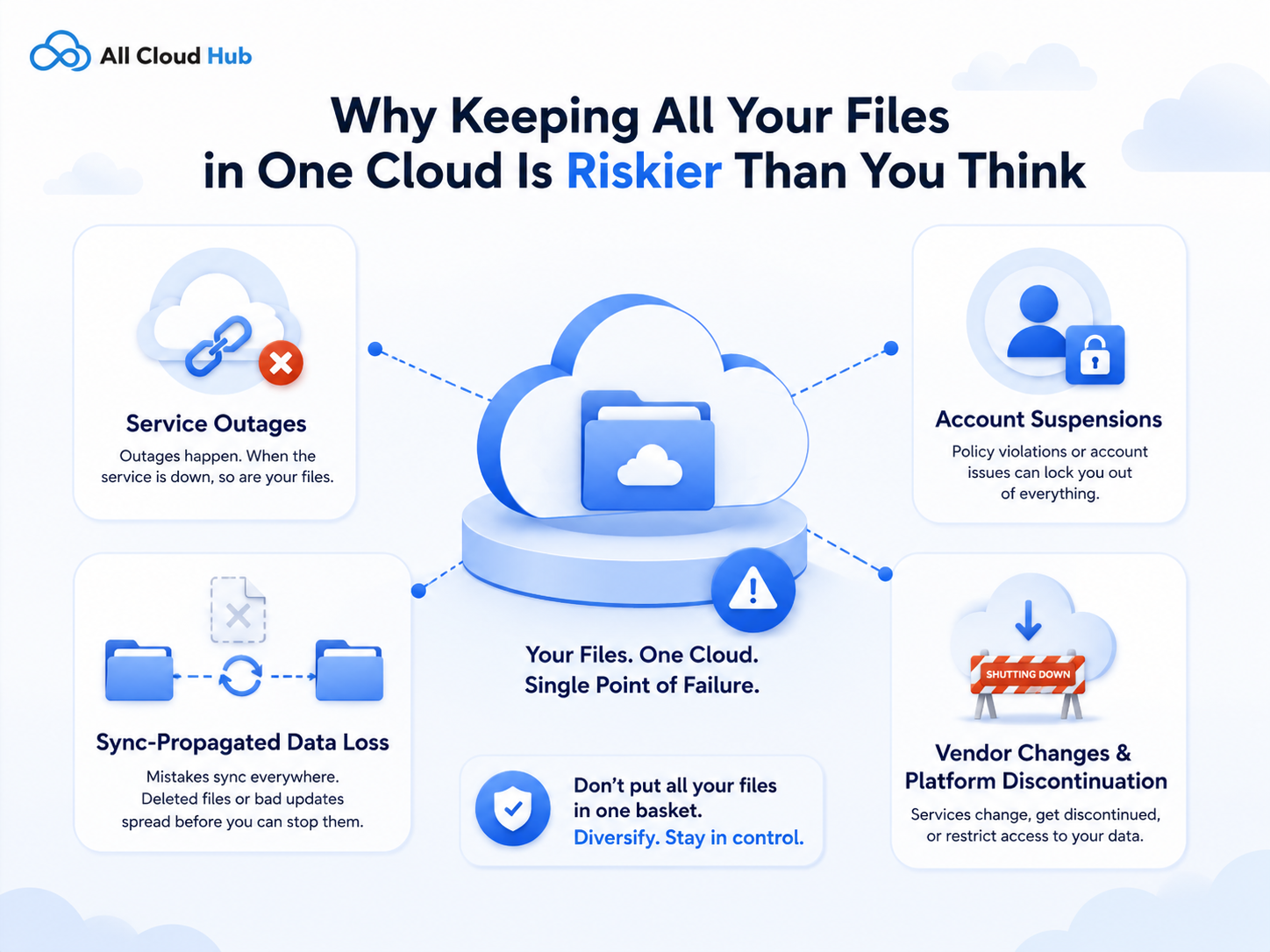
The conversation about cloud storage risks tends to focus on cybersecurity like breaches, weak passwords, misconfigured sharing settings. Those risks are real, and they are worth addressing. But there is a separate category of risk that gets almost no coverage, availability and dependency failures, and these are the ones most likely to affect an everyday user.
Service Outages
Cloud providers go down. Google Workspace, Microsoft 365, and Dropbox have each experienced notable outages over the years, some lasting several hours. During an outage, you cannot access your files. If your only copy lives in that service and you have nothing locally or elsewhere, you are stuck waiting.
For most people, a few hours of downtime is an inconvenience. On the morning of a client deadline, it is a serious problem. The outage itself is not the issue, major providers are generally well-engineered and recover quickly. The issue is having no alternative when it happens.
Account Suspensions
Providers can suspend accounts for a range of reasons: suspected Terms of Service violations, payment failures, automated content detection flags, or activity that triggers a security review. When suspension happens, access is cut off immediately and without warning. You cannot log in, cannot download your files, and cannot share anything with clients until the issue is resolved — which can take days.
This is uncommon for typical users with active subscriptions. But uncommon is not impossible, and the consequence when it happens is complete loss of access to everything stored in that account.
Sync-Propagated Data Loss
This is the failure mode that catches people most off guard. Ransomware that encrypts files on your computer does not stay local, it syncs. Mass accidental deletion does not stay local either. By the time you notice what happened, the damage may already be mirrored across every device connected to your account.
Research from Eon suggests that around 62% of businesses have been hit by ransomware at some point. For individual users and small teams, the risk is lower, but the sync propagation problem applies just as directly. If understanding how your files are actually protected matters to you, it is worth reading more about how safe your files really are in cloud storage.
Vendor Changes and Platform Discontinuation
Consumer cloud services have shut down before. Even when a major provider like Google or Dropbox is not going anywhere, pricing changes can force users off plans they depend on, storage limits can tighten, or terms can shift in ways that affect how files are shared or accessed. When all your files live in one place, you are entirely dependent on that provider’s decisions. Migration becomes stressful and urgent instead of planned and gradual.
Why “The Cloud” Is Not a Backup (And What Backup Actually Means)
There is a useful framework from the information security world called the 3-2-1 backup rule. It was originally popularized by photographer Peter Krogh in his book The Digital Photographer’s Guide to Data Management, and has since been recommended by bodies including the US Computer Emergency Readiness Team (US-CERT). The rule is simple: keep three copies of your data, across two different media types, with one copy stored offsite.
Translated into practical terms for someone running their work through consumer cloud storage, it looks like this:
- Three copies means your working files on your primary device, plus two independent storage locations.
- Two media types means cloud storage counts as one, and a local or external drive counts as another.
- One offsite means at least one copy should be somewhere physically separate from your computer, a second cloud provider qualifies here.
The important thing to understand is that a second folder on your Google Drive is not a second copy. Both folders are controlled by the same provider account, accessible from the same login, and affected by the same outage or suspension. True redundancy requires an independent provider, separate credentials, and a separate relationship with a different company.
Full 3-2-1 compliance is more than most individuals maintain, and that is fine. The point is not perfection, it is awareness of the principle. Even moving from one copy (sync only) to two independent copies (your primary cloud plus a second provider) is a meaningful improvement in how resilient your setup actually is.
If you have ever hit your storage ceiling on a primary account and wondered what to do next, that moment is a good prompt to revisit this question. What would happen if that account became inaccessible tomorrow? Knowing what to do when Google Drive is full is useful, but the broader question is whether your critical files have a second home at all.
What Actually Happens When Your Only Cloud Goes Down
Picture this: it is 8 AM on the day a project is due. You open your laptop, navigate to Google Drive, and get an error. You try on your phone. Same result. You check the provider’s status page and see an ongoing incident affecting file access in your region. Estimated resolution time: unknown.
Every asset you need for the delivery, design files, the final document, reference images are in that account. You have nothing locally because your workflow runs cloud-first. You cannot send the client what they need, and you cannot pull up earlier versions of anything because the whole service is unavailable.
This scenario is not catastrophic in a long-term sense. The files are not gone. The outage will resolve. But in the hours it lasts, you have missed a deadline, sent an anxious message to a client, and lost the professional buffer you had worked to build. Research cited by Cloudian found that around 44% of organizations have experienced a major outage event. For individual users, the rate is harder to measure, but the downstream effect of unpreparedness is the same regardless of scale.
The harder version of this scenario is an account suspension. Unlike an outage, suspensions do not come with an estimated resolution time. You may wait days for review, spend time navigating support processes, and still not have a clear timeline for recovery. If client files, contracts, or billing records are only in that account, every one of those things is inaccessible for the duration.
Neither of these events is likely to happen to you on any given day. The argument for having a second storage option is not that disaster is imminent, it is that preparation costs almost nothing compared to the cost of being caught without a fallback when it eventually matters.
The Fix: Distribute, Don’t Duplicate
The solution here is not complicated. It does not require a full infrastructure rebuild or a deep dive into IT architecture. The principle is straightforward: keep important files accessible from at least two independent cloud providers, so that a problem with one does not mean you have no access to anything.
This is not about storing everything everywhere. That creates its own problems, version confusion, duplicate management overhead, unclear sources of truth. The goal is to ensure that your most critical files (active client work, irreplaceable originals, financial records) have a second home on a genuinely independent platform.
If your primary is Google Drive, a second copy on OneDrive or Dropbox counts as meaningfully independent, different provider, different credentials, different company infrastructure. iCloud or pCloud also work. The key is a different provider, not a second account with the same one.
The practical challenge is that managing files across multiple cloud platforms manually creates friction. Constant context-switching between different interfaces, keeping track of which version lives where, and monitoring storage capacity across accounts all add overhead to what was supposed to be a simple file management workflow. This is where a unified management layer helps.
Tools like All Cloud Hub are designed for exactly this situation. All Cloud Hub connects Google Drive, OneDrive, Dropbox, pCloud, and Google Photos in a single interface, letting you view and manage files across all your cloud accounts from one place and from any device. It is not a storage provider itself, it does not hold your files or create copies of them. What it does is make it practical to maintain files across multiple providers without the overhead of logging into each service separately.
This distinction matters: using All Cloud Hub to manage multiple cloud drives does not by itself create redundancy. You still need to have files intentionally stored across those providers. What the tool does is reduce the friction that stops most people from setting that up in the first place.
For anyone dealing with large files spread across multiple accounts, having a clear view of what is stored where, and how much space remains, becomes important fast. The challenges around how to handle and store large files across cloud services become more manageable when you can see everything in one place.
A Practical Starting Point: Three Steps to Reduce Your Single-Cloud Risk
You do not need to redesign your entire workflow to meaningfully reduce single cloud storage risk. Three steps get you most of the way there.
- Step 1: Identify what actually needs protection.
Not every file in your cloud warrants the same level of care. Active client deliverables, original source files (raw photos, source project files, contracts), and financial records are the priority. Older archived work, downloaded assets you could re-obtain, and application data are lower urgency. Start with the files whose loss would be the most damaging.
- Step 2: Add a second independent provider.
Choose a second cloud service from a different company and create a separate account with different login credentials. Move or copy your critical files into that second location. The goal is genuine independence, a different provider means a different outage, a different account review process, and a different infrastructure. If you want to think through how to keep that second location well-organized from the start, a look at how to organize large cloud storage accounts is a useful starting point.
- Step 3: Set a cadence, not a manual process.
The goal is not to copy files by hand every day. For critical folders that change frequently, automated sync to the second platform keeps things current. For files that change less often, a weekly or monthly manual copy is a reasonable routine. The important thing is that the process is deliberate and scheduled rather than something you intend to do eventually.
One more thing to acknowledge honestly: maintaining files across multiple platforms does add some overhead, even when a management tool reduces the friction. The argument is simply that this overhead is smaller by a significant margin than the cost of losing access to critical files at the wrong moment.
A local or external drive backup adds a third independent copy and brings you closer to the 3-2-1 principle. That is the next layer, and it completes the picture. For teams and individuals who regularly need to share large files across platforms, a multi-cloud setup also makes sharing large files via cloud storage considerably more flexible.
Your Files Need More Than One Safety Net
Cloud platforms are reliable most of the time, which is why single-provider dependence often goes unnoticed until something fails. The issue is not whether services like Google Drive or Dropbox are trustworthy. The issue is what happens when your entire workflow depends on one provider and one point of access.
Most cloud storage risks are not dramatic security breaches. They are quieter failures like outages, accidental deletion, sync propagation, or sudden loss of account access. And when there is no second option, even a temporary disruption becomes a serious problem.
A practical cloud backup strategy does not need to be complicated. A second independent provider, a consistent backup routine, and better visibility into your storage setup already puts you ahead of most users.
Platforms like All Cloud Hub make that process far more manageable by bringing multiple cloud services into one place. Instead of juggling separate dashboards and accounts, you can manage storage across providers through a single interface while maintaining the flexibility that a multi-cloud approach provides.
Because resilience is not about having more storage. It is about having more than one option when something goes wrong.
Frequently Asked Questions
- Is cloud storage the same as cloud backup?
No, and the difference matters in practice. Cloud storage services like Google Drive, Dropbox, and OneDrive sync your files to remote servers, which means your current file state is mirrored online. If you delete a file on your device, the deletion propagates to the cloud too. Cloud backup creates a protected, separate copy that is not affected by what happens on your current device, deletions, overwrites, and ransomware encryption events do not touch it. Most individual users are relying on cloud sync while assuming it functions as a backup. It does not.
2. Can you lose data that is stored in the cloud?
Yes. Data stored exclusively in a single cloud service can become inaccessible or permanently lost through provider outages, account suspensions, ransomware that propagates deletions through a connected sync, or accidental mass deletion. The internal redundancy that providers like Google and Dropbox maintain protects against their own hardware failures, it does not protect against account-level access events or sync-propagated loss. Distributing critical files across multiple independent providers reduces this risk meaningfully.
3. What are the main cloud storage risks for individual users?
Cloud storage risks fall into two categories. Cybersecurity risks include data breaches, account hijacking, and misconfigured sharing permissions, these are real but mitigated by strong passwords, two-factor authentication, and careful access settings. Availability and dependency risks are less discussed but equally real: provider outages block access, account suspensions cut you off without warning, and sync can propagate a deletion or encryption event across all your devices simultaneously. Concentrating all files in a single cloud service amplifies both categories.
4. What is the 3-2-1 backup rule?
The 3-2-1 backup rule recommends keeping three copies of important data, stored across two different media types, with one copy held offsite. For someone managing files through consumer cloud services, a practical application is: one copy in your primary cloud, one copy in a second independent cloud service, and one copy on a local or external drive. Managing two cloud providers simultaneously becomes more practical with a unified dashboard that connects multiple cloud accounts in one place.
5. What is the difference between backup and redundancy?
- Redundancy means having multiple simultaneous copies of data so that if one becomes unavailable, another is immediately accessible, the goal is uninterrupted access.
- Backup means having a protected historical copy that can be restored after a loss event, the goal is recoverability.
Within a single cloud provider, internal redundancy protects against that provider’s hardware failures, but not against account-level access loss or sync-propagated deletion. Spreading files across two independent cloud services provides a basic form of redundancy; a separate local backup provides genuine recoverability.
6. Why does disaster recovery matter for individual cloud users?
Because cloud hosting does not automatically make data recoverable. A practical personal cloud disaster recovery approach means having critical files accessible from at least one independent source, a different cloud provider, so that a single provider event does not leave you without options. Relying on a sync to Google Drive or Dropbox as a recovery plan is a common gap. It works until it does not, and the moment it fails tends to be a moment when you cannot afford the delay.