



How to Use Multiple Google Drive Accounts in One Place?
- Last Updated on 20 July 2026
- 21 Min Read
- Posted on May 29, 2026
Managing multiple Google Drive accounts on desktop is something many people need to do, whether they are juggling a personal account alongside a work account, or handling several client drives at once. Google’s native desktop app supports up to four accounts at the same time, and Chrome profiles offer a clean browser-based alternative. This guide walks you through every method available, explains what to watch out for when running several accounts together, and covers how to keep your setup organized and running smoothly.
A lot of people today use more than one Google account. A freelancer might have a personal Gmail Drive and two or three client-facing Google Workspace accounts. A student might keep a school account separate from their personal one. A small business owner might maintain one Drive for internal documents and another for shared client files.
The challenge is not having multiple accounts. The challenge is switching between them without losing your mind. Logging out and back in repeatedly wastes time. Browser tabs get mixed up. Files open under the wrong account. Notifications get missed.
The good news is that there are several reliable ways to set up and manage multiple Google Drive accounts on desktop, and this guide covers all of them in plain language. Whether you prefer working inside your file explorer, your browser, or a dedicated tool, there is a setup that fits your workflow.
The Messy Reality: What Most People Are Dealing With
Before getting into solutions, it is worth naming the specific problems clearly, because different people are dealing with different versions of this frustration.
- You are constantly logging in and out.
Every time you need to check a file in a different account, you sign out of the current one and sign back into another. It takes two minutes each time and completely breaks your focus.
- Shared links keep opening under the wrong account.
Someone sends you a file link. You click it. Google opens it under your personal account instead of your work account, and you get a permission error even though you have access. You copy the link, switch accounts, paste it again, and finally get in.
- You have no idea which account holds which file.
You saved something last week but you cannot remember if it was in the personal drive or the work drive. You search in both places and find nothing, then remember you might have used a third account for that particular project.
- Your storage is full on one account and you cannot figure out why.
You have not uploaded anything major recently, but the storage bar is nearly full. You check your files and cannot find what is taking up the space.
- Files are not syncing and you did not notice until it was too late.
An important document did not update on your desktop because the sync for that account quietly stopped after a password change. You only found out when someone told you they were looking at an old version.
If any of these sound familiar, let’s get into the methods of overcoming these situations and then go through the steps for those methods.
Quick Method Selector: Which Setup Is Right for You?
Before diving into the steps, use this table to find the approach that fits your situation.
| Your Situation | Best Method |
|---|---|
| You prefer working in File Explorer or Finder | Google Drive for Desktop (up to 4 accounts) |
| You spend most of your time in a browser | Separate Chrome User Profiles |
| You need more than 4 accounts or cross-cloud access | Third-party cloud management tools |
| You want one unified view across all drives | All Cloud Hub or similar aggregator |
Method 1: Using Google Drive for Desktop with Multiple Accounts
This is the most straightforward option for anyone who wants to access their files directly from Windows File Explorer or macOS Finder. Google’s official desktop app lets you connect up to four accounts at the same time.
How to Add a Second Account to Google Drive for Desktop
- Make sure you have Google Drive for Desktop installed and signed into your primary account.
- Click the Google Drive icon in your system tray (bottom-right on Windows, top-right on macOS).
- Click your profile picture in the top-right corner of the Drive panel.
- Select “Add another account.”
- A browser window will open. Sign in with your second Google account.
- Once authenticated, that account will appear as a separate virtual drive on your computer.
On Windows, each account gets its own drive letter, such as G: for the first account and H: for the second. On macOS, each account mounts as a separate location in Finder.
You can repeat this process for up to four accounts total.
What This Looks Like in Practice
Once set up, all your drives appear in your file manager just like local folders. You can drag and drop files between them, open documents directly, and let Google handle the syncing in the background. If you need to move a file from one Google Drive to another, having both accounts mounted locally makes the process much more direct.
Things to Watch Out For
- Local Cache Buildup
This is something most guides skip over entirely. When you connect multiple accounts to Google Drive for Desktop, each account writes its own local cache files to your computer. If you are running three or four accounts with large file libraries, these cache logs can quietly fill up your primary drive (usually the C: drive on Windows) over time.
To fix this, go into Google Drive for Desktop settings, open Preferences, then navigate to Advanced Settings. You will see an option to change the “Local cache files directory.” Move this to a secondary drive or an external SSD so it does not compete with your operating system for space.
2. Sync Pauses After a Password Change
If you change the password on one of your connected Google accounts through a browser, Google may silently disconnect that account’s desktop sync without alerting you. Files will stop updating in the background. If you notice that one of your virtual drives has not refreshed recently, open the Drive tray icon and check whether any account shows a sync error or a sign-in prompt.
3. Shared Office File Conflicts
If two of your connected accounts try to open and edit the same Microsoft Office file through the local desktop app at the same time, Google Drive may generate duplicate “conflicted copy” files. To avoid this, open shared Office files through the browser using Google Docs or Sheets rather than clicking them from File Explorer. This keeps edits in the cloud and avoids the local conflict loop.
Method 2: Using Separate Chrome User Profiles
If you do most of your work inside a browser rather than in File Explorer, this method is cleaner and easier to manage than the desktop app approach.
Chrome User Profiles are completely separate browser instances. Each profile has its own bookmarks, history, extensions, and most importantly, its own Google account session. You are not just switching tabs. You are opening a fully isolated browser window tied to one specific Google account.
How to Set Up Separate Chrome Profiles for Each Account
- Open Google Chrome.
- Click your profile picture in the top-right corner of the browser.
- Click “Add” or “Add another profile” from the dropdown.
- Set up the new profile. You can give it a name and a custom color to tell them apart visually.
- Sign into that profile with your second Google account.
- Repeat for each additional account.
Once done, you can open a separate Chrome window for each profile. Each one has its own Google Drive, Google Docs, and Gmail running independently. You can even pin them all to your taskbar for fast switching.
This method is especially useful for avoiding the “wrong account” problem, where clicking a shared link opens it under a different Google account and gives you a permission error.
How to Open a Google Drive Link With a Different Account
If a Google Drive link keeps opening under the wrong Google account, you do not need to log out of every account. You can switch accounts, use an Incognito window, or open the link from a separate Chrome profile.
Method 1: Switch Google Accounts
- Open the Google Drive link.
- Click your Google profile picture in the top-right corner.
- Select the Google account that should have access.
- Reload the Drive link.
If that account has permission to access the file or folder, the link should open normally.
Method 2: Open the Link in an Incognito Window
If your regular browser session keeps using the wrong account:
- Copy the Google Drive link.
- Open a new Incognito window in Chrome.
- Sign in with the Google account that has access.
- Paste the Drive link into the address bar.
- Open the file or folder.
This is useful when you only occasionally need to access a Drive link with another account.
Method 3: Use a Separate Chrome Profile
If you regularly work with multiple Google accounts, a separate Chrome profile is usually the cleaner option. Each profile can stay signed in to a different Google account, so Drive links opened from that profile use the intended account.
Keep in mind that changing accounts does not bypass Google Drive permissions. If the account does not have access, you still need to request access or have the file owner share it with that account.
How to Open a Shared Google Drive Folder With Another Account
To open a shared Google Drive folder with a different Google account:
- Open the shared folder link.
- Switch to the Google account that has access to the folder.
- Reload the link.
- If you still see a permission error, check that the folder was shared with the correct email address.
- If you use this account frequently, consider opening the folder from a separate Chrome profile.
If the folder has not been shared with the second account, switching accounts alone will not provide access. The owner or another user with the required sharing permissions must share the folder with that account.
Method 3: What to Do When You Need More Than Four Accounts
Google Drive for Desktop has a hard limit of four accounts. If you need to manage more than that, or if you want a cleaner, unified view across all your drives, you need a different approach.
1. Using Third-Party Cloud Aggregators
Several cloud management tools allow you to connect more than four Google Drive accounts under one dashboard without hitting Google’s limit. These tools authenticate each account through secure OAuth connections and display all your files from one interface. File transfers happen server-to-server, which means they do not eat into your local machine’s bandwidth or storage.
2. Using All Cloud Hub
For users who want a cleaner, centralized way to handle multiple Google Drive accounts on desktop alongside other cloud storage services, All Cloud Hub is worth considering. It lets you connect and view multiple cloud accounts together, which is helpful when you are trying to manage files across different services without opening a dozen separate browser tabs or relying on a complicated local setup.
If you are someone who also uses OneDrive, Dropbox, or other services alongside Google Drive, being able to see everything from one place saves a lot of context-switching.
How to Sync Multiple Google Drive Accounts Without Overloading Your Computer
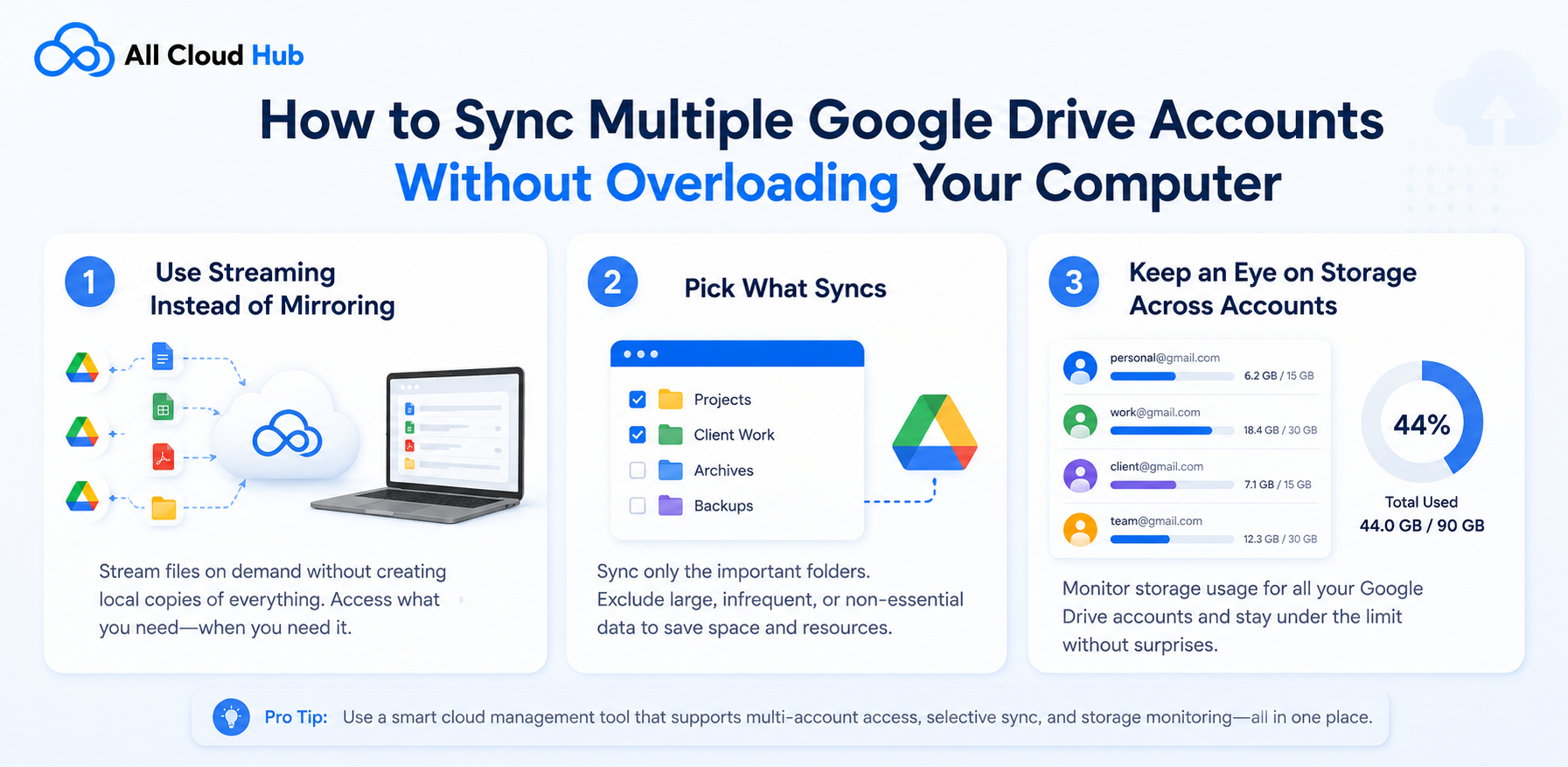
When you sync multiple Google Drive accounts simultaneously on the same machine, you are asking your computer to maintain several active background processes at once. Here is how to keep things running smoothly.
- Use Streaming Instead of Mirroring
Google Drive for Desktop offers two sync modes: “Stream files” and “Mirror files.” Streaming keeps your files in the cloud and only downloads them when you open them. Mirroring downloads copies of everything to your local drive.
If you have multiple accounts connected, avoid mirroring on all of them. Use streaming as the default for accounts with large file libraries. Only enable mirroring on an account if you regularly need offline access to those specific files. This alone will prevent most of the local storage issues that come with running multiple drives.
2. Pick What Syncs
You do not have to sync every folder from every account. Inside Google Drive for Desktop settings, you can choose specific folders to sync for each account. This is especially useful if one account has a huge archive of old files that you rarely touch. Exclude those folders from active sync and your computer will thank you.
3. Keep an Eye on Storage Across Accounts
When you are juggling multiple drives, it is easy to lose track of how much space each one is using. Running out of room on one account can cause sync to fail silently. If you find that files are not updating or uploads are stalling, a full storage quota is often the reason. Knowing how to manage Google Drive storage proactively is a good habit to build into your routine.
How to Organize Files Across Multiple Accounts
Having multiple drives active at once creates a new organizational challenge. Files live in different places, folders have different names, and it becomes easy to save something to the wrong account.
A few habits that help:
- Name Your Drives Clearly
Give each account a meaningful label so you can tell them apart at a glance. In Google Drive for Desktop on Windows, you can rename the virtual drive from the default letter to something descriptive, like “Work Drive” or “Client Account.”
2. Keep a Consistent Folder Structure
Use the same top-level folder names across all your accounts wherever possible. For example, if you use folders called “Active Projects,” “Archive,” and “Shared” in one account, mirror that structure in the others. This makes it easier to know where to look regardless of which drive you are in. If you have a lot of content spread across multiple drives, spending time to organize large files up front saves a lot of searching later.
3. Use Shared Drives for Team Files
If multiple people are collaborating and you are trying to give everyone access to the same files across different accounts, Google Shared Drives (available in Google Workspace plans) are a cleaner solution than sharing individual folders. Files inside a Shared Drive are owned by the team, not by an individual account, so they persist even if someone leaves.
Sharing and Transferring Files Between Accounts
Once you have multiple drives set up, there will be times when you need to move files from one account to another, or share them between accounts for ongoing collaboration.
- The Cross-Account Sharing Method
The simplest way to give one account access to files owned by another is through Google Drive’s standard sharing feature. Open the file or folder in Account A, share it with Account B’s email address, and give Account B Editor access. Then, from Account B, add a shortcut to that shared folder so it appears in the drive’s main view.
This approach works well for ongoing access. However, be aware that if you later change permissions on Account A or delete the source folder, those shortcuts in Account B will stop working.
2. The Download and Re-upload Method
If you want to permanently move files from one account to another, you can download them from the source account and re-upload them to the destination. This is straightforward for small batches of files, but it comes with one important caveat. Native Google file types, such as Google Docs, Sheets, and Slides, are converted to Microsoft Office formats when you download them. When you re-upload them, complex formatting, embedded scripts, and comment history may not survive the conversion intact.
To preserve native Google file formatting, use cloud-to-cloud transfer tools that move files server-side without downloading them to your local machine first.
3. Managing Large File Transfers
If you are dealing with large files or heavy folders, moving them through your local machine takes a long time and uses a lot of bandwidth. It is worth understanding how to store large files and share large files efficiently before you start a large transfer between accounts.
Can You Merge Two Google Drive Accounts?
Google does not provide a one-click option to permanently merge two separate Google Accounts into one. However, you can move, copy, share, or transfer ownership of files between accounts depending on what you are trying to accomplish.
For example, you can:
- Share files and folders from one account with another.
- Transfer ownership of eligible files to another account.
- Move content into a Google Shared Drive when appropriate.
- Download and re-upload files when another transfer method is not practical.
- Use a cloud-to-cloud transfer tool when you have a large amount of data to move.
If your goal is simply to access both accounts without actually combining their data, keeping both accounts connected and using them from one interface may be easier than moving everything into one account.
Also remember that two Google Account storage quotas do not become one combined storage quota just because you share files between the accounts. Ownership and storage rules still apply to individual accounts.
Stop Switching Between Google Drive Accounts
Tired of logging in and out of multiple accounts? Manage all your Google Drive files from one streamlined setup and save time every day.
Common Problems and How to Fix Them
Problem 1: A Drive Letter Is Missing After a Restart
Sometimes, after restarting your computer, one of the Google Drive virtual drives does not appear. This usually means the app did not fully load that account on startup. Open Google Drive for Desktop from the system tray, check the account list, and click the re-sign-in prompt if one appears.
Problem 2: Files Are Not Syncing on One Account
Check that the account in question is not paused. Open the Drive tray icon, click the account that is not syncing, and look for a pause or error state. Also check whether that account’s storage is full, as a full quota will stop new uploads and sync from working.
Problem 3: You Keep Opening Files Under the Wrong Account
This happens when Google uses the “default” account to open shared links. The cleanest fix is to use separate Chrome profiles for each account, as described in Method 2. This way, each account’s links open in its own isolated window and there is no ambiguity about which account is active.
Problem 4: Storage Keeps Filling Up Unexpectedly
If you manage several Google accounts, it is easy to lose track of which account owns particular files and which account is using storage.
Check the storage usage and ownership of large files in each account rather than assuming that the account containing a shared folder is responsible for every file inside it. Google Shared Drives work differently because files added to a Shared Drive are owned by the organization rather than an individual user.
If storage keeps becoming a problem, review large files, shared content, and ownership across your accounts before moving or deleting anything.
A Note on Security When Using Multiple Accounts on One Device
Running multiple Google Drive accounts on the same desktop machine is generally safe, but there are a few things worth keeping in mind.
Each account operates independently. Files from one account are not visible to the others unless you explicitly share them. Google’s authentication handles each account separately, so signing out of one does not affect the others.
However, anyone with physical or remote access to your computer can see all the connected drives. If one of your accounts holds sensitive personal or business data, make sure your device itself is locked with a strong password and that your screen locks automatically when idle.
If you are using a shared or company-managed computer, check whether your organization’s IT policy allows connecting personal Google accounts to the same machine as your corporate account.
Conclusion
Running multiple Google Drive accounts on desktop does not have to be complicated. Google Drive for Desktop handles up to four accounts cleanly, with each one showing up as its own drive on your computer. Chrome profiles cover the browser-based workflow just as effectively. And for anyone managing more than four accounts or wanting everything in one unified view, third-party tools and platforms like All Cloud Hub fill that gap.
The key is picking the method that matches how you actually work, setting it up properly from the start, and watching out for the common pitfalls around local cache, sync pauses, and storage quotas. Once your setup is in place, managing multiple Google Drive accounts on desktop becomes a normal part of your day rather than a constant source of friction.
Frequently Asked Questions
Q1. How many Google Drive accounts can I add to Google Drive for Desktop at the same time?
Google Drive for Desktop supports up to four accounts running simultaneously on the same computer. Each account mounts as a separate virtual drive in your file manager. On Windows, each one gets its own drive letter such as G: or H:, and on macOS, each appears as its own location in Finder. If you need to manage more than four accounts at the same time, you will need a third-party tool or a cloud management app to go beyond that limit.
Q2. What is the cleanest way to use multiple Google Drive accounts in a browser without mixing them up?
The cleanest way is to set up a separate Chrome User Profile for each Google account. Each profile runs as a fully isolated browser instance with its own cookies, session, and Google account login. This means shared links always open under the correct account, and there is no risk of one account’s session interfering with another. You can keep all your profiles open in separate windows at the same time and switch between them instantly from the taskbar.
Q3. Can I manage more than four Google Drive accounts from one place without constantly switching between them?
Yes, but you will need a tool that goes beyond what Google’s native desktop app offers. Apps like All Cloud Hub let you connect multiple cloud accounts, including several Google Drive accounts, and access them from a single interface. This is particularly useful for freelancers, small business owners, or anyone who manages files across more than four accounts and wants everything visible in one place without opening separate apps or browser windows for each one. All Cloud Hub is also available on Android through the Google Play Store, so you can manage your accounts on the go as well.
Q4. Why did one of my Google Drive accounts stop syncing on my desktop?
The most common reason is a password change. When you update the password on a Google account through a browser, Google Drive for Desktop may disconnect that account’s sync session without sending you any alert. Everything appears normal on the surface, but files stop updating in the background. To fix this, open the Drive tray icon and check each connected account for a sign-in prompt or a warning indicator. Re-authenticating the affected account restores the sync connection immediately. It is a good habit to check this after changing any Google account password.
Q5. Why is my Google Drive storage full even though I have not uploaded anything large recently?
This is usually related to file ownership across shared accounts. When you create a file inside a folder that is owned by a different Google account, that file counts against your own storage quota rather than the folder owner’s quota. This happens quietly over time and can make your storage disappear faster than expected. Transferring ownership of those files to the correct account resolves the issue. If you are managing files across multiple accounts and running into storage problems regularly, it helps to have a clear system for tracking which account owns what.
Q6. Is there a way to access and manage all my cloud storage accounts, not just Google Drive, from one place?
Yes. If you use multiple cloud services alongside Google Drive, such as OneDrive or Dropbox, managing them through separate apps or browser tabs gets disorganized quickly. All Cloud Hub is designed for exactly this situation. It brings multiple cloud storage accounts together into one interface, so you can access, organize, and manage your files across different services without switching between apps constantly. It is available on the Google Play Store for Android users who want to handle their cloud accounts from their phone as well as their desktop.

