cloud_dev, Author at All Cloud Hub

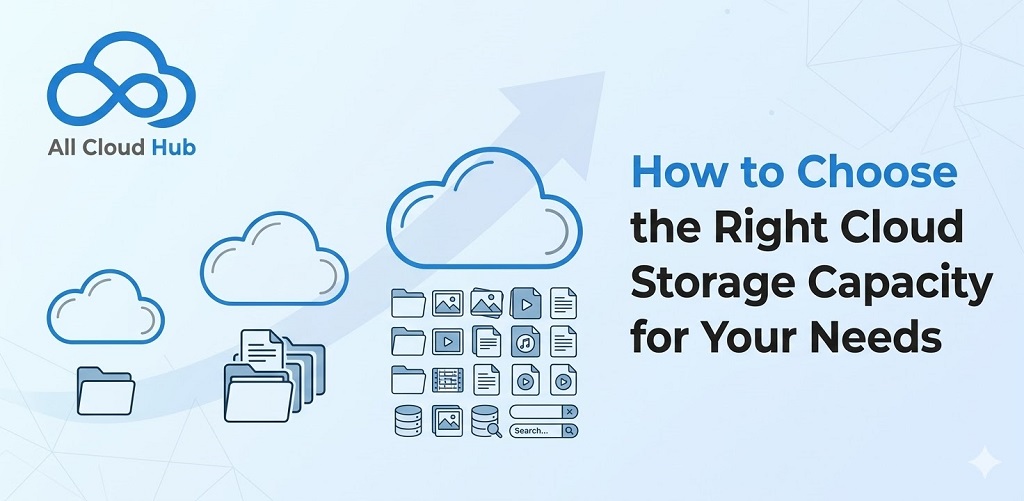
How to Choose the Right Cloud Storage Capacity for Your Needs

You’re uploading a file when the error appears: storage full. Suddenly you’re locked out of syncing, backups stop running, and you’re scrambling to figure out which cloud account hit its limit.

Cloud storage capacity is the remote server space available for your files, and in 2026, free tiers range from 2GB to 20GB while paid plans scale into the terabytes. This guide covers how to calculate what you actually need, what counts toward your quota, and how to manage storage across multiple clouds without the constant tab-switching.

What is cloud storage capacity

Cloud storage capacity is the amount of remote server space you can use to store your digital files. Instead of saving everything to your computer’s hard drive, you’re renting space on servers owned by companies like Google, Microsoft, or Dropbox (these now serve an estimated 2.3 billion personal cloud users.) In 2026, free tiers typically range from 2GB to 20GB depending on the provider, while paid plans scale from 50GB up to 20TB or more.

The concept is similar to renting a storage unit. You pay for a certain amount of space, and everything you put inside counts toward that limit. The key difference is that cloud storage lives on remote servers, so you can access your files from any device with an internet connection.

How much cloud storage do you need

Most people don’t think about storage limits until they hit one. You try to upload a file, and suddenly you’re staring at an error message. The right amount of capacity depends on what you’re storing and how quickly you add new files.

Personal use and document storage

Text documents, spreadsheets, and PDFs take up very little space. A typical Word document is less than 1MB, which means you could store thousands of them in just a few gigabytes.

If you mainly work with documents and don’t back up photos or videos to the cloud, a free tier for personal use often covers everything you need. Light users can go years without approaching their storage limit.

Photo and video libraries

Photos and videos are where storage fills up fast. A single high-resolution photo from a modern smartphone can be 5MB or more. A one-minute 4K video might take up 400MB.

If you have automatic photo backup turned on, and most people do, you’ll likely fill a free tier within months. This is the most common reason people run out of space without realizing it.

Professional and business files

Design files, video projects, client deliverables, and full system backups require substantially more room. A single Photoshop file can exceed 1GB, and video editors routinely work with files measured in tens of gigabytes.

Professionals managing large or growing file libraries typically find that paid plans pay for themselves in convenience. Running out of space mid-project creates friction you don’t want to deal with.

What counts toward your cloud storage quota

Your quota is the total space allocated to your account. However, not every provider counts items the same way, so understanding what actually uses your space helps you avoid surprises.

Files and documents

Standard uploads like PDFs, Word docs, spreadsheets, and presentations count against your quota on every provider. This part is straightforward: if you upload it, it takes up space.

Emails and attachments

Some providers share storage across services. Google, for example, splits your 15GB free tier across Gmail, Google Drive, and Google Photos. Email attachments sitting in your inbox count against the same quota as your Drive files.

Photos and videos

Media files typically count toward your quota, though some providers offer settings that affect how much space they use. Google Photos previously offered compressed uploads that didn’t count against storage, though that policy changed in 2021.

Shared files and folders

Files you own count against your quota even when you share them with others. On the other hand, files that someone else shares with you typically don’t count against your storage. The owner’s account absorbs that cost.

Trash and deleted items

Deleted files often sit in the trash and continue using your quota until they’re permanently removed. Most providers auto-delete trash after 30 days, but until then, those files still occupy space.

How to calculate your cloud storage requirements

A simple three-step process helps you estimate what you actually need instead of guessing.

1. Audit your current file usage

Start by checking your current storage usage in each cloud account’s settings. Google Drive shows this under “Storage,” Dropbox under “Account settings,” and OneDrive in “Manage storage.”

If you use multiple clouds, you’ll have to check each one separately. Alternatively, a multi-cloud manager can show all your accounts in one view, which saves time if you’re juggling several providers.

2. Estimate future storage growth

Next, consider how your storage will grow. Will you be adding photos monthly? Taking on new client projects? Backing up additional devices? With global data creation on track to reach 230–240 zettabytes in 2026, a reasonable approach is to estimate your growth over the next one to two years and plan accordingly.

Upgrading mid-year is always possible, but planning ahead avoids interruptions.

3. Add buffer space for flexibility

Finally, choose a plan with extra headroom so you don’t hit capacity limits unexpectedly. Running out of space can block syncing, pause automatic backups, and prevent new uploads entirely.

A 20-30% buffer above your estimated usage gives you room to breathe without overpaying.

Cloud storage capacity by provider

Each major provider structures their free and paid tiers differently. Here’s how they compare in 2026:

ProviderFree tierMaximum paid capacityNotable features
Google Drive15GB (shared with Gmail and Photos)30TBStrong collaboration, Google Workspace integration
Dropbox2GB3TB (individual)Reliable syncing, file versioning
OneDrive5GB6TB (with Microsoft 365 Family)Microsoft 365 integration
iCloud5GB12TBBest Apple device integration
pCloud10GB10TB (lifetime plans available)European-based, optional client-side encryption

Google Drive

Google’s 15GB free tier is generous, but remember that it’s shared across Gmail, Drive, and Photos. If your inbox is full of attachments, your Drive space shrinks accordingly – and at that point, migrating files to OneDrive can free up room without deleting anything. Paid plans are available through Google One, scaling up to 30TB.

Dropbox

Dropbox offers one of the smallest free tiers at just 2GB. However, it’s known for reliable syncing and solid file versioning, which lets you recover previous versions of documents.

Microsoft OneDrive

OneDrive includes 5GB free with every Microsoft account. Larger capacity comes bundled with Microsoft 365 subscriptions, making it a natural fit if you already use Word, Excel, or Outlook.

iCloud

Apple’s iCloud starts with 5GB free for every Apple ID. It offers the tightest integration with Apple devices, and paid tiers now scale up to 12TB for users with large photo and video libraries.

pCloud

pCloud stands out by offering lifetime plans as an alternative to monthly subscriptions. It’s European-based and includes optional client-side encryption for users who want extra privacy.

Free vs paid cloud storage plans

Free plans work well for light users or for testing a provider before committing. They typically offer limited capacity, basic features, and standard support.

Paid plans unlock more storage, priority support, advanced sharing controls, and often family sharing options. Many also include additional security features like extended version history.

Some users combine multiple free accounts to get more total space. For example, 15GB from Google plus 5GB from OneDrive plus 2GB from Dropbox adds up to 22GB. This works, but it creates management complexity when your files are scattered across three different dashboards with three different logins.

What happens when your cloud storage is full

When you hit your limit, new uploads and syncs stop working. You won’t be able to add files until you free up space or upgrade your plan.

For providers with shared quotas like Google, a full Drive can also mean Gmail stops receiving attachments. Automatic backups, like phone photo backup, will pause silently in the background without notifying you.

Most providers offer a grace period before restricting access to existing files, but the disruption to your workflow starts immediately. Proper capacity planning prevents this scenario entirely.

How to free up cloud storage space

When you’re running low, a few practical steps can help you reclaim space quickly.

1. Empty your trash across all clouds

Deleted files sit in the trash and continue using your quota. Permanently deleting them is often the fastest way to free up significant space, especially if you’ve been deleting files without emptying the trash for months.

2. Remove duplicate files

Duplicates are common when files sync across devices or get copied between folders. You can check for duplicates manually by sorting files by name, or use a dedicated duplicate-finder tool to speed up the process.

3. Delete large or unused files

Most cloud providers let you sort files by size. Review the largest files first. Old downloads, outdated project versions, and files you no longer reference are often the biggest space hogs.

4. Move files to another cloud

If one cloud is full but another has space, you can transfer files between them. This typically requires downloading to your device and re-uploading, unless you use a cloud-to-cloud transfer tool that moves files directly between providers without routing through your computer.

How to manage storage across multiple clouds

The average organization now uses 3.4 different cloud providers, which means tracking capacity across separate dashboards, different logins, and different interfaces. Over time, this gets tedious.

See your total capacity in one view

A unified dashboard shows storage usage across all connected clouds without logging into each account separately. You can see at a glance which cloud has space and which is running low.

Move files between clouds without downloading

Cloud-to-cloud transfers route files directly between providers. Instead of downloading a 2GB folder to your laptop and re-uploading it elsewhere, the transfer happens server-to-server. This approach is faster and doesn’t eat your bandwidth.

Sync folders to balance storage automatically

Folder sync keeps files updated across clouds, helping distribute the storage load without manual copying. When one cloud fills up, you can shift files to another and keep them in sync going forward.

Tip: All Cloud Hub connects Google Drive, Dropbox, OneDrive, and pCloud in one dashboard. You can search across all clouds at once, drag-and-drop files between providers, and see your total storage without switching tabs. Your files stay in your own accounts, and All Cloud Hub never stores, copies, or caches them. Authentication happens through OAuth 2.0, so your login credentials are never shared. Connect your clouds in under a minute →

FAQs about cloud storage capacity

Is 1TB the same as 100GB?

No. 1TB (terabyte) equals approximately 1,000GB (gigabytes), so 1TB provides about ten times more storage than 100GB.

Does sharing files with others use my storage quota?

Files you own and share count against your quota. Files others share with you typically don’t count against your storage. The owner’s account absorbs that usage.

How long do deleted files stay in cloud storage trash?

Most providers automatically empty the trash after 30 days. Until then, files continue using your quota, so emptying the trash manually frees up space immediately.

Can I combine storage from multiple cloud accounts into one total pool?

Cloud providers don’t merge storage across accounts. However, multi-cloud managers let you view and move files between accounts from a single dashboard, making it easier to use your total available space across providers.

Is Google giving 1TB of free storage?

No. Google provides 15GB free, shared across Gmail, Drive, and Photos. Larger capacities are available through paid Google One plans starting at 100GB.
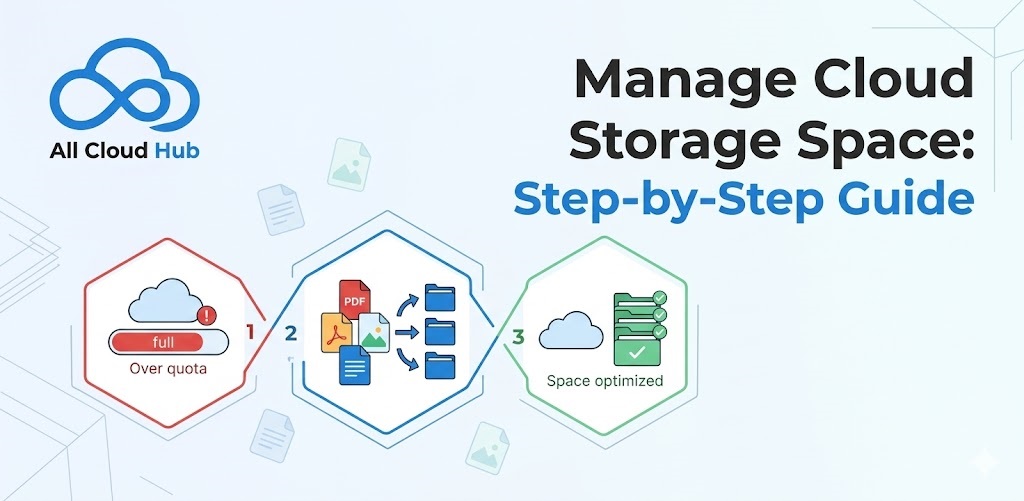
Manage Cloud Storage Space: Step-by-Step Guide

You’re staring at a “storage full” notification, but you haven’t saved anything new in weeks. Meanwhile, your files are scattered across Google Drive, Dropbox, OneDrive, and iCloud, each with its own storage limit and no way to see the full picture.

In 2025, 55% of people use three or more cloud services without a clear strategy for managing any of them. This guide walks you through checking your storage, freeing up space, and organizing files across all your cloud accounts without the usual download-and-reupload hassle.

What is cloud storage and why does it fill up

Cloud storage management, a $29.7 billion consumer industry, involves organizing, securing, and optimizing data stored on remote servers via third-party providers like Google, Microsoft, Apple, and Dropbox. In 2025, most people use at least two or three of these services, often without realizing how quickly space disappears.

Your storage fills up for a few predictable reasons. Automatic photo backups run quietly in the background every time you take a picture. Email attachments accumulate over months and years. Old device backups from phones you traded in years ago sit forgotten. Duplicate files, often created when sync conflicts occur, multiply without any notification.

Once you understand where your space is going, reclaiming it becomes much simpler.

How to check your cloud storage usage

Before deleting anything, you want to know exactly where you stand. Each major cloud provider offers a storage breakdown, though they place it in slightly different locations.

Google Drive

Navigate to drive.google.com/settings/storage to see your usage. One detail that surprises many users: Google shares this storage across Drive, Gmail, and Google Photos. A bloated inbox with years of attachments can eat into your Drive space even if you rarely save files there.

OneDrive

Go to onedrive.com, click Settings, then Storage. This page shows what counts toward your quota. Files shared with you that you’ve added to your own OneDrive also count against your limit.

Dropbox

Access your account at dropbox.com/account and click the Plan tab. You’ll see a breakdown of your storage usage, including any bonus space you’ve earned through referrals or promotions.

iCloud

On an iPhone, go to Settings > [Your Name] > iCloud. On a Mac, navigate to System Settings > Apple ID > iCloud. Both views display a color-coded bar that breaks down usage by category, making it easy to spot what’s consuming the most space.

ProviderWhere to checkWhat counts toward storage
Google Drivedrive.google.com/settings/storageDrive files, Gmail, Google Photos
OneDriveonedrive.com > Settings > StorageFiles, photos, Outlook.com attachments
Dropboxdropbox.com/account > PlanAll files and folders in your Dropbox
iCloudSettings > [Your Name] > iCloudPhotos, backups, iCloud Drive, app data

How to free up cloud storage space

Now for the actual cleanup. The steps below are arranged from quickest wins to deeper cleanup, so you can stop whenever you’ve freed enough space.

1. Empty your trash and deleted items

When you delete files, they typically move to a trash folder where they continue counting against your quota for 30 days. Emptying the trash is the fastest way to reclaim space because you’ve already decided those files can go.

In Google Drive, click Trash in the left sidebar, then select “Empty trash.” In OneDrive, select Recycle bin, then “Empty recycle bin.” Dropbox and iCloud work the same way.

2. Review and delete unnecessary files

Sort your files by size to find the biggest space consumers first. Look for old project folders, outdated documents, and downloads you forgot about months ago.

Most cloud providers let you sort by “Storage used” or file size directly in their web interface. Start with the largest files and work your way down until you’ve freed enough space.

3. Clear cached and temporary data

Cached data consists of temporary files your apps create to load content faster. On mobile devices especially, offline sync files and app caches can consume gigabytes without any visible warning.

Check your iCloud or Google account settings for app-specific storage. Clearing caches for apps you rarely use offline often frees more space than you’d expect.

How to find and delete large files

Large files offer the biggest return on your cleanup effort. A single forgotten video file might free up more space than deleting fifty documents.

  • Video files: Often the largest items in any cloud account, especially screen recordings and downloaded movies
  • Design files: PSDs, Illustrator files, and RAW photos from cameras
  • Old backups: ZIP archives, database exports, and disk images from previous computers

Google Drive

The Storage page at drive.google.com/settings/storage automatically sorts your files by size, largest first. This view is the fastest way to identify what’s consuming your space.

OneDrive

In the web interface, click the “Size” column header to sort files from largest to smallest. You can also filter by file type to narrow your search to just videos or images.

Dropbox

Use the file browser’s sort function to order by size. Dropbox also offers storage insights in your account settings that highlight your largest files and suggest items to remove.

How to find and remove duplicate files

Duplicate files are identical copies stored in different locations. They often appear when sync conflicts occur between devices, or when you upload the same file multiple times without realizing it.

Manually hunting for duplicates across even one cloud drive takes forever. Across multiple cloud accounts? Nearly impossible without help. Tools with cross-cloud search, like All Cloud Hub, can surface duplicates across all your connected accounts at once, showing you matching files regardless of which service stores them.

How to manage photos and videos in cloud storage

Photos and videos typically consume more cloud storage than everything else combined. A few minutes of cleanup here often frees more space than hours spent organizing documents.

Delete unwanted photos and videos

Review your camera roll backups for screenshots, blurry photos, and duplicate images. Most people find that 20-30% of their photo library consists of images they’d never look at again, including accidental screenshots and multiple shots of the same moment.

Compress large media files

Some services offer compression options that reduce file size while maintaining reasonable quality. Google Photos’ “Storage saver” setting, for example, compresses photos and videos to save space. The tradeoff is that you lose the original resolution, which matters if you plan to print large photos or edit videos professionally.

Move media to another cloud service

If one cloud account is full but another has available space, moving media between them solves the immediate problem. The traditional approach involves downloading files to your computer, then re-uploading to the other service. This works, though it takes time and uses your internet bandwidth twice.

How to reduce cloud backup sizes

Device backups often grow silently in the background. That old iPhone backup from three years ago? Still counting against your iCloud storage, even though you’ve upgraded phones twice since then.

Choose what to back up

Review your device’s backup settings and consider excluding apps with large local caches. Games, streaming apps, and social media apps often store gigabytes of data locally that you don’t actually want to back up, since you can re-download it anytime.

Delete old device backups

Backups from devices you no longer own frequently remain in your cloud storage indefinitely. In iCloud, go to Settings > [Your Name] > iCloud > Manage Storage > Backups to find and remove outdated backups. You might discover backups from phones you forgot you ever owned.

How to clear email attachments from cloud storage

Email attachments can consume surprising amounts of space. Gmail attachments count toward your Google Drive quota, and Outlook.com attachments count toward OneDrive. Years of work emails with PDF attachments add up quickly.

To find large attachments in Gmail, search for has:attachment larger:10M. This query surfaces emails with attachments over 10 megabytes. Review the results and delete emails you no longer reference. When you delete the email, the attachment disappears with it.

How to manage storage across multiple cloud accounts

Juggling Google Drive, Dropbox, OneDrive, and iCloud means juggling four different interfaces, four different storage limits, and no unified view of where your files actually live. You end up logging into each service separately just to figure out your total storage situation.

See all your cloud storage in one view

A unified dashboard lets you see storage usage across all your accounts without logging into each one separately. All Cloud Hub connects your cloud accounts and displays them in a single interface. Your files stay in their original locations, and you maintain full control over what gets accessed.

Search across all connected clouds

Searching one cloud drive at a time wastes time, especially when you can’t remember which service holds the file you want. Cross-cloud search lets you find files across all connected accounts with a single query, returning results from every service at once.

Tip: When you connect cloud accounts through All Cloud Hub, you sign in directly through each provider using OAuth 2.0. Your login credentials are never seen or stored by All Cloud Hub, and you can revoke access from your provider’s security settings anytime.

What to do when OneDrive is full

The “OneDrive is full” warning stops your sync and blocks new uploads. Here’s how to fix it quickly without losing important files.

1. Check your OneDrive storage breakdown

Go to your OneDrive settings to see what’s using your space. Pay attention to shared files you’ve added to your OneDrive, since they count against your quota even though someone else created them.

2. Delete or move large OneDrive files

Sort by size to identify the biggest files. Remove what you don’t want to keep, or consider moving older files to an external drive or another cloud service with available space.

3. Transfer files to another cloud service

If your OneDrive is full but your Google Drive has space, moving files between them solves the immediate problem. Cloud-to-cloud transfers move files directly between services without downloading to your computer first, which saves time and bandwidth.

How to move files between cloud services without downloading

A cloud-to-cloud transfer moves files directly between providers, say from Dropbox to Google Drive, without routing them through your local device. The files travel server-to-server instead of downloading to your computer and then uploading again.

  • Faster transfers: Files move at data center speeds rather than your home internet speed
  • No local storage required: Your computer doesn’t fill up with temporary downloads
  • Less bandwidth usage: You’re not downloading and uploading the same files twice

All Cloud Hub offers drag-and-drop transfers between connected cloud accounts. Select files in one cloud, drop them in another, and the transfer happens directly between the services.

Advanced tips for cloud storage management

For ongoing control rather than one-time cleanup, a few practices help keep your storage organized over time.

Set up automatic folder sync across clouds

Folder sync keeps specific folders updated across multiple cloud drives automatically. When you add a file to a synced folder in Google Drive, it appears in the corresponding Dropbox folder without any manual copying. This works well for creating redundant backups or ensuring work files stay accessible across different services using one-way or two-way sync.

Use cloud-to-cloud transfers for large moves

When reorganizing storage or migrating between providers, direct cloud-to-cloud transfers save hours compared to the traditional download-and-upload method. For moving hundreds of megabytes, the time difference becomes significant.

Preview files without downloading to your device

Previewing files directly in your browser or management app avoids filling your local storage with temporary downloads. All Cloud Hub’s preview feature lets you view documents, images, and videos without downloading them first, which keeps your device’s storage free.

Manage all your cloud storage from one dashboard

With over 65% of people relying on cloud as their primary storage, managing multiple accounts leads to scattered files and wasted time switching between platforms. A single dashboard that connects all your accounts simplifies the entire process.

All Cloud Hub lets you search, move, sync, and manage files across Google Drive, Dropbox, OneDrive, and pCloud from one interface. Your files stay in their original locations. All Cloud Hub never stores, copies, or caches them on its servers. You sign in through each provider using OAuth 2.0, and you can monitor permissions or revoke access anytime from your provider’s security settings.

Try All Cloud Hub free and see all your cloud storage in one place.

FAQs about managing cloud storage

How do I access my cloud storage from any device?

Sign in to your cloud provider’s website or app on any device with internet access. Your files sync automatically when you log in with your account credentials, so you see the same files whether you’re on your phone, tablet, or computer.

Where are my cloud storage files physically stored?

Your files are stored on remote servers operated by your cloud provider in secure data centers around the world. You access them over the internet rather than from your local device’s hard drive.

Can I manage Google Drive, Dropbox, and OneDrive from one place?

Yes. Multi-cloud management tools like All Cloud Hub let you connect multiple cloud accounts and manage them from a single dashboard. Your files stay in their original locations, and you don’t have to move anything to see everything in one view.

Is it safe to permanently delete files from cloud storage?

Once you empty the trash, files are typically unrecoverable. Review items carefully before permanent deletion. Some providers offer a short grace period before files are truly gone, but don’t count on it.

How do I recover recently deleted files from cloud storage?

Check your cloud provider’s trash or recycle bin folder. Deleted files usually remain there for a limited time, often 30 days, before automatic permanent deletion. If you act quickly, recovery is usually straightforward.

pCloud File Sharing: Complete Guide for Users

Sharing files from pCloud takes about three clicks once you know where to look. The challenge is that pCloud offers four different sharing methods: shared links, folder invites, file requests, and direct links. Picking the wrong one can mean your recipient can’t access what you sent, or they get more access than you intended.

This guide covers each sharing option, walks through the steps for web, desktop, and mobile, and explains the security settings that control who sees your files and for how long.

How to share files and folders in pCloud

You’ve got a file in pCloud that someone else needs. Maybe it’s a project folder for a teammate, a video for a client, or photos for your family. pCloud gives you three main ways to share: generate a link anyone can click, invite another pCloud user directly into a folder, or create an upload folder where others can send files to you. The right choice depends on whether the other person has pCloud and how much access you want to give them.

The actual steps look a bit different depending on whether you’re on the web, desktop, or phone. Let’s walk through each one.

Sharing from pCloud web

  1. Log in at my.pcloud.com.
  2. Find the file or folder you want to share.
  3. Click the share icon, or right-click and select “Share.”
  4. Pick your method: Share Link, Invite to Folder, or Request Files.

The web interface puts all your options in one menu, so switching between methods takes just a click.

Sharing from pCloud Drive desktop

pCloud Drive is a desktop app that creates a virtual drive on your computer. Your files live on pCloud’s servers, but they show up in your file explorer like local files. When you open one, it streams from the cloud rather than taking up space on your hard drive.

  1. Right-click the file or folder inside your pCloud Drive.
  2. Select “Share” from the menu.
  3. Choose your sharing method from the popup.

This feels like sharing any other file on your computer, which makes it convenient when you’re already working in the drive.

Sharing from pCloud mobile app

The mobile app works the same way on iOS and Android.

  1. Open the app and navigate to your file or folder.
  2. Tap the three-dot menu next to it.
  3. Tap the share icon.
  4. Select your method and confirm.

Mobile sharing is quick when you’re away from your desk, though you’ll find fewer customization options than on the web version.

pCloud sharing options explained

pCloud offers four distinct ways to share content. Each one fits a different situation, so knowing the differences helps you pick the right approach from the start.

Invite to folder

This option gives another pCloud user direct access to a shared folder. The folder appears in both your accounts, and any changes either of you make sync automatically between them.

  • Best for: Ongoing collaboration with someone who also uses pCloud.
  • Key detail: You can set View, Edit, or Manage permissions, so you control exactly what the other person can do inside the folder.

Shared links

A shared link creates a unique URL that anyone can click to view or download your files. The person on the other end doesn’t need a pCloud account at all.

  • Best for: Quick, one-time shares where you don’t need collaboration.
  • Key detail: Recipients can only view and download. They can’t edit or add files.

File requests

File requests flip the direction. You create a special upload folder, and others can drop files into it without seeing anything else in your account.

  • Best for: Collecting deliverables from freelancers, homework from students, or documents from clients.
  • Key detail: Uploaders see only the upload interface. Your other files stay completely hidden.

Direct links

A direct link points straight to the file itself, bypassing the pCloud preview page. When someone clicks a regular shared link, they land on a pCloud page with download buttons. A direct link loads the raw file.

  • Best for: Embedding images on websites or linking from apps where you want the content to load directly.
  • Key detail: There’s no pCloud branding or interface. Just the file.
OptionRecipient needs pCloud?Best use caseCollaboration level
Invite to folderYesOngoing team projectsHigh (View, Edit, Manage)
Shared linksNoQuick view/download sharingLow (View/Download)
File requestsNoCollecting files from othersUpload only
Direct linksNoEmbedding content onlineNone

How to use pCloud Transfer for free file sharing

pCloud Transfer is a separate tool from your main pCloud account. It lets you send large files to anyone without either of you signing up for anything. Think of it as a quick handoff when you don’t want to deal with accounts or logins.

Step 1: Go to pCloud Transfer

Head to transfer.pcloud.com. The page is minimal: just an upload area and a couple of fields.

Step 2: Add your files

Drag your files into the upload zone, or click to browse your computer. The free version allows up to 5GB total per transfer, which covers most situations.

Step 3: Enter recipient email and send

Type in the recipient’s email address. You can add a message if you want context included. Then click “Send.”

The recipient gets an email with a secure download link. That link expires after a set period, so it’s worth mentioning to them that they shouldn’t wait too long to grab the files.

pCloud file transfer limits and free plan restrictions

Free pCloud accounts come with solid sharing features, though a few limits are worth knowing about before you run into them.

On the free plan, you can share files and create links without issue. However, transfer bandwidth has a cap, and some advanced link settings like password protection may be restricted depending on your account type.

Premium plans unlock higher transfer allowances along with options to password-protect links and set expiration dates. If you’re regularly sharing large video files or distributing content to many people, the free tier’s bandwidth limits might slow you down or lead to failed transfers.

Invite to folder vs share link in pCloud

The choice between these two usually comes down to one question: does the other person have a pCloud account?

FeatureInvite to folderShare link
Recipient requirementspCloud account requiredNo account needed
Access typeDirect folder access in their pCloudAccess via URL
Collaboration abilityHigh (View, Edit, Manage)Low (View, Download only)
Best forTeam projects, long-term accessQuick, one-off sharing

If you’re working together over weeks or months, Invite to Folder keeps everything synced in both accounts. Changes appear on both sides automatically. On the other hand, if you’re sending something once and don’t expect back-and-forth, a Share Link is faster and doesn’t require the other person to sign up for anything.

pCloud sharing permissions and security settings

Once you’ve picked how to share, you can fine-tune who sees what and for how long. These controls help you avoid oversharing or leaving links active longer than intended.

Setting view or edit access

When you invite someone to a folder, you choose their permission level during setup.

  • View: They can see and download files, but can’t change anything.
  • Edit: They can add, modify, and delete files inside the folder.
  • Manage: Full control, including the ability to invite other people.

You can change these permissions later if the situation shifts.

Adding password protection

For shared links, you can require a password before anyone accesses the content. When someone clicks the link, they see a password prompt first. This adds a layer of protection for sensitive files, since unprotected links can be indexed by search engines or forwarded to unintended recipients.

Setting link expiration dates

You can configure a shared link to stop working after a specific date. Once that date passes, the link goes dead automatically. This is useful for time-sensitive materials like project drafts, event invitations, or anything you don’t want floating around indefinitely, given that people rarely revoke shared file access after the fact.

pCloud file sharing limitations

pCloud handles most sharing scenarios well, but a few constraints are worth knowing about upfront.

Storage quota restrictions

When someone shares a folder with you via Invite to Folder, the contents count against your storage quota. If you collaborate on several large projects, your available space can shrink faster than you might expect. Keep an eye on your usage if you’re accepting many shared folders.

No native cross-cloud sharing

pCloud only shares files stored in pCloud. You can’t use the pCloud interface to share something sitting in your Dropbox or Google Drive. If your files are spread across multiple cloud services, you’ll either move them to pCloud first or handle sharing separately in each platform.

Limited bulk link management

Managing many shared links can get tedious over time. pCloud doesn’t offer batch operations for revoking, password-protecting, or updating multiple links at once. Each link gets handled individually, which adds up if you’re sharing frequently.

Managing pCloud shares across cloud accounts

If you store files across pCloud, Google Drive, Dropbox, and OneDrive, managing shares from each platform separately takes time. You end up logging into multiple dashboards, remembering different interfaces, and sometimes downloading files just to re-upload them somewhere else before sharing.

A multi-cloud manager like All Cloud Hub lets you see files across all your connected clouds from one dashboard. You can move content between services directly, without the download-and-reupload cycle, and consolidate files in one place before sending out share links. This is especially helpful when a project’s files are scattered and you want everything in pCloud before distributing access.

FAQs about pCloud file sharing

Can non-pCloud users access files I share?

Yes. Anyone with a shared link can view or download files without creating a pCloud account. They click the link and access the content through their browser.

How do I revoke access to a shared pCloud link?

Go to the “Shared” section in your pCloud account. Find the link under the “Links” tab, select it, and click “Stop Sharing.” Access ends immediately.

Does pCloud compress files during sharing?

No. pCloud shares files in their original format and quality. Nothing gets compressed or reduced.

Can I share encrypted pCloud Crypto files?

No. Files stored in your encrypted Crypto folder can’t be shared directly. You’d move them to a regular folder first, then share from there.

How do I transfer files from pCloud to another cloud service?

pCloud doesn’t offer direct cloud-to-cloud transfers. The typical approach involves downloading files to your computer and re-uploading them to the other service. Alternatively, a multi-cloud manager like All Cloud Hub can transfer files directly between your connected cloud accounts, skipping the manual download-upload process entirely.

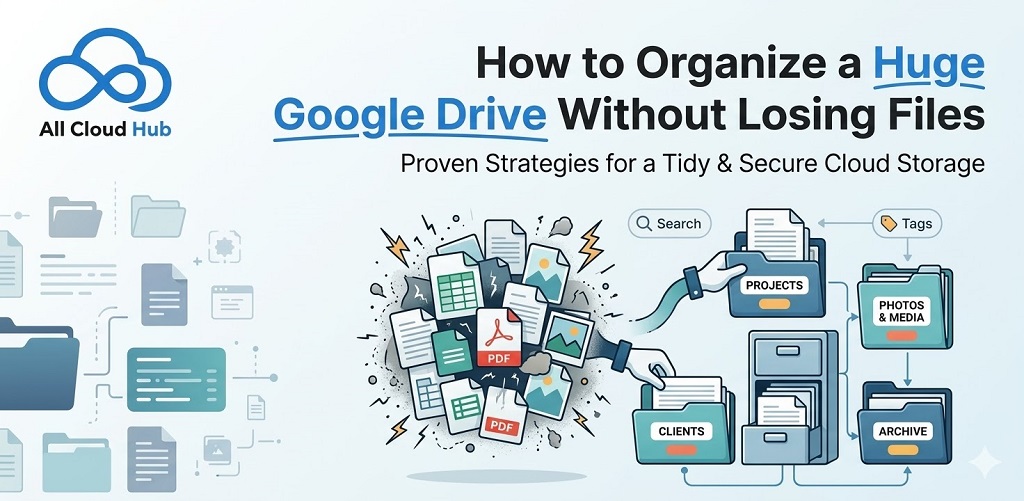
How to Organize a Huge Google Drive Without Losing Files

The files are there. They’ve always been there. But between the “Shared with me” clutter, the folders inside folders inside folders, and the seventeen versions of the same document all named slightly differently, actually locating the right file at the right moment takes longer than it should.

This guide is for anyone whose Google Drive has grown faster than their system for managing it. Whether you’re a freelancer juggling client projects or a small team sharing files across multiple people, the principles here are practical, easy to implement, and built to stay working as your Drive keeps growing.

The Real Problem With Most Google Drives

The typical Drive starts organized and gradually falls apart. A few folders become many. Files get shared without a home. Someone downloads something, renames it, and re-uploads it. Before long you have duplicates, orphaned files, and a search bar that’s doing more work than your folder structure.

The fix isn’t a one-time clean-up. It’s a structure that’s simple enough to maintain without thinking about it.

1. Stop Moving Shared Files, Start Using Shortcuts

The “Shared with me” section is where the Drive organization goes to die for most people. The instinct is to move shared files into your own folders, but this creates confusion about ownership and can break things for the person who shared them.

The better approach is shortcuts. When someone shares a file with you, right-click it and select “Add Shortcut to Drive.” This places a pointer to that file inside your own folder structure without duplicating it or touching the original.

You can also use Shift + Z to add a single file to multiple locations at once. A client budget spreadsheet can live in both your Finance folder and the relevant project folder simultaneously, with no extra storage used and no copies to keep in sync.

2. Keep Your Folder Structure Flat (The PARA Method)

Deep folder nesting is one of the most common causes of lost files. If something is five levels down, you will forget it exists. So will anyone else who needs to find it.

A structure that works at any scale is the PARA method, adapted for Google Drive:

  1. Projects: Active work with a deadline attached. These are the folders you’re in every week.
  2. Areas: Ongoing responsibilities that don’t have an end date. Marketing, finance, HR, client accounts.
  3. Resources: Reference material you might need later. Templates, research, brand assets.
  4. Archive: Completed projects and anything you’re keeping but no longer actively using.

The rule is three levels maximum inside any of these. If you find yourself going deeper, that’s a signal the folder belongs somewhere else or needs to be archived.

Color coding helps too. Red for active projects, grey for archives. It’s a small thing that makes scanning your Drive much faster.

3. Create an Inbox Folder and Actually Use It

One habit that prevents Drive chaos better than any folder structure is having a single place where everything lands first.

Create a folder called “00 Inbox” at the top of your Drive. Anything new goes there by default: downloads, uploads, files sent to you, work in progress. Once a week, spend ten minutes filing things out of it into their proper home.

The “00” prefix keeps it pinned at the top of your Drive alphabetically. The habit keeps clutter from spreading into folders where you actually need to find things.

4. Name Files So You Can Find Them Without Opening Them

Search only works well if your files are named in a way that matches how you’d look for them.

A naming convention that holds up over time follows this pattern: date, then type or category, then client or project name, then version.

So a client invoice from February 2026 becomes: 2026-02-03_INV_ClientName_ProjectX

A brand guidelines document becomes: INTERNAL_BrandGuidelines_v01

An old tax return becomes: ARCHIVE_2025_TaxReturns

The date format matters. Using YYYY-MM-DD means files sort chronologically by default. No more hunting for “the one from last March.”

Once your files are named consistently, Google Drive’s advanced search becomes genuinely useful. Rather than clicking through folders, you can filter directly from the search bar using operators:

What you wantSearch operator
Files over a certain sizelarger:10mb
Files from a specific personfrom:[email protected]
Files you’ve shared externallyto:[email protected]
Files modified recentlyafter:2026-01-01
Exclude specific versionsProjectName -final
Find a specific file typetype:pdf

The last one is particularly useful for cleaning up. Searching ProjectName -v1 -v2 filters out old versions and surfaces only what’s current.

5. Search Scanned Files and Images Too

Most people don’t realise that Google Drive indexes the content inside images, scanned documents, and handwritten notes, not just filenames.

A photo of a whiteboard from a brainstorming session is searchable by the words written on it. A scanned receipt is findable by the vendor name. Handwritten meeting notes uploaded as images can be searched by their content.

If a scanned file isn’t showing up in search results, there’s a fix. Right-click the file, select “Open with Google Docs,” and let it load. This forces Drive to generate a searchable text layer over the document. After that, every word inside it becomes searchable even though the original file hasn’t changed.

This is particularly useful for anyone who keeps physical notes or receives scanned contracts and invoices.

6. Use Shared Drives for Anything That Belongs to a Team

If your team is storing files in individual “My Drive” accounts, you’re one person leaving the company away from losing access to things that matter.

Shared Drives solve this by making the drive itself the owner, not the individual. Files stay accessible regardless of who created them or whether they’re still at the company.

A consistent template across every Shared Drive reduces the time anyone spends figuring out where things are:

  • 01 Agreements
  • 02 Drafts
  • 03 Resources
  • 04 Final Deliverables

When every project folder looks the same, new team members can navigate immediately and nothing gets filed somewhere unpredictable.

7. Do a Quarterly Review, Not a Yearly Panic

A fifteen-minute review once a quarter prevents the annual “I need to sort out my Drive” situation that nobody enjoys.

Check who has access to files from finished projects and revoke external permissions that are no longer needed. Look for anything sitting in your Inbox folder or Downloads for more than thirty days and either file it properly or delete it. Search for filenames containing words like “final,” “v2,” or “copy” and clean up the versions that are no longer the actual final version. Move completed projects from active folders into Archive, which keeps your working view clean and your search results relevant.

8. When Your Files Span More Than Just Google Drive

Organising your Google Drive gets more complicated when it’s not the only place your files live.

A lot of people and teams are working across Google Drive and Dropbox, or Google Drive and OneDrive, at the same time. Different clients, different tools, different default platforms. The organisational system you build in one doesn’t automatically apply to the others, and searching across all of them separately defeats the purpose.

All Cloud Hub connects your Google Drive, OneDrive, Dropbox, and pCloud accounts into a single dashboard, so you can search across all of them at once, see recent files regardless of which cloud they’re in, and move files directly between clouds without downloading anything. If part of your organisational challenge is simply not knowing which account something ended up in, that’s the gap it fills.

The Short Version

If you want to organise a large Google Drive without losing files, here’s what actually works:

  • Create an Inbox folder where everything lands first, and clear it weekly
  • Use shortcuts instead of moving shared files
  • Keep your folder structure to three levels maximum using the PARA method as your framework
  • Name files with dates and clear labels so search works in your favour
  • Use search operators for precision filtering, especially when cleaning up old versions
  • Remember that scanned files and images are searchable too. If they’re not showing up, open them with Google Docs to force indexing
  • Use Shared Drives for anything team-related so files don’t disappear when people leave
  • Do a short quarterly review instead of letting things pile up
  • If your files span multiple cloud accounts, All Cloud Hub gives you a single place to search and manage across all of them

Best Cloud Storage Providers for Backup (Not File Sharing)

Many people assume that storing files in the cloud automatically means their data is safely backed up. Cloud storage platforms like Google Drive, Dropbox, and OneDrive make it easy to sync files, share folders, and access documents from anywhere, which creates the impression that everything is already protected.

But reality is slightly different, as file sharing and cloud backup serve very different purposes.

Sync-based platforms are designed for collaboration and quick access, while backup storage focuses on long-term protection and recovery when something goes wrong.

This distinction becomes especially important when data is accidentally deleted, corrupted, or lost due to device failure. Without a proper backup system in place, restoring important files may not always be possible.

This guide will help you differentiate backup storage from file-sharing tools, understand what features actually matter when choosing a backup provider, and which cloud storage services are best suited for reliable long-term data protection.

Why Backup Storage Is Different from File Sharing

At a glance, cloud storage platforms may seem similar. They store files online, allow access from multiple devices, and often support syncing. 

However, the goals behind file-sharing tools and backup services are fundamentally different.

File-sharing platforms prioritize speed and collaboration. When changes are made to a file, those updates are synchronized immediately across devices and users. While this makes teamwork efficient, it also means that deletions or mistakes can spread just as quickly.

Backup storage works differently. 

Instead of constantly syncing changes, backup systems focus on preserving data over time. They maintain historical versions of files and store them securely so that information can be restored even after accidental deletion, device failure, or security incidents.

This distinction is important because many people mistakenly assume that syncing files automatically provides the same protection as a backup. 

In reality, a true backup solution is designed specifically for recovery.

What Defines the Best Cloud Storage for Backup?

When evaluating cloud storage for backup, visual design or ease of use should not be the main deciding factors. Backup systems are primarily about reliability and long-term protection.

Several characteristics determine whether a storage service is suitable for backup.

  1. Long-Term Retention

Backup storage must preserve data for extended periods. Files should remain available even if they are not accessed frequently. 

Clear retention policies are particularly important for records that may be needed years later, including financial documents, personal archives, or compliance-related data.

  1. Durability and Redundancy

Reliable backup providers protect data by storing it across multiple locations. Replication ensures that hardware failures, service disruptions, or regional incidents do not destroy the only copy of your information.

  1. Version History

Version history allows users to recover previous versions of files when something goes wrong. This feature is essential when dealing with accidental overwrites, data corruption, or ransomware attacks that modify large numbers of files.

  1. Predictable Restore Costs

Retrieving backed-up data should never come as a financial surprise. Some long-term storage platforms offer low storage prices but charge significant fees when data is restored. Transparent pricing helps ensure that recovery remains practical when it is actually needed.

Platforms like All Cloud Hub increasingly focus on helping users understand how different storage services fit into their overall data strategy. By separating backup workflows from everyday file-sharing tools, users reduce the chances of permanent data loss.

Common Mistakes to Look Out For When Choosing Backup Cloud Storage

Selecting the right backup storage requires thinking beyond convenience. 

Backup systems are meant for recovery, and overlooking certain factors can weaken your entire data protection strategy. 

The following mistakes are frequently seen when evaluating cloud backup solutions:

  • Using sync tools as backups

Sync-based platforms immediately mirror every change across devices. This means accidental deletions, corrupted files, or ransomware-modified data can spread instantly, leaving no untouched copy to recover from.

  • Ignoring restore speed

Some archival storage services prioritize low storage costs over quick access. Retrieving data from these systems may take several hours or even days, which can become a serious limitation during urgent recovery situations.

  • Overlooking version history limits

Version history allows users to restore previous copies of files. When version limits are too small, the ability to recover from ransomware attacks or accidental overwrites becomes significantly weaker.

  • Not planning for future data growth

Backup requirements expand steadily as devices generate more files over time. A storage solution should scale easily so increasing storage needs do not require disruptive migrations or complicated infrastructure changes.

Understanding these common pitfalls helps ensure that backup storage is chosen for reliability and recovery, rather than short-term convenience.

Best Cloud Storage Providers for Backup

Different providers are suited for different backup scenarios. The following services are widely recognized for focusing on data protection rather than everyday file sharing.

  1. Backblaze

Backblaze is known for its simplicity and automation. The platform focuses on continuously backing up files in the background, which makes it appealing for individuals or small teams that want reliable protection without complicated setup.

Because the service is designed primarily for backup, it does not emphasize collaboration features. For users managing several storage platforms at once, tools such as All Cloud Hub can help provide visibility into how backup services like Backblaze fit within a broader cloud storage environment.

  1. IDrive

IDrive is a strong option for users who need to back up multiple devices under a single account. This capability makes it particularly useful for freelancers, families, or small organizations with several computers and mobile devices.

The service offers solid versioning features and flexible backup configurations. However, the interface can sometimes feel crowded, especially for users managing large datasets. In these situations, centralized platforms like All Cloud Hub can help users maintain a clearer overview of active storage and backup services.

  1. Amazon S3 Glacier

Amazon S3 Glacier is designed for long-term archival storage. It prioritizes durability and low storage costs over immediate access, making it ideal for data that must be retained for years but rarely retrieved.

Because Glacier is built for archival use, retrieval times are slower and setup can be more complex than consumer-focused services. Many organizations combine archival storage like Glacier with visibility tools such as All Cloud Hub to keep track of active cloud data and long-term backup archives separately.

Final Thoughts

The best cloud storage for backup is not necessarily the most popular cloud platform. It is the service designed specifically for durability, recovery, and long-term protection.

Understanding the difference between sync-based file sharing tools and dedicated backup solutions helps users avoid serious data risks. 

When data protection is treated as a separate priority rather than an afterthought, recovery becomes possible even after unexpected failures or security incidents.

As cloud storage environments continue to expand, maintaining clarity about where files live and how they are protected becomes increasingly important. With the right backup strategy and better visibility across storage systems users can ensure their data remains secure, accessible, and recoverable for the long term.

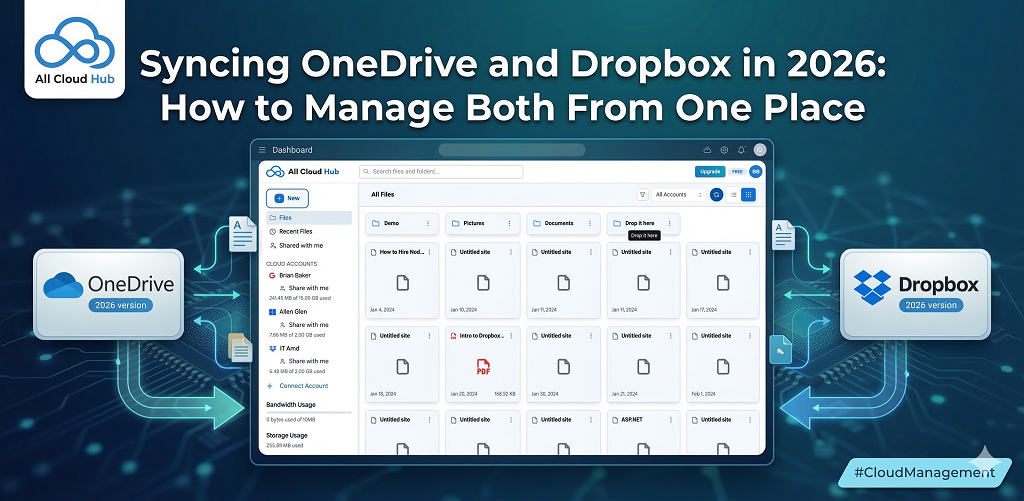
Syncing OneDrive and Dropbox in 2026: How to Manage Both From One Place

Most people using OneDrive and Dropbox together didn’t choose to.

Their company runs on Microsoft 365, so OneDrive comes with the territory” structured folders, IT policies, compliance requirements. But then there’s client work. Creative assets, large media files, shared deliverables. And for that, Dropbox is just what everyone else is already using.

So now you’re in both. Not by design, just by circumstance.

The problem is that these two platforms don’t talk to each other. There’s no native way to share a file across accounts, track versions between them, or see everything in one place. So you end up doing it manually – downloading from one, uploading to the other, losing track of what’s current and wondering which copy is the one that actually matters.

That’s exactly the gap All Cloud Hub is built for. Instead of jumping between accounts and apps, you connect both your OneDrive and Dropbox to a single dashboard, and manage everything from there. One view, both clouds, no chaos.

Why People Try To Sync OneDrive and Dropbox Instead of Migrating

Most users aren’t trying to move everything to one platform. They’re trying to make two platforms coexist.

Dropbox tends to handle the fast-moving side of work: video edits, design files, shared client folders. Its block-level sync means only the changed parts of a file upload, which matters a lot for large files.

OneDrive sits on the other side: tied into Microsoft 365, built for security, compliance and long-term storage.

Forcing everything into one platform usually breaks something. Syncing selected folders between the two is almost always the better call… and that’s where All Cloud Hub acts as the control layer, keeping both sides in sync without the manual back-and-forth.

The Three Sync Setups That Actually Work in 2026

There’s no single right way to sync OneDrive and Dropbox. It depends on how you work.

1. Bi-directional sync for active work

If a file edited in Dropbox needs to reflect in OneDrive immediately, and vice versa, you need a true two-way sync.

With All Cloud Hub, you set up a sync pair between two folders. When a file changes in one place, it updates in the other. This works well for shared project folders where people are working across platforms.

The difference from manual syncing: changes are tracked properly. It doesn’t blindly re-copy entire folders every time something moves.

2. Selective sync for active projects only

Syncing entire drives is rarely a good idea. API throttling is real in 2026. Large sync jobs can slow down or stall without warning.

A smarter approach is syncing only the folders actively being worked on. Current client projects, live campaigns, ongoing deliverables.

All Cloud Hub lets you target specific folders instead of everything, which keeps syncs fast, predictable and far less fragile.

3. One-way cumulative sync for safety

Sometimes you don’t want deletions to travel.

With cumulative sync, new and updated files move across, but deletions don’t. If something gets accidentally removed in OneDrive, the Dropbox copy stays intact.

This setup works well when Dropbox is acting as a safety net or secondary workspace. You get protection against accidental deletions without needing a full backup tool.

How to Avoid Duplicate Files and Version Chaos

The biggest complaint people have about syncing is duplication.

This usually happens because of poor conflict rules.

If two versions of a file change at the same time, the system needs to know what to do. Without clear rules, you end up with copies instead of updates.

In All Cloud Hub, this is handled by choosing update based actions instead of create-new actions. Files are updated in place, not duplicated. Version history stays clean and searchable.

This one setting alone prevents most sync disasters.

When You Should Not Sync at All

Syncing is powerful, but it is not always the right answer.

If your OneDrive is locked to a specific region for compliance reasons, syncing it to a Dropbox account hosted elsewhere can create policy issues. Very large archive folders with tens of thousands of small files can trigger throttling and unstable sync behavior. Encrypted vaults and personal safes often fail to sync cleanly because encryption keys do not transfer smoothly between platforms.

In these cases, it is better to keep environments separate and use reporting or visibility tools instead of live sync.

How to Set Up a OneDrive Dropbox Sync in Minutes with All Cloud Hub

If you want this working without scripting or desktop apps, this is the simplest path:

  1. Connect your OneDrive and Dropbox accounts in All Cloud Hub via OAuth. No passwords shared.
  2. Make your updates (move/copy files, make new versions, etc) across both drives.
  3. Once all updates are in place, click on ‘Sync’ to sync the changes across both of your cloud accounts.

That is it. The sync runs server side. You do not need your laptop open.

Make OneDrive and Dropbox Work Togather

Final Thoughts

In 2026, the goal is not to force all files into one platform. It is to let each tool do what it does best, without losing control.

When OneDrive and Dropbox are synced intentionally, not manually, you get the creative speed of Dropbox and the structure and security of OneDrive.

All Cloud Hub helps make that coexistence practical instead of painful.

Top Business Backup Services: Complete 2026 Guide

A single ransomware attack or hardware failure can wipe out years of business data in minutes. In 2026, with the cloud backup market projected to reach $21.62 billion by 2030, the question isn’t whether you need a backup strategy—it’s which service fits your team’s size, security requirements, and budget.

This guide ranks the top business backup services by use case, breaks down the features that actually matter, and walks through how to protect files stored across multiple cloud providers.

What is a business backup service

A business backup service copies your company’s files, databases, and system configurations to a secure location—usually cloud storage—so you can recover everything after hardware failure, ransomware, accidental deletion, or a natural disaster. The key difference from consumer backup tools? Business-grade services include centralized admin controls, compliance reporting, and the ability to manage backups across multiple employees or devices from a single dashboard.

In 2026, most business backup services blur the line between “backup” and “disaster recovery.” They protect your data and give you a clear path to restore operations quickly when something breaks.

Top business backup services ranked by use case

The best backup service depends on what your business actually does. A five-person remote team has different priorities than a company handling sensitive healthcare records. Here’s how the leading options compare.

Best for security-focused businesses

Acronis Cyber Protect bundles backup with built-in anti-malware and ransomware protection. If defending against threats while maintaining reliable backups is your priority, Acronis offers an integrated approach rather than stitching together separate tools.

Best for small teams and remote workers

iDrive Team provides affordable per-user pricing and straightforward management for distributed teams. You get solid backup coverage without the complexity that comes with enterprise platforms.

Best for endpoint backup

Backblaze Business Backup offers unlimited backup per device with minimal setup. Every laptop and workstation gets covered without worrying about storage caps or complicated licensing.

Best for continuous backup

CrashPlan runs always-on backup in the background. Files are protected the moment you save them, which shrinks the window for data loss to almost nothing.

Best for simple setup

Carbonite Professional gets you running quickly with minimal configuration. If you want backup working today without a steep learning curve, Carbonite is a reasonable starting point.

Best for flexible backup architectures

MSP360 lets you choose your own cloud storage destination—AWS, Azure, Backblaze B2, and others. This flexibility works well for businesses with existing cloud contracts or specific infrastructure requirements.

Best all-in-one enterprise backup and recovery platform

Veeam, Commvault, and HYCU handle complex environments with virtual machines, containers, and multi-cloud deployments. These platforms unify backup, recovery, and compliance for larger organizations.

ServiceBest ForKey Strength
Acronis Cyber ProtectSecurity-focused businessesIntegrated cybersecurity + backup
iDrive TeamSmall teams, remote workersAffordable per-user pricing
Backblaze BusinessEndpoint backupUnlimited per-device backup
CrashPlanContinuous backupAlways-on, no scheduling
Carbonite ProfessionalSimple setupFast onboarding
MSP360Flexible architecturesChoose your cloud destination
Veeam / Commvault / HYCUEnterprise environmentsUnified backup and recovery

Key features to look for in cloud backup solutions

Not every backup service offers the same capabilities. Before committing to a provider, here are the features worth evaluating.

Automatic and continuous backup

Backups that require manual intervention tend to fall behind. Look for services that run automatically on a schedule or continuously in the background. New and changed files get protected without you remembering to trigger anything.

Encryption and data security

Your backup data deserves the same protection as your live files. Strong providers use AES-256 encryption for data at rest and TLS 1.3 for data in transit. Some also offer zero-knowledge encryption, where only you hold the decryption keys—the provider cannot access your files even if compelled.

Disaster recovery capabilities

Recovery speed matters as much as backup reliability—IBM found most breached organizations took over 100 days to recover.

Two terms worth knowing:

  • RTO (Recovery Time Objective): How quickly you can restore operations after a failure.
  • RPO (Recovery Point Objective): How much data you can afford to lose, measured in time since the last backup.

A service with a four-hour RTO and fifteen-minute RPO means you could be back online within four hours, losing at most fifteen minutes of work.

Multi-platform and OS support

If your team uses a mix of Windows, macOS, and Linux—or backs up servers alongside laptops—confirm the service supports all your platforms without workarounds or separate subscriptions.

Scalability for growing teams

Your backup solution shouldn’t require migration when you add employees or devices. Check whether pricing and features scale smoothly as your business grows, rather than forcing you onto a different tier or product.

Compliance and audit reporting

For businesses handling sensitive data, compliance frameworks like GDPR, HIPAA, or SOC 2 may apply. Built-in audit logs and reporting tools simplify compliance documentation and reduce the manual work of proving you’re following the rules.

How to choose the right backup service for your business

Picking a backup service involves more than comparing feature lists. Here’s a practical decision framework:

  1. Assess your data volume and types. Calculate how much data you’re backing up and whether it includes databases, virtual machines, or just files.
  2. Identify compliance requirements. Determine whether regulations like HIPAA or GDPR apply to your industry.
  3. Evaluate recovery speed. Decide how quickly you’d need to restore operations after a failure—hours, minutes, or near-instantly.
  4. Compare pricing models. Understand whether you’re paying per device, per user, or per gigabyte of storage.
  5. Test with a trial or free tier. Most services offer trials. Use them to verify the backup and restore process works as expected before committing.

Understanding the 3-2-1 backup rule

The 3-2-1 rule is a foundational backup strategy that’s been around for decades—and it still holds up in 2026.

  • 3 copies of your data: Your original files plus two backups.
  • 2 different storage types: For example, local drives and cloud storage.
  • 1 offsite copy: At least one backup stored in a separate physical location.

Some organizations now follow variations like 3-2-1-1 (adding an immutable or air-gapped copy) or 4-3-2-1 for extra ransomware protection. The core principle stays the same: redundancy across locations and storage types reduces your risk of total data loss.

How cloud backup and recovery works

Cloud backup follows a straightforward process, though the details vary by provider:

  1. Install the backup agent or connect your cloud service. This software runs on your devices or integrates with your existing cloud storage.
  2. Select what to back up. Choose specific files, folders, or full system images depending on your situation.
  3. Data encrypts and uploads. Your files are encrypted locally, then transferred to secure cloud storage over an encrypted connection.
  4. Recovery pulls data back when needed. You can restore individual files, folders, or entire systems depending on what went wrong.

The whole process runs in the background once configured. You don’t interact with it unless something breaks.

Best cloud software backup with ransomware protection

Ransomware attacks—present in 44% of all breaches according to Verizon’s 2025 DBIR—have turned backup protection into a security concern, not just a convenience. Modern backup services include specific defenses against encryption-based attacks.

Immutable backups

Immutable backups cannot be altered or deleted for a set retention period—even by administrators. If ransomware encrypts your live files, your immutable backup copies remain untouched and recoverable.

Air-gapped storage

Air-gapped backups are stored offline or isolated from network access entirely. Since ransomware can’t reach what it can’t connect to, air-gapped storage provides a strong last line of defense.

Anomaly detection and alerts

Some services use AI-powered monitoring to flag unusual file changes—like mass encryption—that may indicate an attack in progress. Early alerts give you time to respond before damage spreads to your backups.

Zero-trust access controls

Zero-trust means every access request is verified regardless of where it originates. Combined with multi-factor authentication and role-based permissions, zero-trust limits who can touch your backups and under what circumstances.

Business backup pricing models

Backup pricing varies widely. Understanding the common models helps you budget accurately:

  • Per-device pricing: You pay for each computer, server, or endpoint backed up.
  • Per-user pricing: Covers all devices a single user operates under one fee.
  • Storage-based pricing: Costs scale with how much data you store.
  • Unlimited backup plans: Flat-rate pricing regardless of data volume, common for endpoint backup.

Free tiers exist but typically lack enterprise features like admin controls, compliance reporting, or priority support.

How to manage backup files across multiple cloud providers

Many businesses end up with backup files scattered across Google Drive, Dropbox, OneDrive, and dedicated backup services. Searching for a specific file means logging into multiple accounts. Moving files between clouds requires downloading and re-uploading. Keeping folders in sync across providers becomes a manual chore that rarely gets done.

Unified cloud management tools address this fragmentation. With a service like All Cloud Hub, you connect your existing cloud accounts into one dashboard—no file migration required. You can search across all connected drives at once, move files directly between clouds without downloads, and set up folder sync to keep content updated automatically.

Your files stay in your own accounts. You authenticate through OAuth 2.0, so your credentials never pass through a third party. You can revoke access anytime from your account settings.

Simplify your backup strategy with unified cloud management

Managing backups across multiple clouds creates friction that compounds over time. Every additional account means another login, another search, another place where files might live.

All Cloud Hub provides a single dashboard to search, sync, and transfer files across connected cloud drives. Moves happen cloud-to-cloud—no downloads, no re-uploads, no routing through your device.

Connect your cloud accounts and simplify your backup workflow in under a minute.

FAQs about business backup services

What is the 4-3-2-1 backup rule?

The 4-3-2-1 rule extends the classic 3-2-1 approach by adding a fourth copy stored in immutable or air-gapped storage. This extra layer specifically protects against ransomware, which can encrypt or delete accessible backups.

How do I back up files stored across multiple cloud accounts?

You can use a multi-cloud management tool to connect accounts from Google Drive, Dropbox, and OneDrive into one dashboard. From there, you can organize, sync, or transfer files without downloading them to your device first.

What is the difference between cloud backup and cloud sync?

Cloud backup creates a protected copy of your files for recovery purposes. Cloud sync keeps files updated across devices in real time. Sync is convenient for access, but it’s not a substitute for backup—if you delete a synced file, it disappears everywhere.

How long does it take to restore data from a cloud backup?

Recovery time depends on your data volume, internet speed, and the backup provider’s infrastructure. Most services offer options for full system restores or selective file recovery, so you can prioritize what you need most urgently.

Can I use existing cloud storage accounts as part of my backup strategy?

Yes. Google Drive, Dropbox, and OneDrive can all play a role in your backup workflow, especially when paired with a unified cloud manager that lets you sync and transfer files across accounts securely without changing providers.

The Best Cloud Backup Solutions for 2026: Tested and Ranked

Your laptop dies, ransomware encrypts your files, or you accidentally delete something you can’t get back. With ransomware attacks up 45% in 2025, these scenarios are more common than ever -but preventable if you’re using a dedicated cloud backup service rather than relying on basic cloud storage.

We tested the leading options to find which services actually deliver on their promises. Below, you’ll find our ranked picks, how each one handles security and pricing, and guidance on choosing the right fit for your situation.

Our top picks at a glance

A hard drive fails – at a 1.36% annual rate per Backblaze data – ransomware locks your files, or you accidentally delete something important.

In 2026, dedicated cloud backup services prevent all three scenarios better than basic cloud storage ever could.

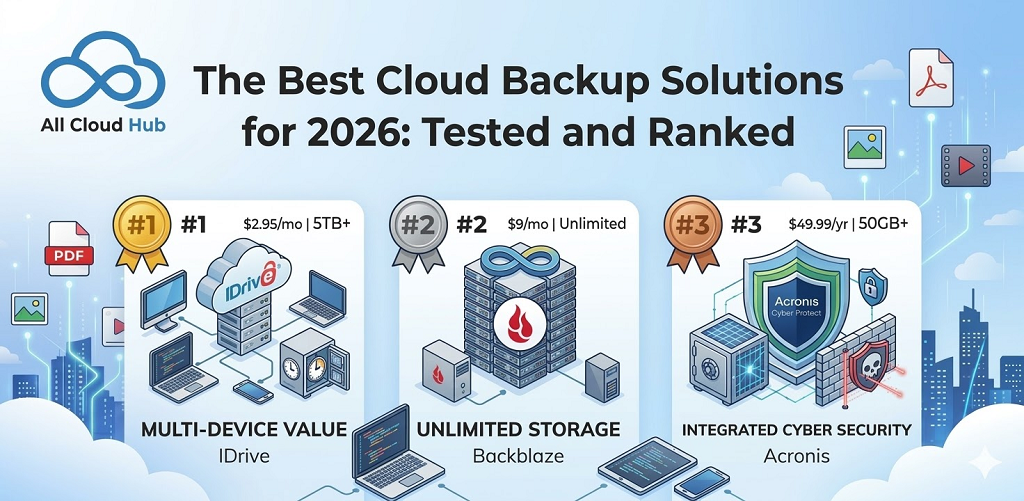
IDrive ranks as the best overall option, offering multi-device protection with strong security at a reasonable price.

Backblaze wins for unlimited storage without capacity limits, and Acronis leads when security matters most.

ServiceBest ForStarting PriceStorageKey Feature
IDriveOverall value$2.95/month5TB+Multi-device backup
BackblazeUnlimited storage$9/monthUnlimitedSet-and-forget simplicity
AcronisSecurity$49.99/year50GB+Ransomware protection
CarboniteSpeed$6/monthUnlimitedFast reliable transfers
SpiderOak ONEPrivacy$6/month150GB+Zero-knowledge encryption
Arq PremiumBudget users$49.99/yearBYO storageUse existing cloud accounts

Best cloud backup service overall

IDrive backs up computers, phones, external drives, and NAS devices under a single account. What sets it apart is snapshot-based disaster recovery, which lets you restore your entire system to a specific point in time rather than just grabbing individual files.

The service also includes file syncing, so you get real-time access alongside scheduled backups.

Pros

  • Multi-device coverage: Unlimited devices including mobile and NAS under one subscription
  • Hybrid backup: Combines cloud storage with local backup to an external drive
  • File syncing included: Real-time sync runs alongside scheduled backups
  • Competitive pricing: Lower cost per terabyte than most alternatives

Cons

  • Slow initial upload: First backup can take several days with large data sets
  • Dense interface: More settings and options than casual users might want

Who this service fits

IDrive works well if you want one subscription covering your laptop, phone, and external drives without paying separately for each device.

Best cloud backup for small business

Acronis Cyber Protect does two jobs at once. It backs up your files while actively scanning for ransomware and malware during the upload process. For businesses handling client data or working in regulated industries, this combination matters – IBM reports breaches average $4.44 million per incident.

Pros

  • Integrated security: Backup and threat protection in one tool
  • Compliance-ready: Supports GDPR and HIPAA requirements
  • Centralized control: Manage multiple machines from a single dashboard

Cons

  • Premium pricing: Costs more than consumer-focused services
  • Steeper learning curve: The feature-rich interface takes time to navigate

Who this service fits

Small teams that handle sensitive client information and want backup plus threat protection without juggling separate tools.

Best budget cloud backup solution

Arq Premium flips the typical model. Instead of selling you storage, it lets you use cloud accounts you already pay for – Google Drive, Dropbox, OneDrive – as backup destinations. You get proper backup software with versioning and encryption at roughly half the cost of traditional services.

Pros

  • Lower total cost: One annual fee without separate storage charges
  • Use what you have: Works with cloud storage you already own
  • Client-side encryption: Files encrypted before they leave your computer

Cons

  • More setup required: Configuration takes longer than plug-and-play options
  • Depends on third parties: Your backup relies on another provider’s uptime

Who this service fits

If you’re comfortable with a bit of technical setup and already pay for cloud storage elsewhere, Arq lets you turn that existing space into a proper backup system.

Best cloud backup for unlimited storage

Backblaze built its entire approach around simplicity. You pay a flat monthly fee, install the software, and let it run. No storage caps, no overage charges, no decisions about what to include or exclude.

Pros

  • No capacity limits: Back up as much data as you have
  • Flat-rate pricing: One predictable monthly cost
  • Hands-off operation: Continuous backup runs automatically in the background

Cons

  • One computer per license: Each machine requires its own subscription
  • 30-day version history: File versions expire after a month by default
  • Computers only: No mobile device backup

Who this service fits

Video editors, photographers, and anyone with terabytes of data who wants simple, unlimited backup without worrying about hitting storage limits.

Best free cloud backup service

Several providers offer free tiers that handle light backup needs. IDrive includes 10GB free, and Icedrive offers similar entry-level options. These free plans include versioning and scheduled automation, which puts them ahead of simply copying files to Google Drive manually.

Pros

  • Zero cost: Test a service before spending money
  • Basic automation: Scheduled backups run without manual effort

Cons

  • Storage caps: Usually limited to 5-10GB
  • Throttled speeds: Free tiers often run slower than paid plans
  • Fewer features: May lack versioning or mobile apps

Who this service fits

Personal users with minimal data or anyone wanting to try a service before committing to a paid plan.

Best online cloud backup for speed

Carbonite delivers consistent upload and download performance without demanding attention. The software runs quietly in the background while keeping your files protected.

Pros

  • Steady transfer speeds: Reliable performance during backup and restore
  • Background operation: Runs without interrupting your work
  • Simple interface: Easy to understand and configure

Cons

  • Tiered pricing: External drive backup requires a higher plan
  • Windows-focused: macOS support is more limited

Who this service fits

Users who prioritize reliable, fast backup performance for everyday personal files.

Best cloud backup for privacy and security

SpiderOak ONE uses zero-knowledge encryption, which means the company cannot access your data even if legally compelled to do so. You hold the only decryption key, and SpiderOak never sees it.

Pros

  • End-to-end encryption: Data encrypted on your device before upload
  • Zero-knowledge design: The provider cannot decrypt your files
  • Minimal metadata: No-logs policy limits what the company retains

Cons

  • Higher price: Privacy features add to the cost
  • Slower performance: Encryption processing adds overhead
  • Less intuitive: The interface prioritizes security over ease of use

Who this service fits

Journalists, legal professionals, and anyone handling sensitive data who wants maximum confidentiality with no provider access.

How to choose a cloud backup service

With the options laid out, here’s how to figure out which one fits your situation.

Storage capacity and pricing

Some services charge per terabyte while others offer unlimited storage for a flat rate. IDrive typically delivers the best price-per-terabyte value. Backblaze wins if you have massive amounts of data and want predictable costs.

Backup types and device support

Two backup approaches exist, and understanding the difference helps you pick the right service:

  • File-level backup: Protects selected files and folders you choose
  • Image-level backup: Creates a complete system snapshot for full disaster recovery

Look for services that cover multiple computers, smartphones, and external drives under one account if you have several devices.

Security and encryption standards

Strong backup services use AES-256 encryption for stored data and TLS 1.3 for data in transit. Zero-knowledge encryption goes further—only you hold the decryption key, so even the provider cannot read your files.

What is cloud backup and how does it work

Cloud backup automatically copies your files to secure remote servers over the internet. You install software, select what to protect, and the service handles everything else. An initial full backup runs first, then incremental backups capture only the changes going forward.

This differs from manually dragging files into Google Drive. Dedicated backup services include versioning (keeping multiple file versions), scheduling, and disaster recovery features that basic cloud storage lacks.

Cloud backup vs cloud storage vs cloud sync

These three terms get mixed up constantly, but they serve different purposes.

FeatureCloud BackupCloud StorageCloud Sync
PurposeDisaster recoveryFile access anywhereReal-time mirroring
VersioningYes, multiple versionsLimited or noneUsually none
AutomationFully automaticManual uploadsAutomatic
ExamplesIDrive, BackblazeGoogle Drive, DropboxOneDrive sync

Cloud sync mirrors folders across devices in real-time, including deletions and ransomware encryption. That’s not true backup—if a file gets corrupted on one device, the corruption spreads everywhere.

Most users benefit from both: cloud storage for daily access and sharing, plus dedicated backup for protection and recovery.

The 3-2-1 backup rule explained

The 3-2-1 rule offers a simple framework for reliable data protection:

  • 3 copies: Your original file plus two backups
  • 2 media types: A local drive plus cloud storage
  • 1 offsite: At least one copy stored in a different physical location

Cloud backup automatically satisfies the offsite requirement by storing a copy in a remote data center, far from your home or office.

Managing backups across multiple cloud services

Many users already have files scattered across Google Drive, Dropbox, and OneDrive. Managing backups gets complicated when you can’t see everything in one place. You might have important documents in three different accounts with no clear picture of what’s actually protected.

Tools like All Cloud Hub let you search and view files across all your cloud accounts from a single dashboard. You can identify gaps in your backup coverage without moving files or switching providers. The connection uses OAuth 2.0, so you sign in directly through each cloud provider—All Cloud Hub never sees your passwords and never stores your files.

FAQs about cloud backup services

What is the difference between cloud backup and cloud storage services like Google Drive?

Cloud backup automatically protects files with versioning and disaster recovery. Cloud storage provides manual file hosting for access and sharing, but without automatic protection or multiple file versions.

How much does 1TB of cloud backup typically cost?

Pricing varies widely. Some providers charge $50-100 annually per terabyte, while others offer unlimited storage for around $9 per month.

Can I access my backed-up files from any device?

Most cloud backup services offer web portals and mobile apps, so you can access backed-up files from anywhere with an internet connection.

How do I avoid paying for duplicate storage across multiple cloud services?

A multi-cloud manager helps you see all your files in one place. You can spot redundant copies before they inflate your storage costs across providers.

How to Store Large Files Online in 2026: What to Actually Check Before You Pick a Tool

TL;DR

  • Most major cloud platforms handle large file storage fine. The real problems are transfer speed, cross-cloud visibility, and the download-to-re-upload loop.
  • High-velocity transfer tools work for one-off sends but don’t connect your cloud accounts or keep files off your local machine.
  • For files you rarely access, cold storage offers better value. Watch for egress fees on retrieval.
  • If your files are spread across multiple cloud accounts, All Cloud Hub lets you manage, move, and sync everything from one dashboard without touching local storage.
  • Cloud-to-cloud transfer means large files move directly between providers, faster, more reliable, and no laptop required.

If you’re asking how to store large files online, you’re probably dealing with one of a few situations: your local drive is full, you’re moving assets between collaborators, or you’ve got files living across multiple cloud accounts and no clean way to manage them.

This guide covers what actually matters when storing large files in the cloud in 2026, and where most people run into problems they didn’t see coming.

First: Are You Storing, Moving, or Managing?

These sound like the same thing. They’re not.

Storing means parking files somewhere safe and accessible. 

Moving means getting large files from one place to another, cloud to cloud or cloud to collaborator, without killing your internet connection or waiting hours. 

Managing means keeping track of what’s where when your files are spread across Google Drive, OneDrive, Dropbox, or all three.

Files exist, they’re just scattered, duplicated, or sitting in an account they can’t easily see from wherever they’re working.

What to Check Before You Store Large Files Online

1. Does your cloud storage have a file size limit?

Most major providers (Google Drive, OneDrive, Dropbox) support individual files up to 5TB. But that limit sits at the upload layer. Transfer limits, API throttling, and bandwidth caps are separate, and they’re where large file workflows actually break down.

If you’re moving a 50GB video project between accounts, the bottleneck isn’t storage capacity. It’s how the transfer happens.

2. Are you downloading to re-upload?

This is the most common large file mistake in 2026. You need a file from Dropbox in OneDrive, so you download it to your laptop, then upload it back up. For a 20GB file on a decent connection, that’s potentially an hour of work, and your laptop is just a middleman that adds failure points.

Cloud-to-cloud transfer solves this. The file moves directly between providers without touching your local machine. All Cloud Hub does this natively. Connect your Google Drive, OneDrive, Dropbox, or pCloud accounts, and move files between them directly. No download, no re-upload, no local storage consumed.

3. Can you see everything in one place?

If you’re storing large files across multiple cloud accounts, which most people are by 2026, visibility is a real problem. You end up with files in three different places, searching one account at a time, and losing track of which version is current.

All Cloud Hub’s unified dashboard (FilesVerse) pulls all connected cloud drives into a single view. You can search across all accounts at once, see recent files regardless of which cloud they’re in, and move or copy files between clouds with drag and drop.

4. What happens to your files during a transfer?

This matters more for large files than small ones. A transfer that drops halfway through a 30GB file is worse than a failed email. You may not know it failed, or you may end up with a partial file that looks complete.

All Cloud Hub transfers happen via secure streaming between providers, with OAuth 2.0 handling authentication. The platform never stores, caches, or copies your files. They go directly between your cloud accounts over encrypted connections. 

Transfers that need reliability at scale benefit from the Power User plan, which uses official webhooks from Google, Dropbox, and OneDrive for faster, more stable transfers.

5. Are you syncing folders or just copying files?

For ongoing large file workflows, say a video team pushing weekly deliverables to a client’s Dropbox while keeping originals in Google Drive, one-time transfers aren’t enough. You need folder sync.

All Cloud Hub supports both manual sync (on the free plan) and automatic folder sync (on Power User), so when a file changes in one connected cloud, the sync keeps the other side updated without you doing anything manually.

What About High-Velocity Transfers?

Tools like Dropbox Transfer and TransferNow are popular for sending large files fast. And for a narrow use case, they work. You can send a 50GB file to a client without them needing a storage quota, and some tools let recipients stream the file before it finishes downloading.

But there are two problems that come up quickly in practice.

First, the file still passes through your local machine. You’re downloading from wherever it lives, then pushing it back out. For anything above a few gigabytes, that’s slow, bandwidth-heavy, and leaves you exposed to connection drops mid-transfer.

Second, these tools are one-way couriers. They don’t know where your files live, and they don’t connect your cloud accounts together. Once the transfer is done, you’re back to the same fragmented setup you started with. The file you just sent is now somewhere new, disconnected from the rest of your storage.

All Cloud Hub approaches this differently. When you need to move a large file to a collaborator’s Dropbox or a client’s shared folder, you’re doing it directly from your connected cloud accounts, without the file touching your machine at all. It stays in the cloud the entire time, moves between accounts securely, and remains visible and searchable from your dashboard after it lands.

Cold Storage: When You Need to Park Files, Not Access Them

Not every large file needs to be live and synced. Video archives, completed project folders, raw footage backups. These files matter, but you’re not opening them every day.

Cold storage is the practical answer here. Platforms like IDrive offer high-density storage pools in the 10TB to 100TB range at significantly lower costs than active storage tiers. Google Cloud Archive sits at the lower end of per-GB pricing for multi-terabyte archives.

One thing worth knowing before you commit to any cold storage provider: egress fees. A lot of providers that look cheap on the way in charge you to retrieve your own data. 

If you’re storing files you’ll genuinely need to pull back out at some point, factor that cost in upfront. Wasabi and Backblaze B2 are generally cleaner on this front for files that need regular retrieval.

The management gap with cold storage is the same as everywhere else. Once your archive is sitting in IDrive and your active files are in Google Drive and your client deliverables are in Dropbox, you’ve got three separate places to look. 

All Cloud Hub’s cross-cloud search and unified dashboard help here, keeping everything findable from one place even when the files themselves are spread across providers.

Privacy: What Actually Happens to Your Files in Transit

For anyone handling sensitive files, client data, legal documents, or anything commercially confidential, privacy during transfer is worth taking seriously.

The weak point in most large file workflows isn’t storage. It’s the middle. When a file passes through a third-party tool, gets cached on a transfer server, or sits in an intermediate upload buffer, there’s a window where it’s out of your direct control.

All Cloud Hub is built to close that window. Files never pass through All Cloud Hub’s servers. Transfers happen via secure streaming directly between your connected cloud providers, which means there’s no intermediate copy sitting somewhere you didn’t intend. 

Authentication runs on OAuth 2.0, so your credentials are never shared with or stored by the platform. All Cloud Hub has completed CASA Tier 2 verification for the Google API Services program, an independent security audit, not a self-assessment.

If you’re using zero-knowledge platforms like Proton Drive or Sync.com for your most sensitive files, that’s a reasonable choice for storage. The tradeoff is that local encryption before upload is CPU-intensive for large files, and retrieval is slower. 

For most professional workflows where you need speed alongside security, the combination of a reputable cloud provider and a transfer layer that never touches your data is the more practical setup.

When You Don’t Need a New Storage Platform

A common mistake is signing up for yet another cloud storage service when the files you need are already in accounts you have.

If you’re already paying for OneDrive through Microsoft 365 and you already have a Dropbox account for client sharing, you don’t need a third platform. You need a way to manage what you already have: search across both, move between them without the download-upload loop, and keep folders in sync.

That’s the use case All Cloud Hub is built for. It connects to your existing Google Drive, OneDrive, Dropbox, and pCloud accounts and adds a control layer on top, without moving your files, storing your data, or requiring you to change how your collaborators work.

Setup takes under a minute. Connect your accounts via OAuth, and your files appear across a single dashboard. From there you can search, transfer, sync, and preview without switching tabs or logging into each account separately.

Try All Cloud Hub

If you’re managing large files across Google Drive, OneDrive, Dropbox, or pCloud, All Cloud Hub is free to start. Connect up to three cloud accounts, search and move files from one dashboard, and transfer directly between clouds without downloading anything.

Start free at allcloudhub.com

Best Value Cloud Storage Services Ranked for 2026

Paying $10 or $15 per month for cloud storage feels manageable until you realize that adds up to over $100 a year, every year, indefinitely. Meanwhile, some providers offer lifetime plans or generous free tiers that deliver the same functionality without the recurring drain on your budget.

This guide ranks the best value cloud storage services for 2026, breaks down how to compare them fairly, and covers practical ways to maximize your storage without overspending.

Best affordable cloud storage services at a glance

Cloud storage costs add up quickly when you’re paying monthly fees across multiple services.

In 2026, the most budget-friendly options fall into two camps: lifetime plans from providers like pCloud and Icedrive, or low monthly subscriptions from Google Drive and Microsoft OneDrive.

For users who prioritize privacy, Proton Drive offers zero-knowledge encryption starting around $2 per month.

ProviderBest forFree tierPaid starting price
pCloudLifetime value10GB~$199 lifetime (500GB)
Google DriveGoogle ecosystem users15GB~$2/month (100GB)
Microsoft OneDriveMicrosoft 365 users5GB~$2/month (100GB)
Sync.comPrivacy-focused teams5GB~$8/month (2TB)
InternxtSecurity-first users1GB~$11/year (10GB)
IcedriveLarge storage needs10GB~$5/month (150GB)
IDriveBackup and sync10GB~$3/year first year (100GB)

Top value cloud storage services ranked

pCloud

pCloud works on a lifetime model, meaning you pay once and keep the storage indefinitely. No monthly bills, no renewal emails, no price increases down the road. For anyone planning to store files for several years, the math often works out in your favor compared to subscriptions.

The service includes a built-in media player, so you can stream music and video directly from your storage without downloading first.

One thing to know: pCloud’s zero-knowledge encryption feature, called Crypto, costs extra. If end-to-end encryption matters to you, factor that additional cost into your decision.

Google Drive

If you already use Gmail or Google Docs, Google Drive fits naturally into your workflow. Documents auto-save, sharing happens in a few clicks, and everything syncs across devices without extra setup.

Your 15GB of free storage is shared across Gmail, Google Photos, and Drive itself, and 71% of cloud users store photos, which means it can fill up faster than expected. Paid plans through Google One start low and scale smoothly, though you’re committing to ongoing monthly or annual payments.

Microsoft OneDrive

OneDrive becomes the obvious choice when you already pay for Microsoft 365. That subscription includes 1TB of storage plus desktop versions of Word, Excel, and PowerPoint, all bundled together.

For Windows users, OneDrive integrates directly into File Explorer. You can access cloud files the same way you’d access local folders. The standalone OneDrive plans work fine on their own, but the bundled Microsoft 365 option typically delivers more value per dollar.

Sync.com

Sync.com applies zero-knowledge encryption by default on every plan. Zero-knowledge means the company cannot read your files, even if compelled by a court order. Only you hold the decryption keys.

The service operates out of Canada, which appeals to users who care about where their data physically lives. Team plans include admin controls, shared folders, and centralized billing, making Sync.com practical for small businesses handling sensitive information.

Internxt

Internxt takes a security-first approach, with end-to-end encryption built into every tier. The code is open-source and has been independently audited, so the privacy claims are verifiable rather than just marketing.

Lifetime plans are available here too, combining strong encryption with long-term cost savings. If you want both privacy and predictable pricing, Internxt checks both boxes.

Icedrive

Icedrive offers generous lifetime storage options for users with large file collections. The interface stays minimal and clean, which helps when you’re managing thousands of files across multiple folders.

A standout feature is virtual drive mounting. Your cloud storage appears as a local drive on your computer, letting you browse and open files without manually downloading them first. This works well for users who want cloud storage to feel like an extension of their hard drive.

IDrive

IDrive focuses on backup rather than pure file storage. You can back up multiple computers under one account, and the service keeps previous versions of your files for recovery.

The distinction matters here. Backup services protect against data loss by preserving copies over time. Sync services keep files current across devices. IDrive handles both, though backup is where it excels.

How to evaluate affordable cloud storage options

Storage space per dollar

Comparing providers fairly means calculating cost-per-gigabyte. A $200 lifetime plan for 2TB looks different from $10 per month for the same space when you project costs over three or four years.

Watch for “unlimited” claims in marketing materials. Most providers with unlimited plans have fair-use policies that cap heavy users or throttle speeds after certain thresholds. Reading the terms before committing saves frustration later.

Security and encryption standards

Not all encryption works the same way. Here’s what the common terms mean in practice:

  • End-to-end encryption: Only you hold the keys to decrypt your files, not the provider
  • Zero-knowledge: The provider cannot access your file contents under any circumstances
  • At-rest encryption: Files are encrypted while stored on the provider’s servers
  • In-transit encryption: Files are encrypted while uploading or downloading

Google and Microsoft encrypt your data, but they retain access for features like search indexing and AI suggestions.

Zero-knowledge providers like Sync.com and Proton Drive cannot see your files at all, which means fewer features but stronger privacy.

File size limits and transfer speeds

Free tiers often throttle upload and download speeds, which becomes noticeable when you’re moving large files. Some providers also cap individual file sizes at 2GB or 5GB, creating problems for video projects or database backups.

Checking file size limits and speed restrictions before committing prevents surprises when you actually start using the service.

Device support and sync options

Most providers offer desktop apps, mobile apps, and web access. The differences show up in how sync actually works day to day.

Selective sync lets you choose which folders download to which devices. Your laptop stays light while your full archive remains accessible through the web interface. This feature matters most when you have more cloud storage than local disk space.

Best budget cloud storage by category

Best cheap alternative to iCloud storage

Apple users sometimes find iCloud limiting or expensive compared to other cloud storage alternatives. pCloud and Sync.com both work smoothly on Mac and iOS while offering more storage per dollar than iCloud’s paid tiers.

A practical approach is keeping iCloud for device backups and system features while offloading larger files like photos and videos to a secondary service.

Best value for Microsoft 365 users

If you already pay for Microsoft 365, you have 1TB of OneDrive storage included at no extra cost. Adding another cloud service might be redundant unless you want clear separation between work and personal files.

The integration benefits make OneDrive the practical choice for this group. Documents auto-save, sharing works directly from Office apps, and everything syncs without additional configuration.

Best affordable option for privacy

Proton Drive comes from the team behind Proton Mail, a company built specifically around privacy. Zero-knowledge encryption means your files stay private even from Proton itself.

Internxt offers similar protection with lifetime plan options. Both differ from Google and Microsoft in one fundamental way: no data mining, no ad targeting based on your file contents.

Best budget cloud storage for small teams

Sync.com and pCloud offer team plans with shared folders, permission controls, and centralized billing. Once you’re coordinating files across multiple people, admin features start to matter.

Teams using several providers simultaneously, like Google Drive for some projects and Dropbox for others, can use a multi-cloud manager to unify access without migrating everything to one place.

Best free cloud storage with maximum space

If you want to maximize free storage, a few providers stand out:

  • Google Drive: 15GB shared across Gmail, Photos, and Drive
  • Mega: 20GB with end-to-end encryption included
  • Icedrive: 10GB with a clean, minimal interface

Stacking multiple free accounts gives you more total space — 54% of people use 3 providers — though your files end up scattered across different logins and dashboards.

Free vs paid cloud storage

Free cloud storage works fine for light personal use. A few documents, some photos, single-device access. The limitations become apparent as your storage grows.

Free tiers typically include:

  • Limited storage between 5GB and 20GB
  • Basic sharing features
  • Slower transfer speeds on large files
  • Frequent upgrade prompts

Paid plans add:

  • More storage space
  • Faster uploads and downloads
  • Version history and file recovery
  • Priority support
  • Advanced sharing controls and permissions

The decision often comes down to how much friction you’re willing to tolerate. Paid plans remove the small annoyances that accumulate over months of daily use.

How to get more storage without paying more

Stack multiple free cloud accounts

Using Google Drive for documents, OneDrive for photos, and Dropbox for shared projects gives you more total free space than any single provider offers. The tradeoff is complexity. You’ll spend time remembering where you put things and switching between different apps and logins.

Use a multi-cloud manager to stay organized

Tools like All Cloud Hub connect your existing cloud drives into one dashboard. You can search across all accounts at once, move files between providers without downloading to your computer, and see everything in one place.

Your files stay in your own accounts. Nothing gets copied or stored elsewhere. Authentication happens through OAuth 2.0, so your login credentials never pass through a third party. You can revoke access anytime from your cloud provider’s settings.

Set up cross-cloud sync for automatic backups

Syncing a folder across two providers creates automatic redundancy. If one service has an outage or you accidentally delete something, a copy exists elsewhere.

Automatic sync removes the manual effort of keeping backups current. You configure it once, and updates happen in the background without intervention.

Which affordable cloud storage service fits your needs

Your best choice depends on what you value most:

  • Pay once, use forever: pCloud or Icedrive lifetime plans
  • Already use Google Workspace: Google Drive
  • Have Microsoft 365: OneDrive, since it’s already included
  • Privacy is the priority: Sync.com or Proton Drive
  • Backup with versioning: IDrive

If you use multiple cloud storage services, and most people eventually do, a multi-cloud manager keeps everything accessible from one place. All Cloud Hub offers a free plan to connect your accounts and start searching, moving, and syncing across providers.

FAQs about affordable cloud storage

How much does 1TB of cloud storage typically cost?

Most providers charge between $5 and $10 per month for 1TB, though promotional rates and annual billing can reduce that amount. Lifetime plans require a higher upfront payment, often between $200 and $400, but eliminate recurring fees entirely.

Is budget cloud storage safe to use?

Reputable affordable providers use encryption in transit and at rest. Privacy-focused options like Proton Drive and Sync.com offer zero-knowledge encryption, where only you can decrypt your files. Checking for specific security certifications helps when storing sensitive data — 82% of breaches involve cloud data.

Can you get 1TB of free cloud storage?

TeraBox offers 1TB free, though it comes with limitations and privacy concerns worth researching before use. Most trusted providers offer far less on free tiers. Stacking multiple free accounts or using a multi-cloud manager to unify smaller allocations is often more practical.

What is the least expensive alternative to iCloud storage?

pCloud, Google Drive, and Sync.com all offer competitive pricing with cross-platform support. Each works on Mac and iOS, giving Apple users more flexibility and often more storage per dollar than iCloud’s paid tiers.

How do you manage files stored across multiple cloud services?

Multi-cloud managers connect Google Drive, Dropbox, OneDrive, and other providers into one dashboard. You can search across all accounts, move files directly between clouds without downloading, and sync folders automatically, all without changing where your files actually live.

How to Migrate Google Drive to OneDrive in 2026 Without Downloading Files

Migrating from Google Drive to OneDrive used to be painful.

You either downloaded everything to your laptop, prayed your internet wouldn’t drop, ran out of disk space halfway through, or ended up with half your files broken and the other half duplicated.

That is no longer how this needs to work.

In 2026, you can move your Google Drive to OneDrive without downloading files, without babysitting the transfer, and without breaking your folder structure or file history.

This guide walks you through exactly how to do it, what usually goes wrong, and how to avoid those issues from the start.

First, a quick reality check

Before we jump into steps, it helps to know why Google Drive to OneDrive migrations often fail when done casually.

Most problems come from things people do not think about until it is too late.

OneDrive has a 400 character path limit. Deeply nested Google Drive folders can silently fail during transfer.

Google Docs, Sheets, and Slides are not real files in the traditional sense. They need to be converted to Word, Excel, and PowerPoint formats. Some formulas and scripts do not survive that conversion.

Files shared with you do not belong to you. If you do not own them, they will not move unless you explicitly copy them first.

And web based transfers usually choke on large files. Anything over 15GB tends to timeout unless handled properly.

Knowing this upfront saves you hours later.

Step 1: Clean up your Google Drive before you move anything

Do not start migrating yet. First, take 15 to 20 minutes to prepare your Drive.

Open Google Drive and use the search is:shared. This shows files that are shared with you but not owned by you. Decide what you actually need. For anything important, make your own copy so you become the owner.

Next, check storage usage. Google’s quota manager is surprisingly helpful here. Delete old junk, duplicates, and files you do not need anymore. Every gigabyte you remove now saves transfer time later.

If you have very deep folder structures, especially client archives or old project dumps, flatten them slightly. OneDrive’s path limits are less forgiving than Google’s.

This is boring work, but it is worth it.

Step 2: Make sure OneDrive is actually ready

This sounds obvious, but it trips people up.

If you are using Microsoft 365, sign into OneDrive at least once before migrating. This activates your storage space properly. If you skip this step, transfers may fail even though your account technically exists.

Check available storage. Make sure you have enough room for what you are about to move, including converted Google Docs which sometimes end up slightly larger.

Once OneDrive is active and accessible, you are good to go.

Step 3: Decide how you want to migrate

You have a few options, but not all of them are ideal.

Google Takeout can export Drive directly to OneDrive. It is free, but files arrive zipped and shared files are skipped. It works for small personal Drives, not much more.

Microsoft’s OneDrive import tool connects to Google Drive and pulls files in the background. It is simple, but has size limits and skips shared content.

Desktop drag and drop works, but only if you have enough disk space and patience. It also does not handle Google Docs properly. If you want the least friction and no downloads, a server side tool is the cleanest approach.

This is where All Cloud Hub fits in.

Step 4: Connect Google Drive and OneDrive in All Cloud Hub

Create an account in All Cloud Hub.

Choose Google Drive as the source and OneDrive as the destination. Connect both using OAuth. You never share passwords. You just approve access.

Once connected, All Cloud Hub scans both accounts. This is where it starts doing the heavy lifting for you. It detects large files, long paths, shared content, and anything that might cause problems later. You get a clear pre-flight report instead of surprises mid transfer.

Step 5: Choose what you actually want to move

You do not have to move everything at once.

You can migrate owned files only, shared files, or even Shared Drives if you are using Google Workspace. You can filter by folders or run the migration in phases if your Drive is large.

This is especially useful if you are moving hundreds of gigabytes and want to avoid throttling or downtime. Once you are happy with the scope, start the migration.

Step 6: Let the transfer run without babysitting it

The transfer runs server side. You do not need to keep your browser open. You do not need your laptop plugged in. You can close the tab and go do something else.

Progress is tracked in the dashboard. You can pause, resume, or review logs at any time.

Google Docs, Sheets, and Slides are converted to Word, Excel, and PowerPoint formats. Folder structure is preserved. Timestamps stay intact. This is where most people finally relax.

Step 7: Verify and run a final sync

Once the migration completes, download the report. Check file counts. Spot check a few folders. Open converted files to make sure everything looks right.

If changes were made in Google Drive during the migration, run a delta sync. This picks up only new or modified files without copying everything again. After that, set Google Drive to read only if you are fully switching over.

Post migration tips that save headaches

  • Recreate important sharing links manually in OneDrive. Sharing permissions do not carry over cleanly.
  • Test critical Excel files if they came from Google Sheets. Some formulas may need adjustment.
  • If you are moving gradually, schedule weekly delta syncs in All Cloud Hub until the cutover is complete.

These small steps prevent confusion later.

Still Downloading Files to Migrate

Why this works better than native methods

All Cloud Hub handles:

  • Google Docs to Office file conversion
  • Long folder paths
  • Large files without browser timeouts
  • Shared files that native tools skip
  • Ongoing syncs during transition

It is built for migrations that need to happen cleanly, not hurriedly.

Final thoughts

Migrating Google Drive to OneDrive in 2026 does not need to involve downloads, broken files, or all nighters. With the right prep and the right tool, the process is predictable and calm.

Thousands of users migrate this way every year without losing data or disrupting work. The key is treating migration as a controlled move, not a copy paste exercise.

Ready to migrate?

If you want a clean, no download migration with preserved structure and metadata, All Cloud Hub makes the switch straightforward.

Start with a free scan, review what will move, and migrate on your terms. Your files already matter. Moving them should not feel risky.

Best Secure Cloud Storage Services Compared for 2026

Scattered files across Google Drive, Dropbox, and OneDrive make finding anything feel like a scavenger hunt. In 2026, the cloud storage market—projected at $197.8 billion according to Fortune Business Insights—has more options than ever, but picking the right one depends on whether you prioritize free space, security, or how well it fits your existing devices.

This guide compares the top cloud storage services by security, pricing, and features, then covers how to manage files when you’re already using multiple providers.

What is cloud storage and how does it work

Cloud storage, now used by over 2.3 billion people according to Threadgold Consulting, saves your files on remote servers instead of your computer’s hard drive. You upload a document or photo through the internet, and it lives on your provider’s servers until you retrieve it. The practical benefit is access from any device—your laptop, phone, or a friend’s computer—as long as you have an internet connection.

When you save a file, it travels over an encrypted connection to data centers your provider manages. These facilities store your data across multiple servers, which protects against hardware failures. Most services also sync changes automatically, so editing a document on your laptop means the updated version appears on your phone within seconds.

  • Cloud-based data storage: Files live on remote servers, not your local device
  • Access anywhere: Retrieve files from any computer, phone, or tablet with internet
  • Automatic backup: Changes sync without manual uploads or transfers

Top secure cloud storage services ranked

In 2026, the leading cloud storage providers break down by use case. Microsoft OneDrive works best for Windows and Office users. Google Drive leads for collaboration with 15GB free. pCloud stands out for secure lifetime plans. Dropbox remains strong for syncing, iCloud for Apple users, and Sync.com for zero-knowledge encryption.

ProviderBest ForFree TierStandout Feature
Google DriveCollaboration15GBDocs/Sheets integration
Microsoft OneDriveWindows/Office users5GBMicrosoft 365 bundle
DropboxSyncing2GBFast cross-device sync
Proton DrivePrivacy5GBEnd-to-end encryption
Apple iCloudApple ecosystem5GBSeamless iOS/Mac integration
SyncSecurity-focused5GBZero-knowledge encryption
IDriveLarge storage needs10GBUp to 10TB plans
pCloudLifetime plans10GBOne-time payment option

Google Drive

Google Drive offers the most generous free storage at 15GB and integrates directly with Google Docs, Sheets, and Slides. You can create and edit documents without leaving the platform, which makes collaboration straightforward. One thing to keep in mind: your 15GB is shared across Gmail and Google Photos, so heavy email users may find space tighter than expected.

Microsoft OneDrive

OneDrive makes sense if you already use Windows or Microsoft 365. It comes bundled with Office subscriptions, and files sync seamlessly with Word, Excel, and PowerPoint. The 5GB free tier is modest compared to Google, but paid plans include full Office access, which adds value if you’re paying for productivity software anyway.

Dropbox

Dropbox pioneered cloud syncing and still excels at keeping files consistent across devices. The sync engine is fast and reliable, even with large files. However, the 2GB free tier feels limited next to competitors, so Dropbox works better as a paid service for users who prioritize sync speed over free storage.

Proton Drive

Proton Drive prioritizes privacy with end-to-end encryption, meaning even Proton cannot read your files. The company is based in Switzerland under strict privacy laws and integrates with Proton Mail and Proton VPN. If security matters more to you than collaboration features, Proton Drive is worth a look.

Apple iCloud

iCloud works beautifully within the Apple ecosystem. Photos, documents, and device backups sync automatically across iPhone, iPad, and Mac without any configuration. On the other hand, the Windows app is clunky, and Android support is essentially nonexistent. iCloud is really designed for people who use Apple devices exclusively.

Sync

Sync.com uses zero-knowledge encryption, which means the provider never has access to your encryption keys. This makes it a strong choice for sensitive documents or compliance requirements. The interface is straightforward, though collaboration features are more limited than Google or Microsoft offerings.

IDrive

IDrive targets users who want large storage capacity at competitive prices. Plans go up to 10TB, and the service includes device backup alongside cloud storage.

pCloud

pCloud offers lifetime plans where you pay once instead of monthly. The service is based in Switzerland and includes optional client-side encryption as an add-on. If you dislike subscriptions and prefer a one-time payment, pCloud’s model is unusual in the market and worth considering.

Cloud storage plans and pricing compared

Pricing varies significantly across providers, especially once you move beyond free tiers. Some services offer affordable entry points, while others bundle storage with other products.

ProviderFree StoragePaid Plans Start AtTop Tier
Google Drive15GB$1.99/month (100GB)2TB
OneDrive5GB$1.99/month (100GB)6TB (family)
Dropbox2GB$11.99/month (2TB)3TB
iCloud5GB$0.99/month (50GB)12TB
pCloud10GB$49.99/year (500GB)Lifetime 2TB

Free cloud storage options by provider

Most providers offer free tiers, though storage amounts and limitations differ considerably.

  • MEGA: 20GB free, the most generous option available
  • Google Drive: 15GB shared with Gmail and Google Photos
  • pCloud: 10GB with no time limit on the free account
  • OneDrive: 5GB included with any Microsoft account
  • iCloud: 5GB, often quickly consumed by device backups

Free plans typically include basic upload, download, and sharing capabilities. You’ll hit limitations around file size, sharing permissions, and support response times.

Free vs paid cloud storage plans

What free cloud storage plans include

Free tiers cover the basics: uploading files, downloading them, and sharing links with others. You get standard encryption in transit and at rest. However, free accounts often have slower upload speeds, limited file versioning, and no priority support when something goes wrong.

When to upgrade to paid cloud storage

Upgrading makes sense when you consistently run out of space, want to share large files with clients, or require advanced security features like zero-knowledge encryption. Business compliance requirements like HIPAA, GDPR—which has resulted in over €6.2 billion in fines since 2018—or SOC 2 typically require paid plans with audit logs and admin controls.

How to choose the right cloud storage service

Security and encryption standards

Look for encryption both “in transit” (while files travel to servers) and “at rest” (while stored). For maximum protection, services with end-to-end or zero-knowledge encryption prevent even the provider from accessing your files. Sync.com and Proton Drive offer this level of protection by default.

Storage capacity and file size limits

Think about how much space you actually use rather than how much you think you might want. Most people overestimate their storage requirements. Also verify file size limits before committing—some providers cap individual uploads at 2GB or 5GB, which matters if you work with video or large design files.

Cross-platform and device access

Check which operating systems and devices the service supports well. iCloud works beautifully on Apple devices but poorly elsewhere. Google Drive and Dropbox work consistently across Windows, Mac, iOS, and Android.

File sharing and collaboration features

If you work with others, real-time editing and granular sharing permissions matter. Google Drive and Microsoft OneDrive excel at collaboration. Privacy-focused services like Sync.com offer fewer collaboration tools in exchange for stronger security.

Ecosystem compatibility

Matching your storage to your primary workflow reduces friction. Apple users benefit from iCloud’s tight integration. Windows and Office users get more value from OneDrive. Android and Chrome users often prefer Google Drive because it’s already built into their devices.

Other cloud file storage options worth considering

Amazon Drive

Amazon Photos offers unlimited photo storage for Prime members, though general file storage is limited. If you’re already paying for Prime and primarily store images, this adds value without additional cost.

Box

Box targets businesses with strong integrations into enterprise tools like Salesforce and Slack. The personal plans are less compelling than competitors, so Box works better for teams than individuals.

MEGA

MEGA provides 20GB free with strong encryption. It’s less mainstream but capable, and the browser-based interface works without installing software. A good option if you want generous free storage with privacy features.

Icedrive

Icedrive is a newer option with a clean interface and competitive pricing. The virtual drive feature lets you access cloud files without syncing everything locally, which saves space on devices with limited storage.

What if you already use multiple cloud storage accounts

Here’s a common scenario: you have work files in Google Drive, personal documents in Dropbox, and photos backing up to OneDrive. Finding a specific file means logging into each service separately. Moving files between them requires downloading to your computer, then re-uploading—a slow process that uses your bandwidth twice.

This fragmentation gets worse over time. You forget which account holds what, duplicate files across services, and waste time switching between tabs. The more accounts you add, the harder it becomes to stay organized.

How to manage files across multiple cloud providers

Multi-cloud management tools let you connect accounts from different providers into a single interface. Your files stay where they are—you’re just viewing and managing them from one place instead of jumping between logins.

Search across all cloud drives at once

Instead of searching Google Drive, then Dropbox, then OneDrive separately, unified search shows results from every connected account in one view. You find what you’re looking for without remembering where you stored it originally.

Move files between clouds without downloading

Cloud-to-cloud transfer moves files directly between providers. Nothing routes through your computer, so transfers stay fast and don’t consume your local bandwidth. This approach is particularly useful for large files or bulk migrations between services.

Sync folders across different cloud services

Folder sync keeps directories updated automatically across connected drives. Change a file in Google Drive, and the synced folder in Dropbox reflects that change without manual copying. This works well for keeping project folders consistent across platforms.

Manage all your cloud storage in one dashboard

All Cloud Hub connects your existing Google Drive, Dropbox, OneDrive, and pCloud accounts into one dashboard. You sign in through each provider using OAuth 2.0, so All Cloud Hub never sees your passwords and never stores your files. Your data stays in your own cloud accounts, and you can revoke access anytime from your cloud provider’s security settings.

FAQs about cloud storage services

Can you buy cloud storage permanently instead of paying monthly?

Yes. Providers like pCloud and Internxt offer lifetime plans where you pay once for permanent storage. The upfront cost typically equals 3-5 years of monthly payments, so lifetime plans make financial sense if you plan to use the service long-term.

How do you transfer files from one cloud storage provider to another?

You can download files from one service and re-upload to another, though this is slow for large libraries—especially for common moves like migrating Google Drive to OneDrive. Multi-cloud managers like All Cloud Hub transfer files directly between providers without downloading to your device, which saves time and bandwidth.

Is it safe to store sensitive documents in cloud storage?

Major providers use encryption in transit and at rest, which protects against most threats. For maximum security, services with end-to-end or zero-knowledge encryption prevent even the provider from accessing your files.

Can you connect multiple cloud storage accounts to one app?

Yes. Multi-cloud management tools let you connect accounts from different providers into a single interface for searching, moving, and syncing files across all your cloud drives without switching between logins.

What happens to your files if a cloud storage company shuts down?

Reputable providers give advance notice and time to download your data before closing. Keeping files across multiple cloud services or maintaining local backups protects against this risk and gives you options if any single provider changes their terms.