All Cloud Hub Terminology Explained
- Posted on January 2, 2026
- 4 Min Read
This page explains the common terms you will see while using All Cloud Hub.
If you are ever unsure what something means inside the dashboard, this is a good place to start.
FilesVerse
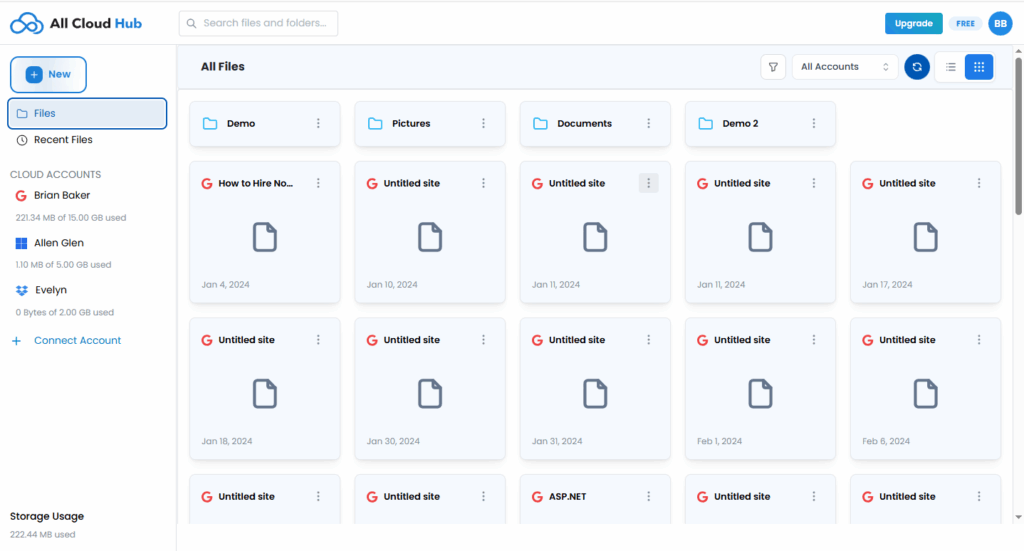
FilesVerse is the main dashboard in All Cloud Hub.
It is a unified workspace where files and folders from all your connected cloud storage accounts are displayed together. From FilesVerse, you can browse, search, organize, transfer, and sync files without opening individual cloud apps.
FilesVerse does not store your actual files. It shows and manages files that live in your connected cloud accounts by securely retrieving and handling the required file metadata.
Note
Seeing all files together does not combine your cloud accounts. Each file still belongs to its original cloud storage service.
Cloud Account
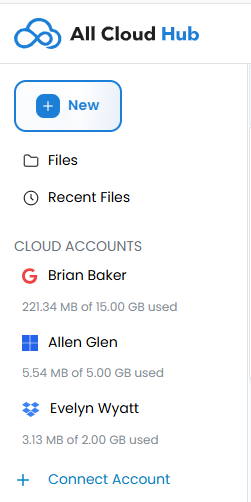
A Cloud Account is a cloud storage account you connect to All Cloud Hub.
Examples include Google Drive, Dropbox, and OneDrive. Once connected, the account appears under the Cloud Accounts section.
You can connect or disconnect cloud accounts at any time.
Drive
In All Cloud Hub, a Drive refers to a connected cloud storage account.
For example, your Google Drive or Dropbox account is treated as a separate drive inside FilesVerse. This helps distinguish where files come from, even when they are displayed together.
FilesVerse Search
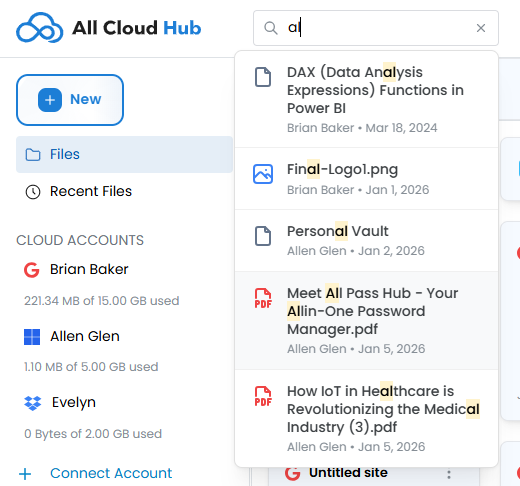
FilesVerse Search allows you to search across all connected cloud drives at once.
Instead of searching separately inside each cloud service, you can search once and see results from all connected accounts in a single list. Actions like rename, move, copy, or transfer can be performed directly from the search results.
Transfer
A Transfer is the action of copying or moving files or folders from one cloud drive to another.
When you start a transfer, files move directly between the cloud services. They do not pass through All Cloud Hub servers for permanent storage. Required file metadata and transfer state are handled temporarily over a secure connection unless you choose to download the files.
You can choose between copying a file or moving it fully to another cloud drive.
Warning
Moving a file removes it from the source cloud drive. Use Copy if you want to keep the file in both locations.
Source Drive
The Source Drive is the cloud drive where a file or folder currently exists.
This is the starting point for transfers, moves, and sync operations.
Destination Drive
The Destination Drive is the cloud drive where files or folders are copied or moved to.
During transfers, you always select a destination drive so All Cloud Hub knows where the files should go.
Sync
Sync keeps folders aligned across different cloud storage accounts.
All Cloud Hub supports real-time, two-way syncing. When a change is made in one synced folder, the same change is reflected in the connected folder on the other cloud drive.
Sync helps ensure folders stay consistent without manual updates.
Logs
Logs show information about file actions and transfers performed through All Cloud Hub. These are generated from operational metadata and task status, not file contents.
Logs help you understand what actions were taken and whether they were completed successfully. They are useful for tracking activity and troubleshooting issues.
Metadata
Metadata refers to basic information about files, such as file name, path, and size.
All Cloud Hub uses metadata to display file details, power search, and manage operations inside FilesVerse. This metadata is handled temporarily over a secure connection and is removed once the related task is completed.
The actual file contents always remain in your cloud storage accounts.
Across the platform, All Cloud Hub minimizes data handling to only what is required for visibility, control, and reliability.
In Summary
All Cloud Hub terminology is designed to reflect how you already think about your cloud storage.
FilesVerse is where everything comes together. Drives represent your connected cloud accounts. Transfers, sync, and search help you work across them without switching tools.
Next:
System Requirements and Supported Cloud Services: What you need to use All Cloud Hub and which cloud providers are currently supported.