A single ransomware attack or hardware failure can wipe out years of business data in minutes. In 2026, with the cloud backup market projected to reach $21.62 billion by 2030, the question isn’t whether you need a backup strategy—it’s which service fits your team’s size, security requirements, and budget.
This guide ranks the top business backup services by use case, breaks down the features that actually matter, and walks through how to protect files stored across multiple cloud providers.
What is a business backup service
A business backup service copies your company’s files, databases, and system configurations to a secure location—usually cloud storage—so you can recover everything after hardware failure, ransomware, accidental deletion, or a natural disaster. The key difference from consumer backup tools? Business-grade services include centralized admin controls, compliance reporting, and the ability to manage backups across multiple employees or devices from a single dashboard.
In 2026, most business backup services blur the line between “backup” and “disaster recovery.” They protect your data and give you a clear path to restore operations quickly when something breaks.
Top business backup services ranked by use case
The best backup service depends on what your business actually does. A five-person remote team has different priorities than a company handling sensitive healthcare records. Here’s how the leading options compare.
Best for security-focused businesses
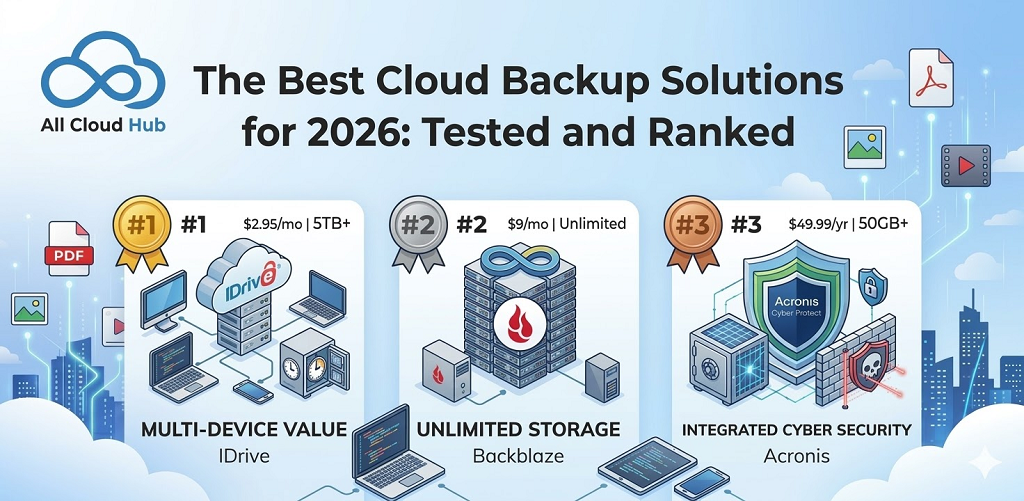
Acronis Cyber Protect bundles backup with built-in anti-malware and ransomware protection. If defending against threats while maintaining reliable backups is your priority, Acronis offers an integrated approach rather than stitching together separate tools.
Best for small teams and remote workers
iDrive Team provides affordable per-user pricing and straightforward management for distributed teams. You get solid backup coverage without the complexity that comes with enterprise platforms.
Best for endpoint backup
Backblaze Business Backup offers unlimited backup per device with minimal setup. Every laptop and workstation gets covered without worrying about storage caps or complicated licensing.
Best for continuous backup
CrashPlan runs always-on backup in the background. Files are protected the moment you save them, which shrinks the window for data loss to almost nothing.
Best for simple setup
Carbonite Professional gets you running quickly with minimal configuration. If you want backup working today without a steep learning curve, Carbonite is a reasonable starting point.
Best for flexible backup architectures
MSP360 lets you choose your own cloud storage destination—AWS, Azure, Backblaze B2, and others. This flexibility works well for businesses with existing cloud contracts or specific infrastructure requirements.
Best all-in-one enterprise backup and recovery platform
Veeam, Commvault, and HYCU handle complex environments with virtual machines, containers, and multi-cloud deployments. These platforms unify backup, recovery, and compliance for larger organizations.
| Service | Best For | Key Strength |
|---|---|---|
| Acronis Cyber Protect | Security-focused businesses | Integrated cybersecurity + backup |
| iDrive Team | Small teams, remote workers | Affordable per-user pricing |
| Backblaze Business | Endpoint backup | Unlimited per-device backup |
| CrashPlan | Continuous backup | Always-on, no scheduling |
| Carbonite Professional | Simple setup | Fast onboarding |
| MSP360 | Flexible architectures | Choose your cloud destination |
| Veeam / Commvault / HYCU | Enterprise environments | Unified backup and recovery |
Key features to look for in cloud backup solutions
Not every backup service offers the same capabilities. Before committing to a provider, here are the features worth evaluating.
Automatic and continuous backup
Backups that require manual intervention tend to fall behind. Look for services that run automatically on a schedule or continuously in the background. New and changed files get protected without you remembering to trigger anything.
Encryption and data security
Your backup data deserves the same protection as your live files. Strong providers use AES-256 encryption for data at rest and TLS 1.3 for data in transit. Some also offer zero-knowledge encryption, where only you hold the decryption keys—the provider cannot access your files even if compelled.
Disaster recovery capabilities
Recovery speed matters as much as backup reliability—IBM found most breached organizations took over 100 days to recover.
Two terms worth knowing:
- RTO (Recovery Time Objective): How quickly you can restore operations after a failure.
- RPO (Recovery Point Objective): How much data you can afford to lose, measured in time since the last backup.
A service with a four-hour RTO and fifteen-minute RPO means you could be back online within four hours, losing at most fifteen minutes of work.
Multi-platform and OS support
If your team uses a mix of Windows, macOS, and Linux—or backs up servers alongside laptops—confirm the service supports all your platforms without workarounds or separate subscriptions.
Scalability for growing teams
Your backup solution shouldn’t require migration when you add employees or devices. Check whether pricing and features scale smoothly as your business grows, rather than forcing you onto a different tier or product.
Compliance and audit reporting
For businesses handling sensitive data, compliance frameworks like GDPR, HIPAA, or SOC 2 may apply. Built-in audit logs and reporting tools simplify compliance documentation and reduce the manual work of proving you’re following the rules.
How to choose the right backup service for your business
Picking a backup service involves more than comparing feature lists. Here’s a practical decision framework:
- Assess your data volume and types. Calculate how much data you’re backing up and whether it includes databases, virtual machines, or just files.
- Identify compliance requirements. Determine whether regulations like HIPAA or GDPR apply to your industry.
- Evaluate recovery speed. Decide how quickly you’d need to restore operations after a failure—hours, minutes, or near-instantly.
- Compare pricing models. Understand whether you’re paying per device, per user, or per gigabyte of storage.
- Test with a trial or free tier. Most services offer trials. Use them to verify the backup and restore process works as expected before committing.
Understanding the 3-2-1 backup rule
The 3-2-1 rule is a foundational backup strategy that’s been around for decades—and it still holds up in 2026.
- 3 copies of your data: Your original files plus two backups.
- 2 different storage types: For example, local drives and cloud storage.
- 1 offsite copy: At least one backup stored in a separate physical location.
Some organizations now follow variations like 3-2-1-1 (adding an immutable or air-gapped copy) or 4-3-2-1 for extra ransomware protection. The core principle stays the same: redundancy across locations and storage types reduces your risk of total data loss.
How cloud backup and recovery works
Cloud backup follows a straightforward process, though the details vary by provider:
- Install the backup agent or connect your cloud service. This software runs on your devices or integrates with your existing cloud storage.
- Select what to back up. Choose specific files, folders, or full system images depending on your situation.
- Data encrypts and uploads. Your files are encrypted locally, then transferred to secure cloud storage over an encrypted connection.
- Recovery pulls data back when needed. You can restore individual files, folders, or entire systems depending on what went wrong.
The whole process runs in the background once configured. You don’t interact with it unless something breaks.
Best cloud software backup with ransomware protection
Ransomware attacks—present in 44% of all breaches according to Verizon’s 2025 DBIR—have turned backup protection into a security concern, not just a convenience. Modern backup services include specific defenses against encryption-based attacks.
Immutable backups
Immutable backups cannot be altered or deleted for a set retention period—even by administrators. If ransomware encrypts your live files, your immutable backup copies remain untouched and recoverable.
Air-gapped storage
Air-gapped backups are stored offline or isolated from network access entirely. Since ransomware can’t reach what it can’t connect to, air-gapped storage provides a strong last line of defense.
Anomaly detection and alerts
Some services use AI-powered monitoring to flag unusual file changes—like mass encryption—that may indicate an attack in progress. Early alerts give you time to respond before damage spreads to your backups.
Zero-trust access controls
Zero-trust means every access request is verified regardless of where it originates. Combined with multi-factor authentication and role-based permissions, zero-trust limits who can touch your backups and under what circumstances.
Business backup pricing models
Backup pricing varies widely. Understanding the common models helps you budget accurately:
- Per-device pricing: You pay for each computer, server, or endpoint backed up.
- Per-user pricing: Covers all devices a single user operates under one fee.
- Storage-based pricing: Costs scale with how much data you store.
- Unlimited backup plans: Flat-rate pricing regardless of data volume, common for endpoint backup.
Free tiers exist but typically lack enterprise features like admin controls, compliance reporting, or priority support.
How to manage backup files across multiple cloud providers
Many businesses end up with backup files scattered across Google Drive, Dropbox, OneDrive, and dedicated backup services. Searching for a specific file means logging into multiple accounts. Moving files between clouds requires downloading and re-uploading. Keeping folders in sync across providers becomes a manual chore that rarely gets done.
Unified cloud management tools address this fragmentation. With a service like All Cloud Hub, you connect your existing cloud accounts into one dashboard—no file migration required. You can search across all connected drives at once, move files directly between clouds without downloads, and set up folder sync to keep content updated automatically.
Your files stay in your own accounts. You authenticate through OAuth 2.0, so your credentials never pass through a third party. You can revoke access anytime from your account settings.
Simplify your backup strategy with unified cloud management
Managing backups across multiple clouds creates friction that compounds over time. Every additional account means another login, another search, another place where files might live.
All Cloud Hub provides a single dashboard to search, sync, and transfer files across connected cloud drives. Moves happen cloud-to-cloud—no downloads, no re-uploads, no routing through your device.
Connect your cloud accounts and simplify your backup workflow in under a minute.
FAQs about business backup services
What is the 4-3-2-1 backup rule?
The 4-3-2-1 rule extends the classic 3-2-1 approach by adding a fourth copy stored in immutable or air-gapped storage. This extra layer specifically protects against ransomware, which can encrypt or delete accessible backups.
How do I back up files stored across multiple cloud accounts?
You can use a multi-cloud management tool to connect accounts from Google Drive, Dropbox, and OneDrive into one dashboard. From there, you can organize, sync, or transfer files without downloading them to your device first.
What is the difference between cloud backup and cloud sync?
Cloud backup creates a protected copy of your files for recovery purposes. Cloud sync keeps files updated across devices in real time. Sync is convenient for access, but it’s not a substitute for backup—if you delete a synced file, it disappears everywhere.
How long does it take to restore data from a cloud backup?
Recovery time depends on your data volume, internet speed, and the backup provider’s infrastructure. Most services offer options for full system restores or selective file recovery, so you can prioritize what you need most urgently.
Can I use existing cloud storage accounts as part of my backup strategy?
Yes. Google Drive, Dropbox, and OneDrive can all play a role in your backup workflow, especially when paired with a unified cloud manager that lets you sync and transfer files across accounts securely without changing providers.