
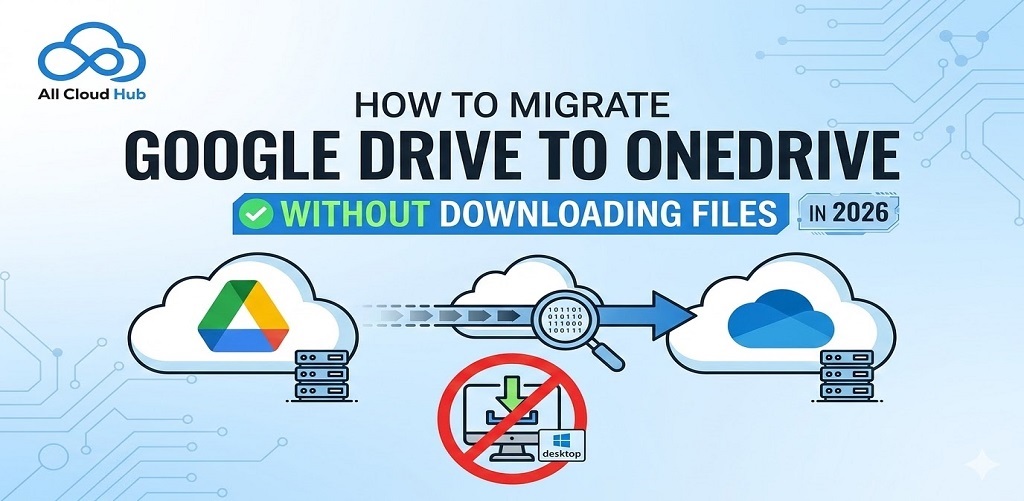
Migrating from Google Drive to OneDrive used to be painful.
You either downloaded everything to your laptop, prayed your internet wouldn’t drop, ran out of disk space halfway through, or ended up with half your files broken and the other half duplicated.
That is no longer how this needs to work.
In 2026, you can move your Google Drive to OneDrive without downloading files, without babysitting the transfer, and without breaking your folder structure or file history.
This guide walks you through exactly how to do it, what usually goes wrong, and how to avoid those issues from the start.
First, a quick reality check
Before we jump into steps, it helps to know why Google Drive to OneDrive migrations often fail when done casually.
Most problems come from things people do not think about until it is too late.
OneDrive has a 400 character path limit. Deeply nested Google Drive folders can silently fail during transfer.
Google Docs, Sheets, and Slides are not real files in the traditional sense. They need to be converted to Word, Excel, and PowerPoint formats. Some formulas and scripts do not survive that conversion.
Files shared with you do not belong to you. If you do not own them, they will not move unless you explicitly copy them first.
And web based transfers usually choke on large files. Anything over 15GB tends to timeout unless handled properly.
Knowing this upfront saves you hours later.
Step 1: Clean up your Google Drive before you move anything
Do not start migrating yet. First, take 15 to 20 minutes to prepare your Drive.
Open Google Drive and use the search is:shared. This shows files that are shared with you but not owned by you. Decide what you actually need. For anything important, make your own copy so you become the owner.
Next, check storage usage. Google’s quota manager is surprisingly helpful here. Delete old junk, duplicates, and files you do not need anymore. Every gigabyte you remove now saves transfer time later.
If you have very deep folder structures, especially client archives or old project dumps, flatten them slightly. OneDrive’s path limits are less forgiving than Google’s.
This is boring work, but it is worth it.
Step 2: Make sure OneDrive is actually ready
This sounds obvious, but it trips people up.
If you are using Microsoft 365, sign into OneDrive at least once before migrating. This activates your storage space properly. If you skip this step, transfers may fail even though your account technically exists.
Check available storage. Make sure you have enough room for what you are about to move, including converted Google Docs which sometimes end up slightly larger.
Once OneDrive is active and accessible, you are good to go.
Step 3: Decide how you want to migrate
You have a few options, but not all of them are ideal.
Google Takeout can export Drive directly to OneDrive. It is free, but files arrive zipped and shared files are skipped. It works for small personal Drives, not much more.
Microsoft’s OneDrive import tool connects to Google Drive and pulls files in the background. It is simple, but has size limits and skips shared content.
Desktop drag and drop works, but only if you have enough disk space and patience. It also does not handle Google Docs properly. If you want the least friction and no downloads, a server side tool is the cleanest approach.
This is where All Cloud Hub fits in.
Step 4: Connect Google Drive and OneDrive in All Cloud Hub
Create an account in All Cloud Hub.
Choose Google Drive as the source and OneDrive as the destination. Connect both using OAuth. You never share passwords. You just approve access.
Once connected, All Cloud Hub scans both accounts. This is where it starts doing the heavy lifting for you. It detects large files, long paths, shared content, and anything that might cause problems later. You get a clear pre-flight report instead of surprises mid transfer.
Step 5: Choose what you actually want to move
You do not have to move everything at once.
You can migrate owned files only, shared files, or even Shared Drives if you are using Google Workspace. You can filter by folders or run the migration in phases if your Drive is large.
This is especially useful if you are moving hundreds of gigabytes and want to avoid throttling or downtime. Once you are happy with the scope, start the migration.
Step 6: Let the transfer run without babysitting it
The transfer runs server side. You do not need to keep your browser open. You do not need your laptop plugged in. You can close the tab and go do something else.
Progress is tracked in the dashboard. You can pause, resume, or review logs at any time.
Google Docs, Sheets, and Slides are converted to Word, Excel, and PowerPoint formats. Folder structure is preserved. Timestamps stay intact. This is where most people finally relax.
Step 7: Verify and run a final sync
Once the migration completes, download the report. Check file counts. Spot check a few folders. Open converted files to make sure everything looks right.
If changes were made in Google Drive during the migration, run a delta sync. This picks up only new or modified files without copying everything again. After that, set Google Drive to read only if you are fully switching over.
Post migration tips that save headaches
- Recreate important sharing links manually in OneDrive. Sharing permissions do not carry over cleanly.
- Test critical Excel files if they came from Google Sheets. Some formulas may need adjustment.
- If you are moving gradually, schedule weekly delta syncs in All Cloud Hub until the cutover is complete.
These small steps prevent confusion later.
Why this works better than native methods
All Cloud Hub handles:
- Google Docs to Office file conversion
- Long folder paths
- Large files without browser timeouts
- Shared files that native tools skip
- Ongoing syncs during transition
It is built for migrations that need to happen cleanly, not hurriedly.
Final thoughts
Migrating Google Drive to OneDrive in 2026 does not need to involve downloads, broken files, or all nighters. With the right prep and the right tool, the process is predictable and calm.
Thousands of users migrate this way every year without losing data or disrupting work. The key is treating migration as a controlled move, not a copy paste exercise.
Ready to migrate?
If you want a clean, no download migration with preserved structure and metadata, All Cloud Hub makes the switch straightforward.
Start with a free scan, review what will move, and migrate on your terms. Your files already matter. Moving them should not feel risky.