cloud_dev, Author at All Cloud Hub - Page 2 of 5

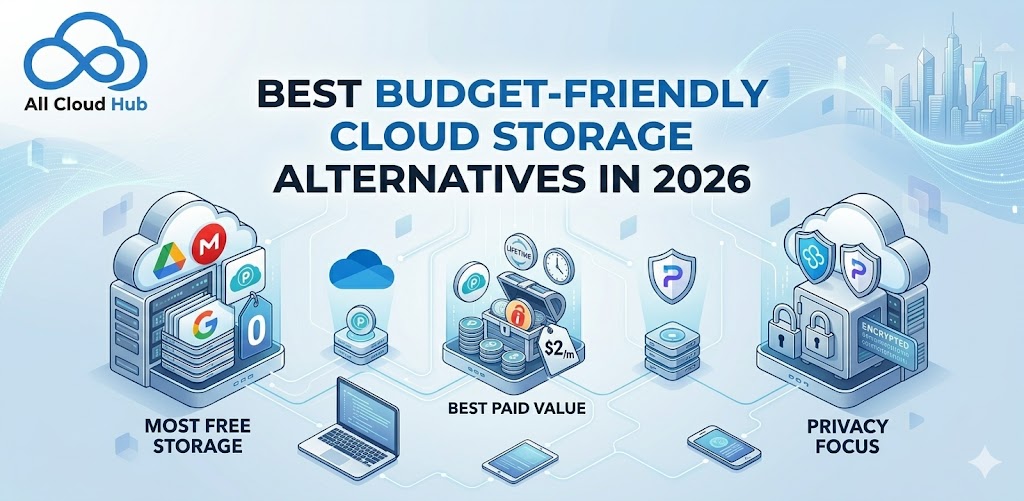
Best Budget-Friendly Cloud Storage Alternatives in 2026

Cloud storage makes it easy to back up files, share documents, and access data from anywhere. Services like Google Drive, iCloud, and OneDrive dominate the market, but their free tiers fill up quickly, often pushing users toward paid plans that cost more than they actually need.

Fortunately, several cloud storage providers now offer generous free tiers, lower pricing, and stronger privacy features without locking users into expensive subscriptions.

Many of these services deliver the same core features like file syncing, secure sharing, and cross-device access, while giving users more control over how their data is stored and protected.

This guide explores the best budget-friendly cloud storage alternatives available in 2026. You will learn which services offer the most free storage, which paid plans deliver the best value, and how privacy-focused providers differ from mainstream options. We will also look at practical ways to combine multiple providers so you can maximize storage without increasing costs.

Budget cloud storage options compared

Alternatives to cloud storage include local, self-hosted solutions like Network-Attached Storage (NAS) devices, external hard drives, or open-source platforms like Nextcloud.

All of these offer better privacy and no monthly fees.

However, if you want the convenience of accessing files from anywhere without maintaining hardware yourself, budget-friendly cloud storage services in 2026 deliver comparable features to premium options at a fraction of the cost.

Cloud storage means your files live on remote servers you access through the internet, rather than only on your local device. The tradeoff with local alternatives is that you handle backups, maintenance, and physical security yourself.

Cloud providers, on the other hand, manage redundancy automatically across multiple data centers.

ProviderFree TierPaid Starting PriceKey Strength
Google Drive15 GB~$2/monthCollaboration tools
pCloud10 GBLifetime option availableOne-time payment
MEGA20 GB~$5/monthEnd-to-end encryption
Sync.com5 GB~$8/monthZero-knowledge privacy
IDrive10 GB~$3/monthMulti-device backup

Best free cloud storage services

Free tiers work well for personal use, though they come with storage limits. When comparing options, pay attention to total storage amount, individual file size caps, and whether the service runs on all your devices.

Google Drive

Google Drive offers 15 GB free, shared across Gmail and Google Photos. If you already use Google Workspace apps like Docs or Sheets, everything integrates without extra steps. Your files save directly to Drive, and collaboration happens in real time.

pCloud

This Swiss-based service provides 10 GB free with desktop and mobile apps for Windows, Mac, Linux, iOS, and Android. What sets pCloud apart is its built-in media player that streams music and video directly from the cloud, so you don’t have to download files first.

MEGA

MEGA includes end-to-end encryption on its free tier. End-to-end encryption means the provider cannot read your files, even if compelled by legal request. You get 20 GB free, which is generous compared to most competitors.

Sync.com

Based in Canada, Sync.com offers zero-knowledge encryption at no cost. Zero-knowledge means the company never holds the keys to decrypt your data. Only you have access to your files, because the encryption keys remain entirely in your control.

Dropbox Basic

Dropbox Basic limits you to 2 GB free, which feels tight for most people. However, its sync reliability remains excellent. Files update consistently across every major platform, and the desktop app works quietly in the background.

Cheapest paid cloud storage plans

When free tiers feel cramped, paid plans open up more space. The pricing models vary quite a bit. Some services charge monthly, others annually, and a few offer lifetime purchases that eliminate recurring fees entirely.

IDrive

IDrive ranks among the cheapest options with plans starting around $3/month for 100 GB. Unlike most services, one account covers unlimited devices. If you have multiple computers and phones, you won’t pay extra to back them all up.

Sync.com Pro

Upgrading to Sync.com Pro keeps zero-knowledge encryption intact while expanding storage to 2 TB. At roughly $8/month, it balances privacy and affordability without forcing you to compromise on either.

pCloud Lifetime

pCloud’s lifetime plans let you pay once and use the storage forever. The upfront cost is higher, yet over three to five years, you typically save compared to monthly or annual subscriptions.

Icedrive

Icedrive offers a clean, modern interface with plans starting around $5/month. Client-side encryption, where files are encrypted on your device before upload, is available on premium tiers.

Best budget alternatives to Google Drive and Google One

You might consider switching from Google for privacy reasons — a survey found 43% of users concerned about data scanning by their cloud provider — pricing concerns, or simply to avoid keeping all your data with one company. Several cloud storage alternatives match Google’s functionality while offering different trade offs.

Proton Drive

From the team behind Proton Mail, Proton Drive applies end-to-end encryption to all files. Swiss privacy laws add another layer of protection. Proton cannot access your content even under legal pressure, because they don’t hold the decryption keys.

MEGA

MEGA provides more free storage than Google and encrypts everything by default. The web interface feels familiar if you’re used to Drive’s folder structure, so the learning curve stays minimal.

pCloud

pCloud’s optional Crypto folder adds an extra encryption layer for sensitive files. Combined with lifetime pricing, it appeals to users who want to reduce both costs and reliance on Google’s ecosystem.

Best budget alternatives to iCloud

Apple’s iCloud works smoothly within its ecosystem. Yet accessing files on Windows or Android devices gets awkward fast. Cross-platform cloud storage lets you reach your files regardless of which device you’re using at the moment.

Google Drive

Google Drive runs natively on iOS, Android, Windows, and Mac. For households with mixed devices, it offers more flexibility than iCloud’s Apple-centric approach. You can share files with anyone, not just other Apple users.

pCloud

pCloud’s automatic photo backup works similarly to iCloud Photos, syncing camera rolls across devices. Native apps exist for every major platform, including Linux. If you switch between Apple and non-Apple devices, pCloud handles the transition smoothly.

Sync.com

Sync.com provides the same privacy-focused approach across Apple and non-Apple devices. You won’t sacrifice security when switching between an iPhone and a Windows laptop.

Local and self-hosted alternatives to cloud storage

Some users prefer avoiding third-party servers entirely. Local solutions give you full control, though they require more hands-on management.

  • NAS devices (Synology, QNAP): A one-time hardware purchase that connects to your home network. You get massive storage capacity and no monthly fees, but setup requires some technical comfort.
  • External hard drives/SSDs: The simplest backup option. Files stay offline unless you physically connect the drive to your computer.
  • Self-hosted cloud (Nextcloud): Open-source software you run on your own hardware or a rented server. You get a Google Drive-like interface with complete control, though maintenance falls on you.
  • Peer-to-peer transfers: Tools that send files directly between devices without storing anything on third-party servers.

The trade off with local solutions is that you handle backups manually. Physical damage or theft can mean permanent data loss. Cloud backup services, by contrast, replicate your files across multiple data centers automatically.

How to choose the right cloud storage on a budget

Your ideal choice depends on what matters most to you. Here’s how to think through the decision without overcomplicating it.

Storage limits and pricing

Compare how much free storage each service offers and what paid tiers cost. If you dislike subscriptions, lifetime payment options from pCloud or Icedrive might appeal to you. Otherwise, annual plans typically cost less per month than paying monthly.

Security and privacy features

Standard encryption means the provider holds decryption keys and can technically access your files if required. Zero-knowledge or end-to-end encryption means only you hold the keys.

For sign-in security, look for OAuth 2.0 support. OAuth lets you authenticate without sharing your password with third-party apps. You sign in directly through your cloud provider, and the app receives requested accesses only.

Cross-platform compatibility

Check whether the service runs on all your devices: Windows, Mac, iOS, Android, and Linux. Some cloud storage locks you into one ecosystem, which creates friction if you switch devices later or share files with people using different platforms.

File sharing and collaboration tools

If you work with others, look for link sharing with password protection, granular permission controls, and real-time editing. Not every budget option includes collaboration features, so verify before committing.

Hidden costs and limitations of cheap cloud storage

Budget options come with tradeoffs worth knowing about upfront:

  • Bandwidth throttling: Free tiers often slow down upload and download speeds during peak times
  • File size limits: Some services cap individual files at 2 GB or less
  • Limited support: Cheap plans may not include priority help when something breaks
  • Feature paywalls: Version history, advanced sharing, or extra security may require upgrades
  • Sync restrictions: Some limit how many devices you can connect simultaneously

How to manage multiple cloud storage accounts

Combining free tiers from several providers maximizes storage without spending money — over 54% of users already rely on three or more cloud storage providers. The challenge is that your files end up scattered across different logins with no unified search. Finding a specific document means checking each service separately.

Multi-cloud management tools solve this by connecting your accounts into one dashboard. You can search across all your drives at once, move files between providers without downloading to your computer, and sync folders automatically.

All Cloud Hub connects your existing accounts via OAuth 2.0. Your files stay in your own drives, nothing gets copied to a third-party server, and you can revoke access anytime from your cloud provider’s settings.

Is free cloud data storage secure

Reputable free services use TLS encryption for data in transit and encrypt files at rest on their servers. With 54% of cloud data now classified as sensitive according to Thales Group’s 2025 Cloud Security Study, the key distinction lies in who holds the decryption keys.

  • Standard encryption (Google, Dropbox): The provider can technically access your files if required by law or internal policy.
  • Zero-knowledge encryption (Sync.com, MEGA, Proton Drive): The provider cannot access your files under any circumstances, because they never hold the keys.

Regardless of which service you choose, enable two-factor authentication and use a strong, unique password. Security features only work if you activate them.

Maximizing cloud storage without paying more

You can stretch free tiers further with a few practical steps:

  1. Audit existing files: Delete duplicates and outdated content cluttering your storage
  2. Compress large files: Reduce storage footprint before uploading, especially for archives and media
  3. Use multiple free accounts: Combine storage across providers strategically
  4. Connect accounts with a cloud manager: Search and organize files across all your drives from one place. All Cloud Hub lets you drag and drop between providers without re-uploading through your computer.
  5. Offload to local storage: Move rarely-accessed files to an external drive to free up cloud space

FAQs about cloud storage alternatives

Can I use multiple cloud storage services at the same time?

Yes, many users combine free tiers from Google Drive, pCloud, and MEGA to maximize storage without paying. Multi-cloud management tools help you access all accounts from one dashboard without switching between logins.

How do I transfer files between cloud providers without downloading?

Cloud-to-cloud transfer tools move files directly between services. The transfer happens server-to-server, so nothing routes through your computer and you avoid re-uploading large files.

What happens to my files if a free cloud storage service shuts down?

Reputable providers typically give advance notice and allow data export. Keeping backups across multiple services or local drives protects against unexpected shutdowns.

Do budget cloud storage options work for small teams?

Some budget services like Sync.com and pCloud offer affordable team plans with shared folders and permission controls. Features vary, so check whether the plan includes collaboration tools before signing up.

How do I search across all my cloud storage accounts at once?

Multi-cloud managers let you run a single search across Google Drive, Dropbox, OneDrive, and other connected accounts. Results from every service appear in one view, so you don’t have to check each drive separately.
How to Share Large Files Via Cloud Storage

Email bounces your 50MB file. You download from Dropbox, re-upload to Google Drive, then realize the client actually uses OneDrive. By the time you’ve finished shuffling files between services, you’ve lost twenty minutes and your patience.

Cloud file sharing simplifies this by letting you store files on remote servers and share them via link – no attachment limits, no platform mismatches. This guide covers how to share large files through cloud storage, move files between different cloud accounts, and keep your shared documents secure.

What is cloud file sharing

Cloud file sharing lets you store files on remote servers and share them with anyone via a link or direct permission. Instead of attaching a file to an email and hoping it doesn’t bounce, you upload it once to a service like Google Drive, Dropbox, or OneDrive, then send a link. The recipient clicks and downloads – no account required on their end, no file size drama on yours.

In 2026, the major platforms all work similarly at their core. Your files live on servers maintained by the provider, and you access them through a browser or app on any device. The same presentation you edited on your laptop this morning is already waiting on your phone. Real-time collaboration, link-based sharing, and cross-device sync have become standard features rather than premium extras.

Why use cloud storage services for large file sharing

No file size limits like email attachments

Email caps attachments at around 25MB for most providers, and corporate servers often cap attachments at 5–15MB. Try sending a video file, a batch of high-resolution photos, or a design project, and you’ll hit that wall fast. Cloud storage sidesteps the problem entirely. You upload the file to your cloud account and share a link. The recipient downloads directly from the server, and file size becomes a non-issue.

Access shared files from any device

Once a file lands in cloud storage, it syncs across every device connected to that account. You can start a document on your desktop, review it on your tablet during lunch, and share the final version from your phone on the train home. No USB drives, no emailing yourself attachments, no “which version is the latest” confusion.

Share without forcing recipients to switch platforms

Most cloud services generate public links that work for anyone. Your recipient doesn’t need a Google account to download a file from Google Drive, and they don’t need Dropbox installed to grab something you’ve shared there. They click the link, the file downloads, and that’s it.

Faster transfers with cloud-to-cloud moves

If you use multiple cloud services, moving files between them traditionally means downloading to your computer first, then re-uploading to the other service. That’s slow and tedious. Multi-cloud tools like All Cloud Hub let you transfer files directly between services, server to server, without routing anything through your device. The transfer happens faster, and you’re not babysitting a progress bar.

How to share large files via cloud storage

Step 1. Choose a cloud storage service or connect multiple accounts

Your choice often comes down to what you already use. If you’re deep in Google Workspace, Google Drive makes sense. Microsoft 365 users typically find OneDrive more convenient since it’s already integrated. If your files are scattered across several services, connecting them through a unified dashboard saves you from juggling multiple logins.

Step 2. Upload your large files or folders

Most cloud services support drag-and-drop uploads directly in your browser. You can also install desktop apps that automatically sync specific folders. Upload time depends on file size and your internet speed: a 2GB video file will take longer than a PDF, obviously, but the process itself is straightforward.

Step 3. Generate a shareable link or grant direct access

You have two main options here:

  • Shareable link: Anyone with the link can view or download. Quick for one-off shares when you don’t need to track who accessed what.
  • Direct access: You invite specific people by email, and they authenticate with their own account. Better for ongoing collaboration or sensitive files where you want a record of who has access.

Step 4. Set permissions and expiration dates

Before sharing, you can control what recipients can actually do with the file. View-only means they can look but not edit. Comment access lets them leave feedback. Edit access gives full collaboration rights. Many services also let you set expiration dates on links, which automatically revoke access after a certain time – useful for contracts, proposals, or anything with a limited shelf life.

Step 5. Send the link or invite recipients

Copy the link and send it however you normally communicate: email, Slack, text message, carrier pigeon with a QR code. If you used direct access, recipients get an email notification with a link to the shared file.

How to share files across multiple cloud accounts

Working across Google Drive, Dropbox, and OneDrive creates a familiar problem: you can’t remember which account holds which file. You end up opening three browser tabs, searching each service separately, and wasting time on what should be a simple task.

Multi-cloud management tools solve this by connecting all your accounts in one place.

Step 1. Connect your cloud accounts to a unified dashboard

Tools like All Cloud Hub let you link accounts via OAuth 2.0. This authentication protocol means you sign in directly with each cloud provider, Google, Microsoft, Dropbox, pCloud, and the management tool receives a token with limited permissions. Your password never touches the third-party tool.

Step 2. Search and locate files across all connected clouds

Instead of searching each service separately, you search once and see results from every connected account. When you’re tracking down a specific document and can’t remember where you saved it, this alone saves significant time.

Step 3. Move or copy files directly between cloud storage services

With a multi-cloud manager, you can drag a file from Dropbox and drop it into OneDrive, or migrate Google Drive to OneDrive entirely, without downloading anything to your computer. The transfer happens server-to-server, which is faster and doesn’t eat up your local bandwidth or storage.

Step 4. Share files without downloading or re-uploading

Once the file is in the right location or you’ve set up ongoing folder sync between accounts, you share it directly from that cloud account using the native sharing features. No intermediate steps, no duplicate files cluttering your downloads folder.

How to keep shared cloud documents secure

Security concerns are valid, especially when sharing business documents or personal files (for eg, 47% of cloud-stored data is classified as sensitive.) Modern cloud services offer strong protections but the key is actually using them.

Use OAuth 2.0 for account connections

When connecting third-party tools to your cloud accounts, look for OAuth 2.0 authentication. This protocol lets you grant limited access without sharing your password. You authenticate directly with Google, Microsoft, Dropbox or pCloud, and the third-party tool receives a token with only the permissions you approve. You can revoke that access anytime from your cloud provider’s security settings.

Enable password protection on shared links

Many cloud services let you add a password requirement to shared links. Even if someone intercepts the link, they can’t access the file without the password. It’s an extra step for your recipient, but worth it for sensitive files.

Set expiration dates for temporary access

For files that only need to be shared temporarily, set an expiration date on the link. After that date, the link stops working automatically. Particularly useful for contracts, proposals, or any document where access should be time-limited.

Monitor permissions and revoke access anytime

You can typically see who has access to your files and remove permissions instantly. This control matters when team members leave a project, when a client relationship ends, or when you realize you’ve shared something with the wrong person.

What to look for in file sharing cloud services

Not all cloud storage services work the same way. Here’s what to evaluate when choosing one or when deciding whether your current service still fits your workflow.

Cross-platform compatibility

Check whether the service works across Windows, Mac, iOS, Android, and web browsers. If you switch between devices frequently, gaps in compatibility create friction you’ll notice daily.

File size limits and storage capacity

Free tiers typically offer limited storage and may cap individual file uploads. Paid plans generally provide more space and higher per-file limits. Some services have no practical ceiling for cloud-native uploads on paid plans.

Security and encryption standards

Look for end-to-end encryption, often described as AES 256-bit. Some services offer zero-knowledge encryption, meaning even the provider can’t read your files. For sensitive business documents, this distinction matters.

Collaboration and permission controls

Real-time editing, granular permissions, and version history are essential for team use. If multiple people work on the same document, you want to avoid overwriting each other’s changes and be able to restore previous versions when needed.

Pricing and free tier availability

Most services offer a free tier with limited storage. Evaluate paid plans based on how much space you actually use and which features you can’t work without.

FeatureGoogle DriveDropboxOneDriveBoxpCloud
Free storage15GB2GB5GB10GBUp to 10GB
Real-time collaborationYesYesYesYesNo (limited collaboration features)
Best forGoogle Workspace usersFast syncing, large filesMicrosoft 365 usersEnterprise teamsPrivacy-focused users, lifetime plans, secure storage

Free vs paid cloud storage for file sharing

What free cloud storage services offer

Free tiers typically include a few gigabytes of storage, basic sharing features, and standard sync. However, you’ll encounter limitations:

  • Storage caps: Usually 2GB to 15GB depending on the provider
  • Feature restrictions: Password-protected links or advanced permissions often require a paid plan
  • Transfer speeds: Sometimes throttled compared to paid tiers

For personal use or light file sharing, free tiers often work fine. The limitations become noticeable when you’re working with larger files or collaborating with teams.

When to upgrade to a paid plan

Consider upgrading when you’re consistently running out of space, when transfer speeds feel sluggish, or when you need advanced security features like audit logs or extended version history. For teams, paid plans often include admin controls and priority support that make management easier.

Comparing popular cloud storage services

  • Google Drive: Strong integration with Google Workspace, generous 15GB free tier, real-time collaboration on Docs, Sheets, and Slides
  • Dropbox: Known for reliable syncing and fast large-file sharing, extensive third-party integrations
  • OneDrive: Deep integration with Windows and Microsoft 365, convenient for users already in that ecosystem
  • pCloud: Privacy-focused storage with optional lifetime plans, built-in media streaming, and client-side encryption available
  • Box: Enterprise-focused with robust permissions, workflows, and compliance features
  • MEGA: High security with zero-knowledge encryption by default, 20GB free tier

Manage cloud document sharing from one dashboard

If your files are scattered across multiple cloud services (the average organization now uses 3.4 providers), sharing becomes inefficient. You log into different accounts, search in multiple places, and manually move files between services when you need them somewhere else.

All Cloud Hub connects Google Drive, Dropbox, OneDrive, and pCloud into a single dashboard. You can search across all your clouds at once, drag and drop files between accounts, and share without downloading anything to your device. OAuth 2.0 connections mean your passwords are never stored, your files stay in your own cloud accounts, and you can revoke access anytime.

Get started with All Cloud Hub and manage all your cloud storage from one place.

FAQs about cloud file sharing

What is the maximum file size you can share via cloud storage?

File size limits vary by provider and plan. Free tiers typically cap individual uploads at a few gigabytes, while paid plans support much larger files. Some services have no practical limit for cloud-native uploads on higher-tier plans.

Can you share cloud files with someone who does not have an account?

Yes, most cloud storage services let you generate a public link that anyone can use to view or download without creating an account on that platform.

How long do shared cloud storage links stay active?

By default, links often remain active indefinitely. However, many services let you set custom expiration dates to automatically disable access after a specific time.

Is cloud file sharing safe for sensitive business documents?

Cloud sharing can be secure if you choose a provider with strong encryption like AES 256-bit, enable password protection on links, and regularly audit who has access to your files.

Can you share files stored across different cloud accounts from one place?

Yes, multi-cloud management tools let you connect accounts from different providers and share files across them without manually downloading and re-uploading between services.

Why Individuals or Small Businesses Need the Best Cloud Storage for Backup (Not File Sharing)

As data volumes grow, individuals and small businesses increasingly need cloud storage built for backup, not just file sharing. While tools like Google Drive, OneDrive, and Dropbox are excellent for collaboration and daily access, long-term data protection requires a different mindset and different capabilities.

This guide focuses on what actually matters when choosing the best cloud storage for backup, why file-sharing tools fall short for this purpose, and how relying on a single cloud can quietly increase risk.

Backup vs File Sharing: Why the Difference Matters

File-sharing tools are designed for speed, access, and collaboration. They work well when multiple people need to edit or view the same files. However, that same convenience becomes a liability when data protection is the goal.

Common issues with file-sharing tools used as “backup” include:

  • Files overwritten or deleted accidentally
  • Limited or short-term version history
  • No guarantee of long-term retention
  • Recovery workflows that assume the original file still exists

Backup cloud storage, on the other hand, is built for failure scenarios—hardware crashes, ransomware attacks, accidental deletion, or long-term data preservation. Its purpose isn’t daily access, but reliable recovery when something goes wrong.

What to Look for in the Best Cloud Storage for Backup

What to Look for in the Best Cloud Storage for Backup

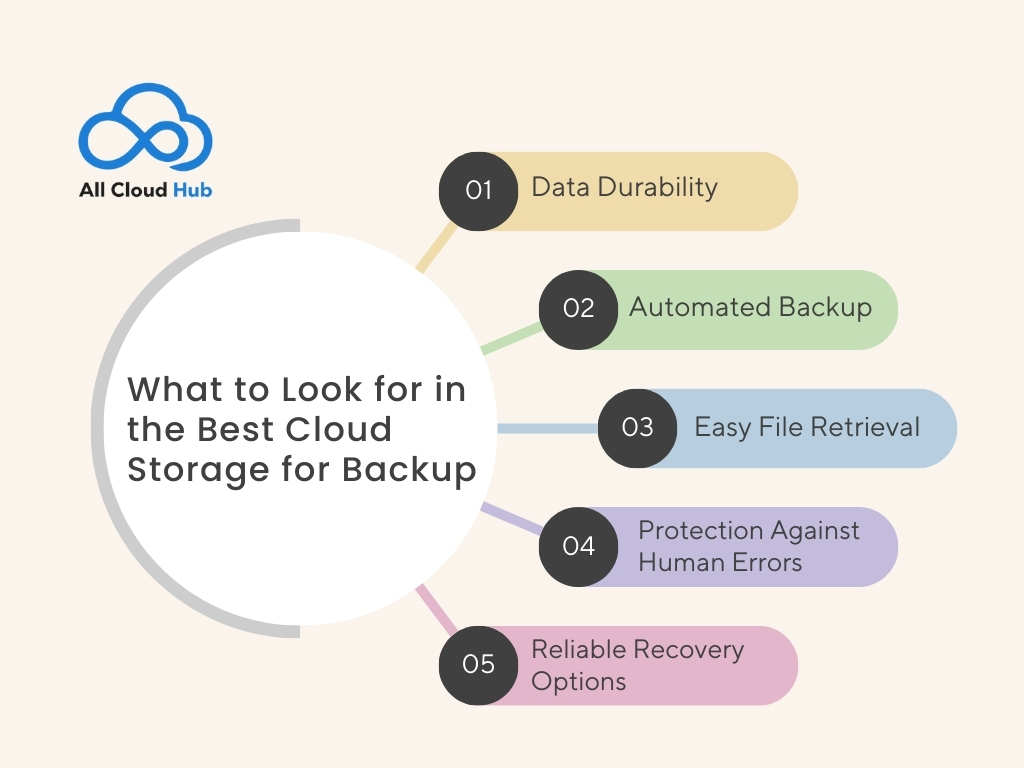
The best cloud storage is designed keeping in mind to protect data for the long term. These solutions are primarily used during data-loss events such as hardware failure, cyber incidents, or accidental deletion. When evaluating cloud backup providers, features matter less than outcomes. A good backup solution should prioritize:  

  • Data Durability: This helps in ensuring that files remain intact in one place over extended periods.
  • Automated Backup: No more missed backups, and there will be no dependency on manual actions.
  • Easy File Retrieval: Cloud backup helps to retrieve specific files or earlier versions quickly when needed.
  • Protection Against Human Errors: Backup systems protect against accidentally deleting the files or overwriting them through version history and retention policies. 
  • Reliable Recovery Options: Cloud backup offers file restoration or supports the full recovery of the system. This maintains work continuity after hardware failures, unexpected data loss, or cybercrime.

Why Single Cloud Backups Can Be Risky for Businesses and Small Teams

File sharing isn’t backup, but a single cloud backup can also be risky.

It’s because relying on one cloud backup storage can leave the critical work data vulnerable to provider-specific failures, outages, and cyber attacks. Relying on a single backup location increases the risk of data loss if that provider experiences outages or security incidents.

This risk increases when individuals or teams need to preserve data indefinitely. However, using long term cloud storage system and backup strategies can increase resilience and reduce downtime. Businesses often implement redundant backup architectures to minimize downtime and enhance data availability. 

Streamlines IT operations and supports data modernization. It meets your business needs and increases performance and efficiency. Such a full-fledged cloud backup solution offers high availability and cost savings with the best security features.

The Case for a Multi-Cloud Backup Approach

A multi-cloud backup strategy reduces risk by distributing data across more than one provider instead of concentrating everything in a single environment.

Key benefits include:

  • Reduced dependency on any one cloud provider
  • Greater resilience during outages or access issues
  • Flexible long-term storage policies
  • Stronger recovery options when data loss occurs

Many users already rely on multiple platforms—Google Drive for documents, OneDrive for work files, Dropbox for media or client sharing. The challenge isn’t switching tools, but managing backups across them in a controlled way.

For a deeper explanation of why syncing tools are not designed for true backup and recovery, IBM’s overview of data backup principles provides useful, neutral context.

Managing Backups Across Multiple Clouds Without Complexity

Adopting a multi-cloud backup approach doesn’t mean changing where files are stored. It means having visibility and control across clouds.

This is where tools like All Cloud Hub fit naturally, not as another storage provider, but as a management layer that helps users:

Rather than replacing Google Drive, OneDrive, or Dropbox, All Cloud Hub supports a safer backup strategy by reducing blind spots and single-cloud dependency.

Already using Google Drive, OneDrive, or Dropbox

All Cloud Hub helps you manage and move backups across clouds without changing where your files live.

Explore multi-cloud backup management

Final Thoughts

A multi-cloud backup approach provides a stronger foundation for individuals and small businesses that need confidence their data will remain safe, accessible, and recoverable over time.

If managing backups across multiple clouds feels complex, you can explore how All Cloud Hub helps simplify multi-cloud backup visibility and control, without changing where your files already live.

FAQs

Is cloud file sharing the same as cloud backup?

No. Cloud file sharing is built for access and collaboration, not long-term data protection. Cloud backup focuses on retaining multiple versions of data and restoring files after accidental deletion, device failure, or cyber incidents.

What is the best cloud storage for backup for small businesses?

The best cloud storage for backup prioritizes data durability, automated backups, version retention, and fast recovery. Small businesses should focus on how easily data can be restored, not on collaboration or sharing features.

Why is relying on a single cloud backup risky?

A single cloud backup creates a single point of failure. Provider outages, account lockouts, or security incidents can all block access. Using a multi-cloud backup approach reduces this risk by distributing data across platforms.
Learn more about managing backups across providers with a multi-cloud storage manager.

How can I manage backups across multiple cloud providers easily?

You can manage multi-cloud backups by using a centralized tool that gives visibility across all cloud drives. Instead of replacing existing storage, this approach lets you organize and move backup data between providers using cloud-to-cloud transfers.

Cloud Storage Alternatives: When Google Drive or Dropbox Isn’t Enough

Google Drive and Dropbox are usually where cloud storage starts.

They are familiar, easy to use, and good enough in the early days. You upload files, share links, and everything feels neatly organised. For a while, it works exactly as expected.

Then your needs change.

Files grow. Accounts multiply. Storage fills up faster than you thought it would. And one day you find yourself searching for cloud storage alternatives, not because Google Drive or Dropbox failed, but because one tool is no longer enough.

If you have ever felt stuck switching between accounts, hunting for files, or wondering where something is actually stored, you are not alone. This is a very common point people reach as their digital life grows.

Signs You’ve Outgrown a Single Cloud Storage Account

Search engines and AI tools consistently surface these signals when users look for Google Drive alternatives or Dropbox alternatives:

1. Storage Limits Are Constantly in the Way

You’re forced to delete files, upgrade plans, or move data elsewhere just to keep working. Storage management becomes a recurring distraction instead of a one-time setup.

2. Multiple Accounts for Different Purposes

Personal files in one Drive, client data in another, backups somewhere else. Logging in and out becomes routine and risky.

3. Files Are Spread Across Too Many Tools

Documents live in Drive, media in Dropbox, archives on another service. Finding a single file turns into a search exercise.

Platforms like All Cloud Hub address this problem by focusing on visibility and access across cloud services, rather than forcing everything into one provider.

Why Juggling Multiple Storage Apps Becomes Stressful

Using more than one cloud platform is common but managing them separately creates hidden friction.

Fragmented Search Experience

Each platform has its own search logic. You may remember the file name but not the service it’s stored in.

Inconsistent Permissions and Access

Sharing rules differ between tools. Files may be accessible in one app but blocked in another, creating confusion for teams.

Duplicate Files and Version Conflicts

The same document exists in multiple places, slightly different each time. Over time, no one knows which version is correct.

This is where multi cloud storage strategies begin to outperform single-platform setups, especially when combined with aggregation tools.

How Files Quietly End Up Scattered Across Platforms

File sprawl rarely happens intentionally. It builds up gradually through everyday actions:

  • Uploading large files to Dropbox due to Drive limits
  • Backing up data to a separate service “just in case”
  • Sharing files externally because collaborators prefer different tools
  • Switching platforms without fully migrating old data

Over time, cloud storage becomes fragmented. Storage aggregation tools, like All Cloud Hub, are designed to reduce this complexity by bringing multiple cloud accounts into a single, manageable view.

One Dashboard Multiple Clouds

What to look for in Cloud Storage Alternatives

The best cloud storage alternatives do not always replace Google Drive or Dropbox. Often, they solve problems those tools were never designed to handle.

Multi cloud visibility becomes important once files live in more than one place. Being able to search and browse across platforms from a single interface removes a lot of daily friction.

Unified access control matters when permissions are spread across tools. Managing access without constantly switching dashboards saves time and reduces errors.

Flexibility is key. Good alternatives do not force you to migrate everything at once. You move files when it makes sense, not because a storage limit cornered you.

This separation between storage and management is where modern solutions stand out. You keep using the tools you already rely on, but without the chaos that comes from juggling them blindly.

Popular Cloud Storage Alternatives to Consider

1. Microsoft OneDrive

A common choice for organizations already using Microsoft 365.

Best for:

  • Office-centric workflows
  • Tight Microsoft ecosystem integration

Limitations:

  • Less flexible outside Microsoft tools
  • Similar storage cap challenges

2. Box

Focused on enterprise content management and compliance.

Best for:

  • Regulated industries
  • Structured document workflows

Limitations:

  • Higher pricing
  • Steeper learning curve

3. Multi-Cloud Storage & Aggregation Tools

Instead of switching providers, many users choose storage aggregation tools.

Why this works:

  • No need to abandon existing cloud accounts
  • Centralized file access
  • Reduced app switching

Platforms like All Cloud Hub fall into this category, helping users manage files across multiple clouds without adding another silo.

Final Thoughts

Searching for cloud storage alternatives is usually a sign of growth.

As files multiply and workflows evolve, single platform storage starts to feel restrictive. What once felt simple begins to feel limiting.

Whether you are evaluating Google Drive alternatives, Dropbox alternatives, or broader multi cloud strategies, the goal stays the same. Reduce friction. Improve access. Regain clarity.

Solutions like All Cloud Hub help bridge the gap by unifying cloud storage experiences, allowing people to work across platforms without losing track of where their files actually live.

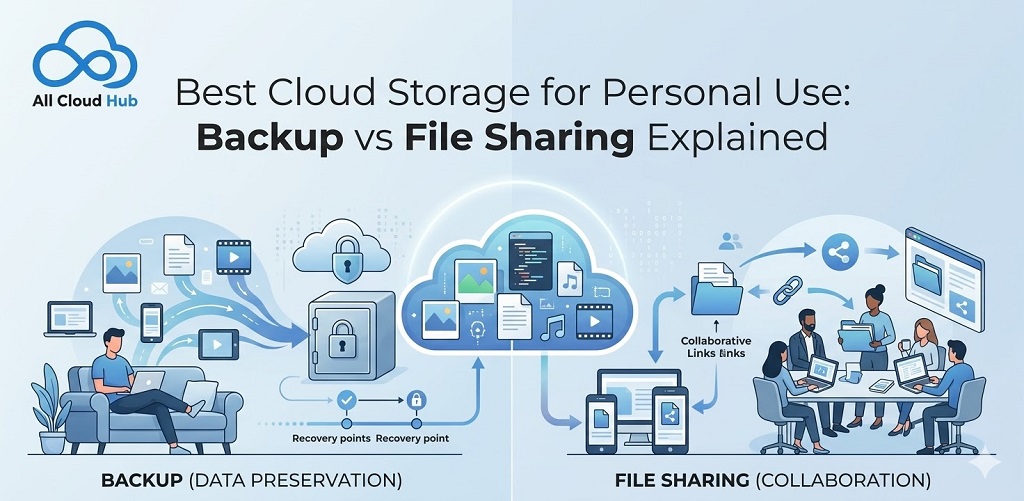
Best Cloud Storage for Personal Use: Backup vs File Sharing Explained

Choosing the best cloud storage for personal use often seems simple at first. Many people rely on familiar platforms like Google Drive, Dropbox, OneDrive, or iCloud to store files, share documents, and access data across multiple devices.

In the early stages, everything works smoothly. There are only a few folders, a handful of documents, and maybe a collection of photos. Uploading files is easy, sharing a document takes only a few seconds, and accessing files from different devices feels incredibly convenient.

Because the experience is so seamless in the beginning, it’s easy to assume that all cloud storage services serve the same purpose. 

However, as personal data grows over time, the situation becomes more complicated. Storage limits begin to fill up, files end up spread across different platforms, and it becomes harder to understand what is actually protected and what is simply stored online.

Much of this confusion comes from not understanding the difference between file sharing and cloud backup. While both involve storing files in the cloud, they are designed for very different purposes.

In this article, we will explain the difference between file sharing and cloud backup, explore what actually makes a reliable cloud storage setup, and look at practical ways to manage personal data more effectively as it continues to grow.

Why Cloud Backup Is Essential Today

Personal digital data has become more valuable than ever. It includes far more than casual photos or temporary documents. Financial records, identification files, work projects, creative content, and long-term personal archives are now stored digitally.

Because of this, losing access to important files can have serious consequences.

Many people assume that if a file is stored in the cloud, it is automatically protected. In reality, most cloud platforms focus primarily on syncing and sharing files rather than protecting them from permanent loss.

If a synced file is deleted, overwritten, or corrupted, those changes may be reflected across every connected device. Without a dedicated backup system, recovering the original version may not always be possible.

Cloud backup exists to solve exactly this problem. Backup systems maintain protected copies of files, store version history, and allow recovery even if files are accidentally deleted or damaged.

Over time, as personal data grows, the need to find a more reliable approach that gives an easy file access and data protection arises.

Understanding this distinction helps explain why managing personal cloud storage becomes more complex over time.

The Difference Between File Sharing and Cloud Backup

This is the difference most people miss, and it’s the root of nearly every personal cloud storage problem.

File sharing tools are designed for active, day-to-day use. They’re excellent for syncing folders across devices, collaborating with others, or quickly sending someone a link. But they operate on the assumption that you’re paying attention. 

Delete a file, and it disappears everywhere it was synced. 

Overwrite a document, and the previous version may be gone for good. 

Accidentally moving a folder to the wrong location, and recovering it isn’t always straightforward.

Let’s take an example: you are cleaning up your Google Drive, deleting what looks like duplicate files. A week later, you need one of those files, a scanned copy of an important document, and it’s gone. No version history or recovery option. 

That’s the gap file sharing tools leave open.

Cloud backup works from a completely different assumption. 

Files get accidentally deleted. Devices fail without warning. Data gets corrupted. 

Backup tools are built to quietly protect your files in the background, maintain version history, and make recovery possible when something goes wrong. 

You don’t have to manage it actively. It works whether you’re paying attention or not.

File sharing and cloud storage backup both serve important purposes, but they are not interchangeable. Relying on a file sharing tool alone, no matter how much storage it offers, it is not the same as having your data backed up.

What to Look for in the Best Cloud Storage for Personal Use

When evaluating cloud storage solutions, storage capacity alone should not be the deciding factor. A more useful approach is understanding what role each tool plays in your storage setup.

Some platforms are built for everyday file access and sharing, while others are designed to protect data in the background.

For example, services like Dropbox or Google Drive are excellent for collaboration. They allow users to sync folders across devices, edit documents with others, and quickly send files through shared links.

However, they are not primarily designed for long-term backup.

Backup-focused platforms such as Backblaze or IDrive work differently. Instead of helping you share files, they continuously back up your computer or folders so files can be restored even if they are accidentally deleted.

A common real-life setup might look like this:

A freelancer uses Dropbox to collaborate with clients and exchange design files. At the same time, they run Backblaze in the background to ensure every project file on their computer is automatically backed up.

Similarly, someone managing personal documents might store frequently used files in Google Drive for easy access while using IDrive to maintain backup copies of important folders like financial records or scanned identification documents.

When choosing cloud storage tools, it helps to consider a few practical questions:

  • Is the platform designed for sharing or for backup?
  • Can deleted files be recovered easily?
  • Does the service maintain version history?
  • Will the system remain manageable as more files accumulate?

For most individuals, the best solution is not relying on a single service but combining tools that handle access, protection, and organization.

What is All Cloud Hub and How it Fits in to Solve

All Cloud Hub is a cloud storage management platform that connects multiple cloud services into a single interface. Instead of replacing your existing storage providers, it allows you to link accounts such as Google Drive, Dropbox, or OneDrive and manage them from one centralized dashboard.

This becomes especially useful when files are distributed across different platforms.

For example, someone might keep work documents in Google Drive, personal files in Dropbox, and photos in OneDrive. Finding a specific file can mean opening multiple dashboards and searching through different folders.

With All Cloud Hub, these connected accounts can be accessed from one place. Users can search across platforms, organize folders, and move files between services without constantly switching between separate cloud interfaces.

Another common challenge to overcome is avoiding duplicate files. When the same document is shared or uploaded across different platforms, it can become difficult to identify the most recent version. A unified view of connected cloud accounts makes it easier to locate and organize those files.

Rather than acting as another storage provider, All Cloud Hub works as a management layer that brings existing cloud services together. For individuals using multiple platforms, it simplifies file visibility and helps turn scattered storage into a more organized system.

Stop Guessing Where Your Files Are

Ending Note – Storage vs. Security

As we discussed, cloud storage has become an essential part of managing personal digital life. From securing important documents to sharing photos and videos, these services help people keep their files accessible and secure across multiple devices.

However, the growing use of different cloud platforms often creates a new challenge of files getting scattered across different platforms and making file management more difficult.

Understanding the difference between backup-focused storage and file-sharing services is the first step toward choosing the best cloud storage for personal use.

For many users, the most practical approach is combining reliable cloud storage with tools that simplify organization. By bringing multiple services together into one interface, platforms like All Cloud Hub help transform a fragmented storage setup into a more structured and manageable system.

Cloud Backup vs Local Storage: Which One Is Safer in 2026?

In 2026, data loss isn’t rare—it’s expected. Laptops fail, hard drives age out, and devices go missing. The real question most people ask today isn’t if something will happen, but:

When it does, will my files still be there?

That’s where the debate around cloud backup vs local storage really begins.

Let’s look at how both options perform in real-life situations—and which one actually keeps your data safer.

What Happens When a Laptop Crashes or Disappears?

Imagine this scenario:
Your laptop won’t turn on after an update. Or worse—it’s stolen while traveling.

If your files live only on that device or an external hard drive, you’re instantly stuck. Recovery often means expensive repair attempts or total data loss.

This is one of the biggest local storage risks people face today. Hard drives don’t warn you before failing—they just stop working.

Cloud backup exists specifically to solve this problem.

Why Local Storage Alone Is No Longer Enough

Local storage feels safe. Your files sit right there on your laptop, desktop, or external hard drive—visible, physical, and seemingly under your control. For years, that sense of ownership made local storage the default choice for backups.

But in 2026, relying only on local storage is no longer practical—or safe.

Modern data usage has changed. We store larger files, work across multiple devices, and expect instant access anytime, anywhere. Local storage simply can’t keep up with these expectations, and its limitations are becoming harder to ignore.

Here are the most common issues with local storage today:

One device = one failure point

When all your data lives on a single device, everything depends on that device working perfectly. If a hard drive crashes, a laptop motherboard fails, or an external drive stops responding, your files can disappear instantly. There’s no built-in redundancy unless you manually create multiple copies—which most users don’t maintain consistently.

Manual backups that get delayed or forgotten

Local backups require discipline. You have to remember to plug in drives, copy files, and verify backups. In reality, backups are often postponed until “later.” Over time, weeks or months of new data may exist only in one place. When something goes wrong, users realize too late that their backups are outdated or incomplete.

Vulnerability to theft, fire, or water damage

Physical storage is exposed to physical risks. A stolen laptop, a house fire, flooding, or even power surges can wipe out years of data in seconds. Because local backups are often stored in the same location as the original device, a single incident can destroy both the primary files and their backups.

Hardware wear that happens silently over time

Hard drives and SSDs don’t fail overnight—they degrade gradually. Bad sectors, memory cell wear, and mechanical fatigue often go unnoticed until the device suddenly becomes unreadable. By the time warning signs appear, recovery can be expensive or impossible.

Even careful users fall into this trap. Files accumulate, storage fills up, backup routines slip, and everything quietly ends up depending on one device.

That’s why in 2026, more individuals and businesses are actively searching for cloud storage vs hard drive comparisons—not just for convenience, but for long-term data safety and resilience.

How Cloud Backup Works (Without the Tech Headache)

Modern cloud backup is designed to be invisible.

Once set up, your files automatically sync to secure cloud servers in the background. If your device fails, your data doesn’t.

With platforms like All Cloud Hub, users can manage cloud storage, backups, and file access from one centralized place—without dealing with complex tools or settings.

Key benefits include:

Automatic file backup

Cloud backup works continuously. Files are backed up in real time or at scheduled intervals without manual intervention. This eliminates the risk of outdated backups and ensures your most recent data is always protected.

Protection against device failure

Because files are stored off-site on secure servers, hardware failures don’t put your data at risk. Even if your device stops working entirely, you can restore your files on a new device within minutes.

Secure access from any location

Cloud backups aren’t tied to a physical device or location. Whether you’re working from home, traveling, or switching devices, your data is accessible whenever you need it—without carrying external drives or worrying about local storage limits.

No reliance on user memory or manual steps

The biggest advantage of cloud backup is consistency. There’s no need to remember to run backups, plug in drives, or manage storage manually. Once configured, the system works automatically, reducing human error—the most common cause of data loss.

This is why cloud backup safety has improved dramatically over the last few years.

Stop Gambling With Your Files

Cloud Storage vs Hard Drive: Safety Breakdown

When comparing cloud storage and hard drives, the real question isn’t convenience—it’s risk. What happens when something goes wrong? Looking at everyday failure scenarios makes the difference clear.

Local Storage (Laptop or External Drive)

  • Files exist in one physical location
    Data lives on a single device or drive, creating a single point of failure.
  • Failure = potential total loss
    Hardware crashes, corruption, or accidental damage can wipe out files instantly.
  • Backups depend on user discipline
    Manual backups are easy to delay or forget, often leaving data outdated or unprotected.
  • Recovery can be slow or impossible
    Data recovery is expensive, time-consuming, and not always successful.

Cloud Storage

  • Files stored across redundant systems
    Data is replicated across multiple secure servers, reducing the risk of loss.
  • Device failure doesn’t affect availability
    Even if a laptop or phone fails, files remain accessible.
  • Backups run automatically
    Continuous or scheduled backups ensure data stays protected without manual effort.
  • Easy recovery from anywhere
    Files can be restored quickly on any device with internet access.

So, is cloud storage safer than local storage?
From a risk perspective, yes—especially when cloud backups are properly managed through a unified platform like All Cloud Hub, which gives visibility and control across multiple cloud services instead of leaving data scattered and unmanaged.

Is Cloud Backup Actually Secure?

Security is a common concern when it comes to cloud backup, but most of these fears are outdated. Cloud platforms in 2026 follow far stricter security standards than many personal devices and local storage setups.

Today’s cloud backup solutions rely on multiple layers of protection, including:

Encrypted data transfers

Files are encrypted while moving between your device and the cloud, making intercepted data unreadable.

Secure access controls
Strong authentication and permission-based access help ensure only authorized users can view or manage files.

Redundant storage locations
Data is stored across multiple secure data centers, so hardware failures or outages don’t result in data loss.

Continuous monitoring
Cloud environments are monitored 24/7 to detect unusual activity, threats, or system failures early.

In many cases, cloud storage is actually more secure than personal devices, which often lack strong encryption, regular updates, or active monitoring.

The real difference lies in visibility and control. This is where All Cloud Hub stands out—by helping users manage multiple cloud services from a single interface, it reduces blind spots and gives better oversight of where data lives, how it’s protected, and who has access to it.

Best Practice in 2026: Combine Local + Cloud

The smartest data backup strategies in 2026 don’t force you to choose between local storage and cloud backup—they combine both. Each serves a different purpose, and together they create a more resilient backup system.

Local storage works best for everyday tasks, such as:

  • Fast access
    Files stored locally open instantly without relying on an internet connection.
  • Offline work
    Ideal for situations where internet access is limited or unavailable.
  • Temporary files
    Drafts, working files, or short-term data that doesn’t need long-term retention.

Cloud backup is better suited for:

  • Long-term protection
    Files are stored securely off-site, protecting them from hardware failure or accidental loss.
  • Disaster recovery
    Even if a device is damaged, lost, or stolen, data can be restored quickly.
  • Cross-device access
    Files remain available across multiple devices and locations.

This hybrid approach balances speed, convenience, and security. It reduces risk without adding complexity—especially when cloud backups run automatically in the background. In 2026, combining local and cloud storage isn’t just a best practice; it’s the safest way to protect your data.

Final Verdict: Which One Is Safer?

When comparing cloud backup vs local storage, ask yourself one simple question:

How many things can go wrong before I lose everything?

With local storage, the answer is usually one.
With cloud backup, especially when managed through All Cloud Hub, multiple safeguards stand in the way.

In 2026, data safety isn’t about being technical. It’s about using systems that protect your files even when devices fail, mistakes happen, or life gets busy.

That’s why cloud backup has become the foundation—not the upgrade—of modern data protection.

Did All Cloud Hub Delete or Change My Files?

No.

All Cloud Hub does not delete or modify files unless you explicitly perform an action such as move, rename, or delete.

If something looks different:

  • Check whether a file was moved instead of copied
  • Check the destination cloud account
  • Review recent actions you performed

Note

Files always remain under the control of the cloud storage provider.

When to Contact Support

You may want to contact support if:

  • An error persists after retrying
  • A connected account cannot be reconnected
  • Sync behavior does not match expectations

Providing details such as the action performed and the cloud provider involved helps resolve issues faster.

In Summary

Most issues in All Cloud Hub are caused by connection state, filters, or external cloud provider limits.

Files remain safe, actions are user-controlled, and most problems can be resolved by reconnecting accounts or retrying the operation.

Common Error Messages Explained

Some errors may appear while connecting accounts, transferring files, or syncing folders.

Authorization Failed

This error appears when permission is denied during account connection.

What to do:

  • Restart the connection using Connect Account
  • Make sure you approve the requested permissions

Transfer Failed

This error can occur if:

  • The browser session was interrupted
  • Network connectivity dropped
  • Cloud provider rate limits were reached

What to do:

  • Check your connection
  • Retry the transfer
  • Review the destination cloud to avoid duplicate files

Account Disconnected

This message appears when a cloud account is no longer accessible.

What to do:

  • Reconnect the account using Connect Account
  • Confirm permissions during authorization

In Summary

Most errors are recoverable by reconnecting accounts or retrying actions. Errors do not delete files or change cloud storage contents.

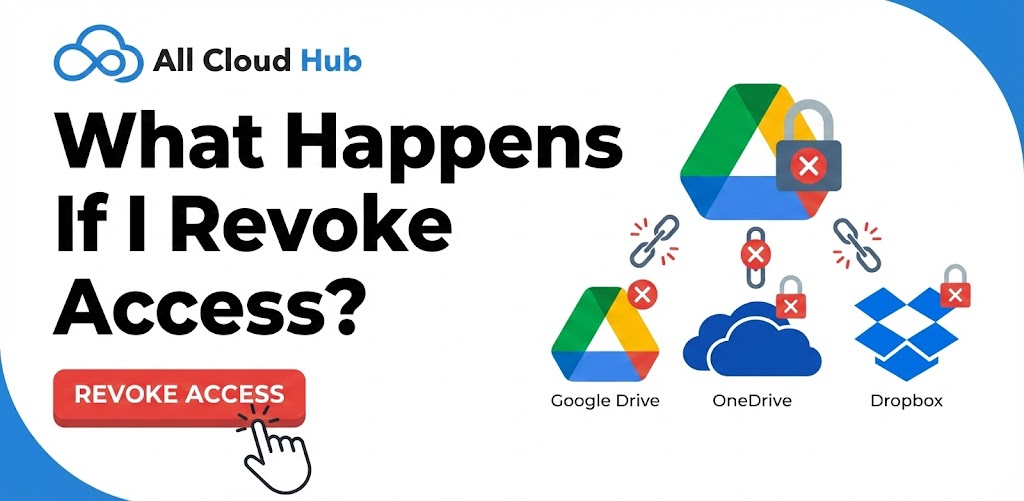
What Happens If I Revoke Access?

Revoking access immediately stops All Cloud Hub from accessing your cloud account.

If You Disconnect from All Cloud Hub

If you disconnect a cloud account from the Cloud Accounts section:

  • Files from that account disappear from FilesVerse
  • All Cloud Hub loses access immediately
  • No files are deleted or modified in the cloud provider

If You Revoke Access from the Cloud Provider

If you revoke access directly from Google Drive, OneDrive, or Dropbox settings:

  • All Cloud Hub can no longer access that account
  • Errors may appear when trying to view or use those files
  • The account may need to be reconnected

Reconnecting the account restores access.

In Summary

Revoking access only affects visibility and access inside All Cloud Hub. Your files remain safe in the cloud provider.

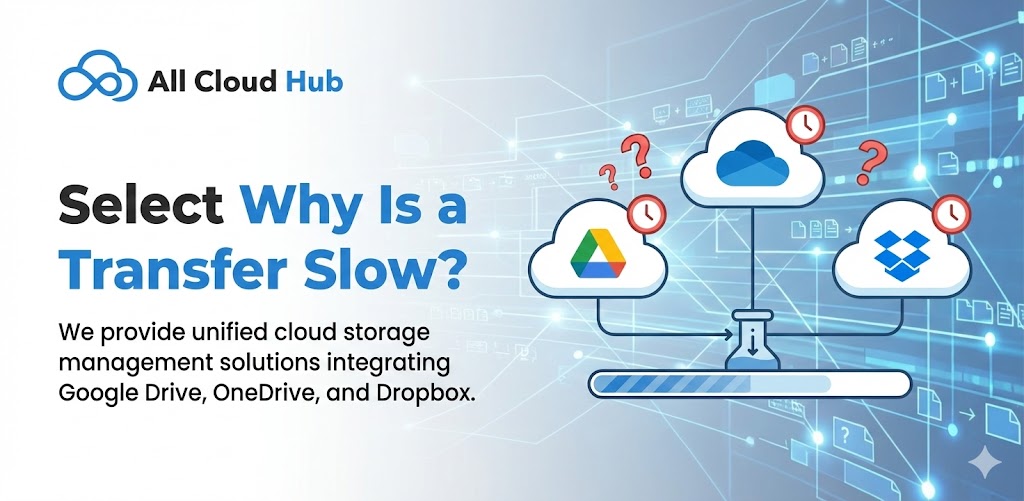
Why Is a Transfer Slow?

Transfer speed depends on several factors that are outside All Cloud Hub’s control.

Common Reasons for Slow Transfers

Transfers may take longer if:

  • Files are large
  • There are many small files
  • The cloud provider applies rate limits
  • Network conditions are unstable

All Cloud Hub does not throttle or limit transfer speed.

Browser Session Matters

Transfers run in real time through your browser session.

Closing the browser tab or losing connection can slow down or interrupt a transfer.

Tip

For large transfers, keep the browser tab open until the transfer completes.

In Summary

Slow transfers are usually caused by file size, provider limits, or network conditions rather than All Cloud Hub itself.

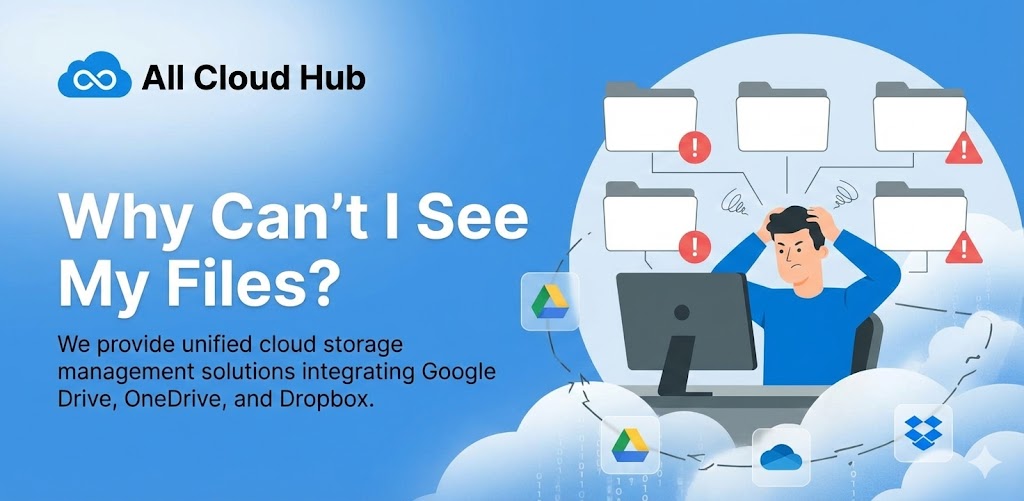
Why Can’t I See My Files?

If you cannot see your files in FilesVerse, there are a few common reasons to check.

Check Connected Accounts

First, make sure the cloud storage account that contains your files is connected.

Go to the Cloud Accounts section and confirm the account is listed. If the account is not connected, its files will not appear in FilesVerse.

Check the Account Filter

At the top of FilesVerse, there is an All Accounts filter.

If this filter is set to a specific account, files from other connected accounts will be hidden. Switch the filter back to All Accounts to view files from all connected clouds.

Check Folder Navigation

If you are inside a specific folder, you may not be viewing the top level of your files.

Use folder navigation to move back to higher levels and confirm where your files are located.

Recently Connected Accounts

If you just connected a cloud account, it may take a short moment for files and folders to appear.

Wait briefly and refresh the view if needed.

In Summary

Most missing file issues are caused by filters, navigation, or disconnected accounts. Files are not deleted or hidden automatically.

Deleting Your Account

This article explains what happens if you choose to stop using All Cloud Hub.

Account Deletion Availability

At present, there is no self-serve option to delete your All Cloud Hub account directly from the dashboard.

If you wish to delete your account, you may need to contact support.

Note

Disconnecting cloud accounts removes access but does not delete your All Cloud Hub account.

What Happens to Connected Cloud Accounts

If your account is deleted:

  • All connected cloud accounts are disconnected
  • All Cloud Hub immediately loses access to those accounts
  • No files are deleted or modified in your cloud storage providers

Your files remain exactly as they are in Google Drive, OneDrive, or Dropbox.

Logging Out vs Deleting

Logging out ends your session but keeps your account active.

Deleting your account permanently removes your All Cloud Hub account and access to the dashboard.

In Summary

Account deletion removes your All Cloud Hub access but never affects your cloud storage files.