How All Cloud Hub Works
- Posted on January 2, 2026
- 5 Min Read
- Last Updated on 11 February 2026

All Cloud Hub is designed to work with your existing cloud storage accounts, not replace them.
Instead of moving your files into a new system, All Cloud Hub connects to the cloud services you already use and brings them together into a single working view called FilesVerse.
This section explains what happens behind the scenes when you connect cloud accounts and start working with your files.
Step 1: Connecting Your Cloud Storage Accounts
To get started, you connect one or more cloud storage accounts to All Cloud Hub.
All Cloud Hub currently supports Google Drive, Dropbox, and OneDrive. Connecting an account is done securely using OAuth. This means you sign in directly with the cloud provider and grant permission without sharing your password.
Write access is required so that you can rename, organize, transfer, and sync files directly from the All Cloud Hub dashboard.
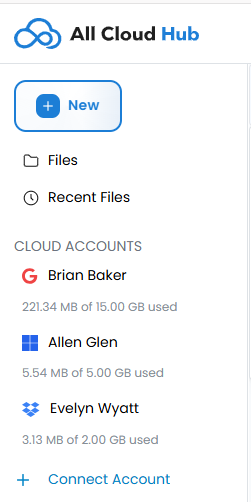
Once connected, the account appears under Cloud Accounts.
Note
Connecting a cloud account does not move or copy any files. It only allows All Cloud Hub to work with files that already exist in your cloud storage.
Step 2: Viewing All Files in FilesVerse
After connecting your cloud accounts, FilesVerse becomes your main workspace.
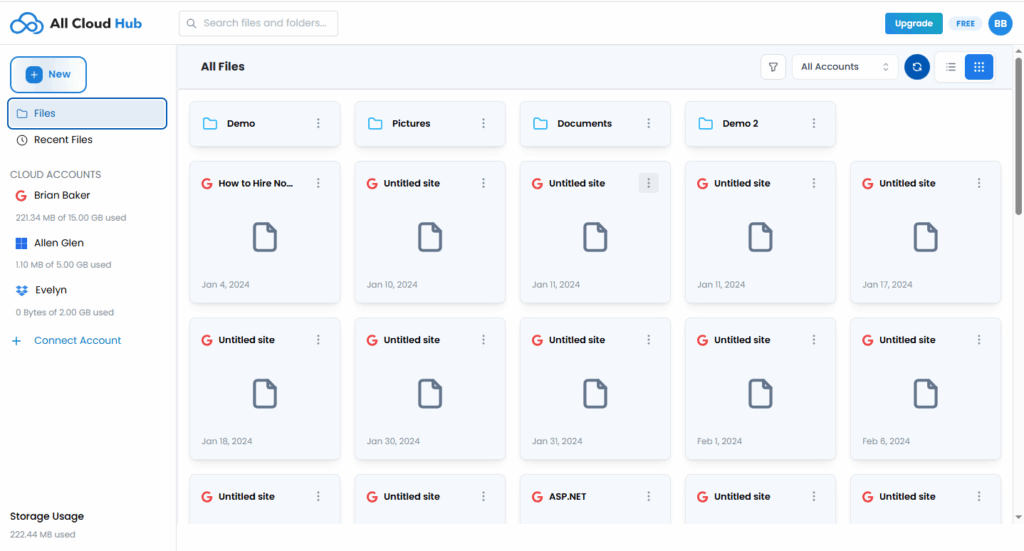
FilesVerse shows files and folders from all connected cloud storage accounts together in one unified dashboard. Files remain stored in their original cloud locations, while FilesVerse securely retrieves the required file metadata to let you work with them from a single view.
You do not need to switch between cloud apps to browse or organize your files. FilesVerse brings everything into one place while keeping ownership and storage unchanged.
Tip
Seeing files from multiple cloud accounts together does not merge them. Each file still belongs to its original cloud storage service.
Step 3: Searching Across Cloud Drives
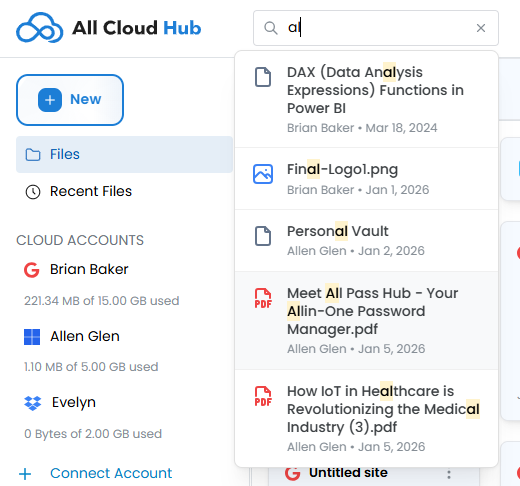
FilesVerse includes a unified search that works across all connected cloud accounts.
When you search for a file or folder, All Cloud Hub looks across every connected drive at once and shows the results in a single list. You no longer need to repeat the same search in different cloud services.
Search results can be acted on directly. You can rename, move, copy, or transfer files straight from FilesVerse.
Step 4: Organizing and Managing Files
All Cloud Hub allows you to manage files directly from the dashboard.
You can rename files and folders, move them within a cloud drive, or copy and move them between different cloud storage services. These actions use the permissions you granted when connecting your accounts.
All changes happen directly in your cloud storage accounts. All Cloud Hub does not create local copies or store your actual files on its own servers. Only the required file metadata is handled temporarily to perform these actions.
Warning
Moving a file removes it from the source cloud drive. Use Copy if you want to keep the original file in both locations.
Step 5: Transferring Files Between Cloud Services
When you transfer files using All Cloud Hub, the transfer happens directly between your browser and the connected cloud services.
Files are transferred securely without being permanently stored by All Cloud Hub. Required file metadata and transfer state are handled temporarily over a secure connection and removed once the task is completed.
You can choose whether to copy files or move them. Copying creates a new copy in the destination cloud while keeping the original file. Moving transfers the file fully to the destination cloud.
Transfers happen in real time. If multiple transfers are started, they are queued so nothing is lost.
Tip
Because transfers are direct and do not rely on All Cloud Hub servers, there are no artificial bandwidth limits imposed by All Cloud Hub.
Step 6: Keeping Folders in Sync
All Cloud Hub supports real-time, two-way folder syncing.
When sync is enabled between folders in different cloud storage accounts, changes made in one location are reflected in the other. This helps keep shared or mirrored folders aligned across clouds without manual effort.
Sync works alongside FilesVerse, so you can monitor and manage synced folders from the same dashboard where you manage all other files.
Step 7: Visibility and Logs
All Cloud Hub provides visibility into file actions and transfers. Logs are based on operational metadata and task status, not file contents.
You can view logs related to transfers and operations to understand what actions were performed and their status. This helps you track activity and troubleshoot issues when needed.
How All Cloud Hub Handles Your Data
All Cloud Hub only accesses the metadata required to provide its features, such as file names, paths, and sizes.
Your actual files remain in your cloud storage accounts at all times. All Cloud Hub does not store or process file contents. Temporary metadata and session data used during active tasks is cleared automatically once the task is completed or the account is disconnected.
All Cloud Hub is designed to minimize data handling to only what is required for functionality, visibility, and reliability.
In Summary
All Cloud Hub works by connecting your existing cloud storage accounts, bringing their files into a unified dashboard, and allowing you to work across them from one place.
FilesVerse becomes your central workspace, while your files stay exactly where they belong.
Next:
All Cloud Hub Terminology Explained: A quick guide to the terms you will see across the dashboard and documentation.