What is All Cloud Hub?
- Posted on November 14, 2025
- 4 Min Read
- Last Updated on 11 February 2026

All Cloud Hub is a cloud storage manager that lets you view, search, transfer and organize files across multiple cloud storage services from one unified dashboard.
If you use more than one cloud storage account for work, personal projects, or different clients, All Cloud Hub helps you manage everything from one place without switching between apps or downloading files to your device.
At the center of All Cloud Hub is FilesVerse, a unified workspace where files from all your connected cloud accounts come together.
Why All Cloud Hub Exists
Using multiple cloud storage services is rarely a planned decision. It usually grows over time.
You might start with a personal Google Drive. Then a client shares files over Dropbox. Later, a work account uses OneDrive. Before you realize it, your files are spread across different platforms.
This leads to constant switching between cloud apps, repeating searches for the same file, downloading files just to upload them elsewhere, and confusion around which version is the latest.
All Cloud Hub exists to remove that friction. It gives you a single place to work with all your cloud files, while keeping your files stored safely in their original cloud accounts, with only the minimum required file information handled temporarily to power the experience.
What You Can Do with All Cloud Hub
With All Cloud Hub, you can:
- View files and folders from all connected cloud accounts together
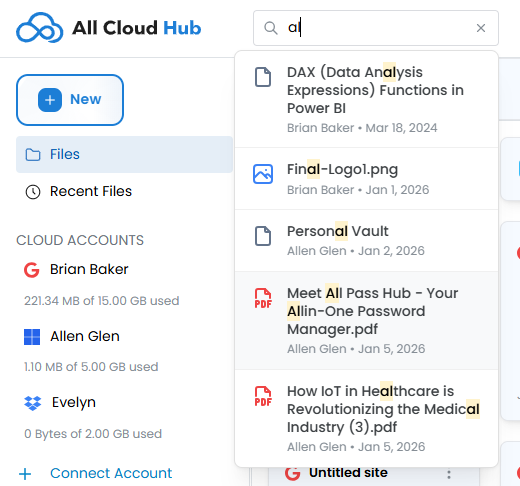
- Search across multiple cloud drives at once
- Rename and organize files directly from the dashboard
- Transfer files and folders between cloud services without downloading them
- Keep folders in sync across different cloud storage accounts
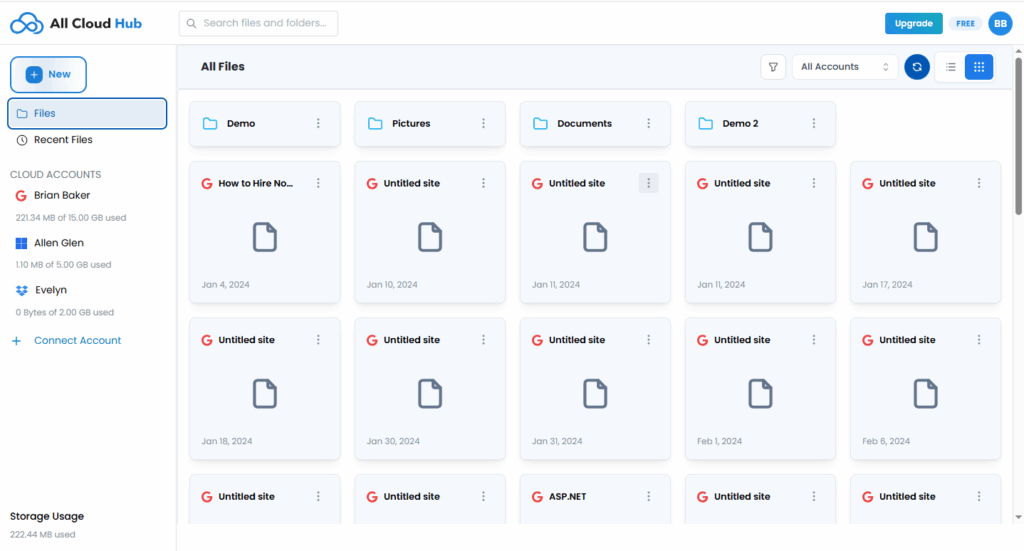
All of this happens inside FilesVerse, the All Cloud Hub unified dashboard.
What is FilesVerse?
FilesVerse is the main workspace in All Cloud Hub.
It is a unified dashboard where files and folders from all connected cloud storage accounts are displayed together. From this single view, you can browse, search, and manage files regardless of which cloud they belong to.
You no longer need to open Google Drive, Dropbox, or OneDrive separately to find or organize your files. FilesVerse brings everything into one working view.
FilesVerse shows a unified view by securely fetching and temporarily handling file metadata, not by copying or storing your files.
Who All Cloud Hub Is For
All Cloud Hub is currently designed for individuals and professionals who work across multiple cloud storage services.
This includes freelancers, small business owners, designers, photographers, and video creators who manage files for different projects, clients, or purposes.
Support for small teams, agencies, and enterprise workflows is planned for the future.
What All Cloud Hub Does Not Do
To set clear expectations, All Cloud Hub:
- Does not replace Google Drive, Dropbox, OneDrive, or any other cloud storage service
- Does not download files to your device unless you explicitly choose to
- Does not modify, move, or delete files without your action
- Does not store your files on its own servers – only temporary file metadata (such as file name, size, type, and status) is processed securely to display details and manage tasks, and is removed once the task is completed
Your files always remain in your cloud storage accounts, under your control.
How Your Files Stay Secure
All Cloud Hub connects to cloud storage services using secure authorization methods.
You choose which cloud accounts to connect and grant the permissions required to manage files. Files remain stored in their original cloud locations at all times. Transfers happen directly between your browser and the connected cloud services.
All Cloud Hub does not store or cache your actual files. To enable file visibility and transfer progress, All Cloud Hub temporarily processes essential file metadata over a secure connection, which is automatically deleted once the operation is completed.
You can disconnect a cloud account at any time from the Cloud Accounts section.
Getting Started
Once you sign in to All Cloud Hub, the first step is to connect at least one cloud storage account.
From there, FilesVerse becomes your central workspace where you can view all your files, search across drives, and start organizing or transferring files immediately.
Tip
If you connect more than one cloud account early on, FilesVerse becomes more useful right away. You can see how files from different clouds appear together and work across them without switching tabs.
Next:
How All Cloud Hub Works: A simple explanation of what happens when you connect cloud accounts and start using FilesVerse.