January 2026 - Page 2 of 3 - All Cloud Hub

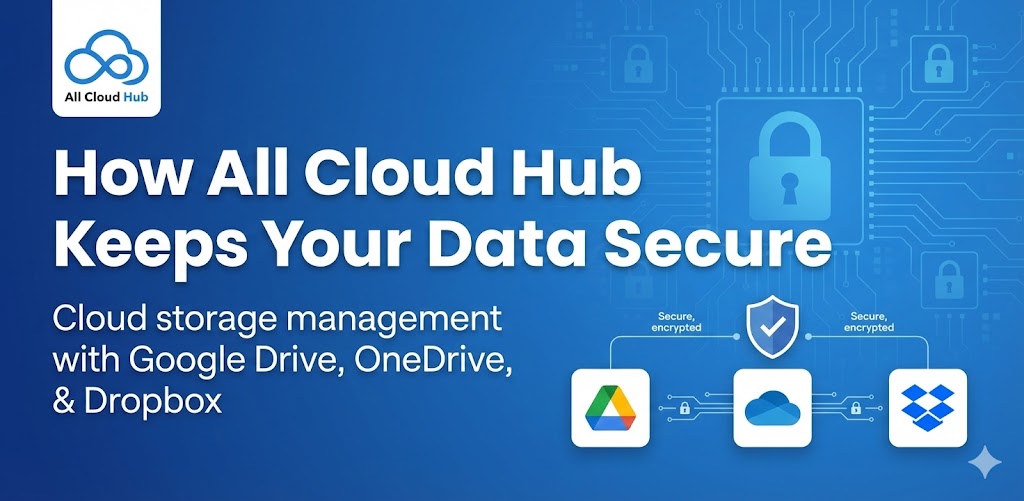
How All Cloud Hub Keeps Your Data Secure

All Cloud Hub is designed to help you work with your cloud files without taking control away from you.

Security is built around one simple principle: your files stay in your cloud storage accounts, and you stay in control of what happens to them.

Files Stay in Your Cloud Storage

All Cloud Hub does not move your files into its own system.

Your files remain stored in Google Drive, OneDrive, or Dropbox at all times. All Cloud Hub acts as a management layer that lets you view and work with files you already own, by securely handling only the minimum file information required for functionality.

Note

All Cloud Hub never becomes the owner of your files.

Secure Connections to Cloud Providers

All Cloud Hub connects to cloud storage services using secure authorization methods provided by the cloud platforms themselves.

This means:

  • You sign in directly with the cloud provider
  • Your password is never shared with All Cloud Hub
  • Access is granted only after you explicitly approve it

Direct Transfers and Actions

When you perform actions like transferring or syncing files, those actions happen through secure, browser-mediated connections with the cloud storage providers.

All Cloud Hub does not permanently store your files. Only the required file metadata and task state are handled temporarily to track progress and ensure reliability, and are removed once the action is completed.

User-Controlled Actions Only

All Cloud Hub performs file actions only when you initiate them.

There are:

  • No background file scans
  • No automated changes
  • No hidden activity on your files

Everything that happens is the result of a user action inside the dashboard. Temporary metadata used to carry out these actions exists only for the duration of the task and is not retained afterward.

All Cloud Hub is designed to minimize data handling at every step while still providing visibility, control, and reliability.

In Summary

All Cloud Hub keeps your data secure by leaving files where they belong, using secure authorization, and performing actions only when you request them.

Next: OAuth Explained Simply.
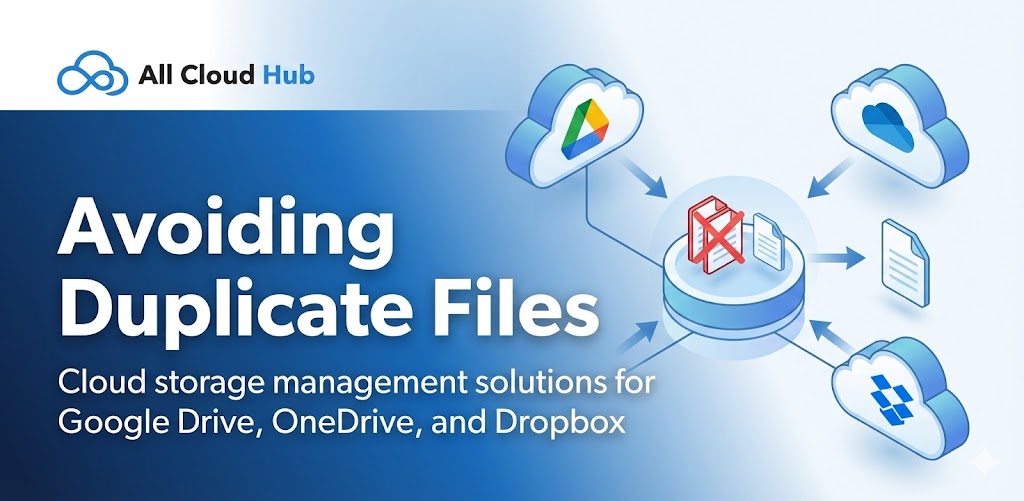
Avoiding Duplicate Files

Duplicate files are a common issue when working across multiple cloud storage accounts.

All Cloud Hub gives you tools to reduce duplication if used thoughtfully.

Choose Copy or Move Carefully

When transferring files:

  • Use Copy if you need the file in both locations
  • Use Move if the file should exist in only one cloud

Being intentional about this choice prevents unnecessary duplicates.

Warning

Copying files creates separate versions. Changes made to one copy do not affect the other unless the folder is synced.

Use Sync Instead of Repeated Copies

If files need to stay updated in more than one cloud, use folder sync instead of copying files repeatedly.

Sync ensures changes stay aligned and avoids manual duplication.

Watch for Similar File Names

When files from different clouds have the same name, it can be hard to tell them apart.

Use clear naming conventions or folder separation to reduce confusion.

In Summary

Avoiding duplicate files comes down to choosing the right action. Use copy intentionally, move when relocation is needed, and rely on sync when files must stay aligned.

Best Practices for Folder Structure

A clear folder structure makes syncing and organization more predictable.

These best practices help you avoid confusion when working across multiple cloud storage accounts.

Keep Synced Folders Purpose-Specific

Use sync for folders that serve a single purpose.

Examples:

  • Shared project folders
  • Active work folders
  • Team deliverables

Avoid syncing folders that contain unrelated or temporary files.

Use Clear Folder Names

Clear and descriptive folder names help you recognize synced content easily.

For example:

  • Client Name Shared
  • Project Assets
  • Final Deliverables

This reduces the risk of editing the wrong files.

Avoid Deeply Nested Structures

Very deep folder nesting can make syncing harder to track.

Keeping folder structures simple improves clarity and reduces mistakes when files are updated across clouds.

Tip

If you are unsure whether a folder should be synced, start with a smaller subfolder first.

In Summary

Well-structured folders make syncing safer and easier to manage across cloud storage accounts.

Next: Avoiding Duplicate Files.

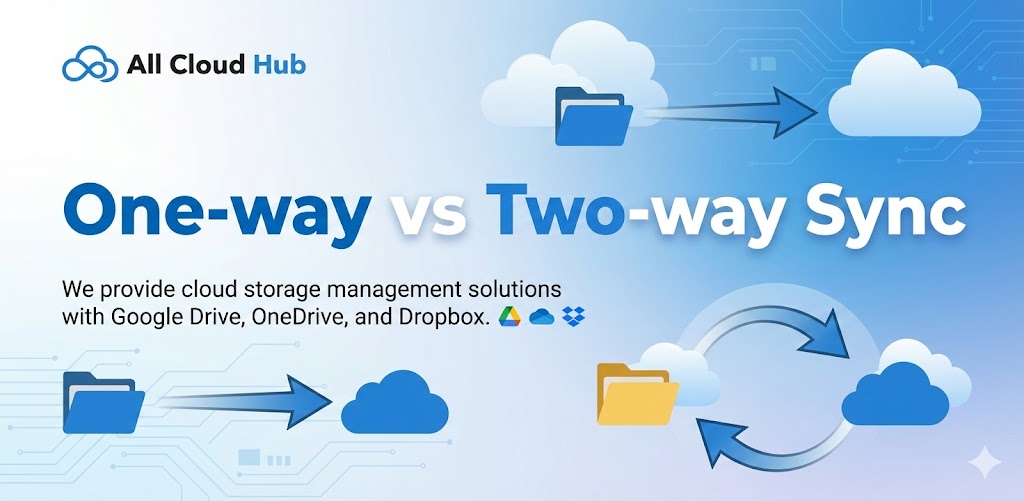
One-way vs Two-way Sync

Understanding the sync direction helps avoid unexpected changes.

All Cloud Hub currently supports two-way sync.

Two-Way Sync Explained

In two-way sync, changes made in either connected folder are reflected in the other.

For example:

  • A file added in Cloud A appears in Cloud B
  • A file updated in Cloud B updates in Cloud A
  • Renaming a file in either folder applies to both

This allows you to work from either cloud storage account without worrying about which one is the source.

Tip

Two-way sync works best when both folders are meant to stay identical.

One-Way Sync

One-way sync is not currently supported.

If one-way behavior is needed, it can be achieved manually using transfers instead of sync.

In Summary

All Cloud Hub uses two-way sync so folders remain aligned regardless of where changes are made.

Next: Best Practices for Folder Structure.

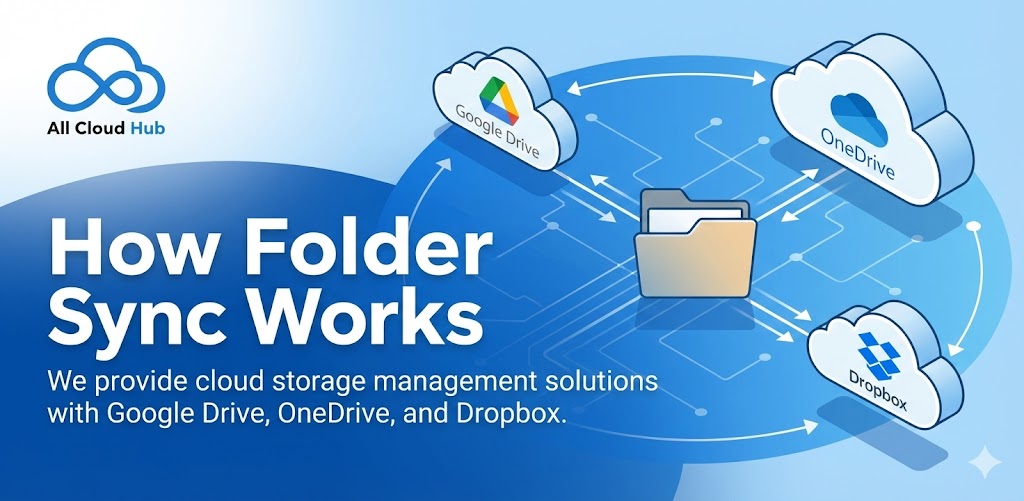
How Folder Sync Works

Folder sync in All Cloud Hub helps you keep folders aligned across multiple cloud storage accounts.

When sync is enabled, changes made in one folder are reflected in the connected folder on another cloud storage account. This allows you to work from either location while keeping both folders consistent.

What Sync Connects

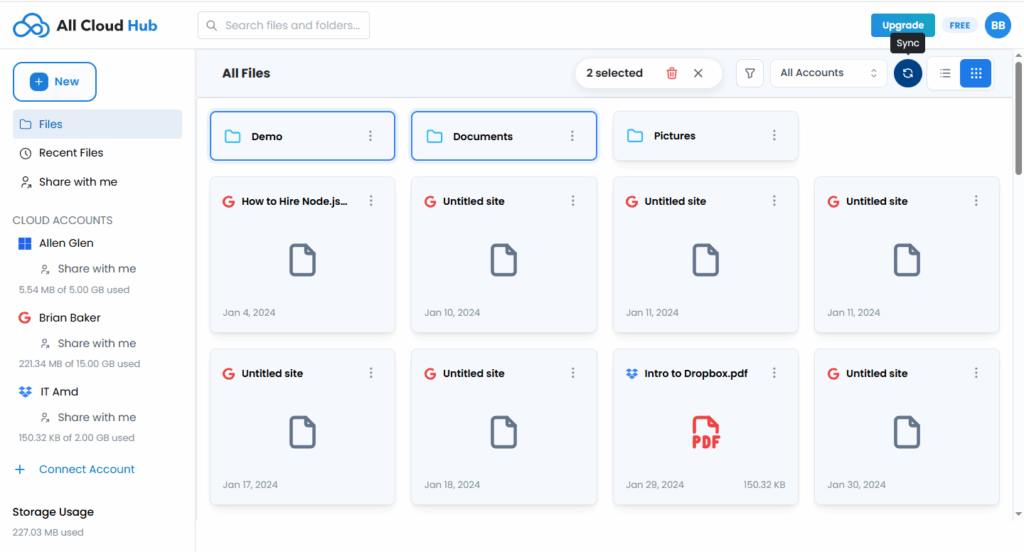
Sync works at the folder level.

You select a folder from one cloud storage account and link it with a folder from another cloud storage account. Once linked, these folders are kept in sync based on the sync rules.

Files outside synced folders are not affected.

Sync setup showing two folders selected from different cloud accounts

How Changes Are Synced

When a change happens in a synced folder, All Cloud Hub detects the update and applies the same change to the connected folder.

This includes:

  • Adding new files
  • Renaming files or folders
  • Updating existing files

Sync helps ensure that both folders reflect the same structure and content.

Note

Sync only applies to the folders you explicitly connect. All other files and folders remain unchanged.

Where Sync Is Managed

Synced folders are managed from the Sync section in the dashboard.

From there, you can:

  • View active sync connections
  • Check sync status
  • Stop or remove sync when needed

In Summary

Folder sync in All Cloud Hub keeps selected folders aligned across cloud storage accounts so you do not need to manually update files in multiple places.

Next: One-Way vs Two-Way Sync.

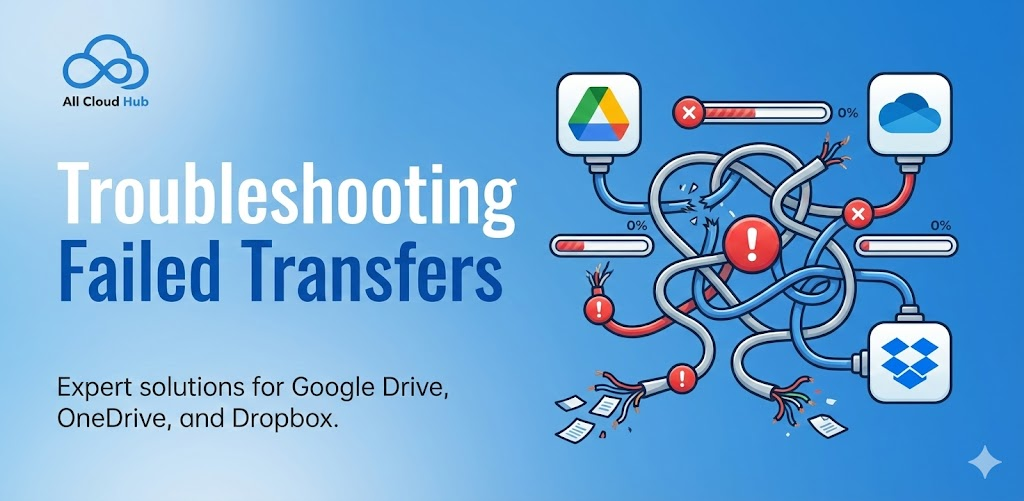
Troubleshooting Failed Transfers

Most transfers complete without issues, but failures can occur due to external conditions.

This section explains common causes and what to do.

Common Reasons Transfers Fail

Transfers may fail if:

  • Network connection is interrupted
  • Cloud provider rate limits are reached
  • Browser session is closed mid-transfer
  • Access permissions are revoked

How Failures Are Shown

If a transfer fails:

  • An error is shown
  • The transfer status is updated in the Transfers or Logs section

Some files in a bulk transfer may succeed while others fail.

Retrying a Transfer

If a transfer fails, you can retry it after resolving the issue.

For example:

  • Reconnect the cloud account if access was revoked
  • Restart the transfer if the browser was closed

Warning

If you moved files and a transfer fails mid-way, some files may already exist in the destination cloud. Review both locations before retrying.

In Summary

Transfer failures are usually caused by network or provider limitations.

All Cloud Hub shows clear status information so you can understand what happened and take corrective action safely.

Transfer Limits & Expected Times

Bandwidth limits in All Cloud Hub

All Cloud Hub is designed to keep cloud-to-cloud transfers simple, predictable, and fast. We do not artificially slow down transfers, but each plan includes a monthly bandwidth allowance to ensure fair usage and stable performance for all users.

Bandwidth limits by plan

All Cloud Hub includes a monthly transfer bandwidth limit depending on your plan. The Free plan allows up to 5GB of transfer bandwidth per month, while the Power User plan includes 100GB of transfer bandwidth per month. Bandwidth is counted when files are transferred between connected cloud storage accounts using All Cloud Hub.

These limits help keep the service reliable without reducing transfer speed.

No speed throttling

All Cloud Hub does not throttle transfer speed. Transfers do not pass through All Cloud Hub servers, which means the speed of a transfer depends mostly on the cloud storage providers involved and your network connection.

In many cases, the transfer rate is limited by the provider’s API limits rather than by All Cloud Hub itself.

What affects transfer time

The time required for a transfer can vary depending on several factors. Larger files naturally take longer to move, and transfers that contain many small files may also take more time to complete. In addition, cloud provider rate limits and current network conditions can affect how quickly a transfer finishes.

Because of these external factors, transfer duration may differ even for files of similar size.

Plan limits

Each plan controls two things: how much bandwidth you can use per month, and how many cloud accounts you can connect.

The Free plan supports up to three connected cloud accounts, while the Power User plan allows unlimited connected accounts. The main difference between the plans is the available bandwidth, with higher limits provided for users who transfer files more frequently or work with larger storage setups.

Tip

For large transfers, it is recommended to keep the browser tab open until the transfer starts successfully, especially when moving large folders or many files at once.

Summary

All Cloud Hub does not slow down transfers, but each plan includes a monthly bandwidth allowance. Transfer speed and completion time depend mainly on the cloud storage providers, file size, number of files, and network conditions rather than on All Cloud Hub itself.

Next: Troubleshooting Failed Transfers.

What Happens During a Transfer

Understanding what happens during a transfer helps set clear expectations and builds confidence.

How Transfers Work

Transfers happen directly between your browser and the connected cloud storage services.

All Cloud Hub does not permanently store your files. Only the required file metadata and transfer state are handled temporarily over a secure connection to track progress and status.

Transfer Flow

  1. You initiate a transfer in FilesVerse
  2. The source cloud transfers files to the destination cloud through a secure, browser-mediated connection
  3. Progress is tracked and visible in the Transfers section

Transfers happen in real time.

Source Cloud → Destination Cloud

Multiple Transfers

If multiple transfers are started, they are queued.

Transfer order and progress are maintained using temporary task metadata, which is cleared once the transfer completes.

If You Open Another Tab

Opening another tab or starting another transfer does not cancel existing transfers. New transfers are added to the queue.

In Summary

Transfers in All Cloud Hub are direct, real-time, and transparent, with clear visibility into progress and status, without storing your files.

Next: Transfer Limits and Expected Times.

Supported Transfer Types (File, Folder, Bulk)

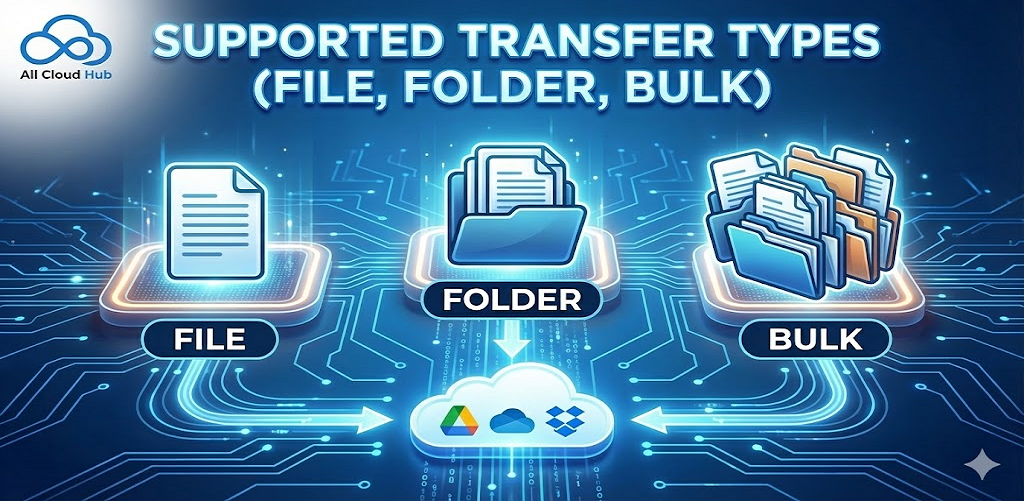
All Cloud Hub supports multiple transfer types so you can move files in the way that best fits your workflow.

Individual File Transfers

You can transfer individual files between cloud storage accounts.

This is useful for documents, images, or single items that need to be shared or relocated.

Folder Transfers

You can transfer entire folders, including their contents and structure.

Subfolders and files inside the selected folder are transferred together.

Bulk Transfers

You can select multiple files and folders at the same time and transfer them in one action.

This is helpful when moving groups of files or reorganizing content across clouds.

Note

Bulk transfers follow the same copy or move rules as single file transfers.

In Summary

All Cloud Hub supports file, folder, and bulk transfers, giving you flexibility to move content across cloud storage accounts efficiently.

Next: What Happens During a Transfer.

How to Transfer Files Between Cloud Storage

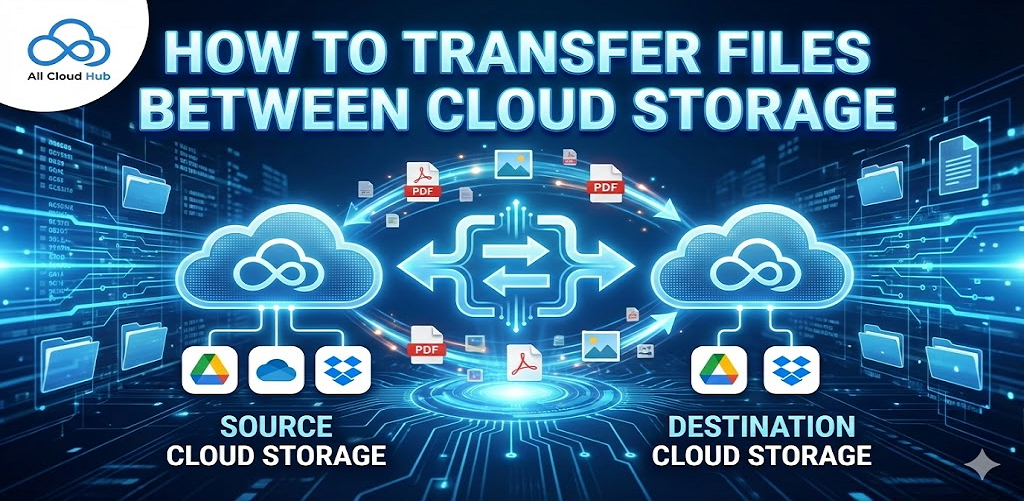
All Cloud Hub allows you to transfer files and folders directly between connected cloud storage accounts.

Transfers happen from one cloud to another without downloading files to your device and without routing files through All Cloud Hub servers.

Starting a Transfer

Transfers are initiated from FilesVerse.

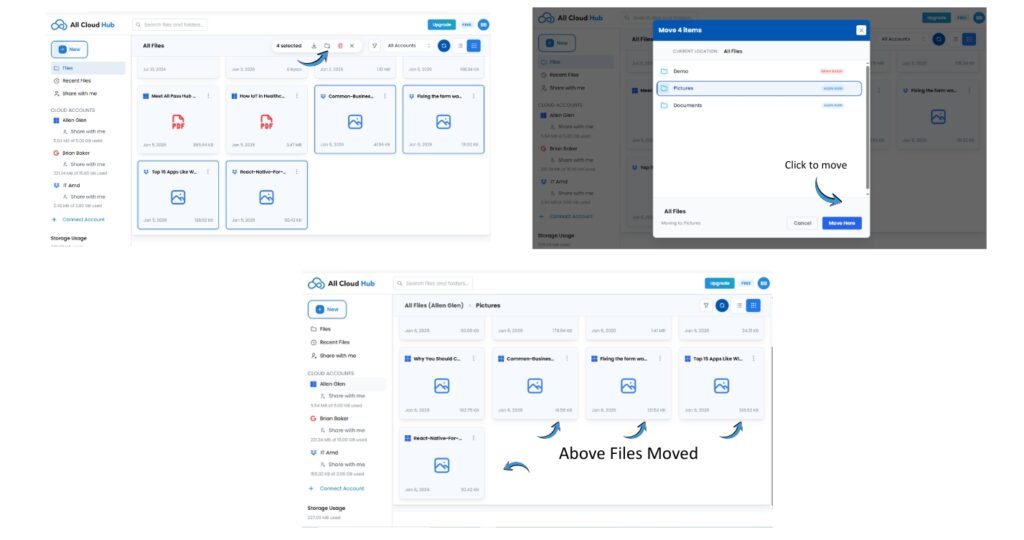
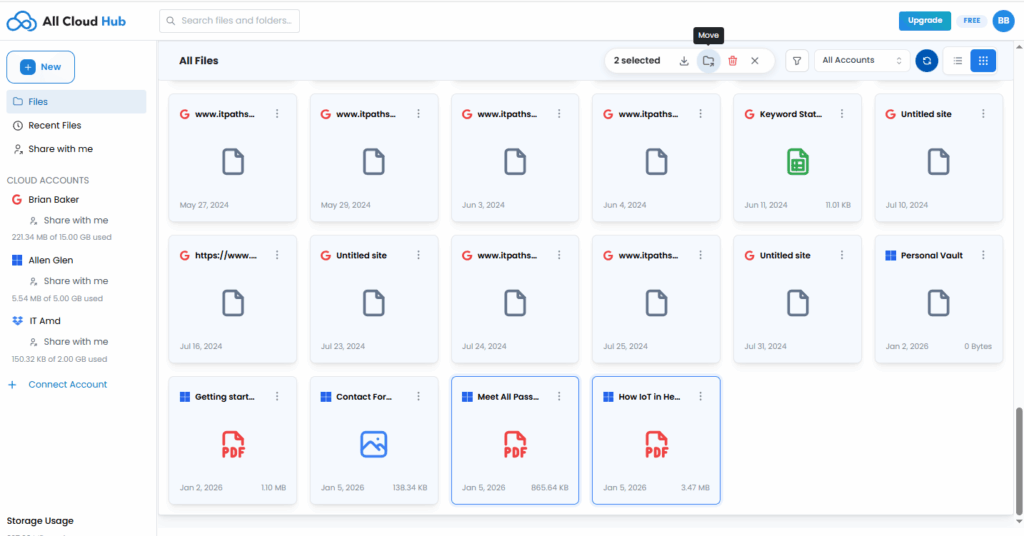
You can start a transfer by selecting one or more files or folders and choosing the transfer action. During the process, you select a destination cloud account where the files should go.

You are also asked to choose whether you want to copy or move the selected items.

File selection with transfer option visible

Choosing Copy or Move

  • Copy creates a new copy of the file in the destination cloud
  • Move transfers the file completely to the destination cloud

Your choice determines what happens to the original file.

Note

Copy keeps the original file intact. Move removes it from the source cloud after the transfer completes.

Completing the Transfer

Once confirmed, the transfer starts immediately.

You can continue using FilesVerse while the transfer is in progress. Transfer activity can be monitored from the Transfers section.

In Summary

Cloud-to-cloud transfers in All Cloud Hub let you move or copy files directly between cloud storage accounts without local downloads or manual re-uploads.

Next: Supported Transfer Types.

Understanding File Ownership & Source Cloud Drive

When files from multiple cloud storage accounts appear together in FilesVerse, it is important to understand where each file comes from and who owns it.

All Cloud Hub is designed to make this clear while keeping your files fully under your control.

Files Always Belong to Their Original Cloud

All Cloud Hub does not become the owner of your files.

Every file shown in FilesVerse continues to belong to the cloud storage account where it was originally stored. If a file lives in Google Drive, it remains a Google Drive file. If it lives in OneDrive or Dropbox, it remains part of that service.

All Cloud Hub acts as a management layer that lets you view and work with files across clouds without changing ownership.

Note

Seeing files together in FilesVerse does not merge cloud accounts or storage. Each cloud storage account remains separate.

How Source Cloud Is Shown

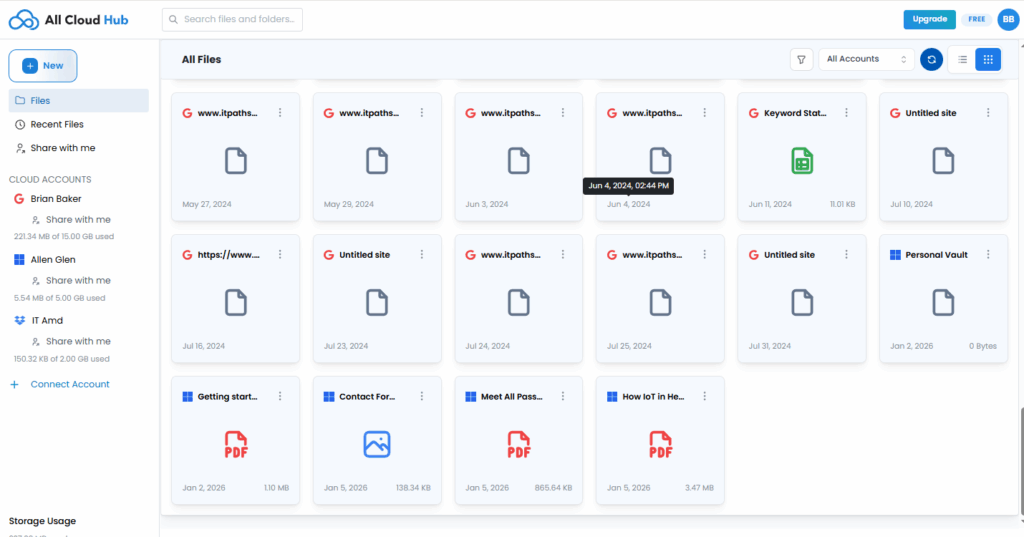
FilesVerse displays visual indicators that help you identify the source cloud for each file.

From the dashboard, files include cloud-specific icons or labels that show which cloud storage service they belong to. This makes it easy to recognize the source of a file even when files from different accounts appear side by side.

This source information remains visible whether you are browsing files or viewing search results.

File list showing source cloud indicators on files

What Happens When You Copy Files

When you copy a file from one cloud storage account to another using All Cloud Hub, a new copy of the file is created in the destination cloud.

The original file remains unchanged in the source cloud. Each copy is owned and managed by the cloud storage service where it resides.

This is useful when you want the same file available in more than one cloud account.

Tip

Use Copy when you want to keep the original file in its current location and also have it available elsewhere.

What Happens When You Move Files

When you move a file from one cloud storage account to another, the file is transferred fully to the destination cloud.

After the move is complete, the file no longer exists in the source cloud account. Ownership effectively shifts to the destination cloud storage service.

This action is intentional and happens only when you choose to move a file.

Warning

Moving a file removes it from the source cloud. Use this option only when you no longer need the file to remain in its original location.

Working with Files Across Accounts

Even though files appear together in FilesVerse, actions are always applied to the correct source cloud.

When you rename, organize, copy, or move a file, the action is carried out in the cloud storage account where the file lives. All Cloud Hub does not duplicate or cache files unless you explicitly perform a copy.

This ensures that file ownership and cloud boundaries remain clear and predictable.

Why This Matters

Understanding file ownership helps you avoid accidental data loss and makes it easier to manage files across multiple cloud services with confidence.

By clearly showing the source cloud and respecting ownership at all times, All Cloud Hub lets you work across clouds without uncertainty.

In Summary

Files in All Cloud Hub always belong to their original cloud storage accounts.

FilesVerse shows files together for convenience while clearly indicating their source. Copying creates a new file in another cloud, while moving transfers ownership to the destination cloud. All actions happen only when you choose them.

Searching Files Across All Connected Drives

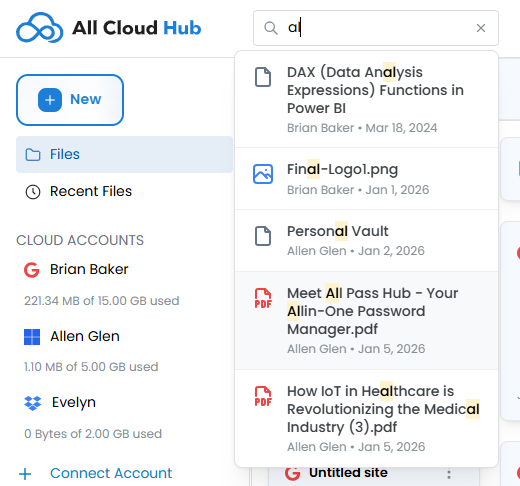
All Cloud Hub includes a built-in search that helps you find files and folders across your connected cloud storage accounts from one place.

Search is available directly inside FilesVerse, so you can look for files without opening individual cloud apps.

Where to Find Search

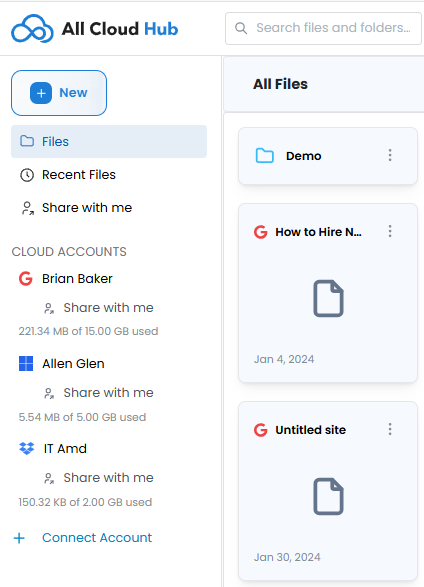
The search bar is located at the top of the dashboard and is labeled “Search files and folders”.

It remains visible while you are in the Files view, making it easy to start a search at any time.

Top bar highlighting the search field

What Search Looks Through

When you use the search bar, All Cloud Hub searches across the files and folders that are visible in FilesVerse.

If the All Accounts filter is selected, search includes files from all connected cloud storage accounts. This allows you to search once and see results from multiple cloud providers together.

Note

Search respects the current account filter. If you narrow the view to a specific cloud account, search results reflect that selection.

Search Results in FilesVerse

Search results appear directly in the main file area, replacing the standard file list.

Results follow the same visual structure as the Files view:

  • Files and folders appear together
  • Each item includes a visual indicator of its source cloud
  • You can recognize where a file comes from at a glance

This keeps search results consistent with how you normally browse files.

Search results shown in the main file area

Working with Search Results

Files and folders shown in search results can be interacted with directly.

From the search results view, you can select files and take actions such as organizing or transferring them, just as you would from the regular Files view.

You do not need to exit search to work with the files you find.

Clearing or Changing a Search

To change your search, you can update the text in the search bar.

To return to browsing all files, clear the search input. FilesVerse then returns to showing the full file list based on the current account filter.

Why Unified Search Matters

When files are spread across multiple cloud storage accounts, finding the right file often means repeating the same search in different apps.

FilesVerse search removes that repetition by letting you search once and see results from all connected accounts in one place. This saves time and reduces context switching, especially when you are not sure which cloud a file lives in.

In Summary

Search in All Cloud Hub lets you find files and folders across connected cloud storage accounts from a single search bar.

Results appear directly inside FilesVerse, remain clearly labeled by source cloud, and can be acted on immediately. This makes search a natural extension of how you browse and manage files across clouds.

Next:

Understanding File Ownership and Source Cloud: How All Cloud Hub shows where files come from and what happens when files are copied or moved across clouds.