
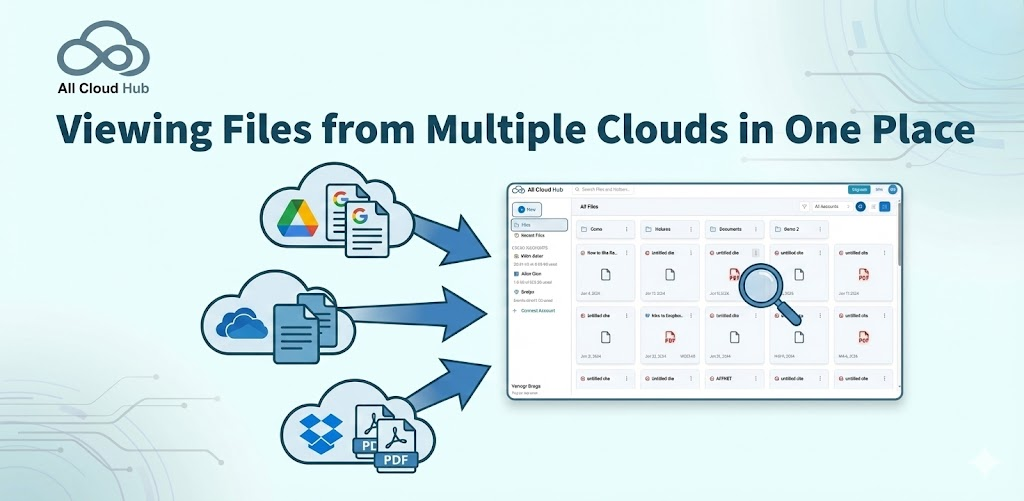
All Cloud Hub allows you to view files and folders from multiple connected cloud storage accounts together inside FilesVerse.
This unified view helps you work across cloud services without switching between individual cloud apps.
The All Files View
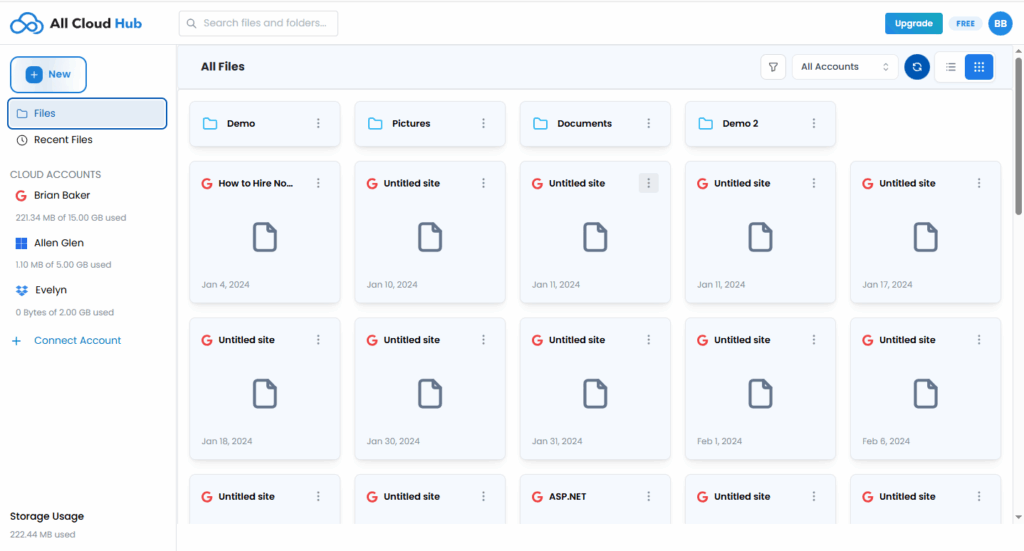
When you open FilesVerse, the default view is All Files.
In this view, files and folders from all connected cloud storage accounts appear together in a single workspace. Items are shown in a grid-style layout, making it easy to browse folders and files visually.
Files are not merged or moved. They are only displayed together for easier access.
Note
Seeing files together in FilesVerse does not change where they are stored. Each file continues to live in its original cloud storage account.
Identifying Files from Different Cloud Accounts
FilesVerse shows visual indicators that help you understand where files come from.
From the screenshot, files and folders display cloud-specific icons, such as a Google Drive indicator on files that belong to a Google account. This helps you recognize the source cloud at a glance while browsing mixed content.
This ensures clarity even when files from different cloud accounts appear next to each other.
Using the Account Filter
At the top of the FilesVerse view, there is an All Accounts filter.
This filter allows you to control which cloud accounts are included in the current view. When All Accounts is selected, FilesVerse shows files from every connected cloud storage account. You can use this filter to narrow the view to a specific account when needed.
Folders and Files in FilesVerse
Folders and files are displayed together in FilesVerse.
Folders appear as clickable items that let you navigate deeper into their structure. Files appear with type-specific icons, such as document or PDF icons, along with basic information like file name and date.
You can interact with both files and folders directly from this view.
Switching Between Files and Recent Files
The left navigation includes options such as Files and Recent Files.
- Files shows the full file and folder structure from connected cloud accounts
- Recent Files highlights files that were accessed or updated recently
This helps you move quickly between browsing everything and focusing on recently used items.
Storage Information
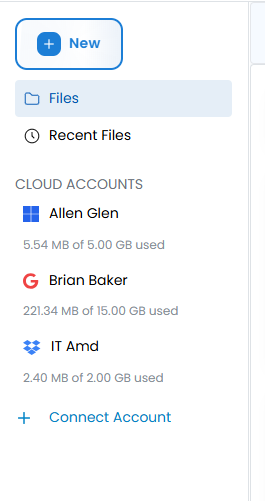
The left panel also shows storage usage information for connected cloud accounts.
This gives visibility into how much storage is used within each connected account, without needing to open the individual cloud service.
What This View Does Not Do
The unified view in FilesVerse does not:
- Move files between cloud accounts automatically
- Combine storage across cloud providers
- Change file ownership or permissions
It is a viewing and management layer that sits on top of your existing cloud storage accounts.
In Summary
FilesVerse lets you see files and folders from multiple cloud storage accounts together in one place.
You can browse, identify, and work with files across clouds while always knowing where each file belongs. This makes it easier to manage files spread across different services without switching tools.
Next:
Searching Files Across All Connected Drives: How to find files quickly using FilesVerse Search.