cloud storage Archives - All Cloud Hub

Best Cloud Storage Providers for Backup (Not File Sharing)

Many people assume that storing files in the cloud automatically means their data is safely backed up. Cloud storage platforms like Google Drive, Dropbox, and OneDrive make it easy to sync files, share folders, and access documents from anywhere, which creates the impression that everything is already protected.

But reality is slightly different, as file sharing and cloud backup serve very different purposes.

Sync-based platforms are designed for collaboration and quick access, while backup storage focuses on long-term protection and recovery when something goes wrong.

This distinction becomes especially important when data is accidentally deleted, corrupted, or lost due to device failure. Without a proper backup system in place, restoring important files may not always be possible.

This guide will help you differentiate backup storage from file-sharing tools, understand what features actually matter when choosing a backup provider, and which cloud storage services are best suited for reliable long-term data protection.

Why Backup Storage Is Different from File Sharing

At a glance, cloud storage platforms may seem similar. They store files online, allow access from multiple devices, and often support syncing. 

However, the goals behind file-sharing tools and backup services are fundamentally different.

File-sharing platforms prioritize speed and collaboration. When changes are made to a file, those updates are synchronized immediately across devices and users. While this makes teamwork efficient, it also means that deletions or mistakes can spread just as quickly.

Backup storage works differently. 

Instead of constantly syncing changes, backup systems focus on preserving data over time. They maintain historical versions of files and store them securely so that information can be restored even after accidental deletion, device failure, or security incidents.

This distinction is important because many people mistakenly assume that syncing files automatically provides the same protection as a backup. 

In reality, a true backup solution is designed specifically for recovery.

What Defines the Best Cloud Storage for Backup?

When evaluating cloud storage for backup, visual design or ease of use should not be the main deciding factors. Backup systems are primarily about reliability and long-term protection.

Several characteristics determine whether a storage service is suitable for backup.

  1. Long-Term Retention

Backup storage must preserve data for extended periods. Files should remain available even if they are not accessed frequently. 

Clear retention policies are particularly important for records that may be needed years later, including financial documents, personal archives, or compliance-related data.

  1. Durability and Redundancy

Reliable backup providers protect data by storing it across multiple locations. Replication ensures that hardware failures, service disruptions, or regional incidents do not destroy the only copy of your information.

  1. Version History

Version history allows users to recover previous versions of files when something goes wrong. This feature is essential when dealing with accidental overwrites, data corruption, or ransomware attacks that modify large numbers of files.

  1. Predictable Restore Costs

Retrieving backed-up data should never come as a financial surprise. Some long-term storage platforms offer low storage prices but charge significant fees when data is restored. Transparent pricing helps ensure that recovery remains practical when it is actually needed.

Platforms like All Cloud Hub increasingly focus on helping users understand how different storage services fit into their overall data strategy. By separating backup workflows from everyday file-sharing tools, users reduce the chances of permanent data loss.

Common Mistakes to Look Out For When Choosing Backup Cloud Storage

Selecting the right backup storage requires thinking beyond convenience. 

Backup systems are meant for recovery, and overlooking certain factors can weaken your entire data protection strategy. 

The following mistakes are frequently seen when evaluating cloud backup solutions:

  • Using sync tools as backups

Sync-based platforms immediately mirror every change across devices. This means accidental deletions, corrupted files, or ransomware-modified data can spread instantly, leaving no untouched copy to recover from.

  • Ignoring restore speed

Some archival storage services prioritize low storage costs over quick access. Retrieving data from these systems may take several hours or even days, which can become a serious limitation during urgent recovery situations.

  • Overlooking version history limits

Version history allows users to restore previous copies of files. When version limits are too small, the ability to recover from ransomware attacks or accidental overwrites becomes significantly weaker.

  • Not planning for future data growth

Backup requirements expand steadily as devices generate more files over time. A storage solution should scale easily so increasing storage needs do not require disruptive migrations or complicated infrastructure changes.

Understanding these common pitfalls helps ensure that backup storage is chosen for reliability and recovery, rather than short-term convenience.

Best Cloud Storage Providers for Backup

Different providers are suited for different backup scenarios. The following services are widely recognized for focusing on data protection rather than everyday file sharing.

  1. Backblaze

Backblaze is known for its simplicity and automation. The platform focuses on continuously backing up files in the background, which makes it appealing for individuals or small teams that want reliable protection without complicated setup.

Because the service is designed primarily for backup, it does not emphasize collaboration features. For users managing several storage platforms at once, tools such as All Cloud Hub can help provide visibility into how backup services like Backblaze fit within a broader cloud storage environment.

  1. IDrive

IDrive is a strong option for users who need to back up multiple devices under a single account. This capability makes it particularly useful for freelancers, families, or small organizations with several computers and mobile devices.

The service offers solid versioning features and flexible backup configurations. However, the interface can sometimes feel crowded, especially for users managing large datasets. In these situations, centralized platforms like All Cloud Hub can help users maintain a clearer overview of active storage and backup services.

  1. Amazon S3 Glacier

Amazon S3 Glacier is designed for long-term archival storage. It prioritizes durability and low storage costs over immediate access, making it ideal for data that must be retained for years but rarely retrieved.

Because Glacier is built for archival use, retrieval times are slower and setup can be more complex than consumer-focused services. Many organizations combine archival storage like Glacier with visibility tools such as All Cloud Hub to keep track of active cloud data and long-term backup archives separately.

Final Thoughts

The best cloud storage for backup is not necessarily the most popular cloud platform. It is the service designed specifically for durability, recovery, and long-term protection.

Understanding the difference between sync-based file sharing tools and dedicated backup solutions helps users avoid serious data risks. 

When data protection is treated as a separate priority rather than an afterthought, recovery becomes possible even after unexpected failures or security incidents.

As cloud storage environments continue to expand, maintaining clarity about where files live and how they are protected becomes increasingly important. With the right backup strategy and better visibility across storage systems users can ensure their data remains secure, accessible, and recoverable for the long term.
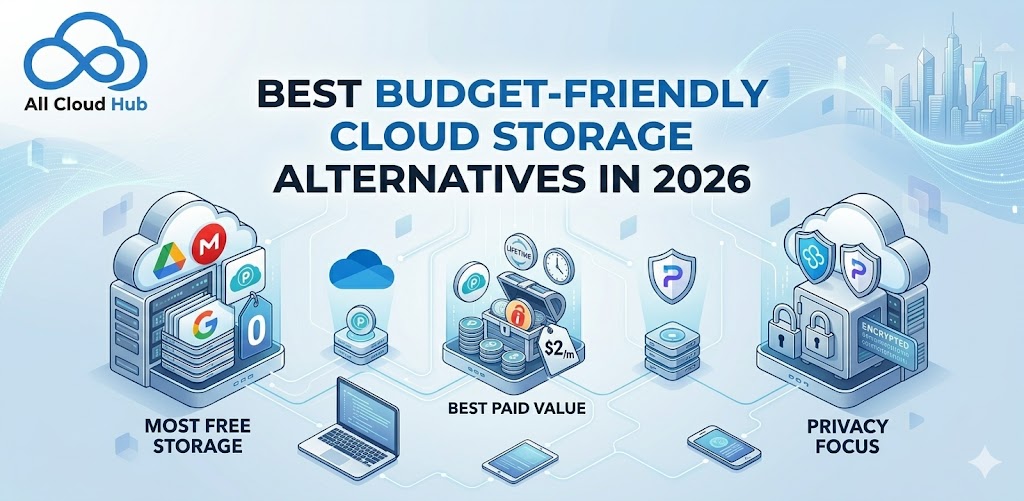
Best Budget-Friendly Cloud Storage Alternatives in 2026

Cloud storage makes it easy to back up files, share documents, and access data from anywhere. Services like Google Drive, iCloud, and OneDrive dominate the market, but their free tiers fill up quickly, often pushing users toward paid plans that cost more than they actually need.

Fortunately, several cloud storage providers now offer generous free tiers, lower pricing, and stronger privacy features without locking users into expensive subscriptions.

Many of these services deliver the same core features like file syncing, secure sharing, and cross-device access, while giving users more control over how their data is stored and protected.

This guide explores the best budget-friendly cloud storage alternatives available in 2026. You will learn which services offer the most free storage, which paid plans deliver the best value, and how privacy-focused providers differ from mainstream options. We will also look at practical ways to combine multiple providers so you can maximize storage without increasing costs.

Budget cloud storage options compared

Alternatives to cloud storage include local, self-hosted solutions like Network-Attached Storage (NAS) devices, external hard drives, or open-source platforms like Nextcloud.

All of these offer better privacy and no monthly fees.

However, if you want the convenience of accessing files from anywhere without maintaining hardware yourself, budget-friendly cloud storage services in 2026 deliver comparable features to premium options at a fraction of the cost.

Cloud storage means your files live on remote servers you access through the internet, rather than only on your local device. The tradeoff with local alternatives is that you handle backups, maintenance, and physical security yourself.

Cloud providers, on the other hand, manage redundancy automatically across multiple data centers.

ProviderFree TierPaid Starting PriceKey Strength
Google Drive15 GB~$2/monthCollaboration tools
pCloud10 GBLifetime option availableOne-time payment
MEGA20 GB~$5/monthEnd-to-end encryption
Sync.com5 GB~$8/monthZero-knowledge privacy
IDrive10 GB~$3/monthMulti-device backup

Best free cloud storage services

Free tiers work well for personal use, though they come with storage limits. When comparing options, pay attention to total storage amount, individual file size caps, and whether the service runs on all your devices.

Google Drive

Google Drive offers 15 GB free, shared across Gmail and Google Photos. If you already use Google Workspace apps like Docs or Sheets, everything integrates without extra steps. Your files save directly to Drive, and collaboration happens in real time.

pCloud

This Swiss-based service provides 10 GB free with desktop and mobile apps for Windows, Mac, Linux, iOS, and Android. What sets pCloud apart is its built-in media player that streams music and video directly from the cloud, so you don’t have to download files first.

MEGA

MEGA includes end-to-end encryption on its free tier. End-to-end encryption means the provider cannot read your files, even if compelled by legal request. You get 20 GB free, which is generous compared to most competitors.

Sync.com

Based in Canada, Sync.com offers zero-knowledge encryption at no cost. Zero-knowledge means the company never holds the keys to decrypt your data. Only you have access to your files, because the encryption keys remain entirely in your control.

Dropbox Basic

Dropbox Basic limits you to 2 GB free, which feels tight for most people. However, its sync reliability remains excellent. Files update consistently across every major platform, and the desktop app works quietly in the background.

Cheapest paid cloud storage plans

When free tiers feel cramped, paid plans open up more space. The pricing models vary quite a bit. Some services charge monthly, others annually, and a few offer lifetime purchases that eliminate recurring fees entirely.

IDrive

IDrive ranks among the cheapest options with plans starting around $3/month for 100 GB. Unlike most services, one account covers unlimited devices. If you have multiple computers and phones, you won’t pay extra to back them all up.

Sync.com Pro

Upgrading to Sync.com Pro keeps zero-knowledge encryption intact while expanding storage to 2 TB. At roughly $8/month, it balances privacy and affordability without forcing you to compromise on either.

pCloud Lifetime

pCloud’s lifetime plans let you pay once and use the storage forever. The upfront cost is higher, yet over three to five years, you typically save compared to monthly or annual subscriptions.

Icedrive

Icedrive offers a clean, modern interface with plans starting around $5/month. Client-side encryption, where files are encrypted on your device before upload, is available on premium tiers.

Best budget alternatives to Google Drive and Google One

You might consider switching from Google for privacy reasons — a survey found 43% of users concerned about data scanning by their cloud provider — pricing concerns, or simply to avoid keeping all your data with one company. Several cloud storage alternatives match Google’s functionality while offering different trade offs.

Proton Drive

From the team behind Proton Mail, Proton Drive applies end-to-end encryption to all files. Swiss privacy laws add another layer of protection. Proton cannot access your content even under legal pressure, because they don’t hold the decryption keys.

MEGA

MEGA provides more free storage than Google and encrypts everything by default. The web interface feels familiar if you’re used to Drive’s folder structure, so the learning curve stays minimal.

pCloud

pCloud’s optional Crypto folder adds an extra encryption layer for sensitive files. Combined with lifetime pricing, it appeals to users who want to reduce both costs and reliance on Google’s ecosystem.

Best budget alternatives to iCloud

Apple’s iCloud works smoothly within its ecosystem. Yet accessing files on Windows or Android devices gets awkward fast. Cross-platform cloud storage lets you reach your files regardless of which device you’re using at the moment.

Google Drive

Google Drive runs natively on iOS, Android, Windows, and Mac. For households with mixed devices, it offers more flexibility than iCloud’s Apple-centric approach. You can share files with anyone, not just other Apple users.

pCloud

pCloud’s automatic photo backup works similarly to iCloud Photos, syncing camera rolls across devices. Native apps exist for every major platform, including Linux. If you switch between Apple and non-Apple devices, pCloud handles the transition smoothly.

Sync.com

Sync.com provides the same privacy-focused approach across Apple and non-Apple devices. You won’t sacrifice security when switching between an iPhone and a Windows laptop.

Local and self-hosted alternatives to cloud storage

Some users prefer avoiding third-party servers entirely. Local solutions give you full control, though they require more hands-on management.

  • NAS devices (Synology, QNAP): A one-time hardware purchase that connects to your home network. You get massive storage capacity and no monthly fees, but setup requires some technical comfort.
  • External hard drives/SSDs: The simplest backup option. Files stay offline unless you physically connect the drive to your computer.
  • Self-hosted cloud (Nextcloud): Open-source software you run on your own hardware or a rented server. You get a Google Drive-like interface with complete control, though maintenance falls on you.
  • Peer-to-peer transfers: Tools that send files directly between devices without storing anything on third-party servers.

The trade off with local solutions is that you handle backups manually. Physical damage or theft can mean permanent data loss. Cloud backup services, by contrast, replicate your files across multiple data centers automatically.

How to choose the right cloud storage on a budget

Your ideal choice depends on what matters most to you. Here’s how to think through the decision without overcomplicating it.

Storage limits and pricing

Compare how much free storage each service offers and what paid tiers cost. If you dislike subscriptions, lifetime payment options from pCloud or Icedrive might appeal to you. Otherwise, annual plans typically cost less per month than paying monthly.

Security and privacy features

Standard encryption means the provider holds decryption keys and can technically access your files if required. Zero-knowledge or end-to-end encryption means only you hold the keys.

For sign-in security, look for OAuth 2.0 support. OAuth lets you authenticate without sharing your password with third-party apps. You sign in directly through your cloud provider, and the app receives requested accesses only.

Cross-platform compatibility

Check whether the service runs on all your devices: Windows, Mac, iOS, Android, and Linux. Some cloud storage locks you into one ecosystem, which creates friction if you switch devices later or share files with people using different platforms.

File sharing and collaboration tools

If you work with others, look for link sharing with password protection, granular permission controls, and real-time editing. Not every budget option includes collaboration features, so verify before committing.

Hidden costs and limitations of cheap cloud storage

Budget options come with tradeoffs worth knowing about upfront:

  • Bandwidth throttling: Free tiers often slow down upload and download speeds during peak times
  • File size limits: Some services cap individual files at 2 GB or less
  • Limited support: Cheap plans may not include priority help when something breaks
  • Feature paywalls: Version history, advanced sharing, or extra security may require upgrades
  • Sync restrictions: Some limit how many devices you can connect simultaneously

How to manage multiple cloud storage accounts

Combining free tiers from several providers maximizes storage without spending money — over 54% of users already rely on three or more cloud storage providers. The challenge is that your files end up scattered across different logins with no unified search. Finding a specific document means checking each service separately.

Multi-cloud management tools solve this by connecting your accounts into one dashboard. You can search across all your drives at once, move files between providers without downloading to your computer, and sync folders automatically.

All Cloud Hub connects your existing accounts via OAuth 2.0. Your files stay in your own drives, nothing gets copied to a third-party server, and you can revoke access anytime from your cloud provider’s settings.

Is free cloud data storage secure

Reputable free services use TLS encryption for data in transit and encrypt files at rest on their servers. With 54% of cloud data now classified as sensitive according to Thales Group’s 2025 Cloud Security Study, the key distinction lies in who holds the decryption keys.

  • Standard encryption (Google, Dropbox): The provider can technically access your files if required by law or internal policy.
  • Zero-knowledge encryption (Sync.com, MEGA, Proton Drive): The provider cannot access your files under any circumstances, because they never hold the keys.

Regardless of which service you choose, enable two-factor authentication and use a strong, unique password. Security features only work if you activate them.

Maximizing cloud storage without paying more

You can stretch free tiers further with a few practical steps:

  1. Audit existing files: Delete duplicates and outdated content cluttering your storage
  2. Compress large files: Reduce storage footprint before uploading, especially for archives and media
  3. Use multiple free accounts: Combine storage across providers strategically
  4. Connect accounts with a cloud manager: Search and organize files across all your drives from one place. All Cloud Hub lets you drag and drop between providers without re-uploading through your computer.
  5. Offload to local storage: Move rarely-accessed files to an external drive to free up cloud space

FAQs about cloud storage alternatives

Can I use multiple cloud storage services at the same time?

Yes, many users combine free tiers from Google Drive, pCloud, and MEGA to maximize storage without paying. Multi-cloud management tools help you access all accounts from one dashboard without switching between logins.

How do I transfer files between cloud providers without downloading?

Cloud-to-cloud transfer tools move files directly between services. The transfer happens server-to-server, so nothing routes through your computer and you avoid re-uploading large files.

What happens to my files if a free cloud storage service shuts down?

Reputable providers typically give advance notice and allow data export. Keeping backups across multiple services or local drives protects against unexpected shutdowns.

Do budget cloud storage options work for small teams?

Some budget services like Sync.com and pCloud offer affordable team plans with shared folders and permission controls. Features vary, so check whether the plan includes collaboration tools before signing up.

How do I search across all my cloud storage accounts at once?

Multi-cloud managers let you run a single search across Google Drive, Dropbox, OneDrive, and other connected accounts. Results from every service appear in one view, so you don’t have to check each drive separately.