
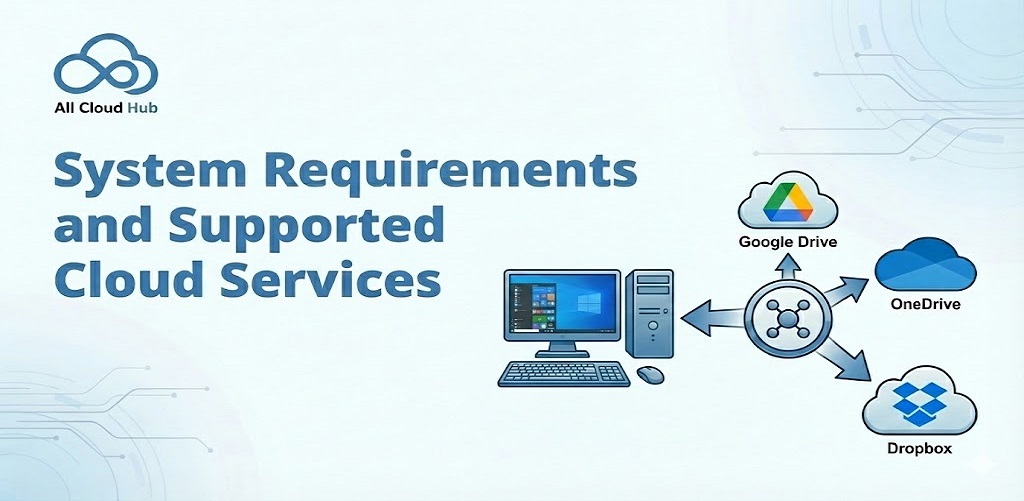
This page explains what you need to use All Cloud Hub and which cloud storage services are currently supported.
If you are unsure whether your setup will work, this section should help clarify things.
Accessing All Cloud Hub
All Cloud Hub is currently available as a web application.
You can access it from any modern web browser. There are no specific browser restrictions, and no local software installation is required.
A mobile app is planned for the future.
Note
Because All Cloud Hub runs in the browser, you can access your files from any device without setting up local sync software.
Supported Cloud Storage Services
All Cloud Hub currently supports the following cloud storage providers:
- Google Drive
- Dropbox
- OneDrive
You can connect personal as well as business or workspace accounts for these services.
Additional cloud storage providers are planned, including pCloud, MEGA, and Proton Drive.
Connecting Cloud Accounts
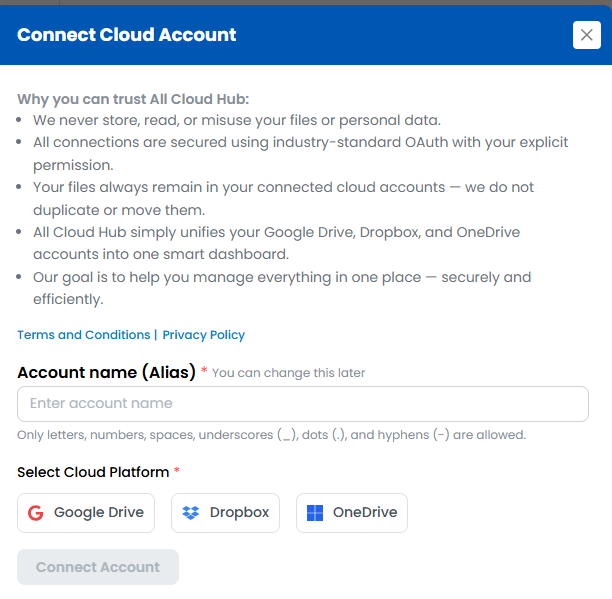
To use All Cloud Hub, you must connect at least one cloud storage account.
Cloud accounts are connected securely using OAuth. This allows you to sign in directly with the cloud provider and grant permission without sharing your password.
Write access is required so that All Cloud Hub can rename, organize, transfer, and sync files on your behalf.
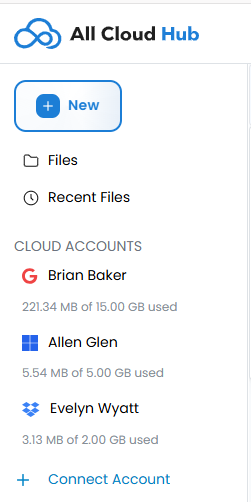
Connected accounts are listed under Cloud Accounts, and new accounts can be added using Connect Account.
Account Types Supported
All Cloud Hub supports:
- Personal cloud storage accounts
- Business and workspace cloud storage accounts
You can connect multiple accounts from the same provider or different providers, depending on your plan.
Plans and Limits
All Cloud Hub does not impose artificial limits on transfer bandwidth.
Transfers happen directly between your browser and the connected cloud services, without being permanently stored or throttled by All Cloud Hub servers.
Plan limits are based on the number of cloud storage accounts you can connect:
- Free plan allows up to three connected cloud accounts
- Power User plan allows unlimited connected cloud accounts
There are no limits based on file size imposed by All Cloud Hub itself.
Tip
If you work across multiple clients or projects, connecting all your cloud accounts early makes FilesVerse more effective from day one.
Permissions and Security
All Cloud Hub only accesses the permissions required to provide its features.
Files remain stored in their original cloud storage accounts at all times. All Cloud Hub does not store file contents. Only the minimum required file metadata is handled temporarily over a secure connection to display details and perform operations. Files are not downloaded unless you explicitly choose to.
You can disconnect any cloud account at any time. Once disconnected, All Cloud Hub immediately loses access to that account and its files.
Temporary metadata is automatically cleared once the related task is completed or the account is disconnected.
What You Need to Get Started
To start using All Cloud Hub, you need:
- A supported web browser
- At least one supported cloud storage account
- Permission to authorize access to that account
Once connected, FilesVerse becomes your central workspace for managing files across all your cloud storage services.
In Summary
All Cloud Hub works with the cloud services you already use.
As long as you have a supported browser and at least one supported cloud storage account, you can start viewing, searching, organizing, transferring, and syncing files from one unified dashboard.