
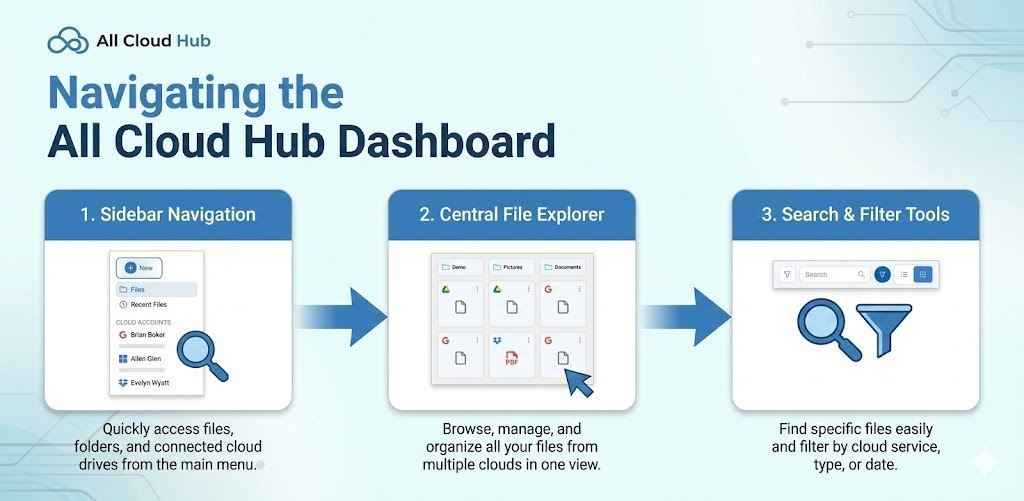
When you sign in to All Cloud Hub, you land directly on the Files view inside FilesVerse.
This screen acts as the main working area of the product. From here, you can browse files, access recent items, view connected cloud accounts, and start managing your files across clouds.
Overall Layout
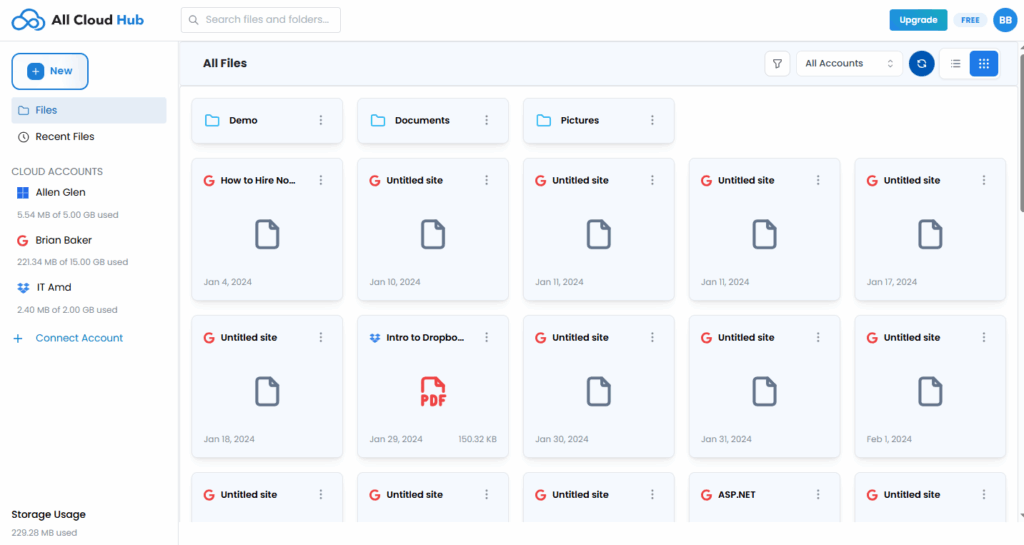
The dashboard is divided into three clear areas:
- A left sidebar for navigation and cloud account access
- A top bar for search and view controls
- The main content area where files and folders are displayed
This layout stays consistent as you move through the product.
Left Sidebar Navigation
The left sidebar helps you move between key sections without leaving your context.
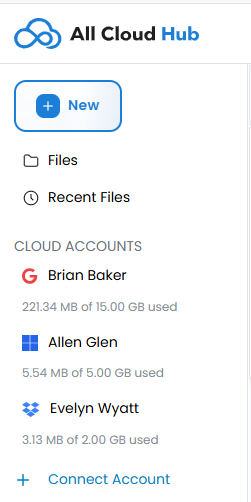
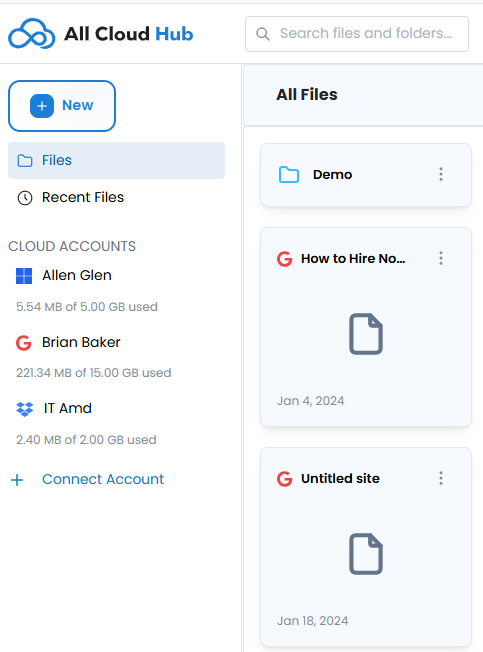
From the screenshot, the sidebar includes:
- Files This is the primary view where all files and folders are shown.
- Recent Files This view helps you quickly access files that were opened or updated recently.
Below this, you will see the Cloud Accounts section.
Cloud Accounts Section
The Cloud Accounts section lists all connected cloud storage accounts.
Each connected account appears with:
- The account name
- The cloud provider indicator
- Storage usage information
You can add a new cloud storage account using Connect Account, which is visible at the bottom of this section.
Note
Cloud Accounts are always visible from the dashboard. You do not need to navigate away from FilesVerse to see which accounts are connected.
Top Bar and Search
At the top of the dashboard, there is a search bar labeled “Search files and folders”.
This search is available from the Files view and allows you to look for files and folders across your connected cloud storage accounts.
To the right of the search bar, there are view and filter controls that affect how files are displayed in the main area.
Main File Area
The main content area displays files and folders from your connected cloud accounts.
By default:
- The heading shows All Files
- Items are displayed in a grid-style layout
- Folders and files appear together
- Each item includes a visual indicator of its source cloud
You can click into folders to navigate deeper into their structure.
View Controls
The dashboard includes controls that let you adjust how files are displayed.
From the screenshot, users can:
- Switch between different view layouts
- Filter files by connected accounts using the All Accounts dropdown
These controls help narrow or broaden what you see without changing where files are stored.
Staying Oriented
The dashboard is designed so that:
- FilesVerse is always the main working view
- Cloud account information is always visible
- Search is always accessible
- Navigation does not interrupt file browsing
This makes it easy to explore and manage files without losing track of where you are.
In Summary
The All Cloud Hub dashboard brings together navigation, cloud accounts, and files into a single, consistent workspace.
FilesVerse is where you spend most of your time, with connected cloud accounts and search always within reach. The layout helps you move confidently between files, recent activity, and cloud accounts without switching tools.
Next:
Viewing Files from Multiple Clouds in One Place. How FilesVerse shows files from different cloud storage accounts together while keeping them clearly identifiable.