
Disconnecting a cloud account from All Cloud Hub removes it from FilesVerse, but it does not affect your actual files.
This guide explains how to disconnect an account, what happens immediately, and what does not happen when you do so.
Where to Disconnect a Cloud Account
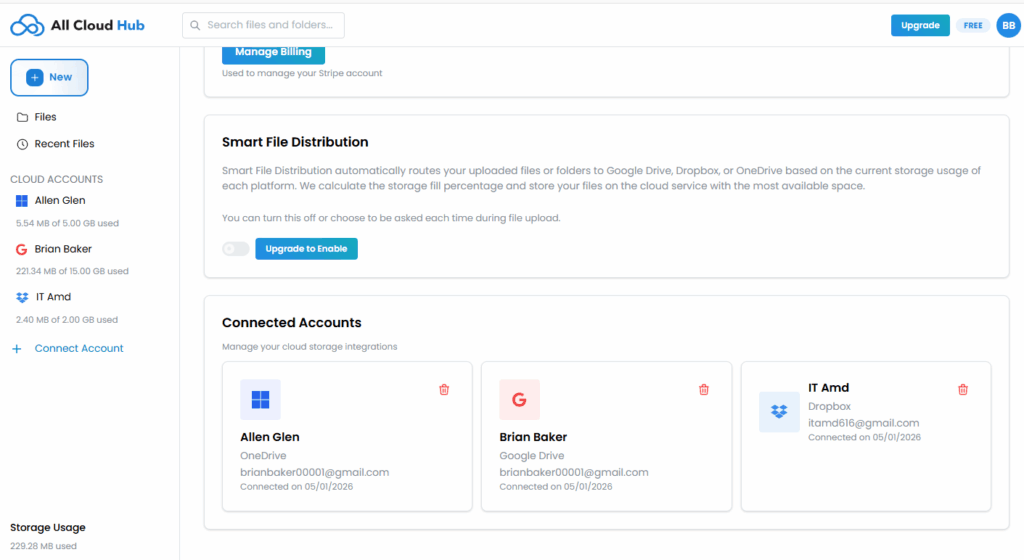
Cloud accounts are managed from the Cloud Accounts section in the All Cloud Hub dashboard.
Each connected account appears in the list along with its provider icon and account alias. A Delete or disconnect option is available for each account.
Disconnecting an Account
To disconnect a cloud account:
- Go to the Cloud Accounts section
- Locate the account you want to disconnect
- Click the Delete option
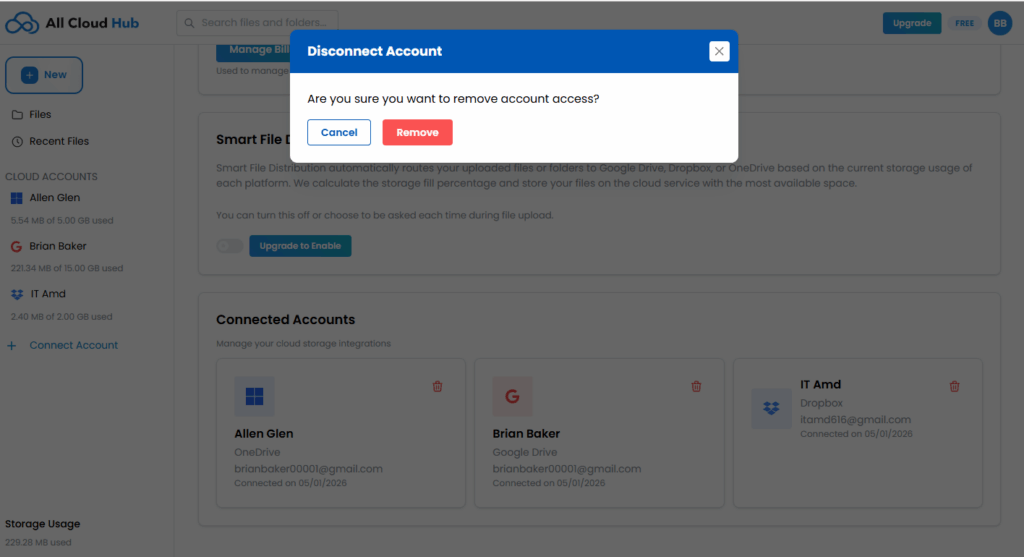
- Confirm the action in the confirmation dialog
A confirmation message is shown before the account is disconnected.
Warning
Disconnecting an account removes it immediately from All Cloud Hub. Make sure you no longer need access to its files in FilesVerse before confirming.
What Happens After You Disconnect
Once the account is disconnected:
- Files from that account disappear immediately from FilesVerse
- All Cloud Hub loses access to the cloud account
- Transfers or actions related to that account stop
This happens right away after confirmation.
What Does Not Happen
Disconnecting a cloud account does not:
- Delete any files from the cloud provider
- Modify files or folders in the cloud account
- Affect other connected cloud accounts
Your files remain exactly as they were in Google Drive, OneDrive, or Dropbox.
Note
Disconnecting an account only affects visibility and access inside All Cloud Hub. It does not change anything inside the cloud storage service itself.
Reconnecting an Account Later
You can reconnect the same cloud account at any time.
To reconnect:
- Click Connect Account
- Add an account alias
- Select the cloud provider
- Complete the authorization flow again
There is no limit on how many times an account can be connected or disconnected, as long as you stay within your plan’s total account limit.
If Something Goes Wrong
If an account was disconnected accidentally, simply reconnect it using Connect Account.
If a connection attempt fails:
- The account is not added
- An error message is shown
- You can retry the process immediately
In Summary
Disconnecting a cloud account from All Cloud Hub is safe and reversible.
Files disappear from FilesVerse, but they remain untouched in the cloud provider. Other connected accounts continue to work as expected, and you can reconnect the same account whenever you need.