
This guide explains how to connect a Dropbox account to All Cloud Hub.
Once connected, files and folders from your Dropbox account begin appearing inside FilesVerse, where you can manage them alongside files from other connected cloud storage accounts.
Before You Start
Before connecting Dropbox, make sure:
- You have a Dropbox account
- You are signed in to All Cloud Hub
- You are within your plan’s account limit
- Free plan allows up to three connected cloud accounts
- Power User plan allows unlimited connected accounts
Step 1: Open the Connect Account Screen
From the All Cloud Hub dashboard, go to the Cloud Accounts section.
Click Connect Account to open the cloud selection screen.
Step 2: Add an Account Alias
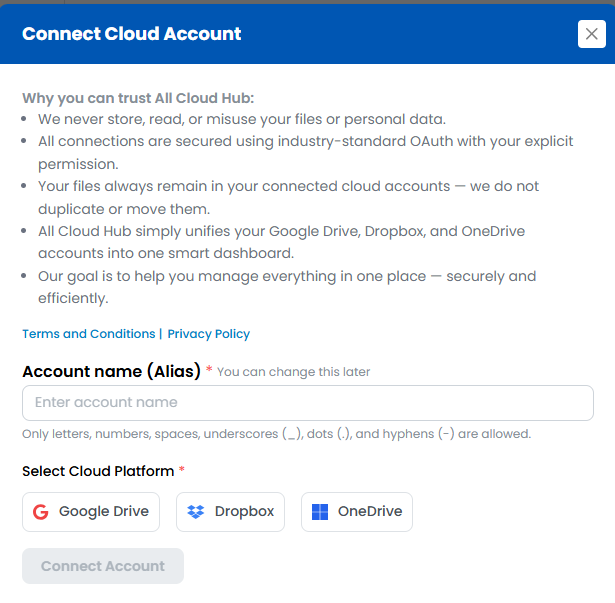
To connect Dropbox, you must first enter an Account Alias.
The Account Alias is a nickname that helps you identify this Dropbox account inside All Cloud Hub. This is useful if you connect more than one Dropbox account.
Examples include:
- Personal Dropbox
- Client Dropbox
- Team Dropbox
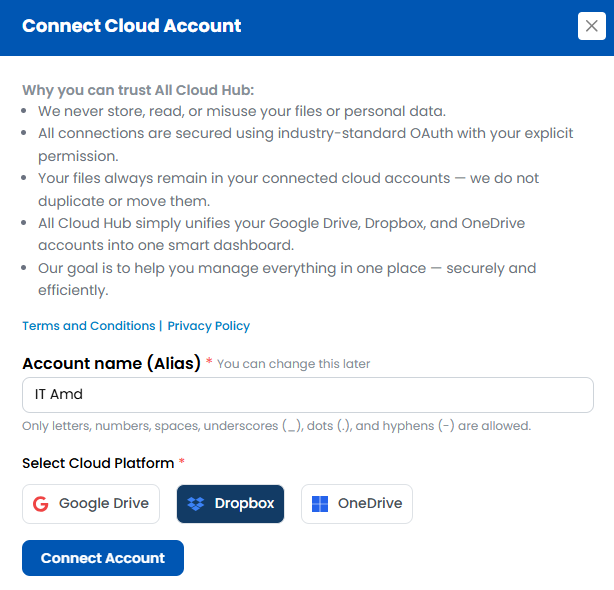
After entering the alias, select Dropbox as the cloud platform.
The Connect Account button becomes active once both fields are filled.
Tip
Choose an alias that clearly describes how you use this Dropbox account. The alias appears throughout FilesVerse and Cloud Accounts.
Step 3: Sign In to Dropbox
Click Connect Account.
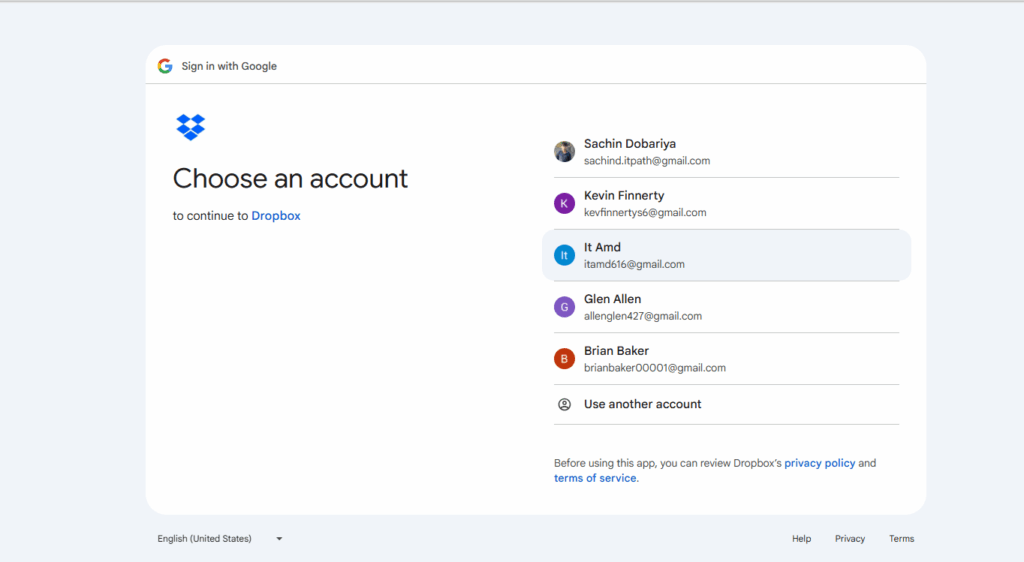
You are redirected to the Dropbox sign-in page. Sign in using the Dropbox account you want to connect.
If you are already signed in to multiple Dropbox accounts, Dropbox will ask you to choose the account to authorize.
Step 4: Grant Permissions
Dropbox will ask you to grant permissions so All Cloud Hub can work with your files.
These permissions allow All Cloud Hub to access required file information and perform actions you choose, similar to other supported cloud providers. They are required so you can:
- View files and folders
- Rename and organize files
- Copy or move files
- Transfer files between cloud storage accounts
- Sync folders across clouds
All actions are performed only when you initiate them inside All Cloud Hub.
Note
All Cloud Hub does not access files in the background or make changes without your action. File metadata is handled securely and removed automatically once tasks are completed or the account is disconnected.
Step 5: Return to FilesVerse
After approving the permissions, you are redirected back to FilesVerse.
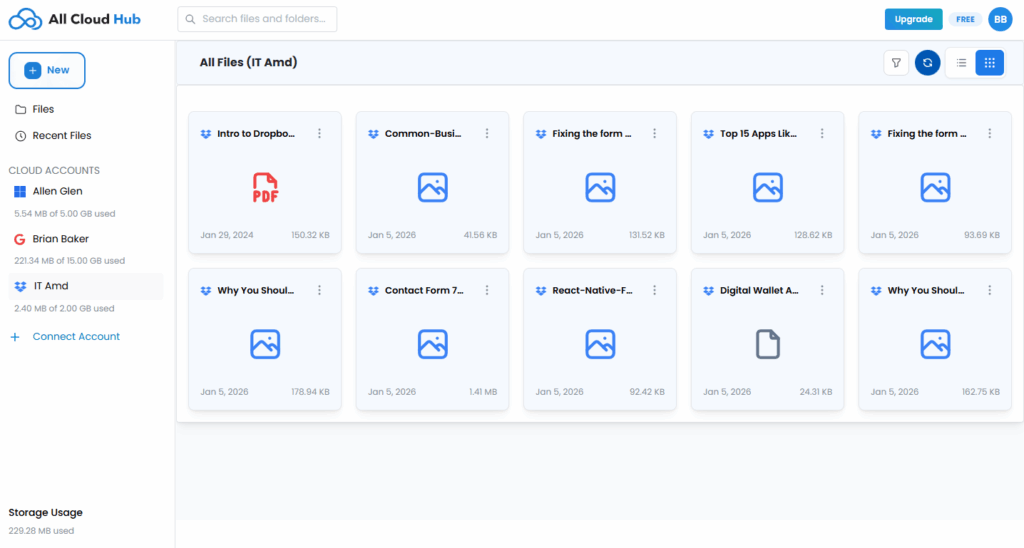
There is no success message. Your Dropbox account is connected automatically, and its files and folders begin appearing in the dashboard.
The connected Dropbox account is listed under Cloud Accounts, identified by:
- The Dropbox icon
- The Account Alias you provided
What Happens Next
Once connected, you can immediately:
- View Dropbox files alongside files from other cloud accounts
- Search Dropbox files using FilesVerse search
- Rename and organize files directly from the dashboard
- Transfer files between Dropbox and other connected clouds
All files remain stored in your Dropbox account. All Cloud Hub temporarily handles only the required file metadata to display details and perform actions, and does not store file contents.
If the Connection Fails
If the browser is closed during sign-in, or if permission is denied, the connection is not established.
In this case:
- The Dropbox account is not added
- You can retry the connection using Connect Account
An error message is shown if the connection fails.
In Summary
Connecting Dropbox to All Cloud Hub requires adding an account alias, selecting Dropbox, and approving access through Dropbox.
Once connected, your Dropbox files appear in FilesVerse automatically and can be managed alongside your other cloud storage accounts.
Next:
What Permissions All Cloud Hub Requests (and Why).