
Your laptop dies, ransomware encrypts your files, or you accidentally delete something you can’t get back. With ransomware attacks up 45% in 2025, these scenarios are more common than ever -but preventable if you’re using a dedicated cloud backup service rather than relying on basic cloud storage.
We tested the leading options to find which services actually deliver on their promises. Below, you’ll find our ranked picks, how each one handles security and pricing, and guidance on choosing the right fit for your situation.
Our top picks at a glance
A hard drive fails – at a 1.36% annual rate per Backblaze data – ransomware locks your files, or you accidentally delete something important.
In 2026, dedicated cloud backup services prevent all three scenarios better than basic cloud storage ever could.
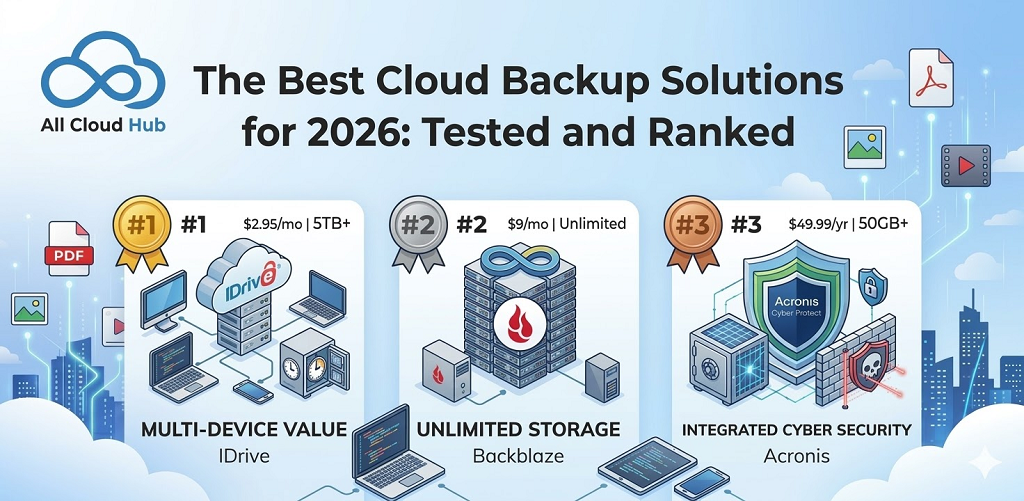
IDrive ranks as the best overall option, offering multi-device protection with strong security at a reasonable price.
Backblaze wins for unlimited storage without capacity limits, and Acronis leads when security matters most.
| Service | Best For | Starting Price | Storage | Key Feature |
|---|---|---|---|---|
| IDrive | Overall value | $2.95/month | 5TB+ | Multi-device backup |
| Backblaze | Unlimited storage | $9/month | Unlimited | Set-and-forget simplicity |
| Acronis | Security | $49.99/year | 50GB+ | Ransomware protection |
| Carbonite | Speed | $6/month | Unlimited | Fast reliable transfers |
| SpiderOak ONE | Privacy | $6/month | 150GB+ | Zero-knowledge encryption |
| Arq Premium | Budget users | $49.99/year | BYO storage | Use existing cloud accounts |
Best cloud backup service overall
IDrive backs up computers, phones, external drives, and NAS devices under a single account. What sets it apart is snapshot-based disaster recovery, which lets you restore your entire system to a specific point in time rather than just grabbing individual files.
The service also includes file syncing, so you get real-time access alongside scheduled backups.
Pros
- Multi-device coverage: Unlimited devices including mobile and NAS under one subscription
- Hybrid backup: Combines cloud storage with local backup to an external drive
- File syncing included: Real-time sync runs alongside scheduled backups
- Competitive pricing: Lower cost per terabyte than most alternatives
Cons
- Slow initial upload: First backup can take several days with large data sets
- Dense interface: More settings and options than casual users might want
Who this service fits
IDrive works well if you want one subscription covering your laptop, phone, and external drives without paying separately for each device.
Best cloud backup for small business
Acronis Cyber Protect does two jobs at once. It backs up your files while actively scanning for ransomware and malware during the upload process. For businesses handling client data or working in regulated industries, this combination matters – IBM reports breaches average $4.44 million per incident.
Pros
- Integrated security: Backup and threat protection in one tool
- Compliance-ready: Supports GDPR and HIPAA requirements
- Centralized control: Manage multiple machines from a single dashboard
Cons
- Premium pricing: Costs more than consumer-focused services
- Steeper learning curve: The feature-rich interface takes time to navigate
Who this service fits
Small teams that handle sensitive client information and want backup plus threat protection without juggling separate tools.
Best budget cloud backup solution
Arq Premium flips the typical model. Instead of selling you storage, it lets you use cloud accounts you already pay for – Google Drive, Dropbox, OneDrive – as backup destinations. You get proper backup software with versioning and encryption at roughly half the cost of traditional services.
Pros
- Lower total cost: One annual fee without separate storage charges
- Use what you have: Works with cloud storage you already own
- Client-side encryption: Files encrypted before they leave your computer
Cons
- More setup required: Configuration takes longer than plug-and-play options
- Depends on third parties: Your backup relies on another provider’s uptime
Who this service fits
If you’re comfortable with a bit of technical setup and already pay for cloud storage elsewhere, Arq lets you turn that existing space into a proper backup system.
Best cloud backup for unlimited storage
Backblaze built its entire approach around simplicity. You pay a flat monthly fee, install the software, and let it run. No storage caps, no overage charges, no decisions about what to include or exclude.
Pros
- No capacity limits: Back up as much data as you have
- Flat-rate pricing: One predictable monthly cost
- Hands-off operation: Continuous backup runs automatically in the background
Cons
- One computer per license: Each machine requires its own subscription
- 30-day version history: File versions expire after a month by default
- Computers only: No mobile device backup
Who this service fits
Video editors, photographers, and anyone with terabytes of data who wants simple, unlimited backup without worrying about hitting storage limits.
Best free cloud backup service
Several providers offer free tiers that handle light backup needs. IDrive includes 10GB free, and Icedrive offers similar entry-level options. These free plans include versioning and scheduled automation, which puts them ahead of simply copying files to Google Drive manually.
Pros
- Zero cost: Test a service before spending money
- Basic automation: Scheduled backups run without manual effort
Cons
- Storage caps: Usually limited to 5-10GB
- Throttled speeds: Free tiers often run slower than paid plans
- Fewer features: May lack versioning or mobile apps
Who this service fits
Personal users with minimal data or anyone wanting to try a service before committing to a paid plan.
Best online cloud backup for speed
Carbonite delivers consistent upload and download performance without demanding attention. The software runs quietly in the background while keeping your files protected.
Pros
- Steady transfer speeds: Reliable performance during backup and restore
- Background operation: Runs without interrupting your work
- Simple interface: Easy to understand and configure
Cons
- Tiered pricing: External drive backup requires a higher plan
- Windows-focused: macOS support is more limited
Who this service fits
Users who prioritize reliable, fast backup performance for everyday personal files.
Best cloud backup for privacy and security
SpiderOak ONE uses zero-knowledge encryption, which means the company cannot access your data even if legally compelled to do so. You hold the only decryption key, and SpiderOak never sees it.
Pros
- End-to-end encryption: Data encrypted on your device before upload
- Zero-knowledge design: The provider cannot decrypt your files
- Minimal metadata: No-logs policy limits what the company retains
Cons
- Higher price: Privacy features add to the cost
- Slower performance: Encryption processing adds overhead
- Less intuitive: The interface prioritizes security over ease of use
Who this service fits
Journalists, legal professionals, and anyone handling sensitive data who wants maximum confidentiality with no provider access.
How to choose a cloud backup service
With the options laid out, here’s how to figure out which one fits your situation.
Storage capacity and pricing
Some services charge per terabyte while others offer unlimited storage for a flat rate. IDrive typically delivers the best price-per-terabyte value. Backblaze wins if you have massive amounts of data and want predictable costs.
Backup types and device support
Two backup approaches exist, and understanding the difference helps you pick the right service:
- File-level backup: Protects selected files and folders you choose
- Image-level backup: Creates a complete system snapshot for full disaster recovery
Look for services that cover multiple computers, smartphones, and external drives under one account if you have several devices.
Security and encryption standards
Strong backup services use AES-256 encryption for stored data and TLS 1.3 for data in transit. Zero-knowledge encryption goes further—only you hold the decryption key, so even the provider cannot read your files.
What is cloud backup and how does it work
Cloud backup automatically copies your files to secure remote servers over the internet. You install software, select what to protect, and the service handles everything else. An initial full backup runs first, then incremental backups capture only the changes going forward.
This differs from manually dragging files into Google Drive. Dedicated backup services include versioning (keeping multiple file versions), scheduling, and disaster recovery features that basic cloud storage lacks.
Cloud backup vs cloud storage vs cloud sync
These three terms get mixed up constantly, but they serve different purposes.
| Feature | Cloud Backup | Cloud Storage | Cloud Sync |
|---|---|---|---|
| Purpose | Disaster recovery | File access anywhere | Real-time mirroring |
| Versioning | Yes, multiple versions | Limited or none | Usually none |
| Automation | Fully automatic | Manual uploads | Automatic |
| Examples | IDrive, Backblaze | Google Drive, Dropbox | OneDrive sync |
Cloud sync mirrors folders across devices in real-time, including deletions and ransomware encryption. That’s not true backup—if a file gets corrupted on one device, the corruption spreads everywhere.
Most users benefit from both: cloud storage for daily access and sharing, plus dedicated backup for protection and recovery.
The 3-2-1 backup rule explained
The 3-2-1 rule offers a simple framework for reliable data protection:
- 3 copies: Your original file plus two backups
- 2 media types: A local drive plus cloud storage
- 1 offsite: At least one copy stored in a different physical location
Cloud backup automatically satisfies the offsite requirement by storing a copy in a remote data center, far from your home or office.
Managing backups across multiple cloud services
Many users already have files scattered across Google Drive, Dropbox, and OneDrive. Managing backups gets complicated when you can’t see everything in one place. You might have important documents in three different accounts with no clear picture of what’s actually protected.
Tools like All Cloud Hub let you search and view files across all your cloud accounts from a single dashboard. You can identify gaps in your backup coverage without moving files or switching providers. The connection uses OAuth 2.0, so you sign in directly through each cloud provider—All Cloud Hub never sees your passwords and never stores your files.
FAQs about cloud backup services
What is the difference between cloud backup and cloud storage services like Google Drive?
Cloud backup automatically protects files with versioning and disaster recovery. Cloud storage provides manual file hosting for access and sharing, but without automatic protection or multiple file versions.
How much does 1TB of cloud backup typically cost?
Pricing varies widely. Some providers charge $50-100 annually per terabyte, while others offer unlimited storage for around $9 per month.
Can I access my backed-up files from any device?
Most cloud backup services offer web portals and mobile apps, so you can access backed-up files from anywhere with an internet connection.
How do I avoid paying for duplicate storage across multiple cloud services?
A multi-cloud manager helps you see all your files in one place. You can spot redundant copies before they inflate your storage costs across providers.