January 2026 - All Cloud Hub

Did All Cloud Hub Delete or Change My Files?

No.

All Cloud Hub does not delete or modify files unless you explicitly perform an action such as move, rename, or delete.

If something looks different:

  • Check whether a file was moved instead of copied
  • Check the destination cloud account
  • Review recent actions you performed

Note

Files always remain under the control of the cloud storage provider.

When to Contact Support

You may want to contact support if:

  • An error persists after retrying
  • A connected account cannot be reconnected
  • Sync behavior does not match expectations

Providing details such as the action performed and the cloud provider involved helps resolve issues faster.

In Summary

Most issues in All Cloud Hub are caused by connection state, filters, or external cloud provider limits.

Files remain safe, actions are user-controlled, and most problems can be resolved by reconnecting accounts or retrying the operation.

Common Error Messages Explained

Some errors may appear while connecting accounts, transferring files, or syncing folders.

Authorization Failed

This error appears when permission is denied during account connection.

What to do:

  • Restart the connection using Connect Account
  • Make sure you approve the requested permissions

Transfer Failed

This error can occur if:

  • The browser session was interrupted
  • Network connectivity dropped
  • Cloud provider rate limits were reached

What to do:

  • Check your connection
  • Retry the transfer
  • Review the destination cloud to avoid duplicate files

Account Disconnected

This message appears when a cloud account is no longer accessible.

What to do:

  • Reconnect the account using Connect Account
  • Confirm permissions during authorization

In Summary

Most errors are recoverable by reconnecting accounts or retrying actions. Errors do not delete files or change cloud storage contents.

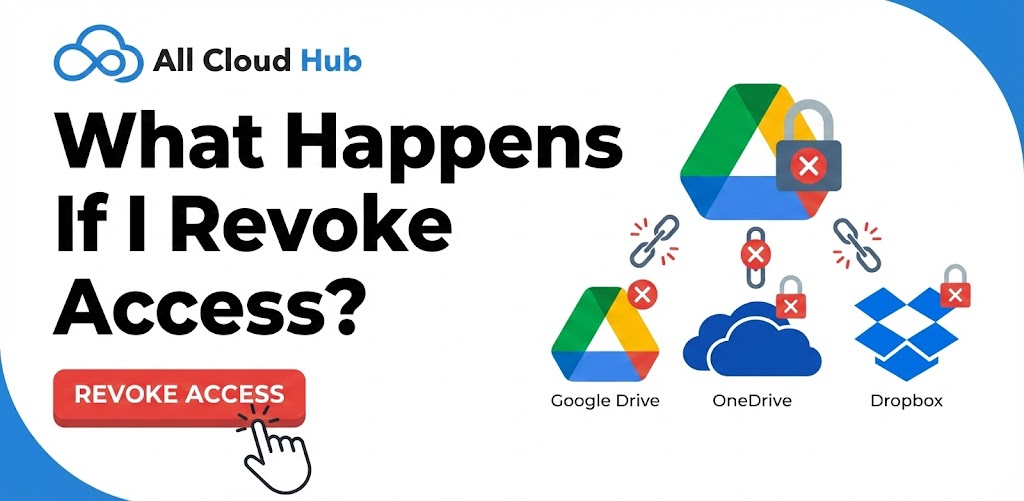
What Happens If I Revoke Access?

Revoking access immediately stops All Cloud Hub from accessing your cloud account.

If You Disconnect from All Cloud Hub

If you disconnect a cloud account from the Cloud Accounts section:

  • Files from that account disappear from FilesVerse
  • All Cloud Hub loses access immediately
  • No files are deleted or modified in the cloud provider

If You Revoke Access from the Cloud Provider

If you revoke access directly from Google Drive, OneDrive, or Dropbox settings:

  • All Cloud Hub can no longer access that account
  • Errors may appear when trying to view or use those files
  • The account may need to be reconnected

Reconnecting the account restores access.

In Summary

Revoking access only affects visibility and access inside All Cloud Hub. Your files remain safe in the cloud provider.

Why Is a Transfer Slow?

Transfer speed depends on several factors that are outside All Cloud Hub’s control.

Common Reasons for Slow Transfers

Transfers may take longer if:

  • Files are large
  • There are many small files
  • The cloud provider applies rate limits
  • Network conditions are unstable

All Cloud Hub does not throttle or limit transfer speed.

Browser Session Matters

Transfers run in real time through your browser session.

Closing the browser tab or losing connection can slow down or interrupt a transfer.

Tip

For large transfers, keep the browser tab open until the transfer completes.

In Summary

Slow transfers are usually caused by file size, provider limits, or network conditions rather than All Cloud Hub itself.

Why Can’t I See My Files?

If you cannot see your files in FilesVerse, there are a few common reasons to check.

Check Connected Accounts

First, make sure the cloud storage account that contains your files is connected.

Go to the Cloud Accounts section and confirm the account is listed. If the account is not connected, its files will not appear in FilesVerse.

Check the Account Filter

At the top of FilesVerse, there is an All Accounts filter.

If this filter is set to a specific account, files from other connected accounts will be hidden. Switch the filter back to All Accounts to view files from all connected clouds.

Check Folder Navigation

If you are inside a specific folder, you may not be viewing the top level of your files.

Use folder navigation to move back to higher levels and confirm where your files are located.

Recently Connected Accounts

If you just connected a cloud account, it may take a short moment for files and folders to appear.

Wait briefly and refresh the view if needed.

In Summary

Most missing file issues are caused by filters, navigation, or disconnected accounts. Files are not deleted or hidden automatically.

Deleting Your Account

This article explains what happens if you choose to stop using All Cloud Hub.

Account Deletion Availability

At present, there is no self-serve option to delete your All Cloud Hub account directly from the dashboard.

If you wish to delete your account, you may need to contact support.

Note

Disconnecting cloud accounts removes access but does not delete your All Cloud Hub account.

What Happens to Connected Cloud Accounts

If your account is deleted:

  • All connected cloud accounts are disconnected
  • All Cloud Hub immediately loses access to those accounts
  • No files are deleted or modified in your cloud storage providers

Your files remain exactly as they are in Google Drive, OneDrive, or Dropbox.

Logging Out vs Deleting

Logging out ends your session but keeps your account active.

Deleting your account permanently removes your All Cloud Hub account and access to the dashboard.

In Summary

Account deletion removes your All Cloud Hub access but never affects your cloud storage files.

Notifications & Preferences

All Cloud Hub keeps settings and preferences simple so you can focus on managing files.

Notifications

At present, All Cloud Hub does not expose detailed notification preferences in the Profile section.

System messages and status updates are shown directly in the interface when relevant, such as during file transfers or connection issues.

Note

Notification options may expand in the future as more features are added.

Preferences

Preferences related to file handling and connected services appear under the Settings area of the Profile page.

These settings control how All Cloud Hub behaves for your account.

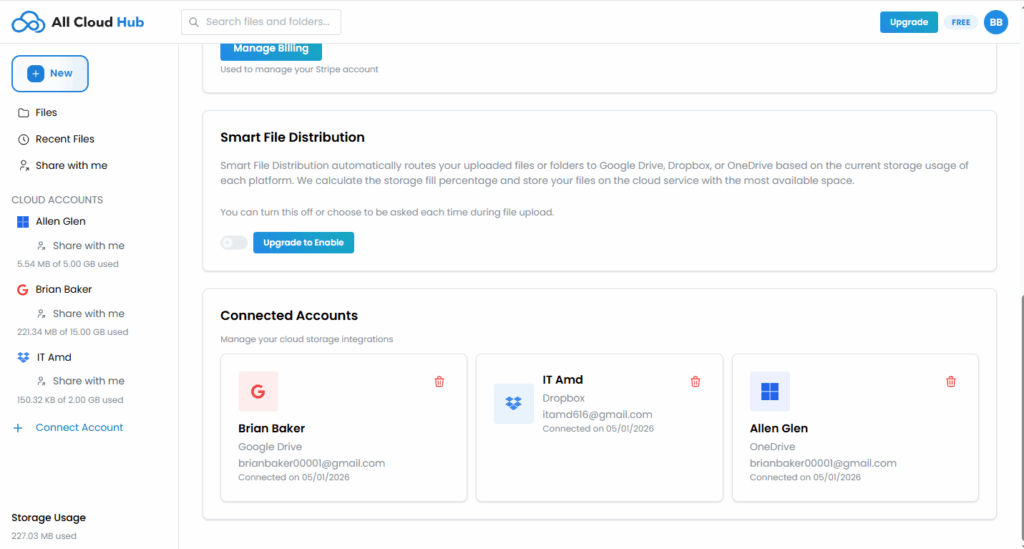
Smart File Distribution

The Smart File Distribution section describes an advanced feature that automatically routes uploaded files to connected cloud storage accounts based on available space.

If this feature is not enabled for your account, you will see an option to upgrade to access it.

Smart File Distribution section showing upgrade option

In Summary

Preferences and advanced features are managed from the Profile page, with clear indicators when a feature is not yet enabled.

Next: Deleting Your Account.

Subscription & Billing Basics

All Cloud Hub provides access to both free and paid features depending on your subscription status.

This article explains how subscription-related actions work without referencing specific prices.

Viewing Subscription Status

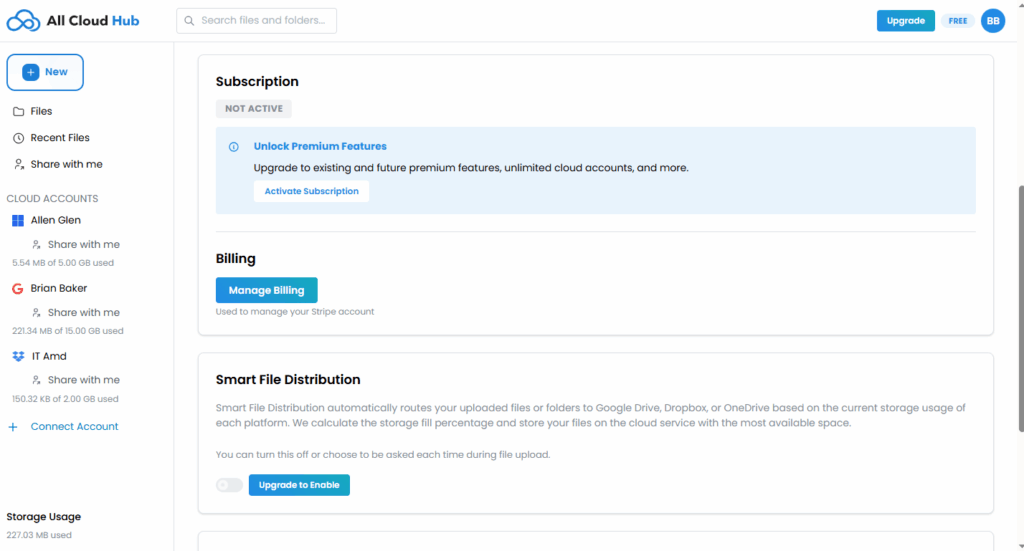
Your subscription status is visible in the Settings section of the Profile page.

If no subscription is active, this section indicates that premium features are not currently enabled.

Subscription section showing inactive status

Upgrading Your Plan

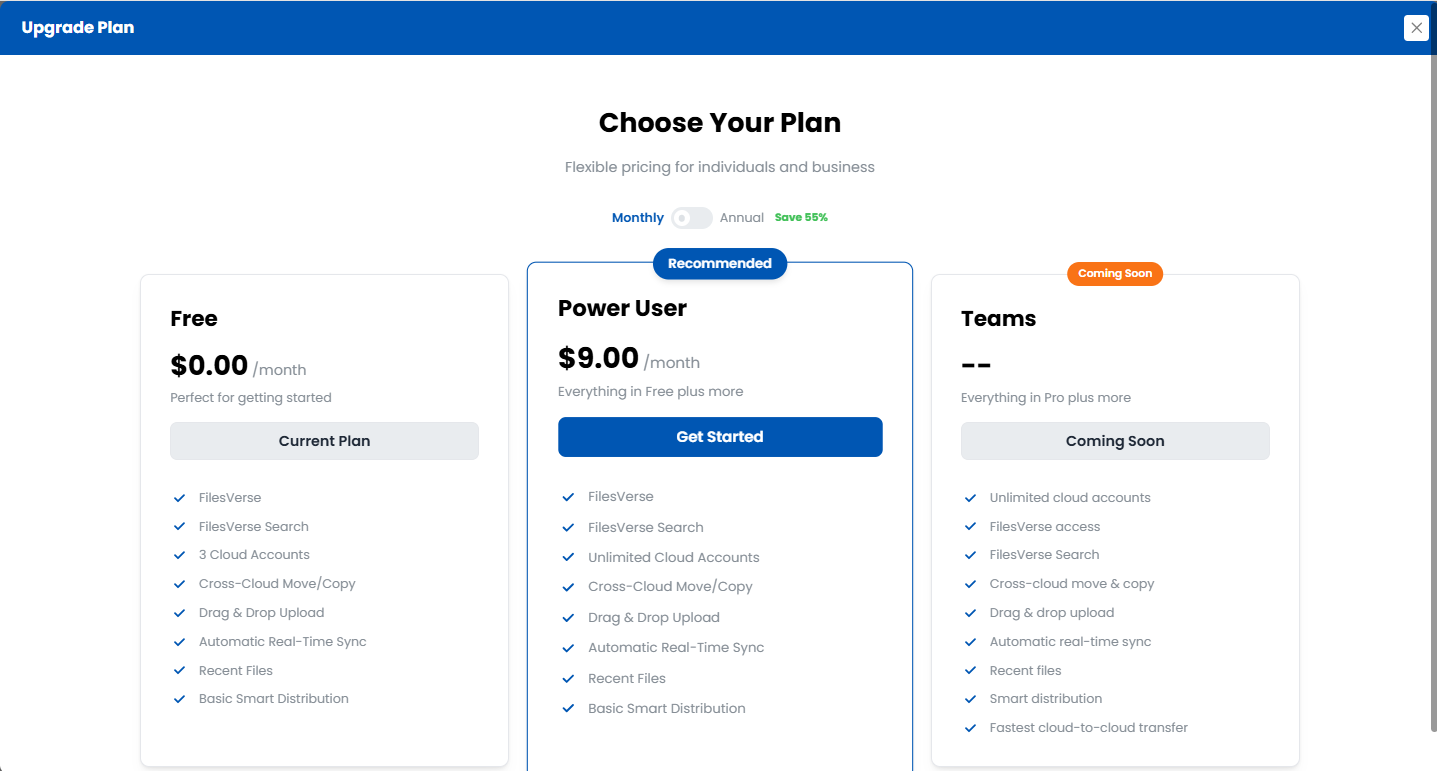
If you are on the Free plan, you will see an Upgrade option in the top-right corner of the dashboard.

Clicking Upgrade opens the plan selection screen, where you can choose a different plan.

The help center does not list plan prices, as they may change over time.

Upgrade plan screen

Note

Upgrading unlocks additional capabilities such as connecting more cloud accounts and accessing premium features.

Managing Billing

In the Billing section, you will find a Manage Billing option.

This takes you to the billing management interface where you can manage your subscription details.

Billing is handled securely through the payment provider.

In Summary

Subscription and billing options are accessible from your Profile page and the Upgrade button in the dashboard header.

Next: Notifications and Preferences.

Managing Your All Cloud Hub Account

Your All Cloud Hub account settings help you manage your profile details, connected services, and subscription access from one place.

All account-related options are available from your profile menu.

Accessing Your Account Settings

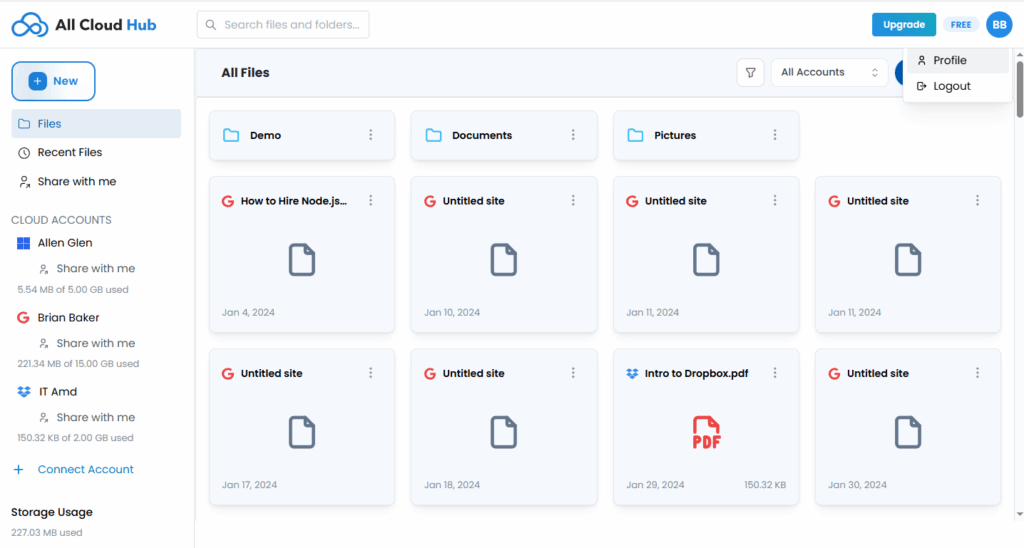
In the top-right corner of the dashboard, you will see an icon with your initials.

Clicking this icon opens a menu with the following options:

  • Profile
  • Logout

Select Profile to open your account and settings page.

Profile menu showing Profile and Logout options

Profile Details

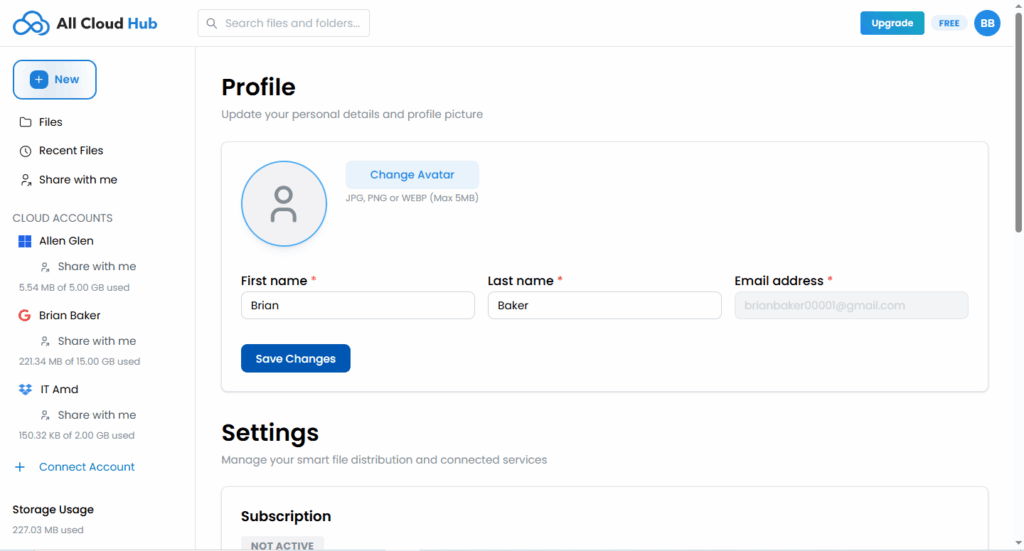
The Profile section allows you to manage your personal information.

From this page, you can:

  • Update your first name
  • Update your last name
  • View your email address
  • Change your profile avatar

After making changes, click Save Changes to apply them.

Profile details page with name fields and avatar option

Note

Your email address is shown for reference and cannot be edited from this page.

Logging Out

To sign out of All Cloud Hub:

  • Click your profile icon in the top-right corner
  • Select Logout

This logs you out of your current session safely.

In Summary

Your account profile lets you manage personal details and access account-level options from a single location.

Next: Subscription and Billing Basics.

Data Access, Logs & Privacy Controls

All Cloud Hub is designed to give you visibility into what happens to your files.

Nothing happens silently or without your awareness.

Data Access

All Cloud Hub accesses files only when you interact with them.

For example:

  • Opening a folder
  • Searching for a file
  • Transferring or syncing content

There is no background access or automated data processing.

Logs and Visibility

All Cloud Hub provides logs that show activity related to file actions and transfers.

Logs help you:

  • Understand what actions occurred
  • See whether operations completed successfully
  • Troubleshoot issues if something goes wrong

Logs do not contain file contents.

Privacy Controls

You control access at all times.

You can:

  • Disconnect any cloud account
  • Reconnect accounts when needed
  • Control how many accounts are connected based on your plan

Disconnecting an account immediately removes access and visibility inside All Cloud Hub.

Tip

If you ever feel unsure about access, disconnecting an account is the fastest way to stop it completely.

In Summary

All Cloud Hub gives you clear visibility and control over how your data is accessed and managed.

Files remain private, actions are user-initiated, and access can be revoked instantly.

Does All Cloud Hub Store My Files?

No. All Cloud Hub does not store file contents or create permanent copies of your data.

This is one of the most common questions users have, and the answer is simple.

Where Files Actually Live

All files shown in FilesVerse live in your connected cloud storage accounts.

All Cloud Hub does not upload files into its own storage or create permanent or hidden copies.

What All Cloud Hub Temporarily Handles

All Cloud Hub temporarily handles only the minimum file metadata required to display details and perform actions, such as:

  • File name
  • File path
  • File size

This metadata is used to show files correctly, track progress, and manage operations inside the dashboard.

Note

File contents are never stored or retained by All Cloud Hub.

Temporary Data

Any temporary metadata or session data used during active tasks is automatically cleared once the task is completed or the cloud account is disconnected.

In Summary

Your files always stay in your cloud storage accounts. All Cloud Hub does not store your files. It only temporarily handles limited metadata required for functionality, and removes it once tasks are completed.

Next: Data Access, Logs, and Privacy Controls.

OAuth Explained Simply

OAuth is the secure method used by cloud providers to allow third-party apps to access your account without sharing your password.

All Cloud Hub uses OAuth to connect to your cloud storage accounts safely.

What OAuth Means for You

When you connect a cloud account:

  • You are redirected to the cloud provider’s own login page
  • You sign in directly with that provider
  • You choose whether to grant access

Your password is never visible to or stored by All Cloud Hub.

What You Approve During OAuth

During the OAuth step, the cloud provider shows a list of permissions being requested.

These permissions allow All Cloud Hub to do things you explicitly choose to do, such as:

  • Viewing file lists and details
  • Organizing folders
  • Transferring files between clouds
  • Syncing folders

These permissions are used only to carry out actions you initiate, using temporary file metadata and secure connections.

Note

The wording on permission screens may differ between providers, but the purpose is the same.

Revoking OAuth Access

OAuth access can be revoked at any time.

When you disconnect a cloud account from All Cloud Hub, OAuth access is removed immediately and All Cloud Hub can no longer access that account.

In Summary

OAuth allows All Cloud Hub to work with your files securely without ever handling your password or taking ownership of your data. You stay in control of access at all times.

Next: Does All Cloud Hub Store My Files?